
A hacked hosting account means that someone gained unauthorized access to a part of your hosting environment. Depending on the type of compromise, attackers may modify website files, send spam emails, modify DNS, or upload malicious scripts to your hosting account.
In some cases, the issue affects only a single website. In others, it may impact your entire cPanel account, including email services and hosted domains. Because malicious activity can continue in the background even if your website appears online, it is important to investigate the issue and secure the account as soon as possible.
This guide explains the most common signs of a compromised hosting account and the steps you can take from your side to scan, restore, and secure your hosting environment.
Below are some of the most common signs customers notice before discovering a compromise.
If you notice one or several of these signs, continue reading the guide.
First of all, it is important to identify the scope of the compromise. It is recommended to scan the hosting account for malware and review the detected files carefully.
Below are the available malware scanning options depending on your hosting plan:
ImunifyAV is a malware scanner available in cPanel on Stellar, Stellar Plus, and Reseller Hosting plans. It can help detect suspicious or infected files inside your hosting account, including malicious scripts, phishing pages, backdoors, and other suspicious files commonly associated with compromised websites.
The tool can be accessed from cPanel >> Security section >> ImunifyAV.
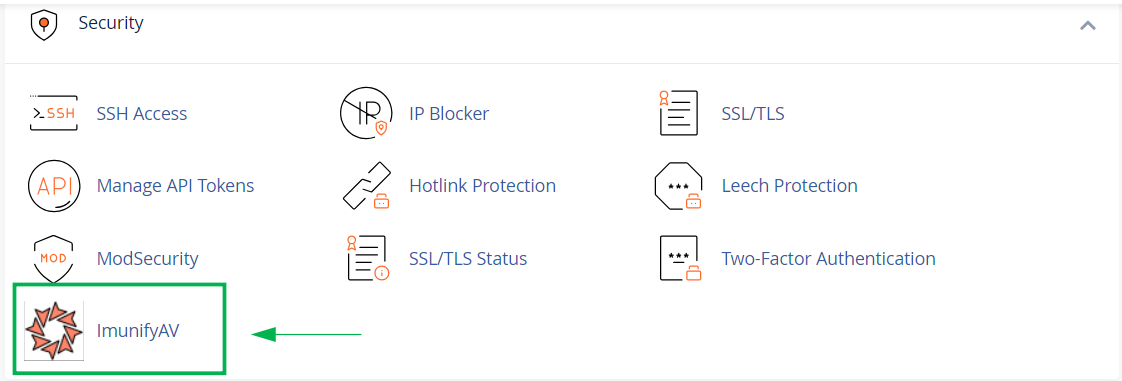
Starting a manual scan
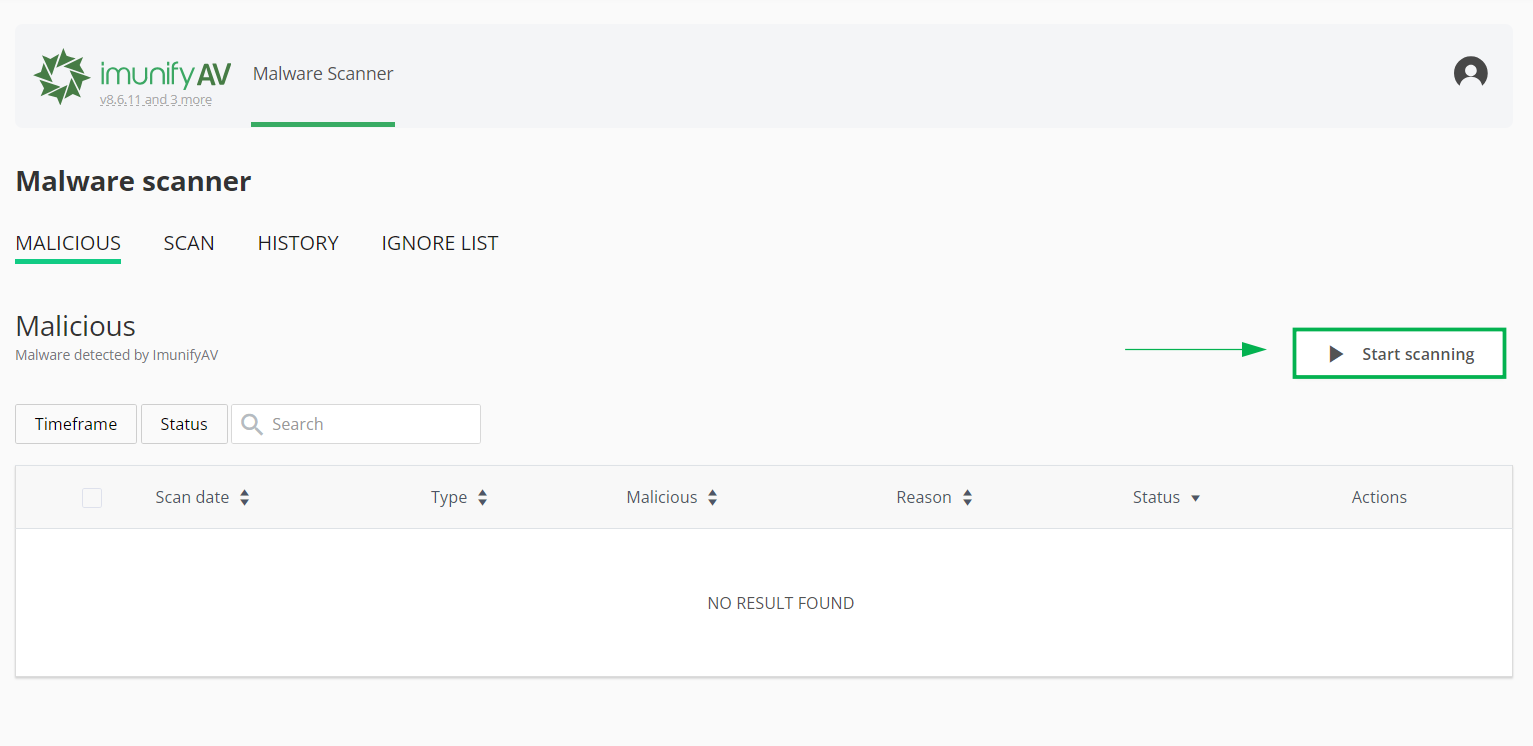
Reading your scan results
After the scan is completed, a list of all detected suspicious or infected files across your account can be found in the Malicious tab together with:
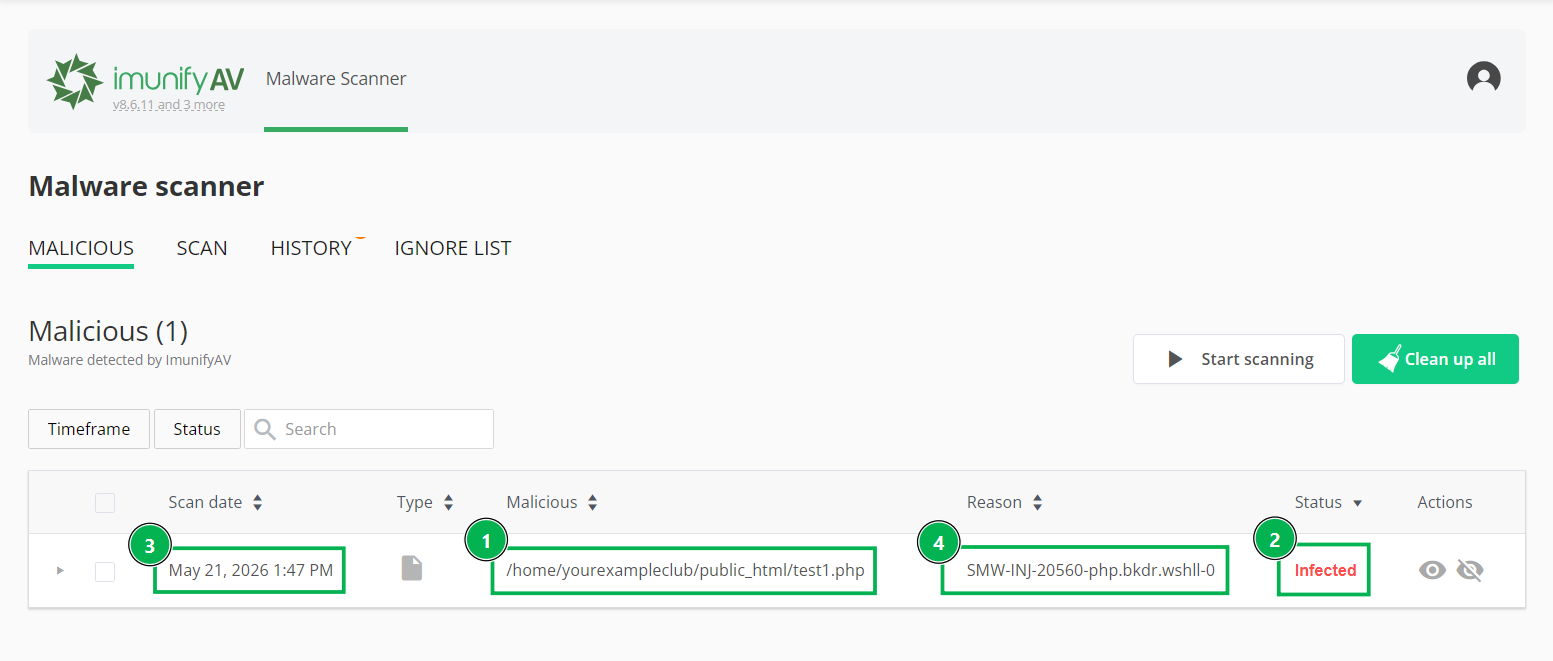
For additional information about the available ImunifyAV interface options and their usage, refer to our Imunify360 guide for Business Shared Hosting. The following sections may be especially helpful:
Important: Not all features described in the Imunify360 guide are available in ImunifyAV.
Tip: If you would like to understand why a file was flagged or review malware detection reasons in more detail, refer to the official Imunify Malware File Reasons Documentation.
After reviewing the scan results, proceed to the 'Additional checks and scanning methods' section.
Stellar Business hosting plans include Imunify360, an advanced malware protection and monitoring tool.
The tool can be accessed from cPanel >> Security section >> Imunify360.
Similarly to ImunifyAV, the tool can scan the hosting account for suspicious or infected files. In addition, Imunify360 includes:
Because Imunify360 includes additional functionality and interface options, refer to our dedicated Imunify360 guide for Stellar Business Hosting article for detailed instructions on managing the tool.
Tip: If you would like to understand why a file was flagged or review malware detection reasons in more detail, refer to the official Imunify Malware File Reasons Documentation.
After reviewing the scan results, proceed to the 'Additional checks and scanning methods' section.
Keep in mind that malware scanners may not detect all types of malicious activity automatically. For example, suspicious cron jobs, unauthorized accounts, or compromised local devices often require manual review.
For this reason, it is recommended to review the hosting account more broadly before proceeding with cleanup or restoration.
You can start with the following checks:
You can also consider additional scanning methods:
During manual file review, it is also important to recognize common signs of compromised files and suspicious modifications inside the hosting account.
When reviewing website files or backups, pay attention to the following indicators. Each indicator below includes an example screenshot, which you can expand for reference.
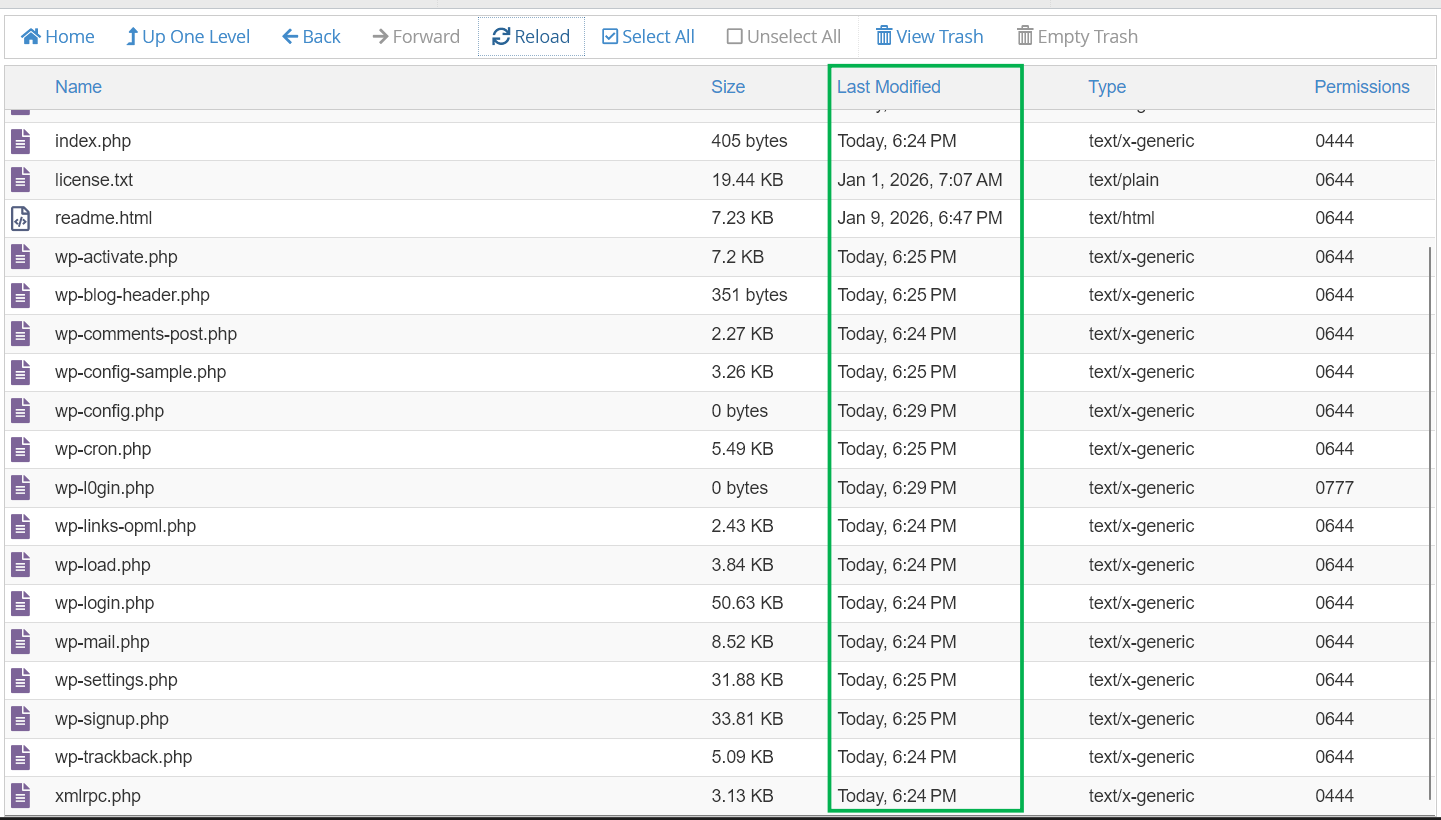
If many unrelated PHP files were modified around the same time, this may indicate automated malicious changes made during the compromise.
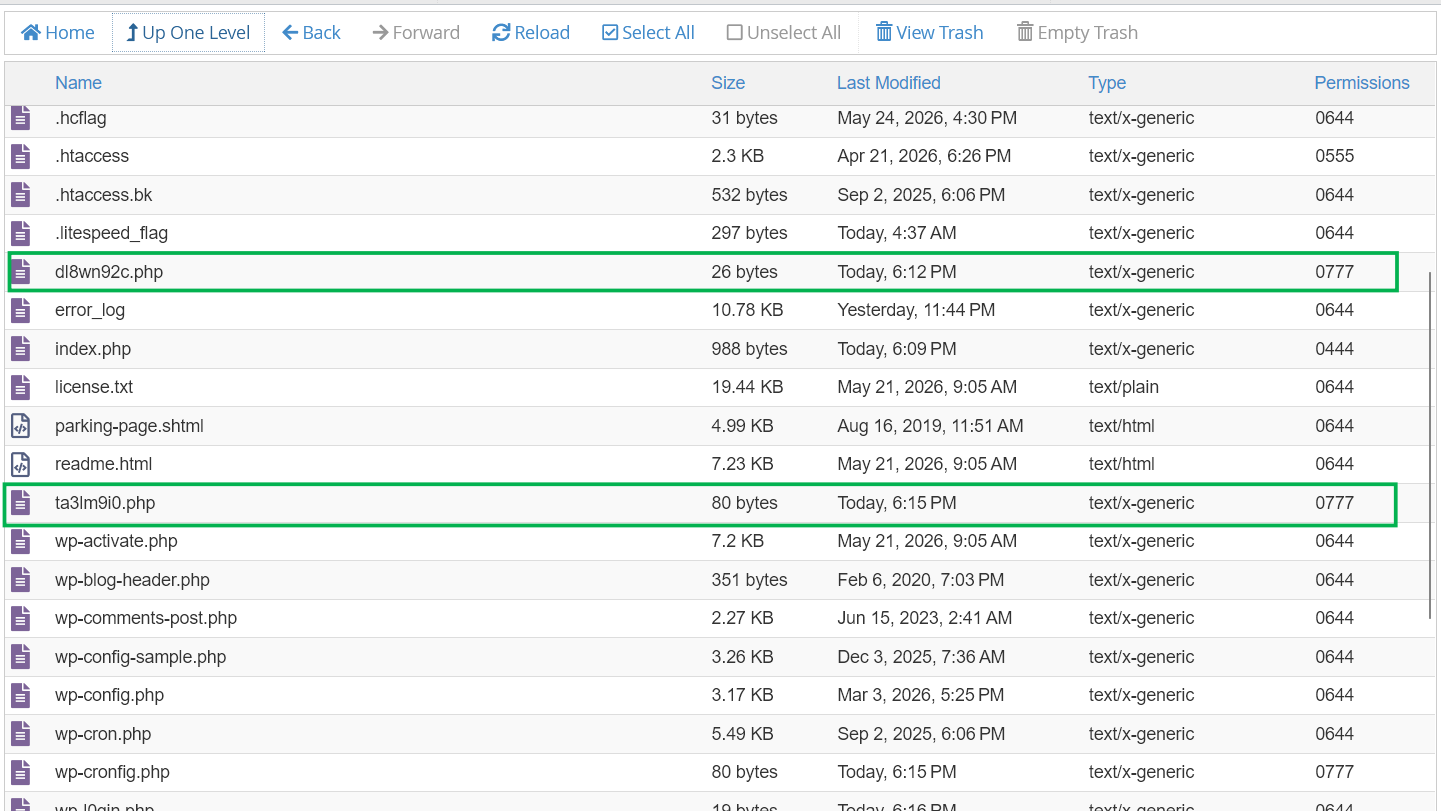
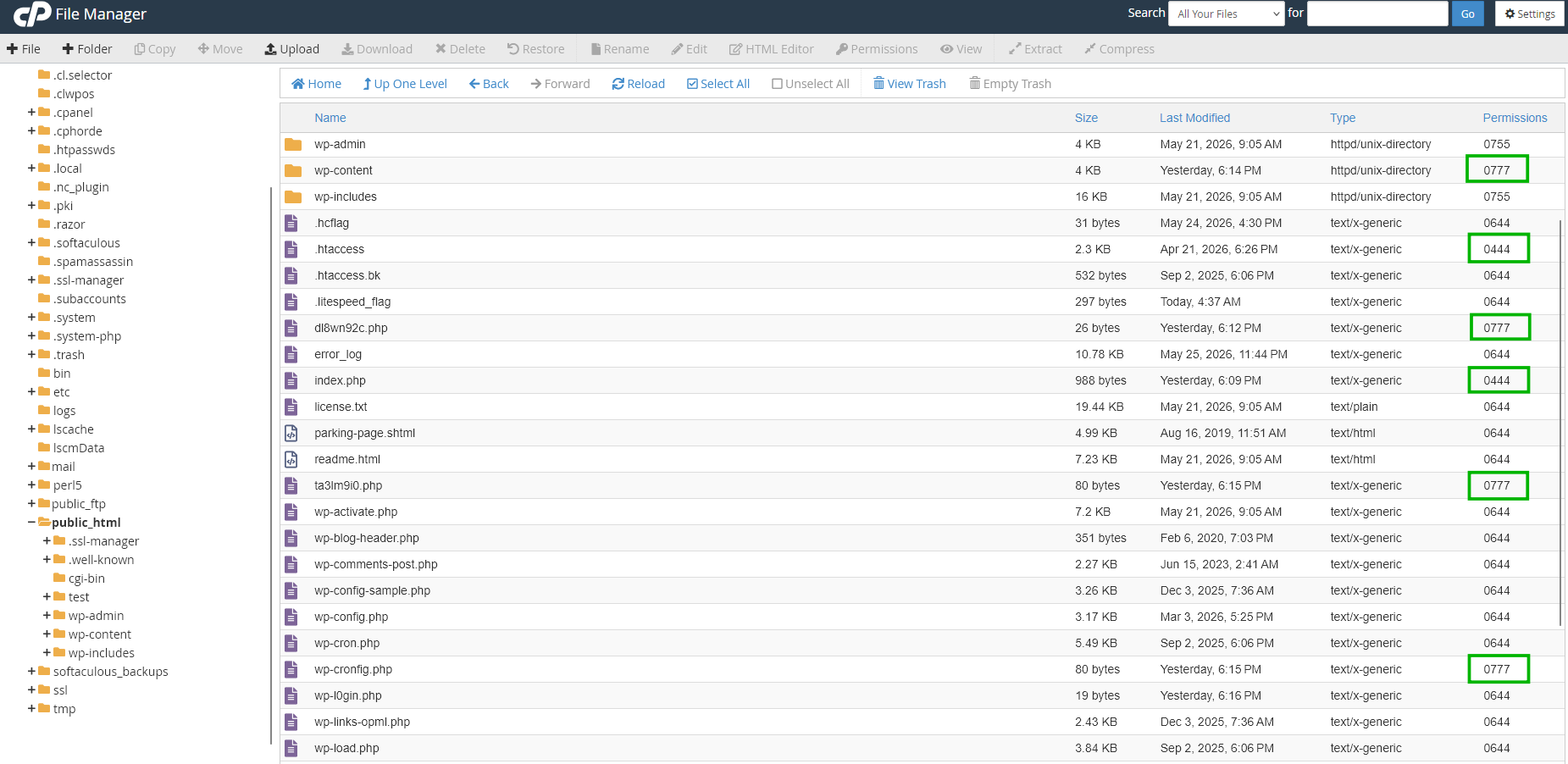
Malicious files often use random or misleading filenames to avoid detection. Examples: dl8wn92c.php, ta3lm9i0.php.
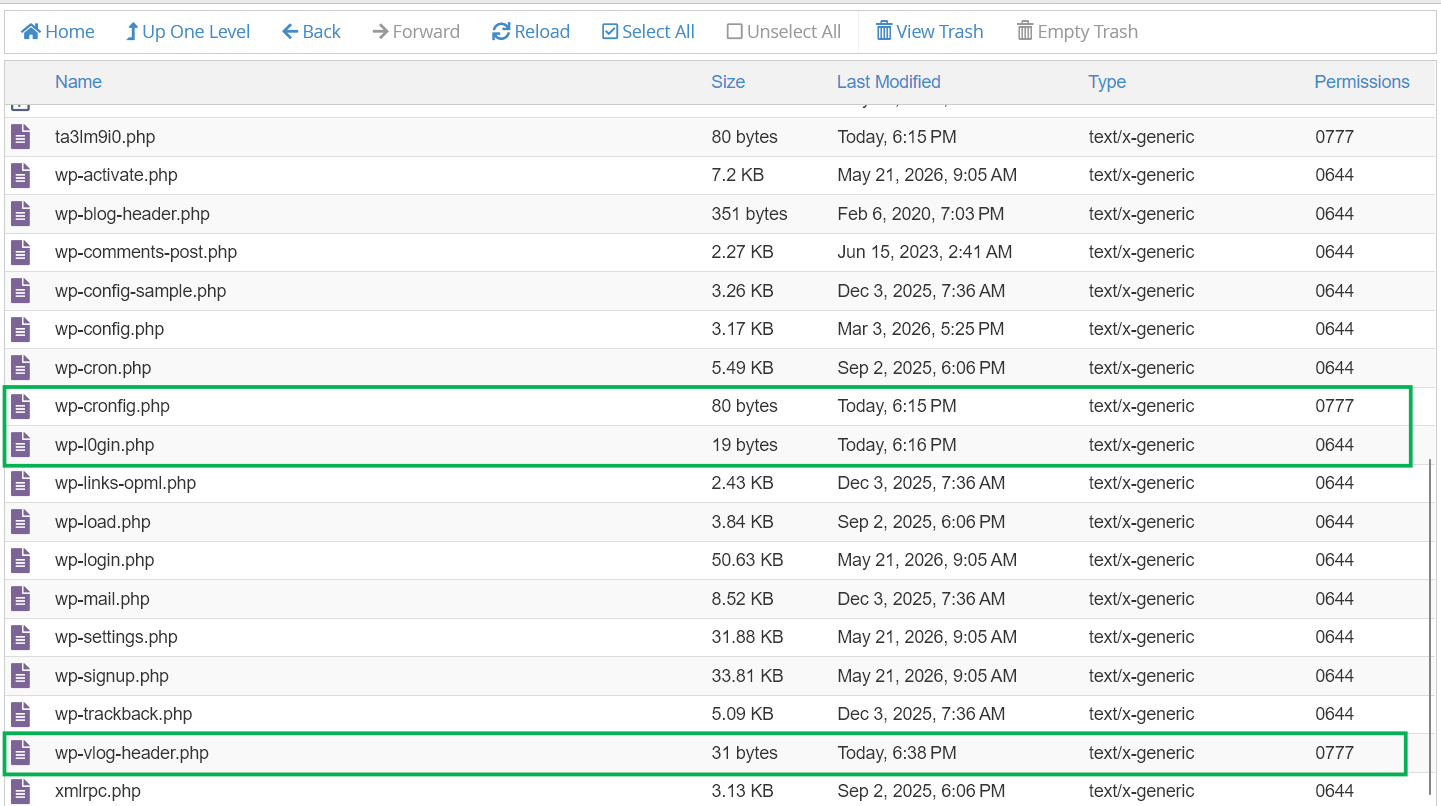
Attackers may create files with names similar to legitimate or administrative files in order to avoid attention. Examples: admin-new.php, wp-logln.php, wp-vlog-header.php, wp-cronfig.php.
Compromised hosting accounts may contain unauthorized PHP files distributed across multiple directories inside the account.
These files may appear inside:
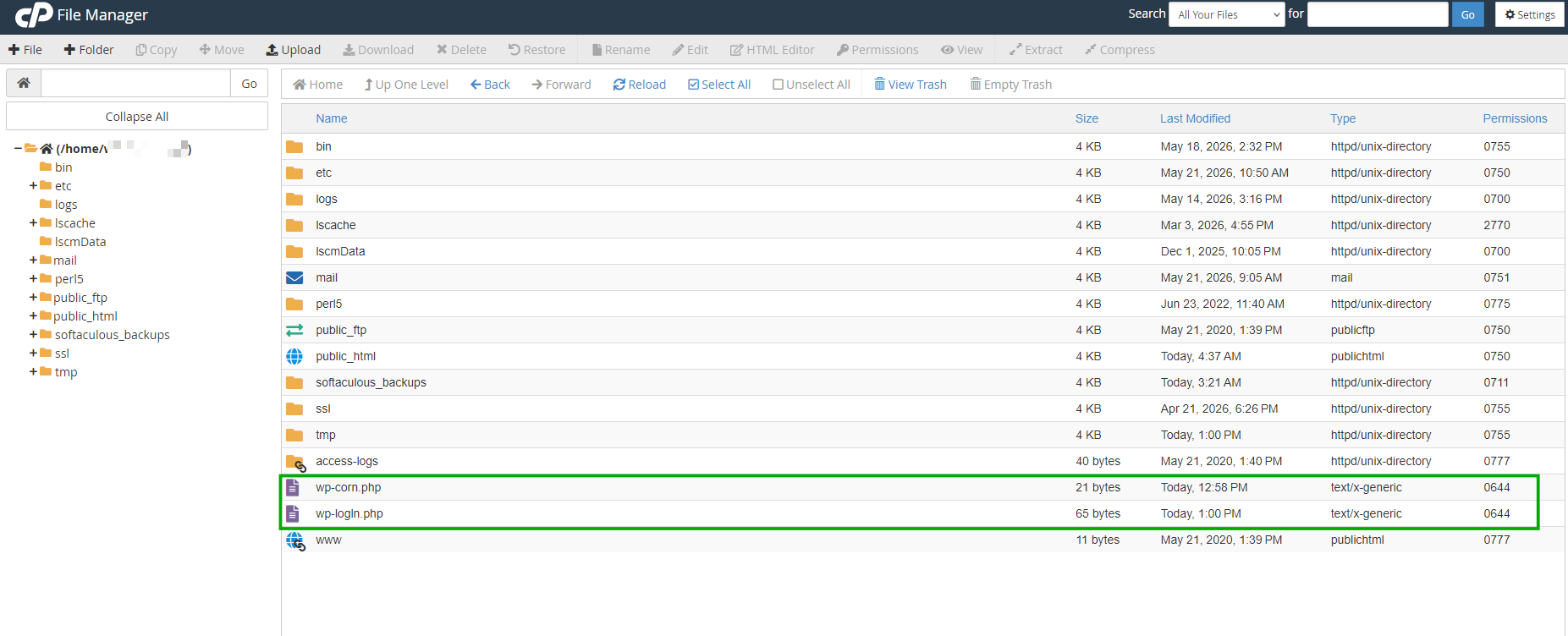
Unexpected PHP files outside the main website directory may indicate that the compromise affected the hosting account more broadly rather than a single website installation.
Example 1: Suspicious PHP files inside the account home directory:
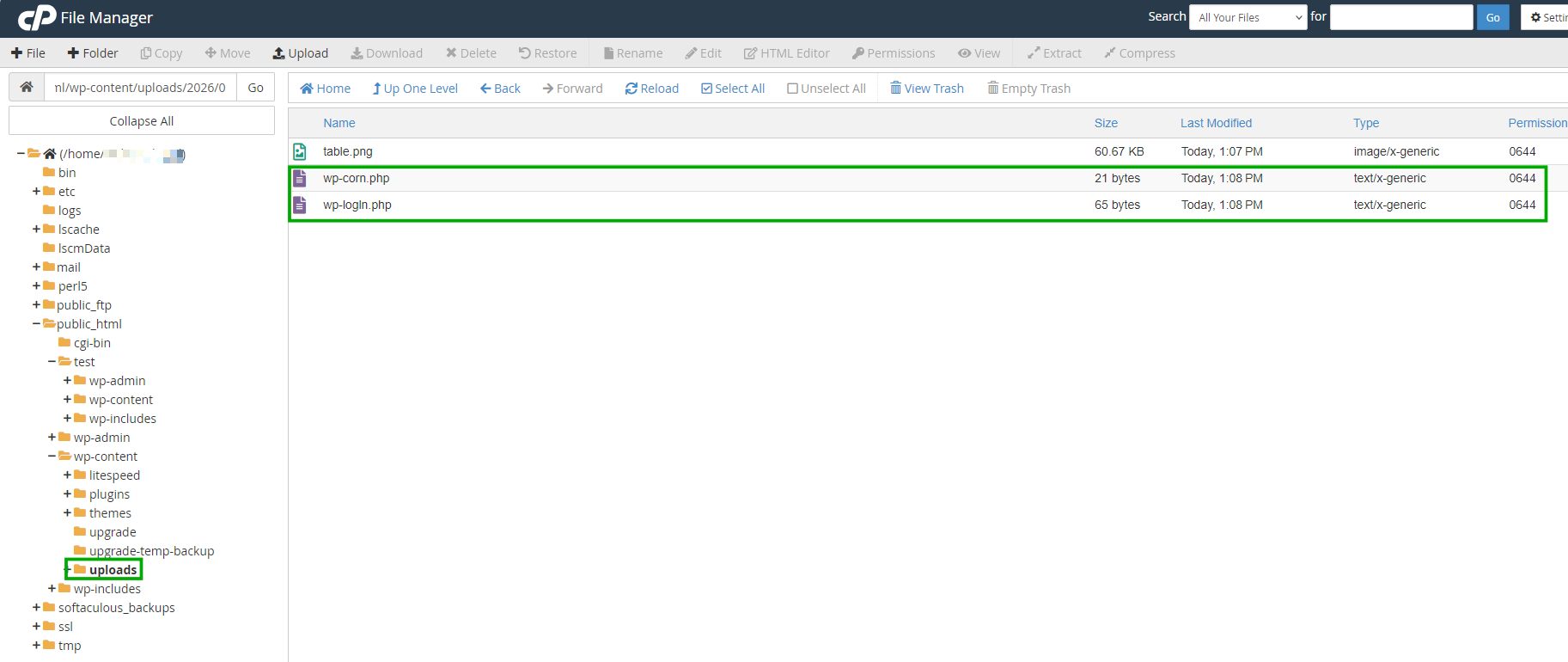
Example 2: Executable PHP files inside the uploads directory.
Upload directories normally contain media files such as .jpg, .png, .gif. Executable files such as .php inside upload folders may indicate compromise.
Malicious modifications to .htaccess files are common after website compromise. Attackers may use them to redirect visitors or block access.
You should pay attention to unfamiliar redirects, unexpected rewrite rules, encoded or unreadable text, or unusual permissions such as 0444 or 0555.
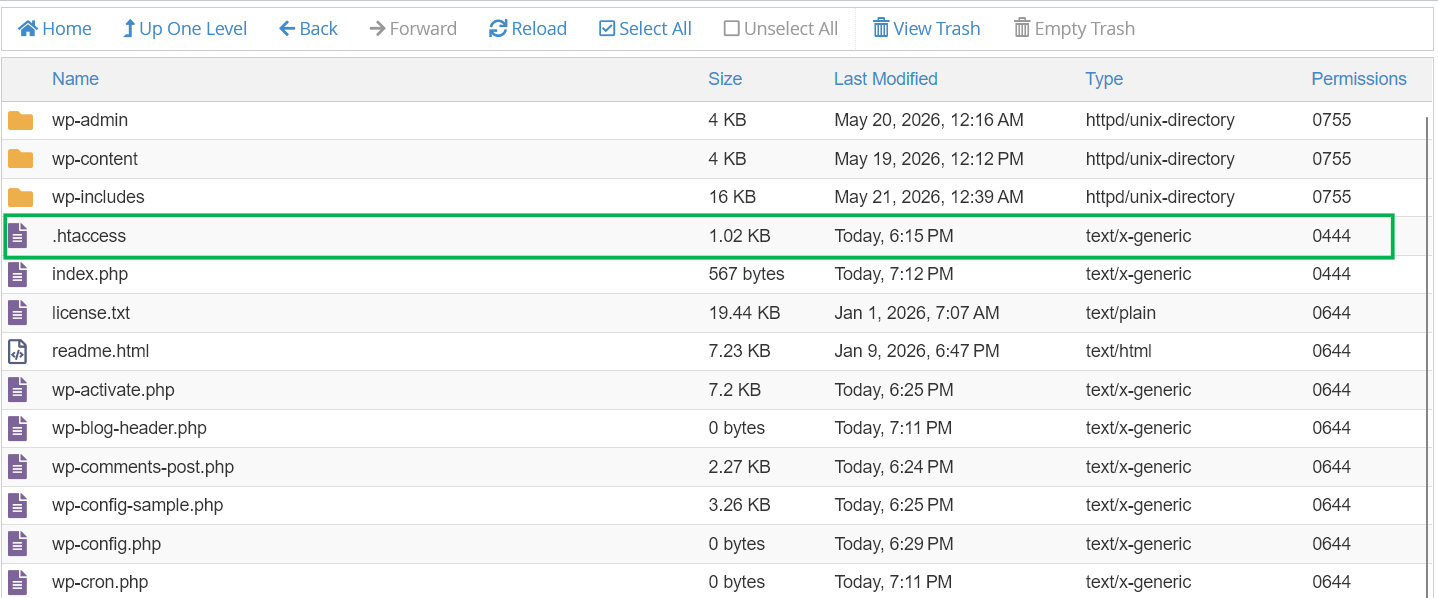
In most cases, the recommended permissions are 0644 for files and 0755 for directories. To learn more about file and folder permissions, check this guide.
When reviewing website files or backups, pay attention to unusual permissions such as 0444, 0555, 0777:
Additional indicators for WordPress websites:
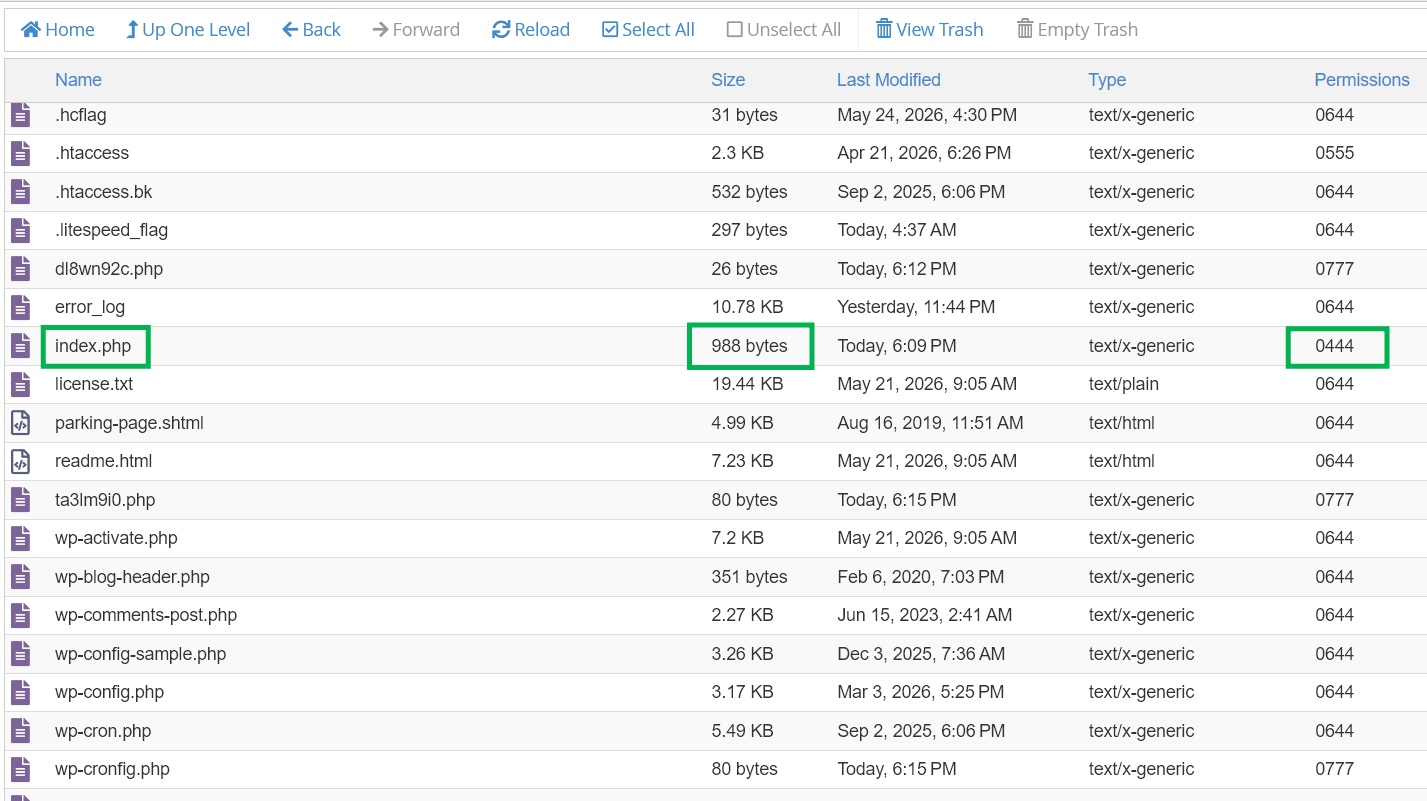
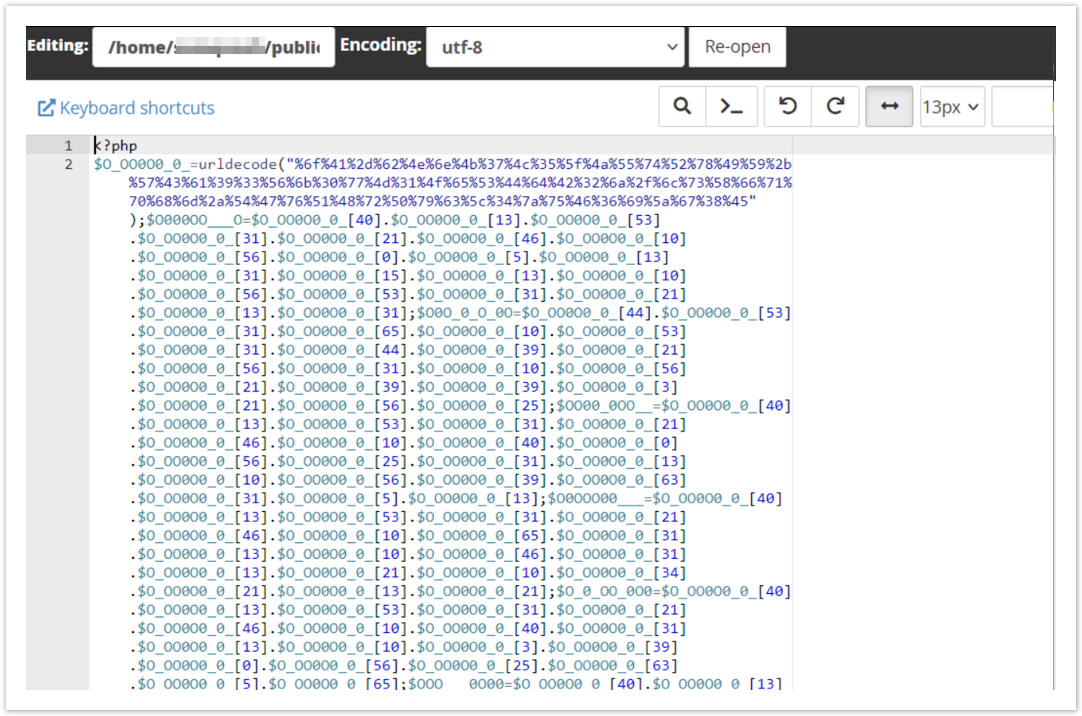
For a default WordPress installation, the root index.php file is 405 bytes and has permissions set to 0644. If the file has a different size or permissions, it may contain malicious code.
WordPress files can generally be divided into core files required for WordPress functionality and user-generated content such as themes, plugins, uploads, and media.
Core WordPress files are not normally modified manually. If multiple core files appear empty, corrupted, or unexpectedly modified, this may indicate malware activity.
Click here to read a description of the purpose of WordPress files.
In the example below, several default WordPress core files have a size of 0 bytes, which is abnormal:
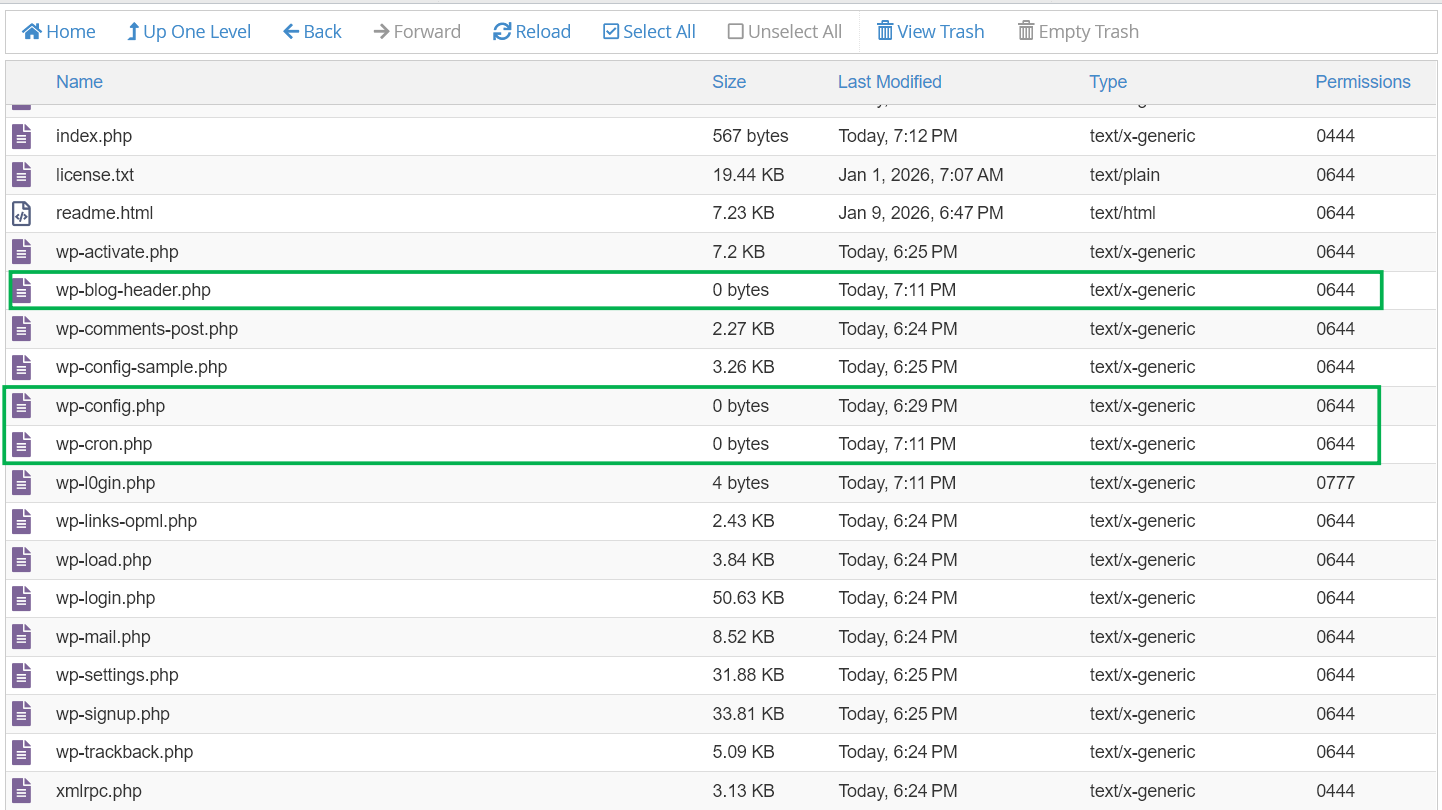
Unexpected plugins/themes inside the wp-content/plugins or wp-content/themes directories may indicate a compromise, especially if they cannot be traced to a legitimate installation source.
Examples of malware that attempted to disguise itself as legitimate WordPress plugins include the hseo plugin and the WP Content Optimizer fake plugin:
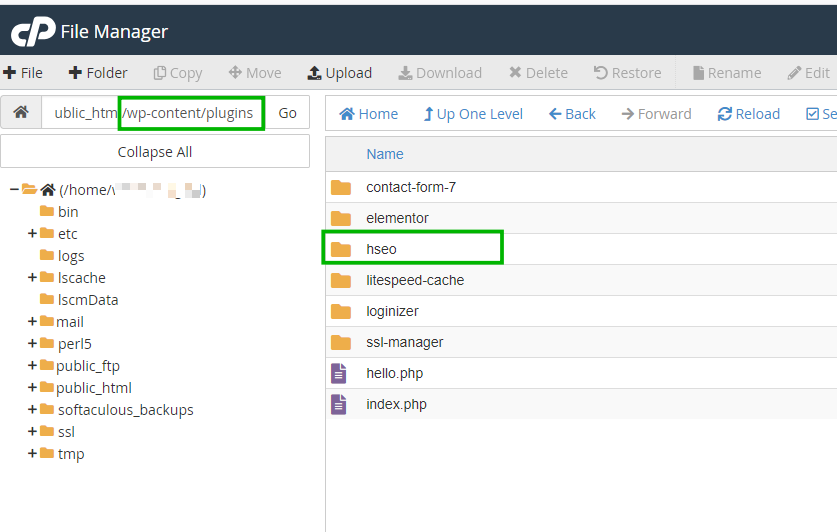
The examples above describe some of the most common indicators of compromised files. However, malicious files and unauthorized modifications may appear differently depending on the type of malware involved.
Review suspicious files and malware scan results carefully before proceeding with cleanup or restoration.
Once the affected websites, files, or services are identified, you can choose a recovery method depending on the type and scope of the compromise.
Consider the following options:
Restoring a clean backup is often the fastest and safest way to recover a compromised hosting account.
In most cases, a full account restoration is recommended instead of restoring only selected files or folders. Partial restores may leave behind hidden malicious files, infected cron jobs, or other compromised data outside the website directory.
Before restoring a backup, make sure that it was created before the compromise occurred. Otherwise, the infection may return together with the restored data.
The following backup restoration options are available for shared hosting plans:
Customers using Stellar Plus and Stellar Business hosting plans can use the AutoBackup tool in cPanel to restore a previous version of the hosting account or review backup contents before restoration, if a backup is available.
The tool can be accessed via cPanel >> Exclusive for Namecheap Customers section >> AutoBackup.
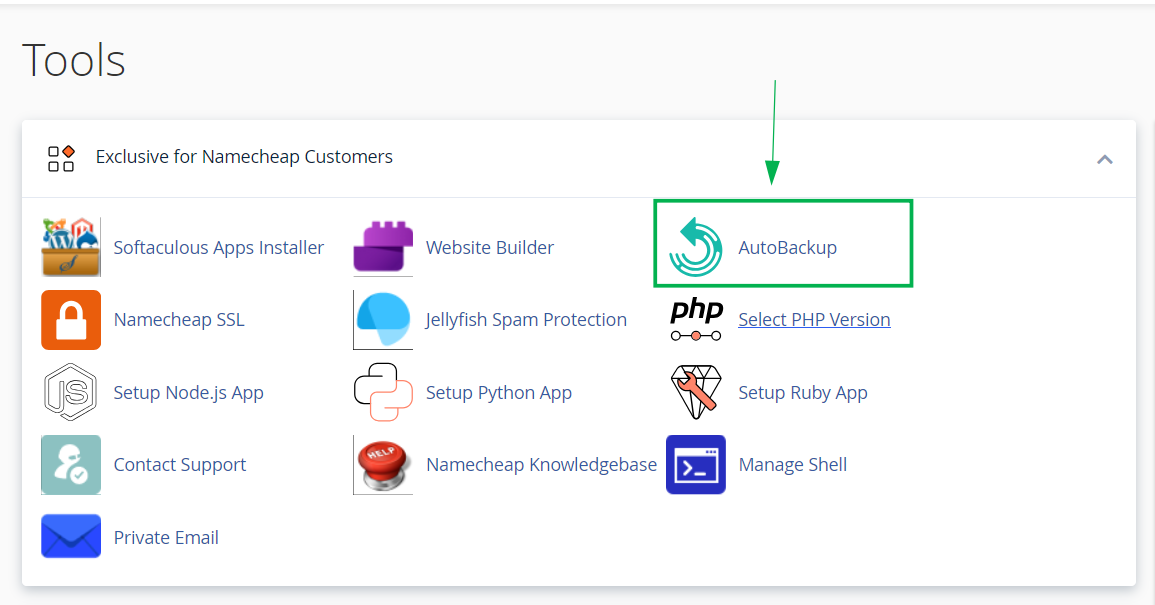
If you know exactly when your website got hacked, you can use this information as the main indicator when selecting the backup date. However, we still recommend reviewing the backup contents for signs of compromise before proceeding with the restoration.
You can do that directly inside the AutoBackup interface:
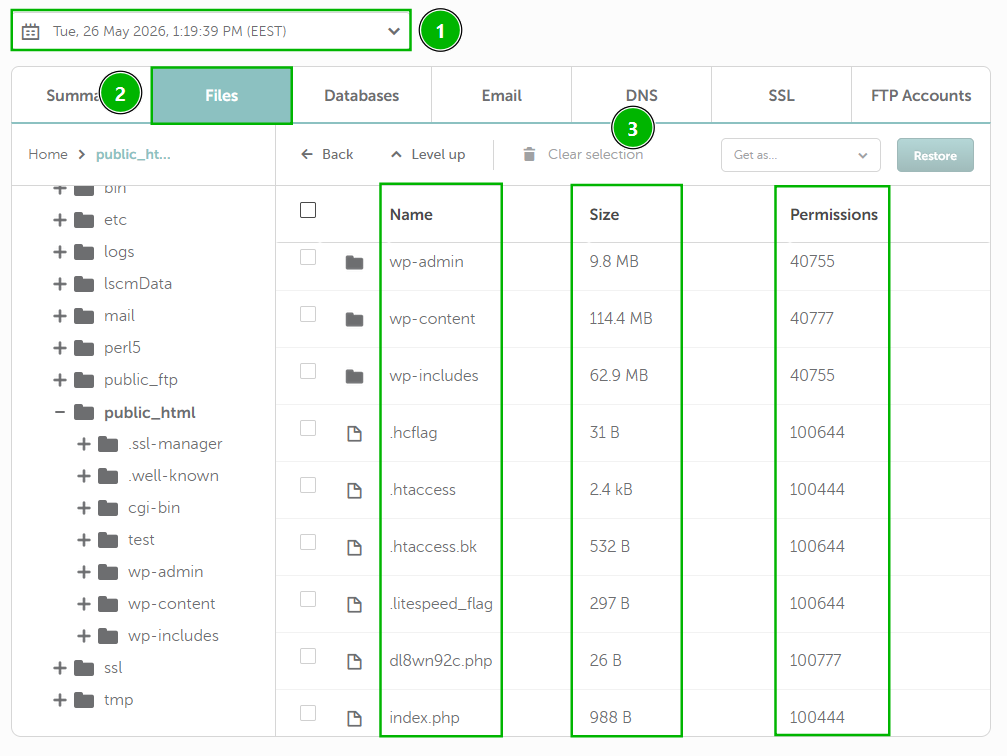
Pay attention to the indicators described in the 'Common indicators of compromised files' section of the guide, as well as files previously detected during malware scans. Databases, email accounts, and FTP accounts can also be reviewed using the corresponding tabs inside the AutoBackup interface.
The AutoBackup interface only allows reviewing file metadata such as filenames, permissions, and file sizes. File contents cannot be previewed directly inside the plugin unless the backup is downloaded and extracted locally.
If a clean backup is identified, refer to this guideline to restore it with the Full deletion and account restoration (advanced) option: How to use AutoBackup cPanel plugin.
Important: All current account data will be replaced with the contents of the selected backup and cannot be recovered afterward. If your hosting account contains recent data that is not included in the selected backup, such as website changes, uploaded files, databases, or email messages, consider saving a copy of that data before proceeding with the restoration.
Once the data is restored, continue with 'Step 3: How to prevent reinfection after cleanup'.
The AutoBackup plugin is not available on Stellar and Reseller Hosting plans.
If the hosting account or websites were functioning correctly before the compromise, you can contact our Support Team with the request to search for an available server backup.
Before requesting restoration, it is still recommended to review any available local/manually generated backups and confirm approximately when the compromise may have started.
If server backups are available, our Support Team may also be able to:
Important information about server backups:
After completing the recovery process, continue with the account hardening recommendations in 'Step 3: How to prevent reinfection after cleanup'.
If full account backups are unavailable, you can also review local or partial backups that may contain clean website files, databases, or account data.
Possible backup sources include:
Before restoring a local backup:
Tip: The following guides may help when restoring partial backups:
In some cases, only a partial clean backup of the website may be available while the rest of the hosting account remains compromised. In this situation, you can consider:
Hosting account resets during malware incidents can be requested through our Support Team.
In some cases, clean backups may not be available. This can happen for different reasons, for example:
In this situation, you can consider the following options:
If you decide to clean the hosting account manually or use automated cleanup tools instead of restoring a full backup, secure access to the account first.
Recommended actions:
These steps help reduce the risk of reinfection during or after cleanup. Once done, proceed with one of these options:
SiteLock can automate part or all of the malware cleanup process instead of performing a fully manual recovery.
Please note that SiteLock scans and cleans only the selected website or website directory rather than the entire hosting account.
Because of this, additional manual cleanup may still be required if earlier checks identified:
The following SiteLock plans are available depending on the type and severity of the compromise.
SiteLock Protect/Protect Plus
These plans are primarily designed to enhance your website's security. You can also use them to fix a hacked website if it is still functional and can be scanned. The SiteLock system will take your request into work and process it automatically once the malware scan is performed. For continuous malware scanning and removal, we suggest using the Protect and Protect Plus plans in the long run.
You can check and purchase the plans here: https://www.namecheap.com/security/protect-website/
SiteLock 911
This plan is specifically designed for cases where the website has already been hacked to the point of being not fully functional. This is suitable if you need a rapid one-time fix, which includes a year of website security threat scanning (but no further malware removal). With this plan, you'll receive nearly immediate attention (within 1 hour) and the highest priority from the support team.
You can check and purchase SiteLock 911 here: https://www.namecheap.com/security/fix-hacked-website/
Configuring SiteLock and starting the cleanup process
Important: Before proceeding with the cleanup, create a backup of the current website.
If you decide to proceed with this SiteLock:
After the website is restored and secured, you can continue with 'Step 3: How to prevent reinfection after cleanup'.
Important: Before making any changes, create a backup of the current website and account data.
The recommendations below are intended as general guidance. You are responsible for deciding which actions to take and for verifying that any changes are appropriate for your website before applying them.
If no clean backup is available, or you prefer handling the cleanup manually, you can remove suspicious content and revert unauthorized changes inside the hosting account.
During the checks described in 'Step 1: Scan your account for malware', you should have already identified suspicious files, unauthorized access, malicious scripts, modified settings, or other signs of compromise through malware scans and manual review.
The sections below explain how to remove or correct the identified threats manually.
1. Correct DNS records
If DNS settings were tampered with, restore the domain records to the correct hosting, email, or CDN provider configuration.
Depending on the active DNS provider:
If you are unsure whether DNS records were modified, consider reviewing historical DNS data using tools such as WhoisRequest DNS History and SecurityTrails.
2. Remove malicious cron jobs
If suspicious cron jobs were identified earlier, remove them before continuing cleanup. Malicious cron jobs often recreate deleted malware files, execute unfamiliar PHP scripts, or send spam.
Tip: Some malicious cron jobs may not appear inside the standard cPanel Cron Jobs interface. In these situations, reviewing cron jobs through cPanel Terminal may help. Detailed instructions can be found here.
3. Review active server processes
Even after malicious cron jobs are removed, active malicious processes may continue executing malware scripts or recreating deleted files.
To see the list of active processes on the server and kill malicious ones, refer to this guide.
4. Remove unauthorized access
If you identified unauthorized access or suspicious accounts during the checks in 'Additional checks and scanning methods', remove or correct them before continuing cleanup.
5. Correct file and folder permissions
Incorrect file and folder permissions may allow unauthorized modifications to website files or prevent malicious files from being removed.
In most cases, the recommended permissions are 0644 for files, 0755 for directories. Detailed information about file and folder permissions can be found here.
Tip: If malicious files cannot be removed because of restrictive permissions, change the permissions for the affected files or directories first and then attempt the cleanup again. Use this guide for reference.
6. Remove malicious or suspicious files
Proceed with removing or replacing suspicious files using File Manager or FTP access.
When performing cleanup, refer to the 'Common indicators of compromised files' section of the guide.
Some malicious modifications may require restoring or replacing files instead of deleting them completely. If you are unsure whether a file is legitimate, reinstalling files from trusted sources and comparing the contents against the original version may help.
Be aware that all the actions that were performed to mitigate the issue with the hacked account still cannot guarantee a 100% result. In some cases, it may be necessary to contact professionals who specialize in security.
After completing the recovery process, continue with the account hardening recommendations in 'Step 3: How to prevent reinfection after cleanup'.
WordPress has its own dedicated cleanup flow, use these guides instead of or alongside the steps above:
After the website is restored and secured, continue with 'Step 3: How to prevent reinfection after cleanup'.
Suspicious email activity may indicate either mailbox compromise, spoofing attempts, unauthorized website mail activity, or broader hosting account compromise.
Before proceeding with email-related troubleshooting, it is recommended to complete the malware scanning and account security checks described in the 'Step 1: Scan your account for malware' section of this guide.
For detailed troubleshooting and recovery steps to suspicious email activity, refer to our dedicated guide: What to do if you notice suspicious email activity on cPanel Shared Hosting.
After the cleanup or restoration is completed, it is important to secure the hosting account and reduce the risk of future compromise.
Recommended actions:
The following guides may help improve long-term account and website security:
Following these recommendations can significantly reduce the risk of future compromise and help detect suspicious activity earlier.
If you have any questions or need assistance, feel free to get in touch via our Help Desk.
Please note that, as a hosting provider, we do not specialize in malware analysis or manual malware removal. While we will review your situation and assist where possible, some of the checks and steps described in this guide may need to be performed independently or by a qualified security professional. You can review our support boundaries here.
Need help? We're always here for you.