[NEW] Namecheap Private Email Webmail Features

This article is valid for Private Email subscriptions purchased on or after June 2, 2026.

The Private Email webmail interface includes several tools and navigation options to help you manage your mailbox more efficiently:
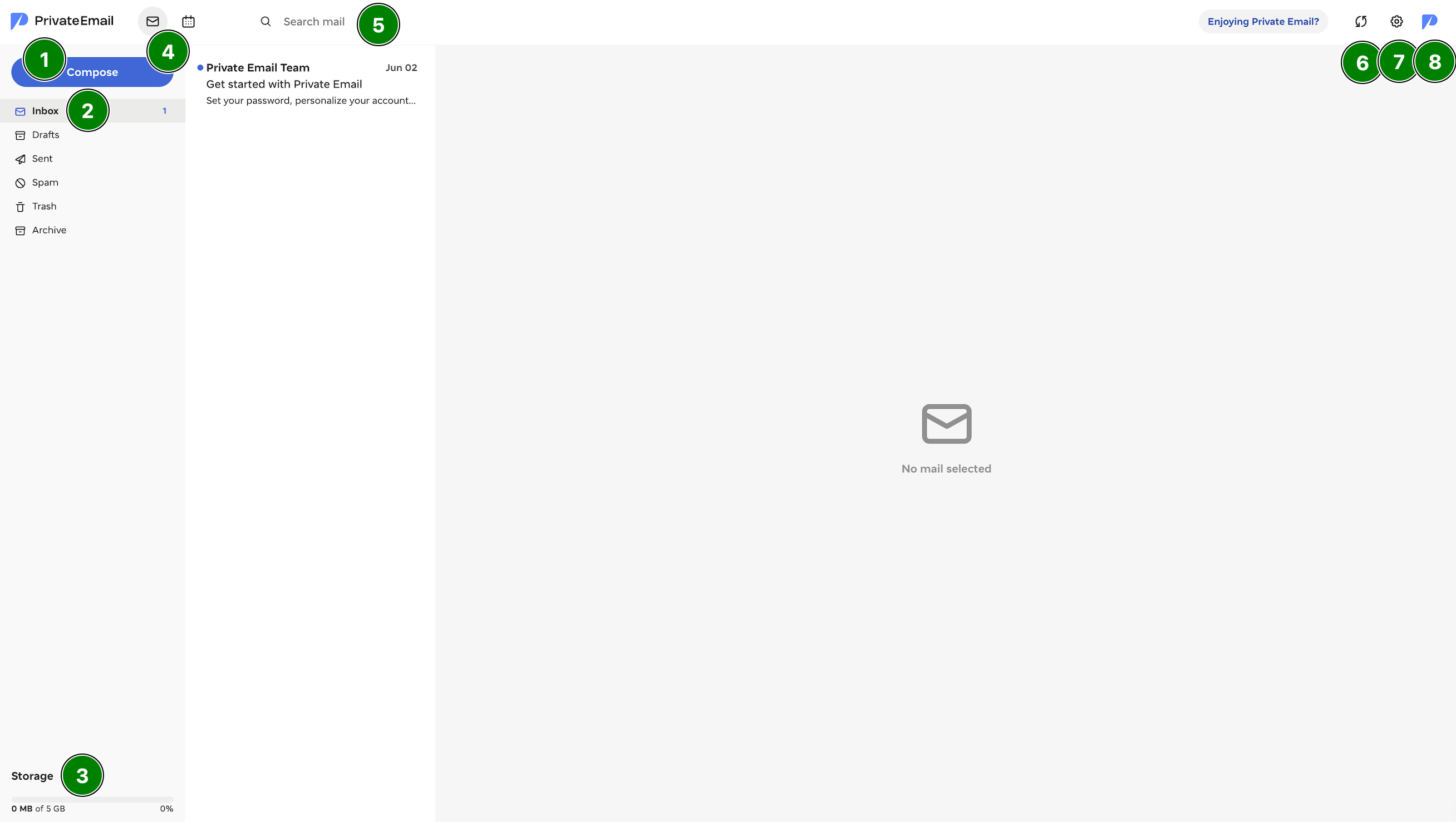


  • Compose – write a new email message.
  • Inbox options – right-click the Inbox or any other folder to manage messages and folders. You can create subfolders, mark all emails as read or unread, or remove all messages from the selected folder.
  • Storage – view how much mailbox storage is currently in use.
  • App switcher – move between Webmail and Calendar.
  • Search – quickly find emails in your mailbox by searching for sender names, email addresses, subjects, or message content.
  • Refresh – manually check for new incoming messages. The mailbox also updates automatically when a new email or event arrives, or every 5 minutes during periods of inactivity.
  • Settings – update your webmail preferences and manage account features, including security settings, filters, forwarding, signatures, spam controls, and other options.
  • Profile – view your display name and email address, copy your mailbox name, upload or change your profile picture, and sign out of your account.

The sections below provide an overview of the main Private Email settings, organized by category.

Personalize your mailbox

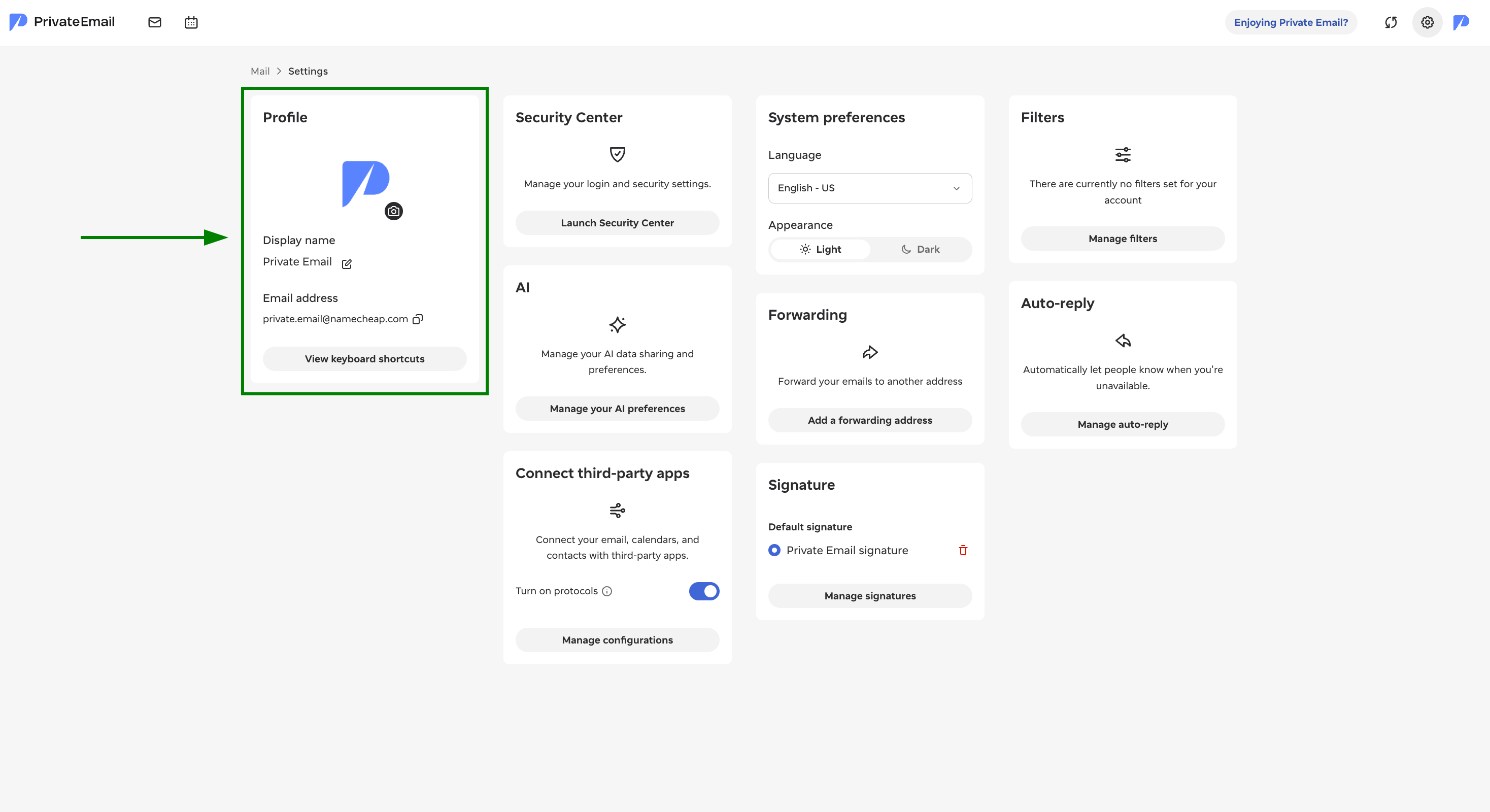
Profile


In the Profile section, you can adjust your mailbox details and manage how your account appears to others.

  • Display name – change the name recipients see when they receive emails from you.
  • Profile picture – upload a new image or update your current avatar.

NOTE: Your profile picture is visible only to other Private Email users.
  • Email address – view your mailbox address and copy it when needed.
  • See keyboard shortcuts – open the list of available shortcuts that can help you navigate webmail and perform common actions faster. For example, you can use Ctrl + Enter to send a message or Ctrl + S to save a draft.


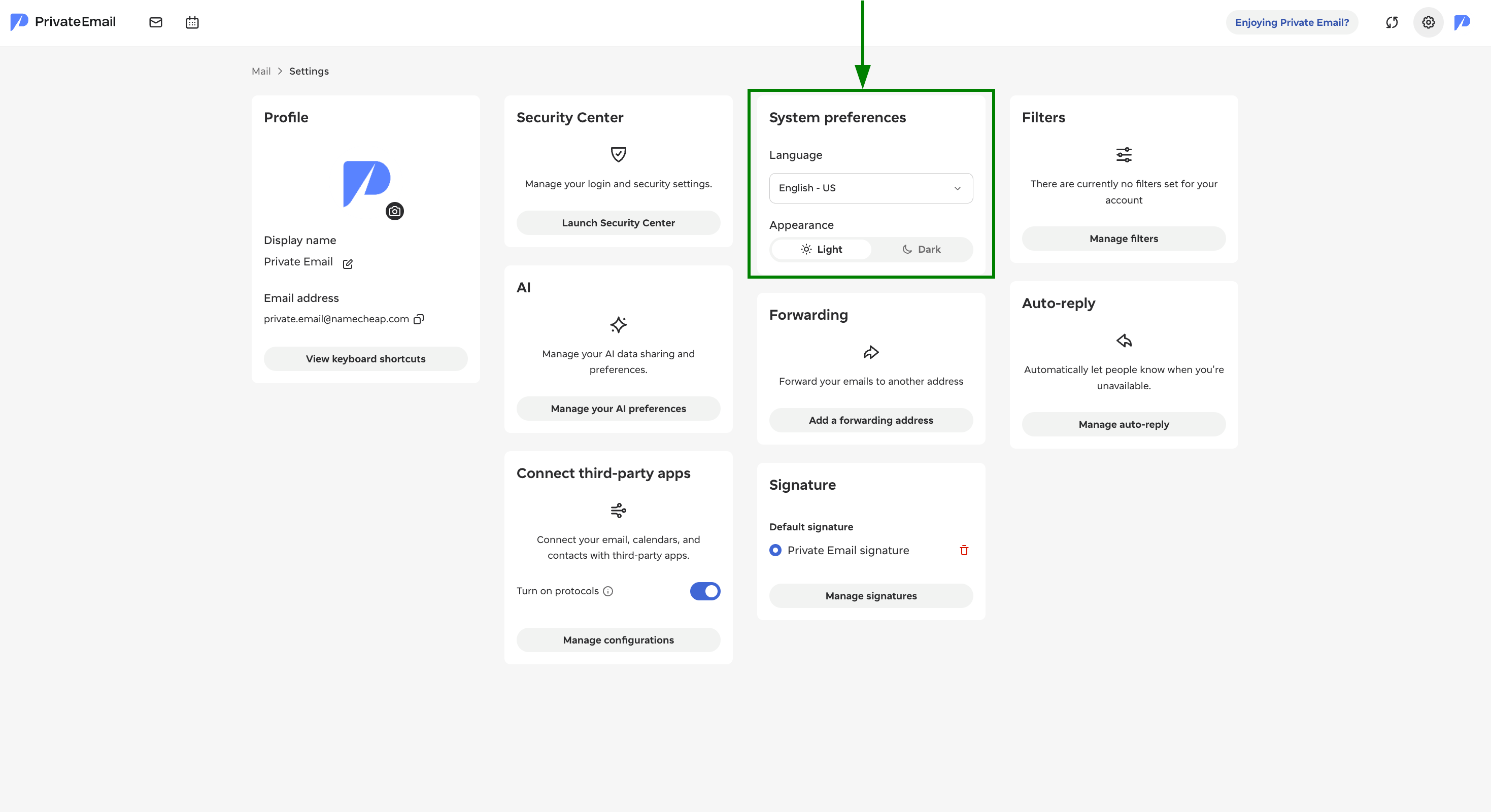
System preferences


In the System Preferences section, you can customize the webmail interface according to your personal preferences.

  • Language – select the language used for the Private Email interface.
  • Appearance – choose between light and dark mode for your webmail view.

NOTE: These options apply only to your own webmail interface. They do not affect the way your emails are displayed to recipients.

Signature


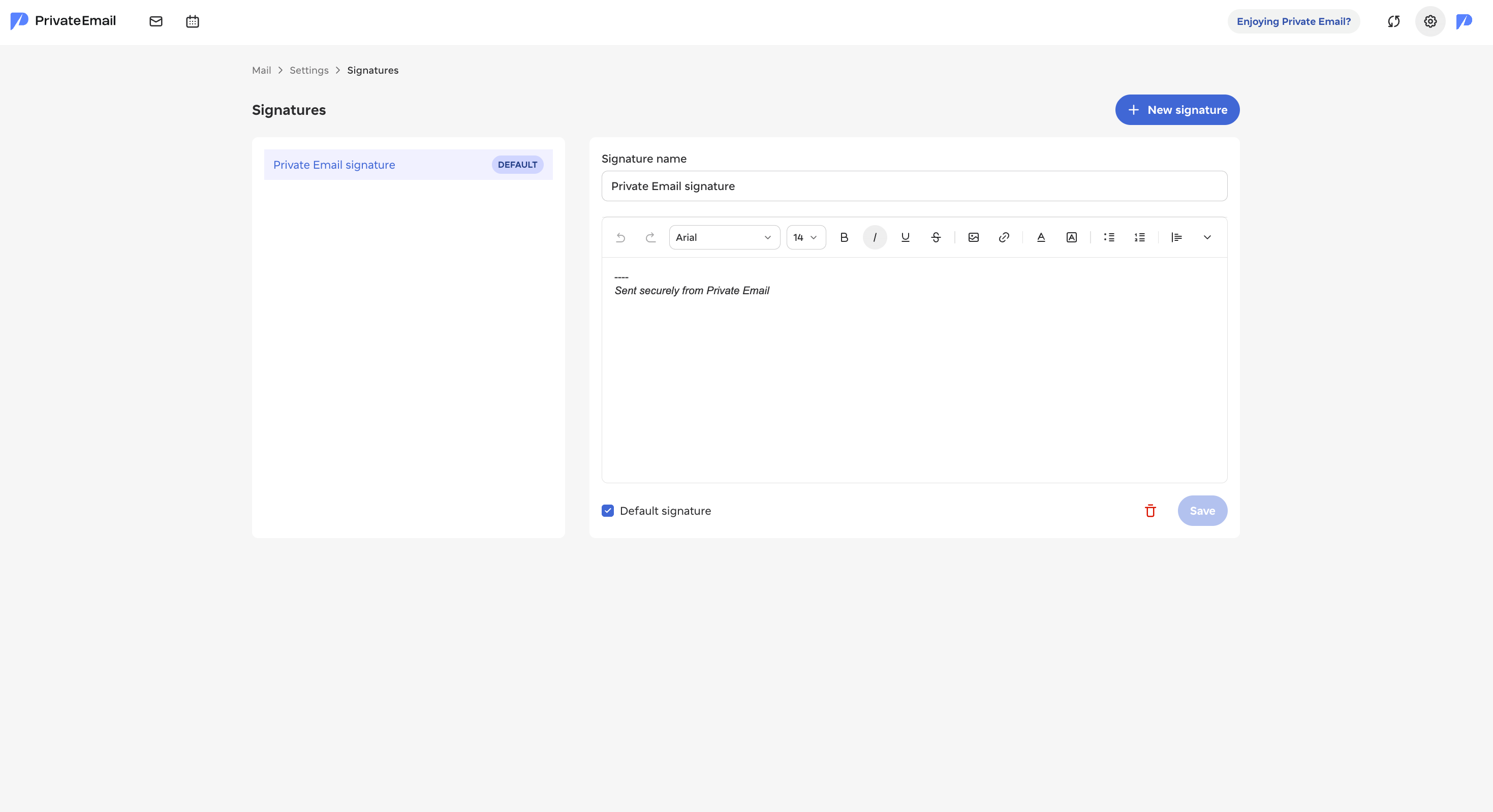
The Signature section lets you add and manage signatures that can be automatically included in your outgoing emails.

In this section, you can:
  • Create one or more signatures for different purposes
  • Choose a default signature to be added to new outgoing messages
  • Update or remove existing signatures when needed


Filters


The Filters section allows you to organize incoming messages automatically by creating custom rules for your mailbox.

With filters, you can:
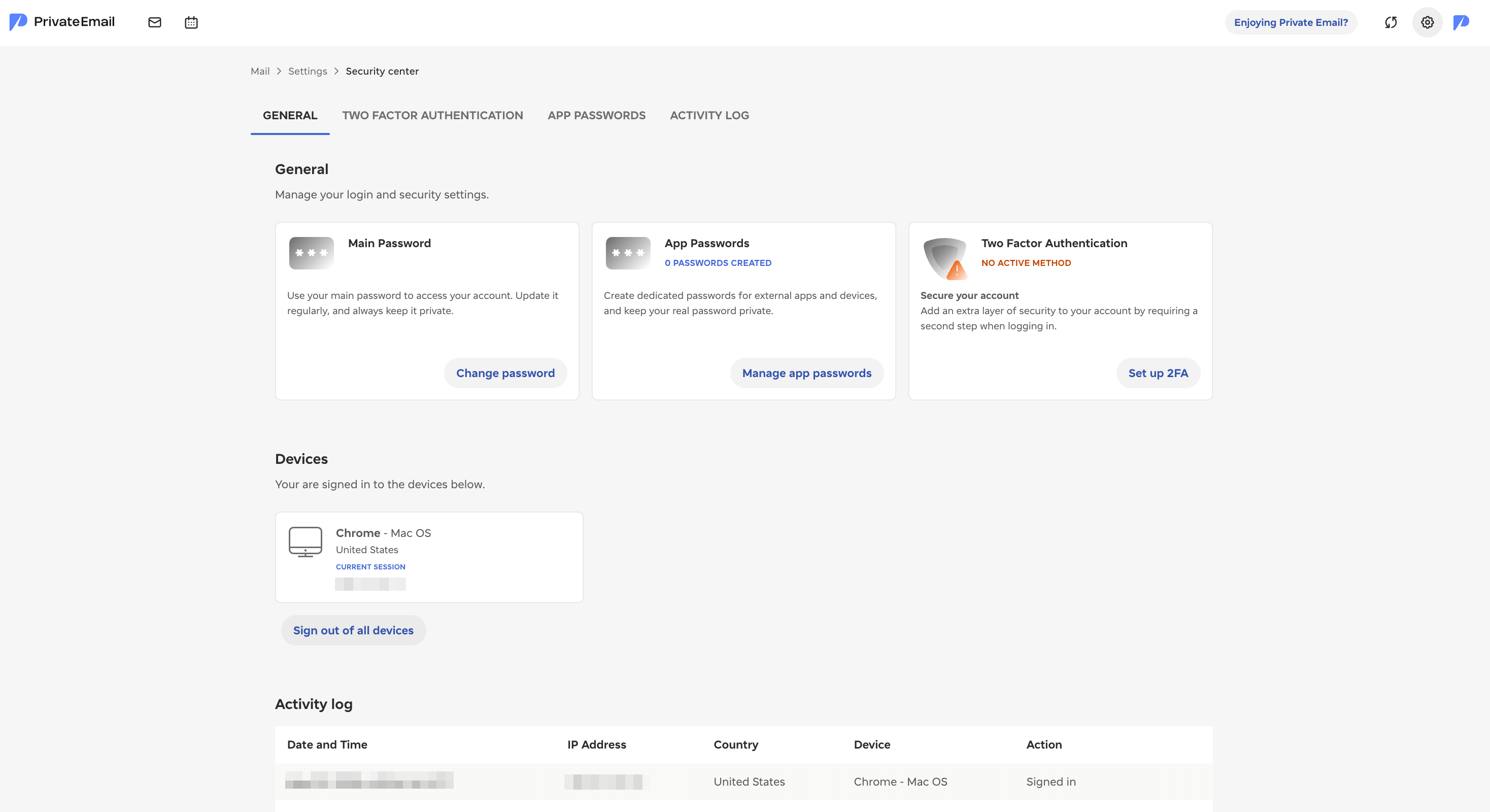
  • Sort emails by specific criteria, such as subject, sender, recipient, or message content.
  • Apply different matching conditions, including:
    • Contains
    • Does not contain
    • Is exactly
    • Is not exactly
    • Starts with
    • Does not start with
    • Ends with
    • Does not end with
  • Decide how rules should be applied by choosing whether all conditions must be met or only one condition is enough.
  • Send matching emails to a selected folder, such as Inbox, Spam, Trash, Sent, or Drafts.


Security & Access

Security Center


The Security Center provides tools to help protect your mailbox, manage sign-in options, and monitor account access.

The available options include:
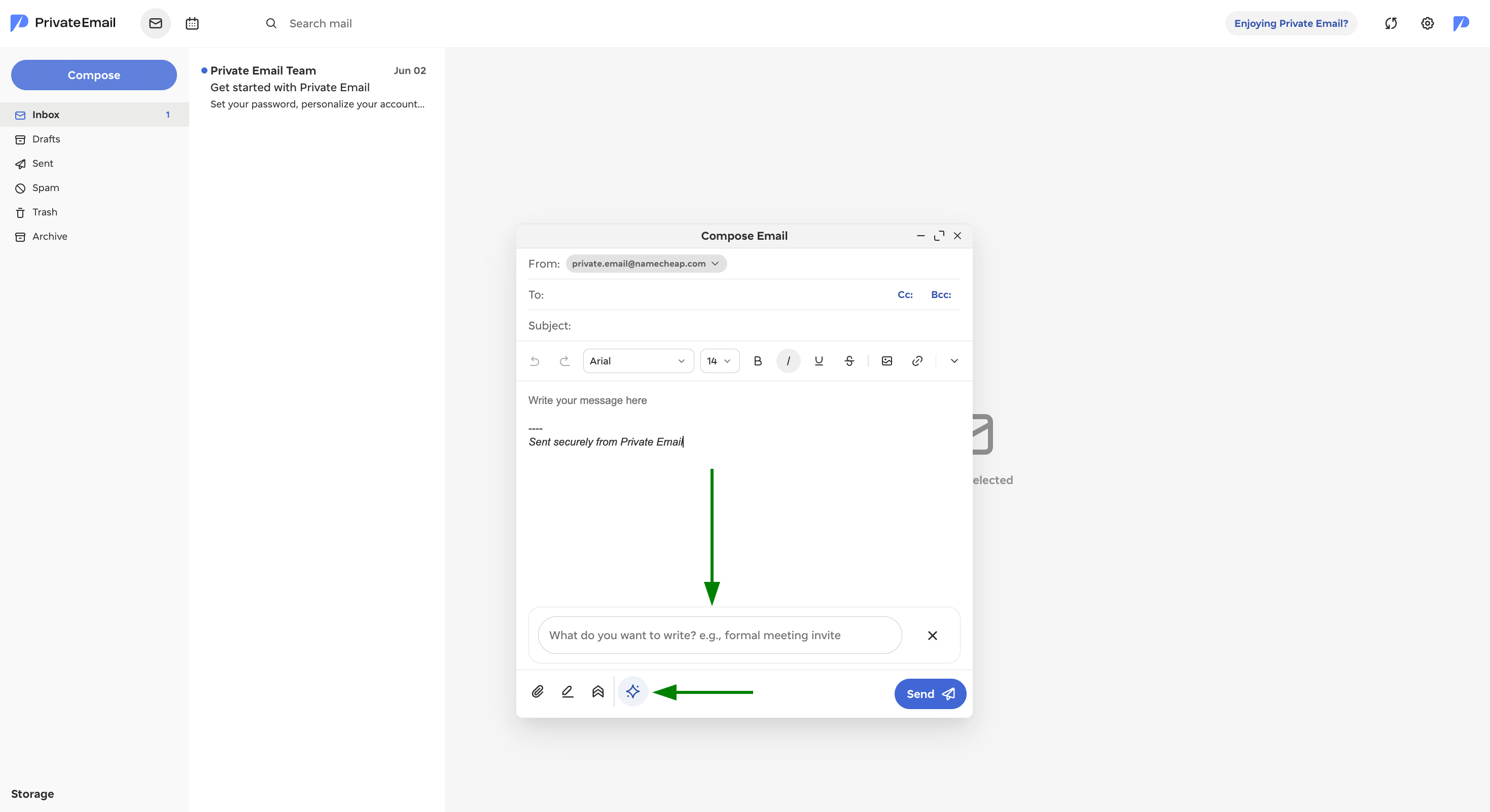
  • Login method – update your mailbox password whenever needed to help maintain account security.
  • Two-Factor Authentication (2FA) – enable an additional verification step when signing in. After 2FA is turned on, you will need to enter both your password and a code from your mobile device to access your account. In the Security Center, you can also disable 2FA, manage backup codes, and review connected authentication devices.
  • Devices – view the devices currently logged in to your mailbox. You can also sign out of all active sessions remotely when necessary.
  • Activity log – check recent login attempts and account actions to help identify any suspicious activity.


AI


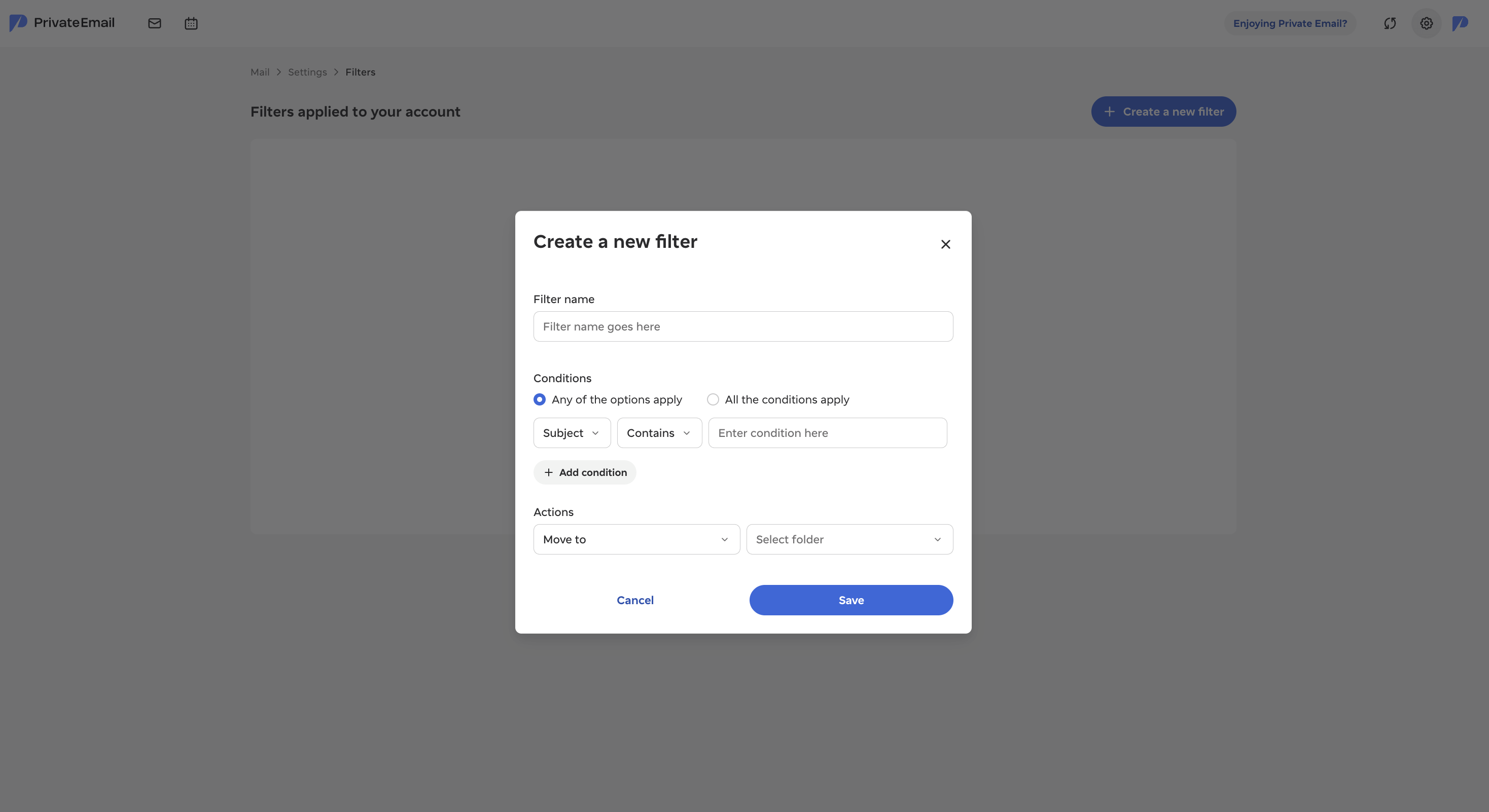
The Private Email AI Assistant is available in the Compose window and can help you create professional email drafts based on a short prompt or a few keywords.

In Settings > AI, you can manage the following options:
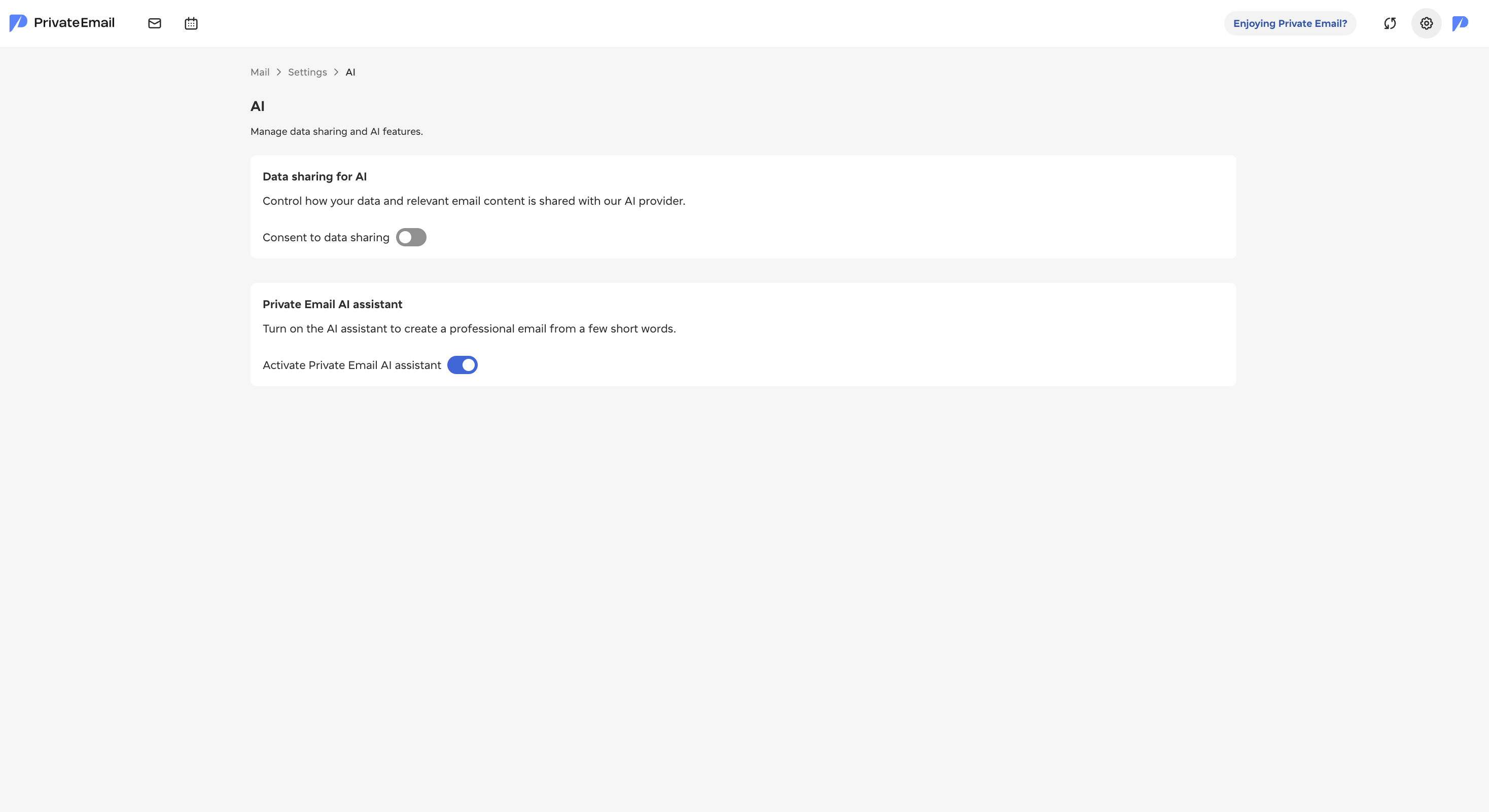


  • Data sharing with AI – enable or disable whether your data can be shared with the AI provider to use the AI Assistant.
  • NOTE: When data sharing is enabled for the first time, or turned back on after being disabled, you will be asked to confirm your consent before any data is shared. You can change this preference at any time in Settings > AI.
  • Private Email AI Assistant – choose whether the AI Assistant prompt should be shown or hidden in the Compose and Reply windows.


Connect third-party apps


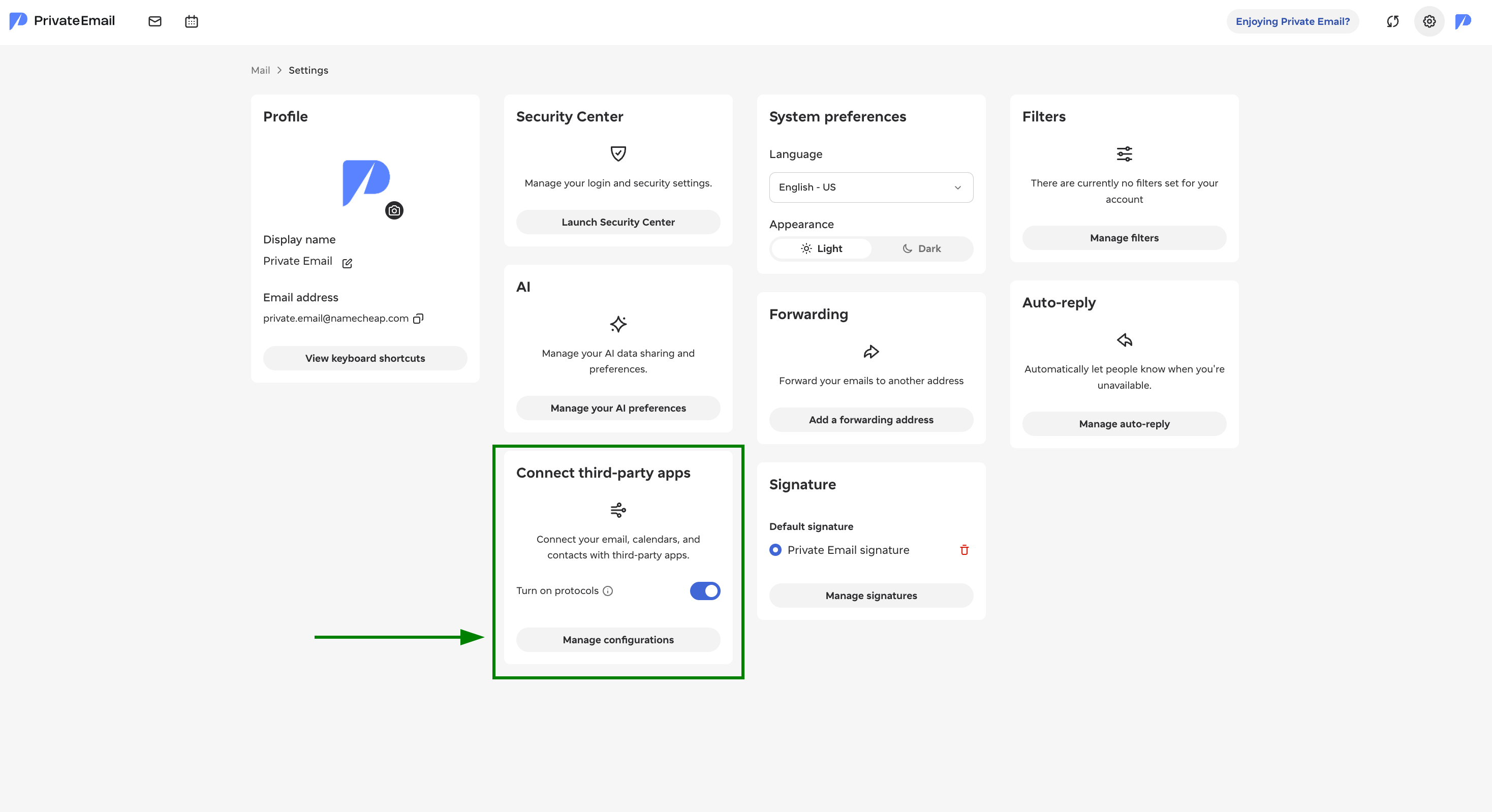
In this section, you can manage IMAP/SMTP/POP3 and CalDAV/CardDAV accesses for your Private Email mailbox. These protocols allow you to connect your email address to external mail applications, such as desktop or mobile email clients, as well as connect your calendar and contacts to third-party apps.

Protocol access is enabled by default for all mailboxes. You can turn it off or back on at any time, depending on how you prefer to use your account.

To view the server settings needed for manual setup, click Manage configurations. The displayed details include the connection information required to add your Private Email address to a device or third-party email client. You can check the article that lists configuration details for email clients and mobile devices.

You may also find the following setup guides for particular apps helpful:

Forwarding


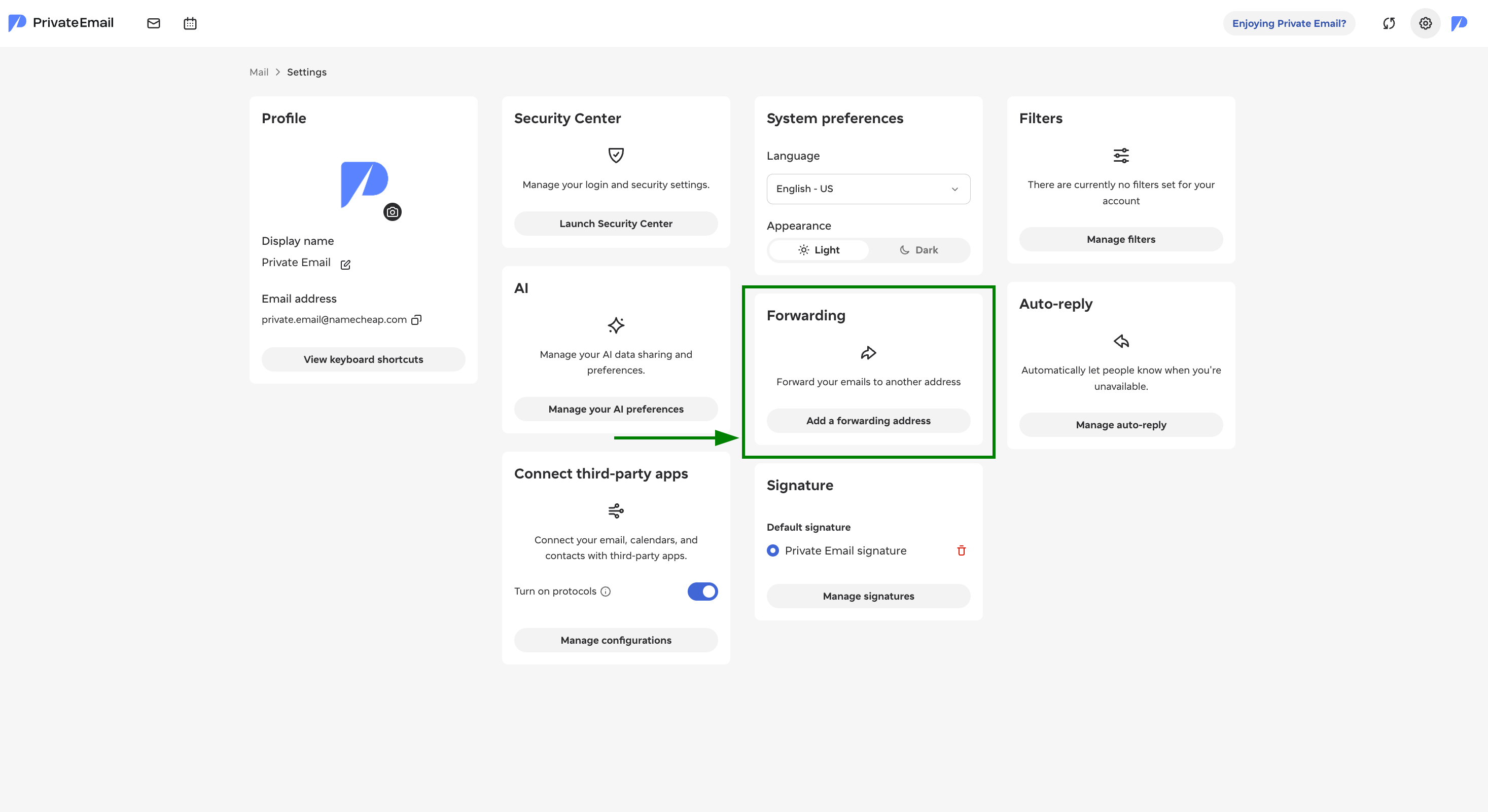
The Forwarding section allows you to automatically redirect incoming emails to another email address.

You can configure an external forwarding address and choose whether forwarded messages should also remain stored in your Private Email inbox. This option can be useful if you want to access your emails from multiple accounts while keeping a copy in your mailbox.

Auto-reply


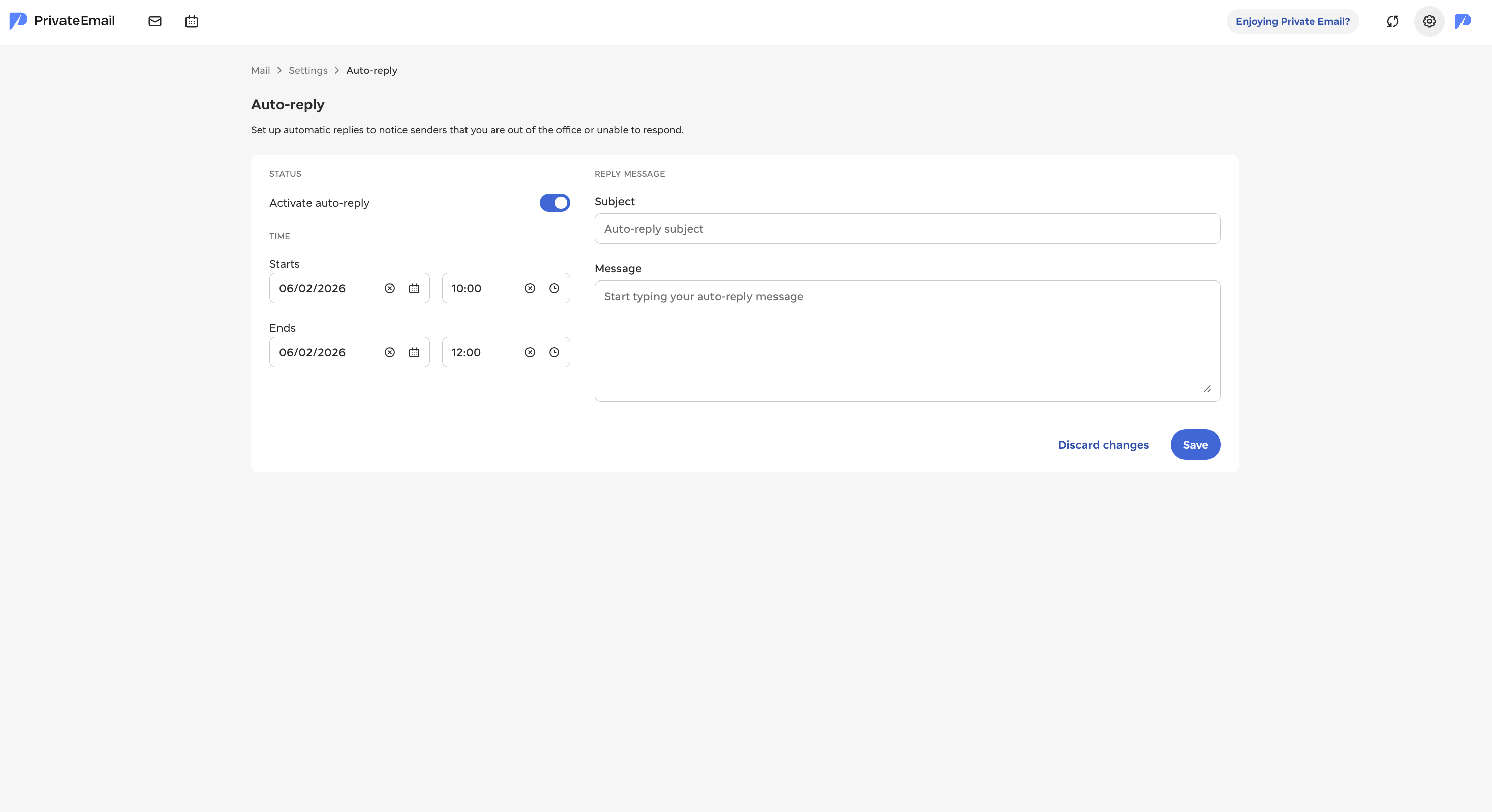
The Auto-Reply feature lets you automatically send responses to incoming emails when you are unavailable. This can be useful when you are away from work, on vacation, or unable to respond immediately.In this section, you can configure:

  • The auto-reply subject
  • The automatic response message
  • Start and end dates/times for when the auto-reply should remain active

You can enable or disable the feature using the Activate auto-reply toggle. When enabled, Private Email will automatically send your predefined response to incoming emails during the selected time period.

And that’s it!

Updated
Viewed
556 times

Need help? We're always here for you.

notmyip