
Follow these steps to set up your Namecheap Private Email account on your Android phone.
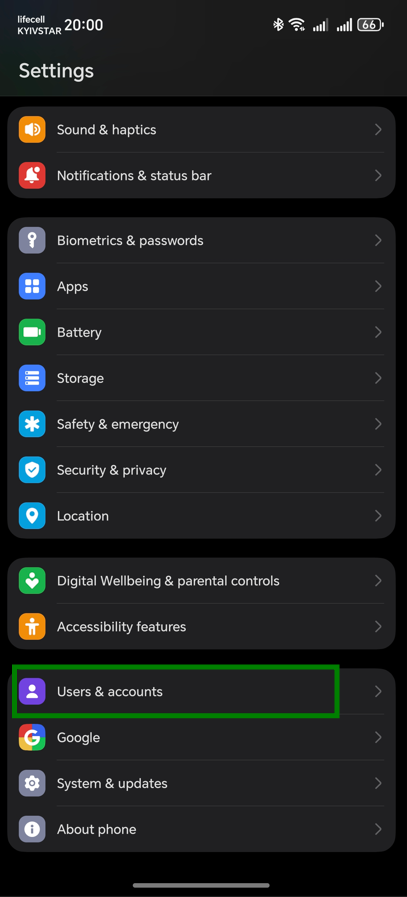
1. Open Settings on your Android phone, go to Users & accounts, and tap Add account:
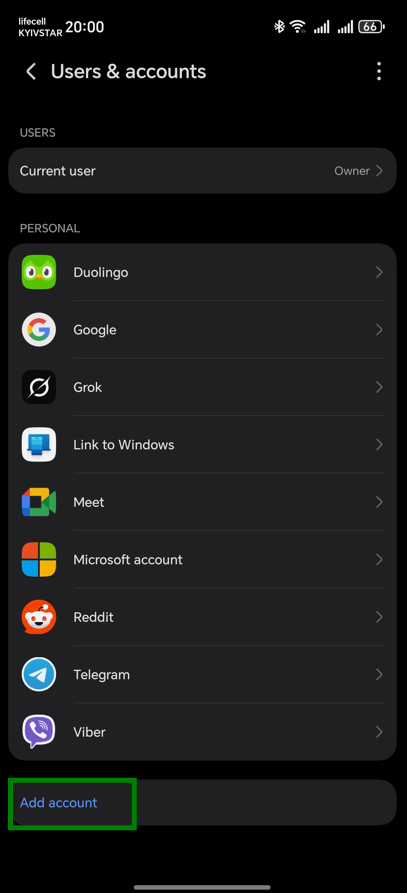
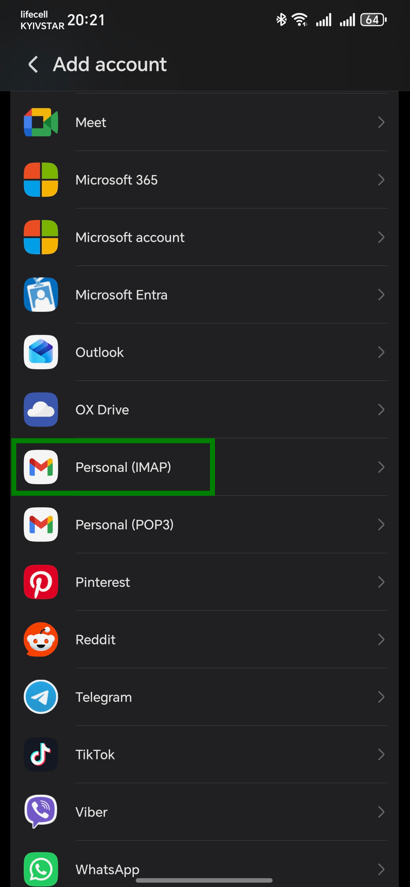
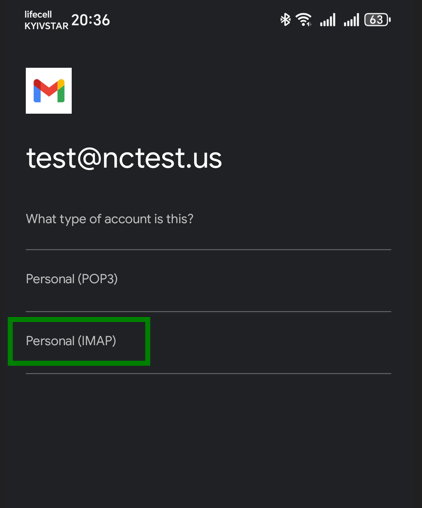
Select Personal (IMAP) or Personal (POP3). We recommend IMAP:
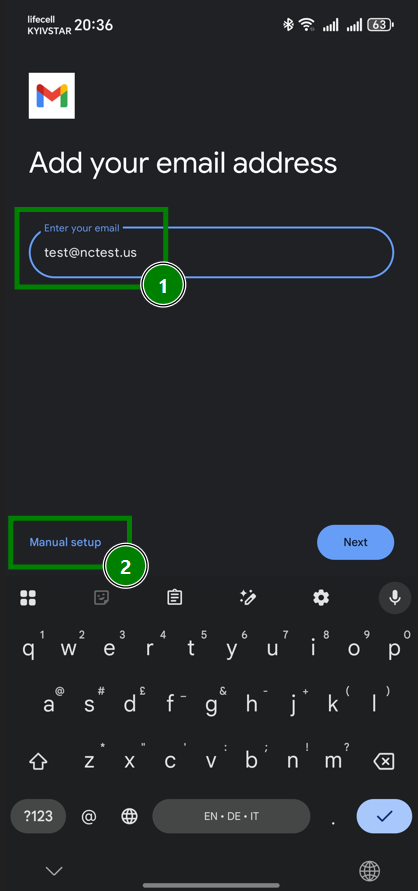
3. Enter your Private Email address and tap Manual setup:
4. Choose the account type again. IMAP or POP3:
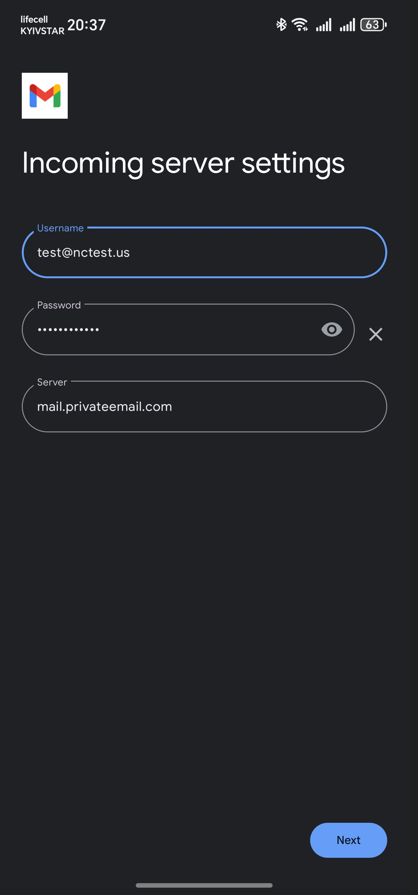
5. Enter the incoming server settings for your Private Email address:
Tap Next:
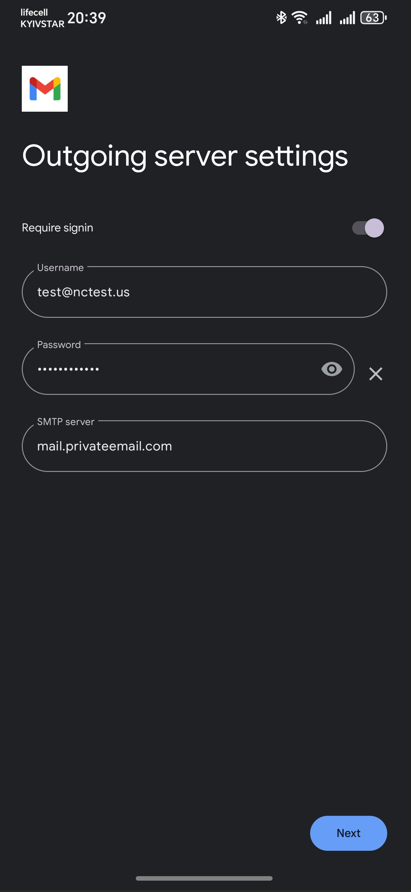
6. Enter outgoing server settings:
Tap Next:
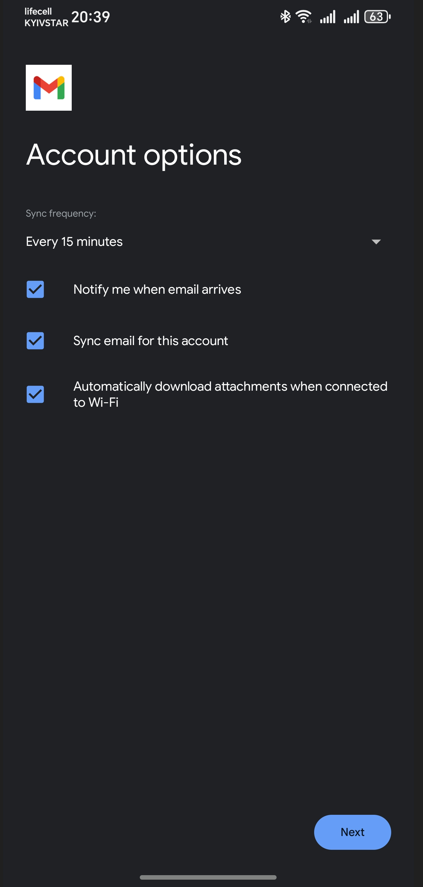
7. Finish setup: You will be asked to configure your sync settings and enter your From name (shown to recipients).
Enter your name and tap Next to complete the setup process:
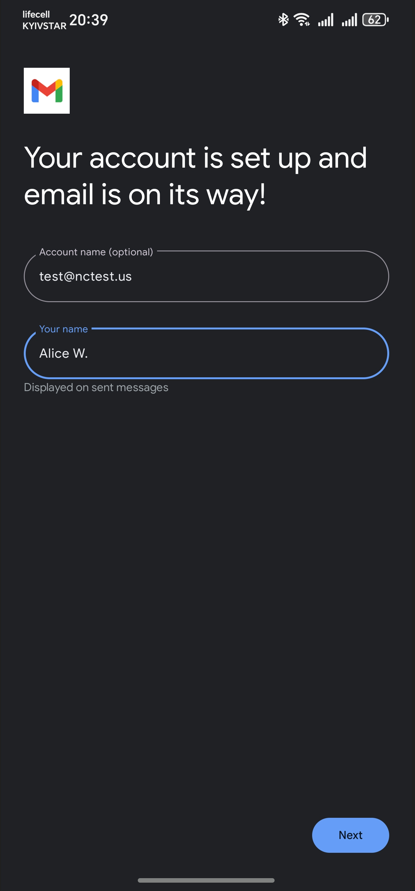
Your Private Email account is now set up in Gmail. You’re ready to send and receive emails.
That's it!
Need help? We're always here for you.