Private Email account setup on iPhone

This article applies to both the new Private Email webmail and the legacy (Open-Xchange) webmail.

Follow these steps to set up your Namecheap Private Email on your iPhone.

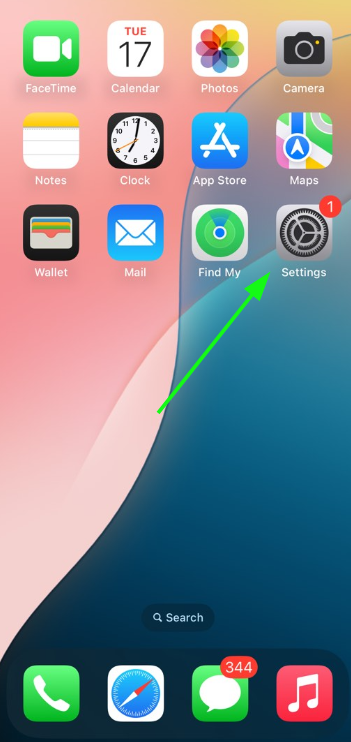
1. Open Settings on your iPhone:
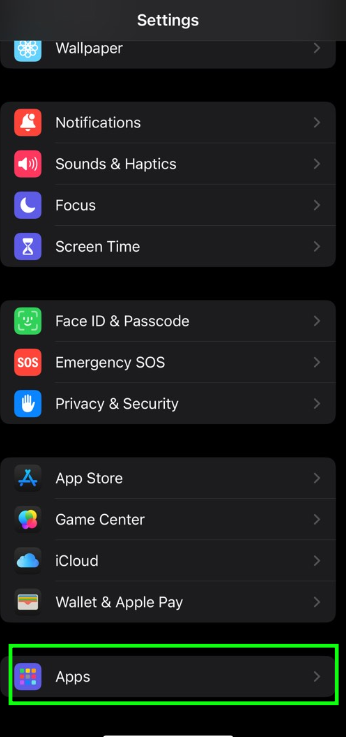
2. Tap Apps, then select Mail:
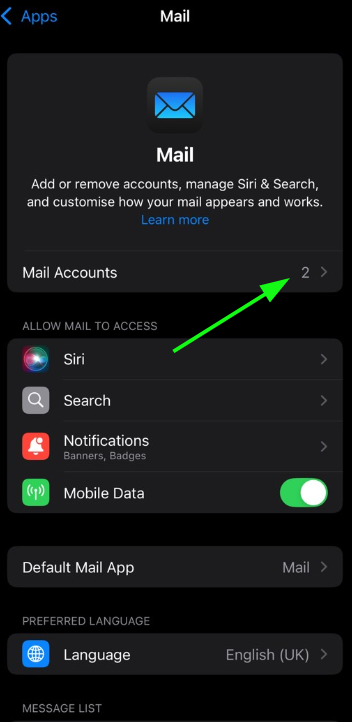
3. Go to Mail Accounts and tap Add Account:
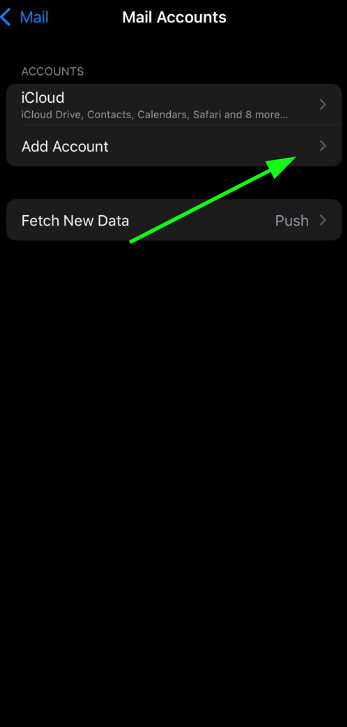
4. Select Other:
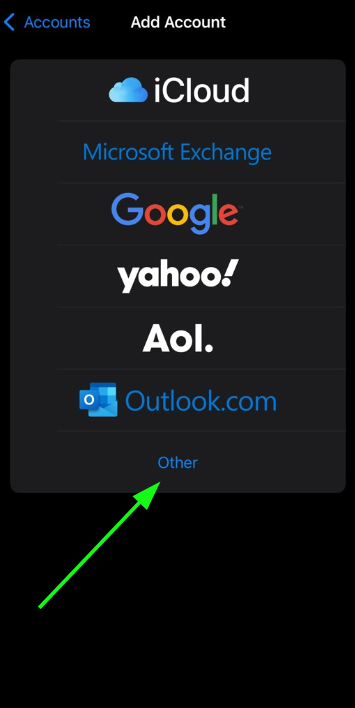
5. Tap Add Mail Account and enter:
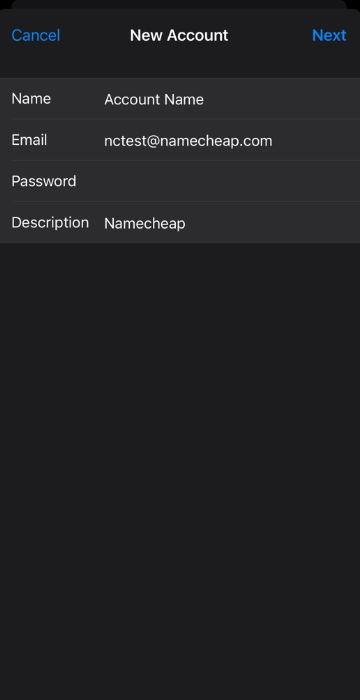
  • Name - your name (will appear as sender's name)
  • Email - your full PrivateEmail address
  • Password - your email password
  • Description - any label (you can use your email address)

Click Next.

6. Select protocol type: IMAP or POP3. The selection will be highlighted.

7. Settings are the same for both IMAP and POP3:
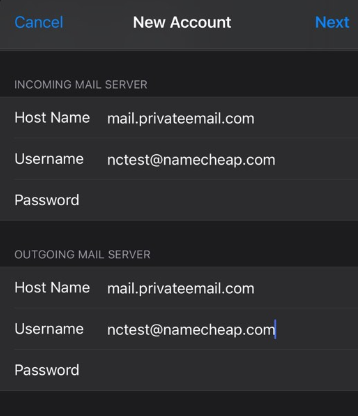
  • Name, Email and Description: should have been already filled in
  • Host name: mail.privateemail.com (same for all accounts)
  • User Name: your Private Email address
  • Password: password for your Private email

Tap Next.

8. If you use IMAP, turn on the services you need:
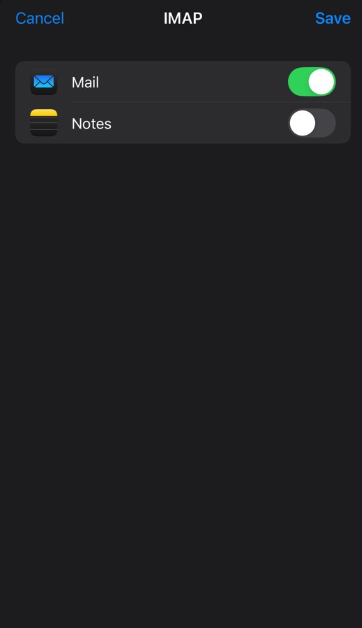
Tap Save and wait while the system completes the necessary checks.

That’s it!

Updated
Viewed
69706 times

Need help? We're always here for you.

notmyip