
This tutorial will show you how to set up a Private Email account in the Mail application on macOS using IMAP/POP for incoming and SMTP for outgoing mail.
There are two options for incoming mail, and this article covers both of them. IMAP protocol will allow syncing emails in various folders between a number of devices. POP will download emails from the Inbox folder to a specific device. IMAP is recommended.
NOTE: In this article, we use the nctest@namecheap.com address as an example.
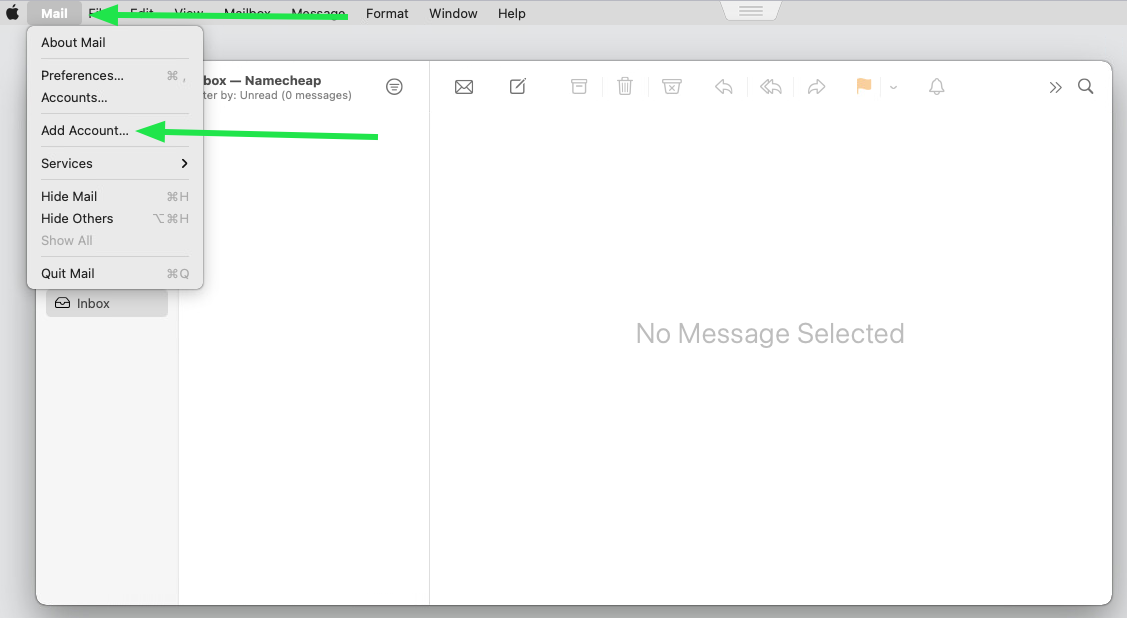
If you already have an account set up in your application, hit Mail and select Add Account:
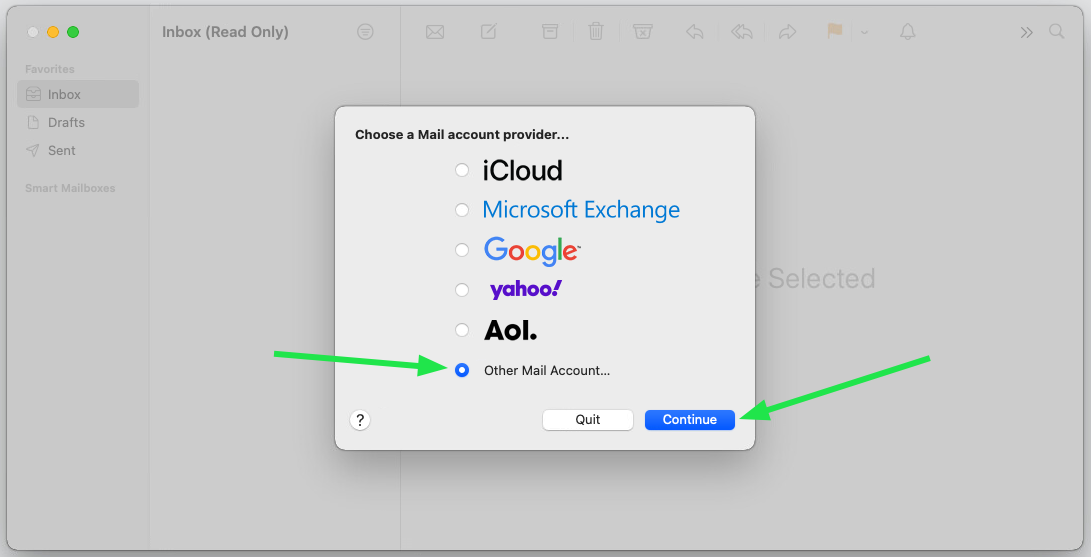
1. If it’s your first time using Mail, you will see a pop-up where you can add your email account. Select the Other Mail Account option and hit Continue:
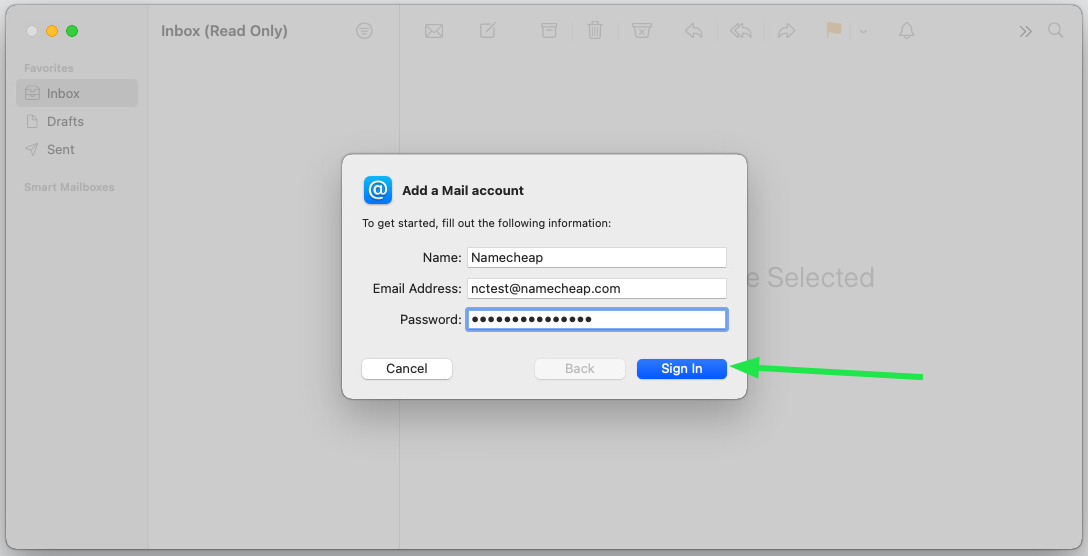
2. In the Add a Mail account window, enter your full name, email address, and email account password, then hit Sign In:
3. The application will try to detect settings automatically. Disregard the result and fill in the boxes manually. Enter your account details:
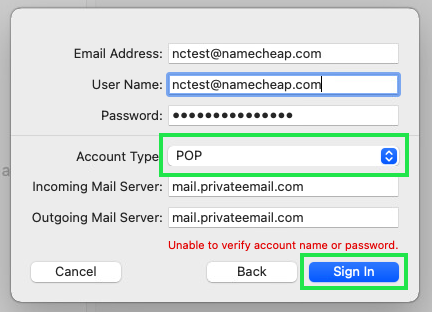
Hit Sign In once the details are filled:
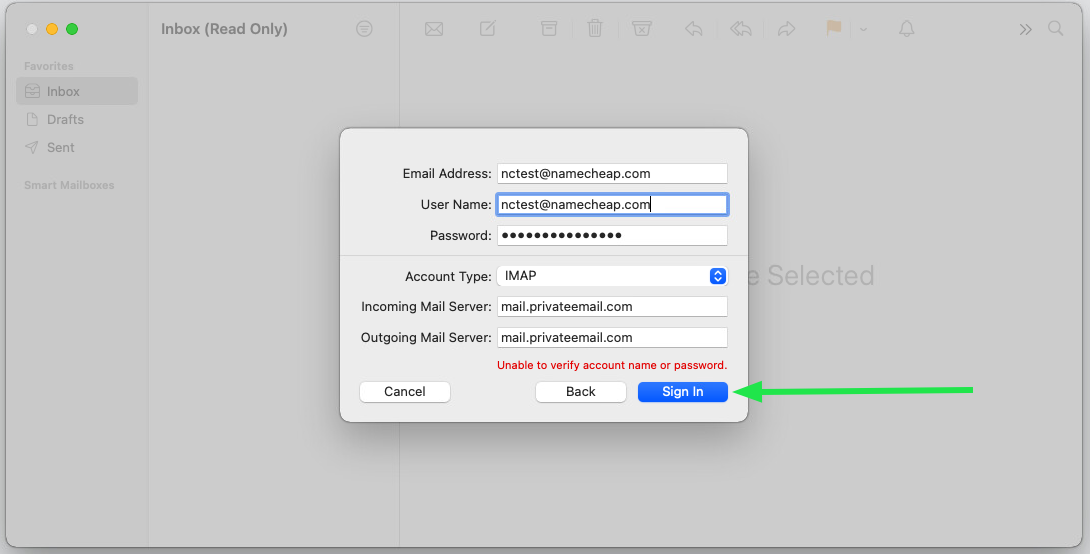
NOTE: To configure the POP protocol, choose POP instead of IMAP in the Account Type section:
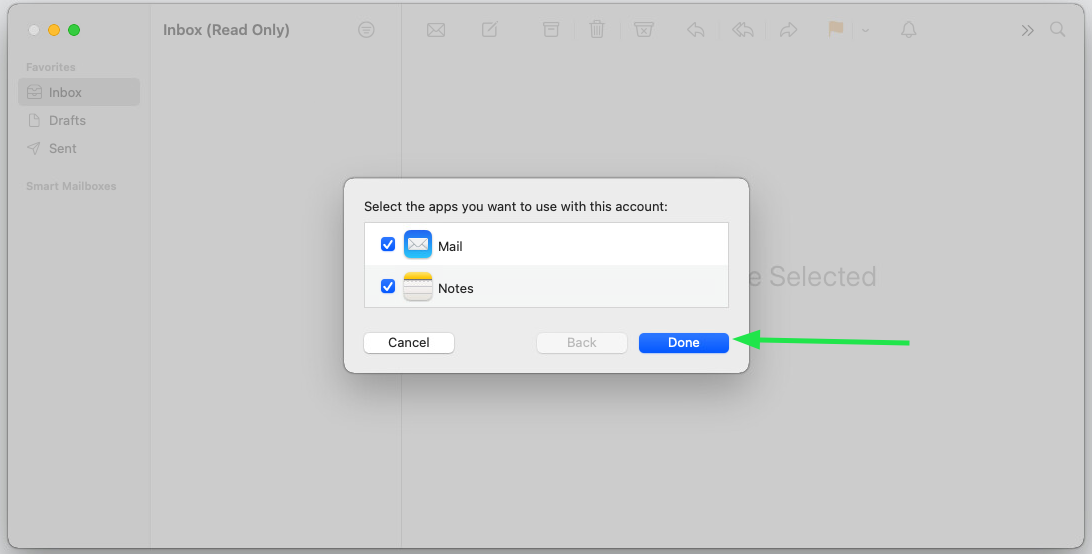
4. You may select both Mail and Notes here. Hit Done to finish adding your mailbox to the Mail app:
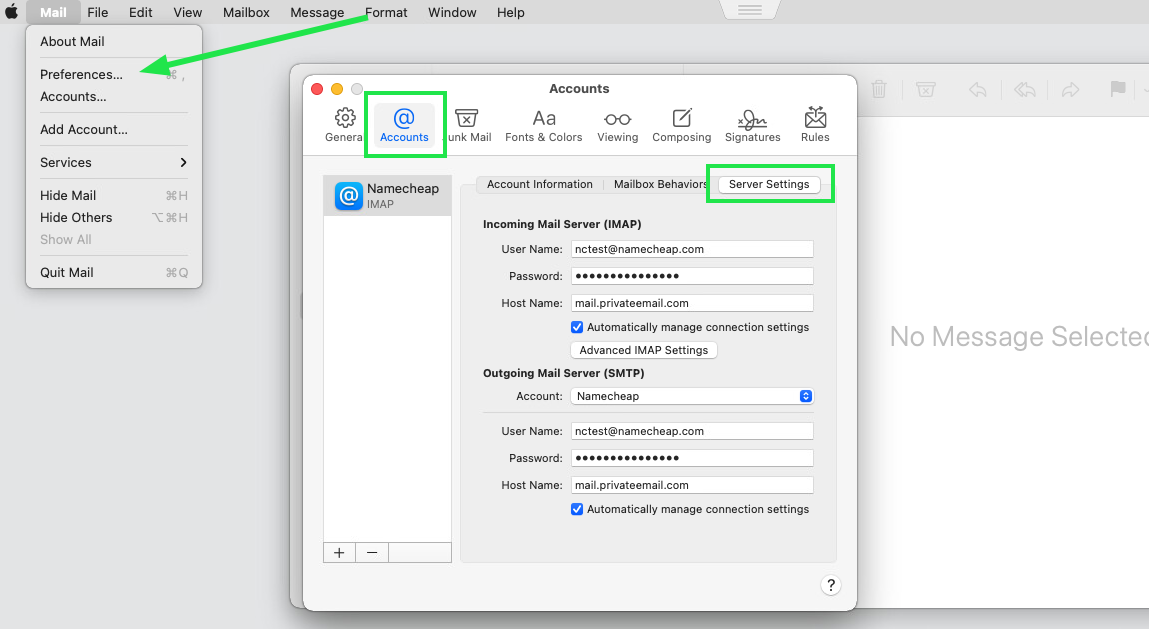
5. Verify that the Incoming and Outgoing Mail Server settings are correct. Hit Mail and go to Preferences. Once there, select Accounts and go to Server Settings:
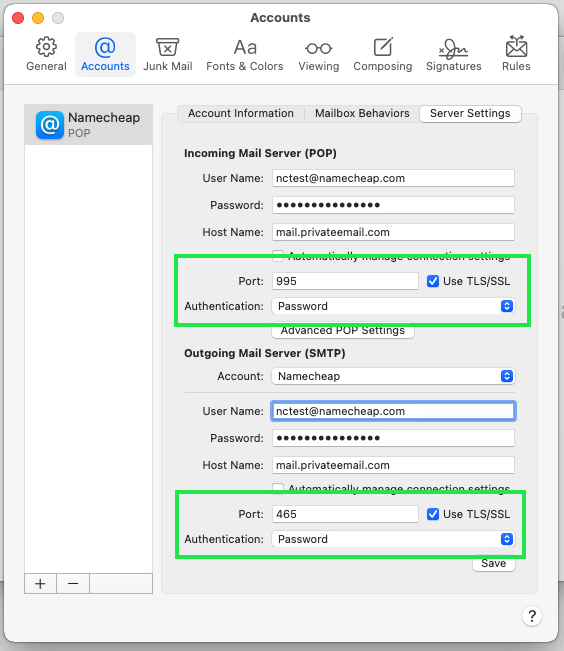
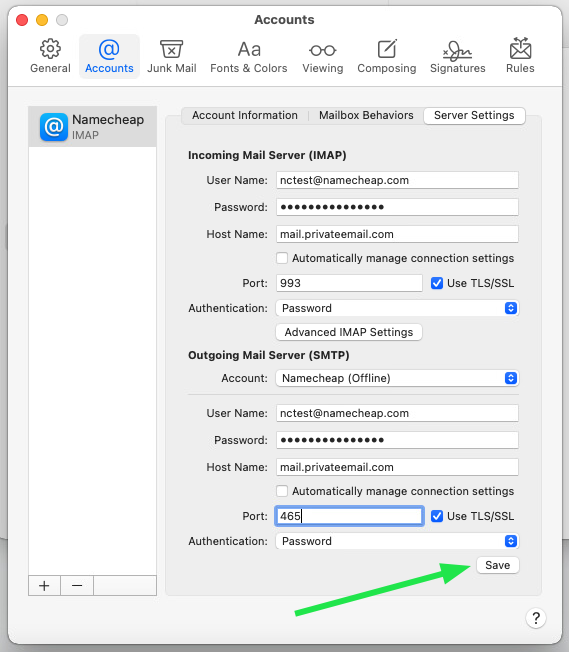
6. On the Server Settings tab, make sure that Automatically manage connection settings is unchecked at the Incoming Mail Server (IMAP) or (POP) and Outgoing Mail Server (SMTP) sections so that you can see the menus with Ports and Authentications fields.
For the IMAP/SMTP setup, the settings should be entered as follows:
Incoming Mail Server (IMAP):
Outgoing Mail Server (SMTP):
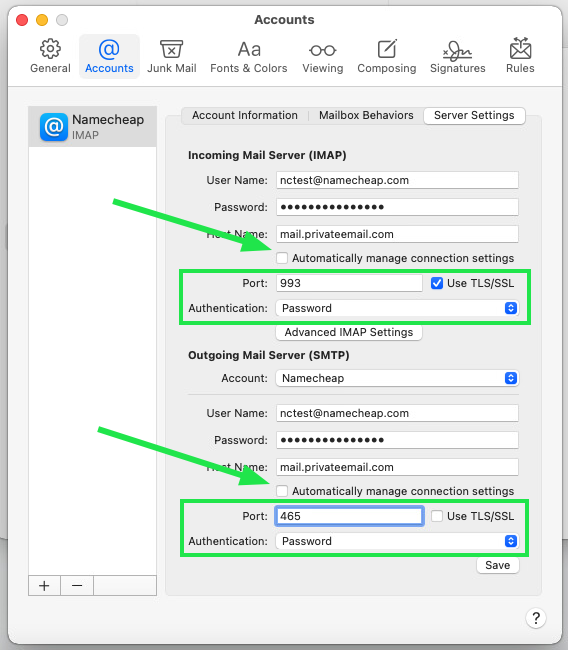
For the POP/SMTP setup, the settings should be entered as follows:
Incoming Mail Server (POP):
Outgoing Mail Server (SMTP):
7. Once everything is done, click Save and start using the Mail application on your macOS:
Need help? We're always here for you.