$ U.S. Dollar€ Euro£ British PoundC$ Canadian DollarsA$ Australian DollarsRs Indian Rupees¥ China Yuan RMBMore Info
How to edit php.ini on Shared servers
This guide describes how to edit the php.ini file on shared servers (Stellar and Stellar Plus, plans, as well as old Value, Professional, and Ultimate plans).
For Business servers (Stellar Business or old Business SSD plans), there is one more way to edit php.ini, you can check it in this guide.
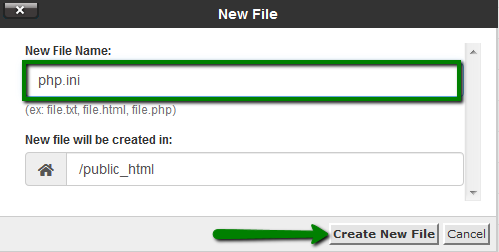
However, advanced PHP settings are missing from the Select PHP Version tool and must be manually configured in the php.ini file. You can either create the file or edit the existing one to your account.
NOTE: PHP 8.0, PHP 8.4, and PHP 8.5 are not officially supported by ionCube Loader. To prevent potential website functionality issues, it is recommended to remove the ionCube Loader extension entry from the php.ini configuration file. If your website or applications require ionCube-encoded files, please verify compatibility with the required ionCube Loader version before making this change.
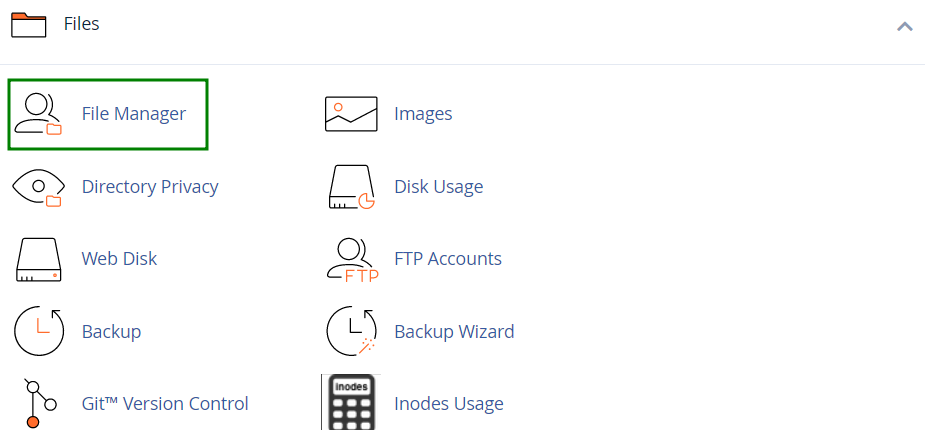
1. Log in to your cPanel account, go to the Files section >> the File Manager menu:
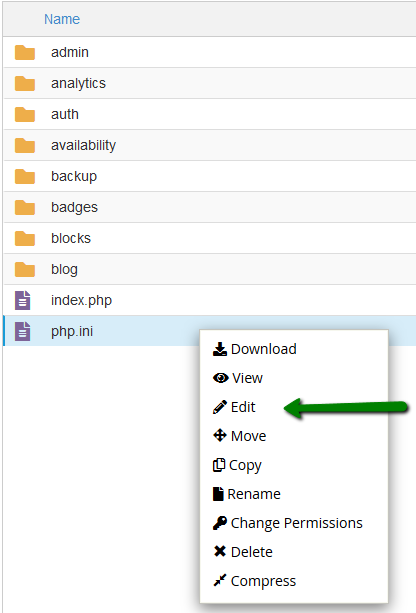
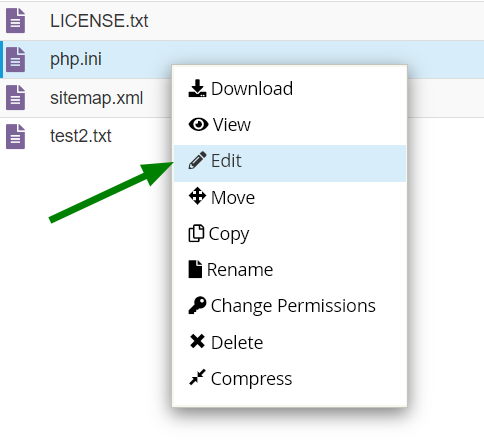
2. Navigate to the root directory of the domain name in question, look for the existing php.ini file in there, right-click on it to use the Edit option:
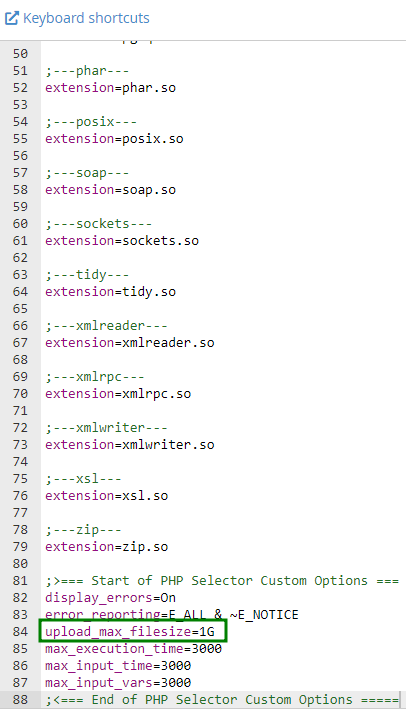
3. Use the search option and find the needed limit or value. In this example, it is upload_max_filesize:
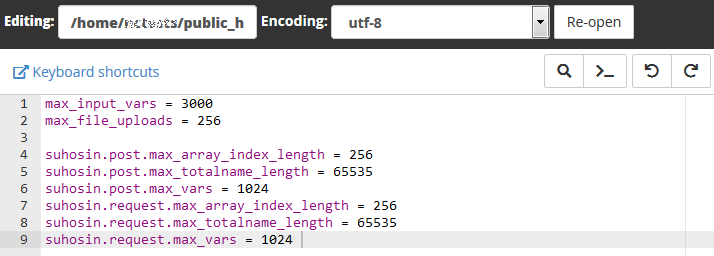
4. Edit the required PHP code and settings and click on Save Changes in the top right corner: