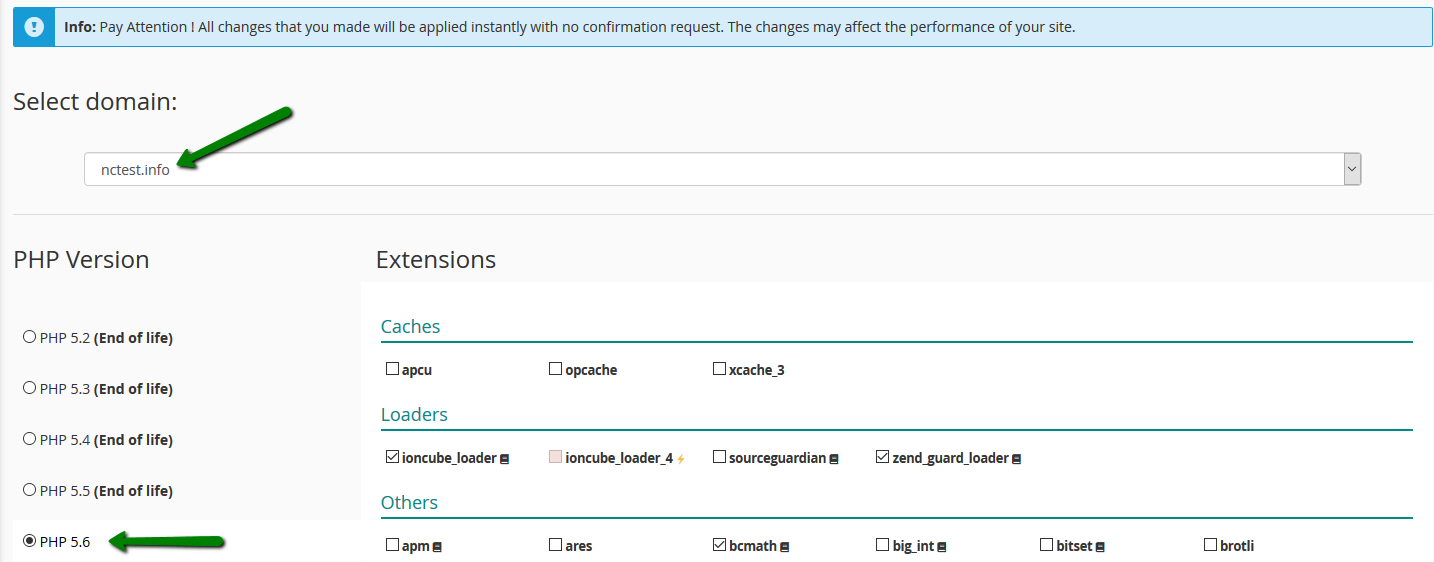
NOTE: By default, we have PHP 8.2 set on our Shared servers.
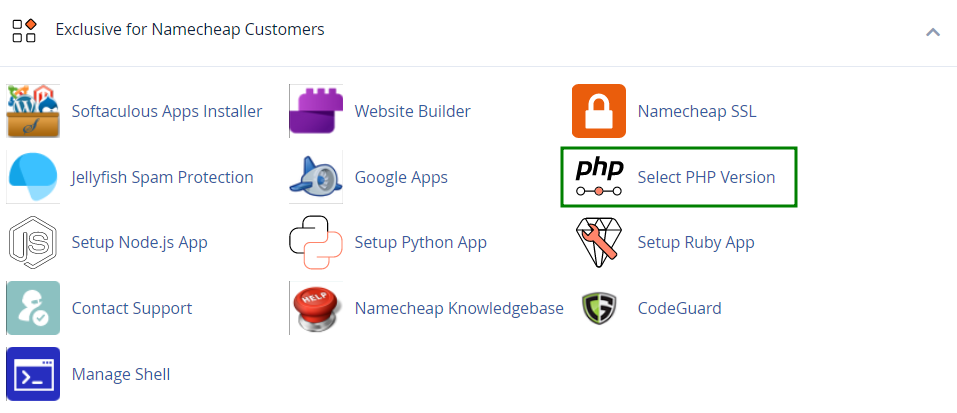
To check what PHP version is selected for Stellar or Stellar Plus hosting accounts, go to cPanel > the Software section or the Exclusive for Namecheap Customers section > the Select PHP Version menu:
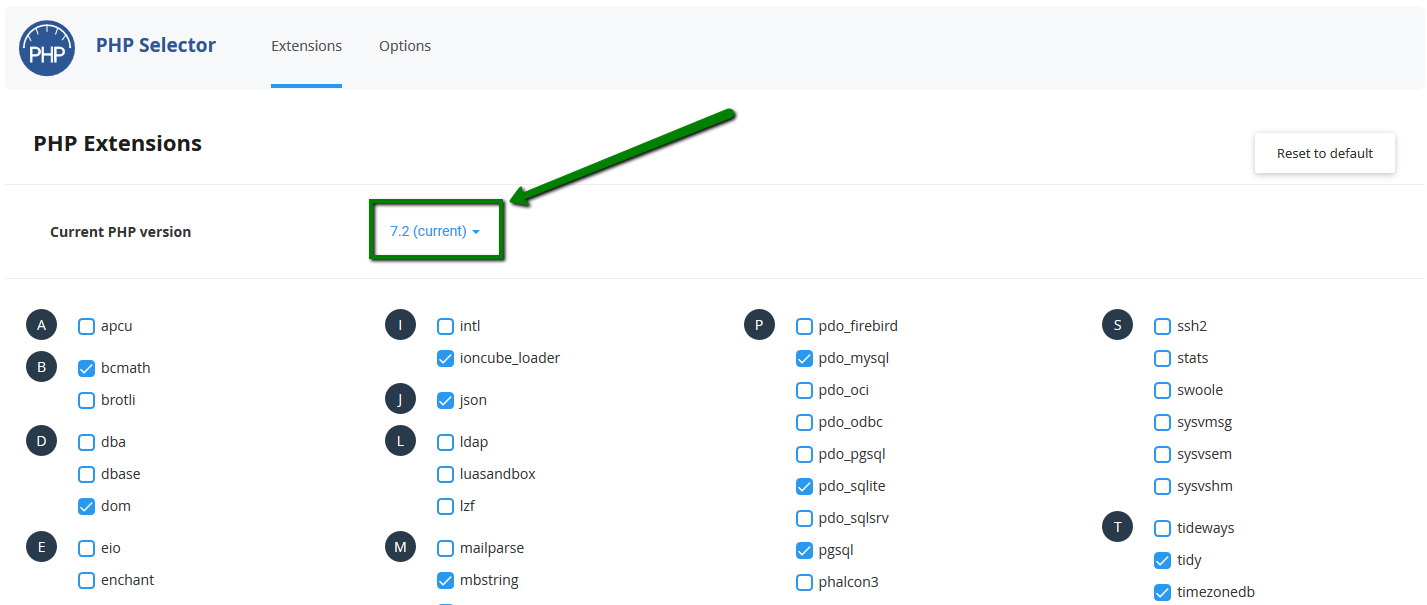
You will see the current PHP version above PHP extensions:
If you have
Stellar Business, go to the
Exclusive for Namecheap Customers section >> the
PHP Tweaks menu:

There, you will see the domain and the PHP version set up for it:
Another way to check PHP version is PHPinfo() function, commonly used to check the current state of PHP configuration.
It can also be used for debugging purposes as it contains all EGPCS (Environment, GET, POST, Cookie, Server) data.
To run the function, follow the steps below:
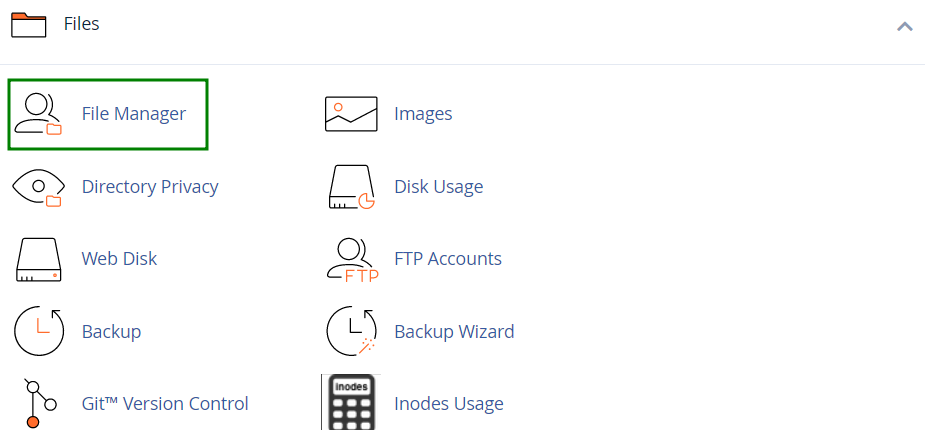
1. Log in to your cPanel account, go to the
Files section >
File Manager:
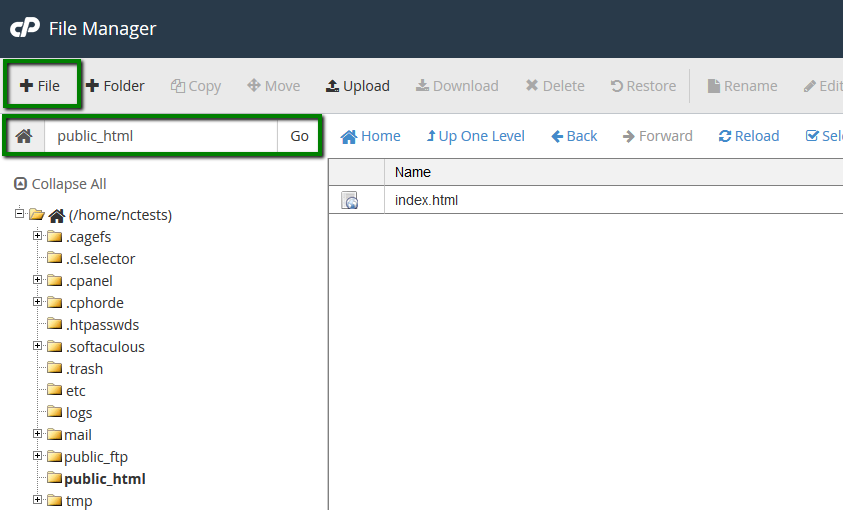
2. Navigate to the
public_html directory, click on
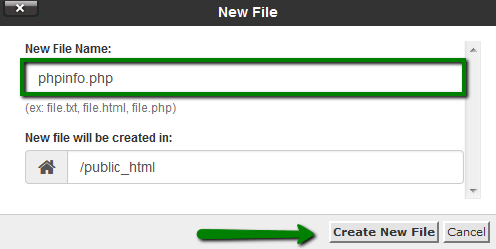
+File and create a
phpinfo.php file:
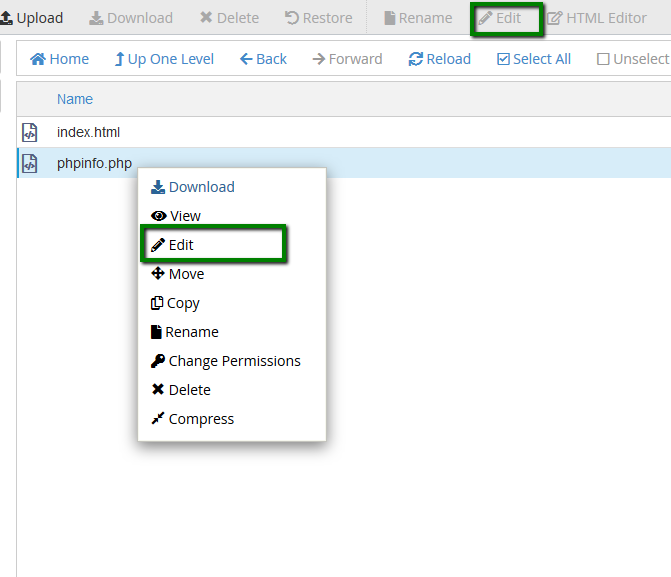
3. Find the newly created file in the list and click on
Edit in the upper corner menu or
right-click on the file >
Edit:
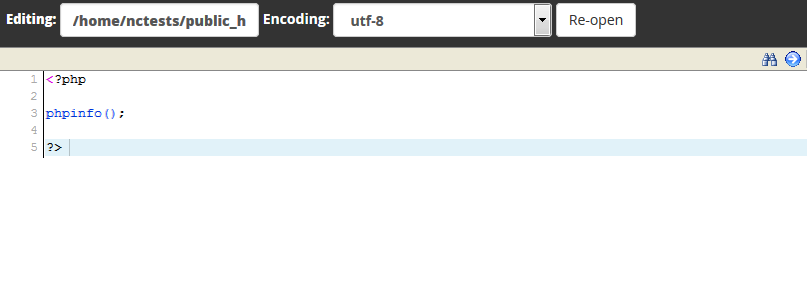
4. Add the lines of the code provided below to the file and click on
Save Changes:
<?php
phpinfo();
?>
5. To see the detailed information about the PHP configuration of your account, open the
http://yourdomain.tld/phpinfo.php link in your browser, replacing
yourdomain.tld with your main domain name.
NOTE: For the security reasons, do not forget to delete the file once you check all the necessary information.
That's it!
Need any help? Contact us via
Helpdesk