
Considering migrating your website from SiteGround to Namecheap, but wondering if the move makes financial sense? High renewal rates can add up over time. This guide walks you through the transition so you can decide if switching is the right move for your budget and growth.
Switching from SiteGround to Namecheap is a strategic upgrade for anyone seeking long-term hosting efficiency and peace of mind during transfer.
If you are hesitant about moving your hosting from SiteGround to Namecheap, evaluating long-term costs and transfer reliability can help you decide.
To see how the plans stack up across key features, migration process specifics, and support channels, review the detailed table below:
|
Feature |
SiteGround StartUp |
Key difference |
|
|---|---|---|---|
|
Price *Prices as of October 2026 |
30-day free trial; then $2.28/mo advertised for the first year (annual billing). Annual renewal: $55.88/year (~$4.66/mo). Monthly renewal, if selected: $5.88/mo. |
$2.99/mo promo then $17.99/mo renewal (12-mo term). |
Namecheap: Lower intro rate plus a risk-free 30-day trial. Promo prices are close, but SiteGround's renewal is roughly 3 times higher. |
|
Migration |
Free cPanel migration completed within 24 hours. |
Free, but only via the SiteGround Migrator plugin, which is WordPress-only. Paid migration for non-WordPress sites. |
Namecheap: Hands-off managed service migration for both WordPress and cPanel. |
|
Downtime |
No more than 15 minutes of downtime during transfer (or get 1st year of hosting credited). |
Stated zero downtime via plugin (no SLA/remedy). |
Namecheap: Backs transfer reliability with a financial remedy if the transfer downtime is more than 15 min (1st year of hosting credited). |
|
Customer Support |
24/7 Live Chat and Email Support on any plan tier (No phone support). |
24/7 support via chat, phone, and ticketing |
SiteGround: Offers phone support and non-outsourced in-house staff. |
|
Websites |
3 |
1 |
Namecheap allows hosting more websites in 1 account. |
|
Storage |
20 GB SSD |
10 GB |
Namecheap provides more storage. |
|
Email accounts |
30 mailboxes included |
The number of accounts is limited only by disk usage |
SiteGround offers more mailboxes. |
You can manually migrate your site from SiteGround to Namecheap.
For simple, static HTML websites without a database, the process is straightforward: copy your site files directly from SiteGround, upload them to Namecheap, and update your domain’s nameservers.
If your site relies on a database, such as WordPress, Joomla, or another CMS, feel free to follow the steps below. While this walkthrough focuses specifically on migrating a WordPress site, the manual core steps remain virtually identical for any database-driven platform.
Downtime depends on the migration method, website configuration, and DNS changes. Namecheap's 24-hour completion and no more than 15-minute downtime guarantees apply to eligible full cPanel transfers.
Because SiteGround uses Site Tools instead of cPanel, transfers from SiteGround require manual handling, and these guarantees do not automatically apply. The migration team assesses each request individually and confirms the available options.
To minimize disruption, keep the original website active on SiteGround while you transfer and test the copy on Namecheap. Preview the new website before changing DNS, and avoid making changes to the old website during the final cutover unless you can synchronize them.
A manual transfer involves three primary phases:
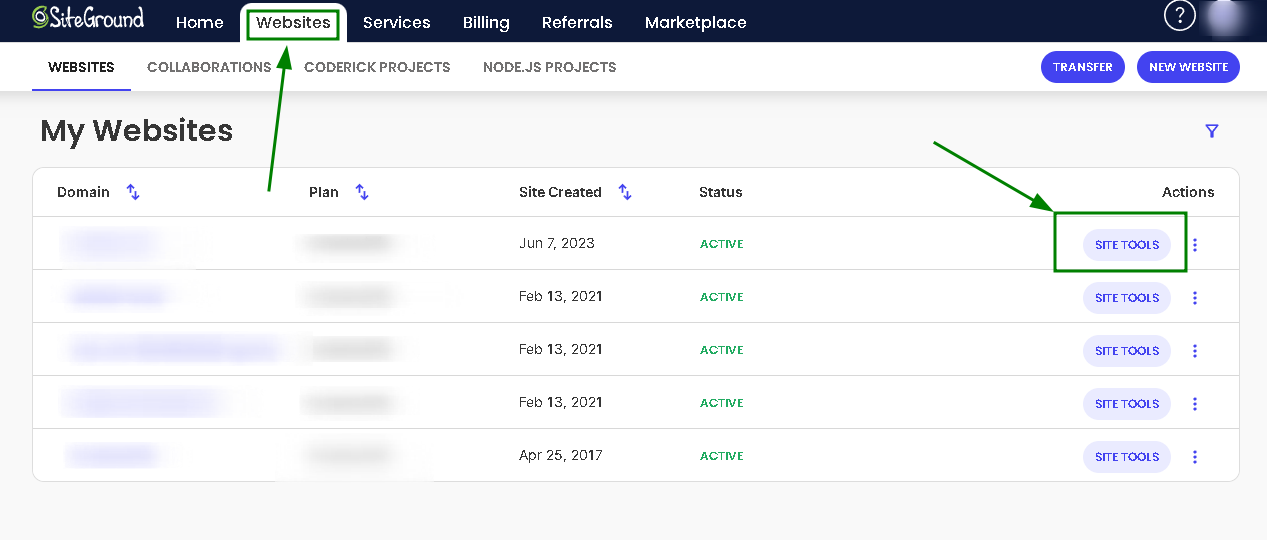
Log in to your SiteGround Client Area and go to Websites > Site Tools for your site:
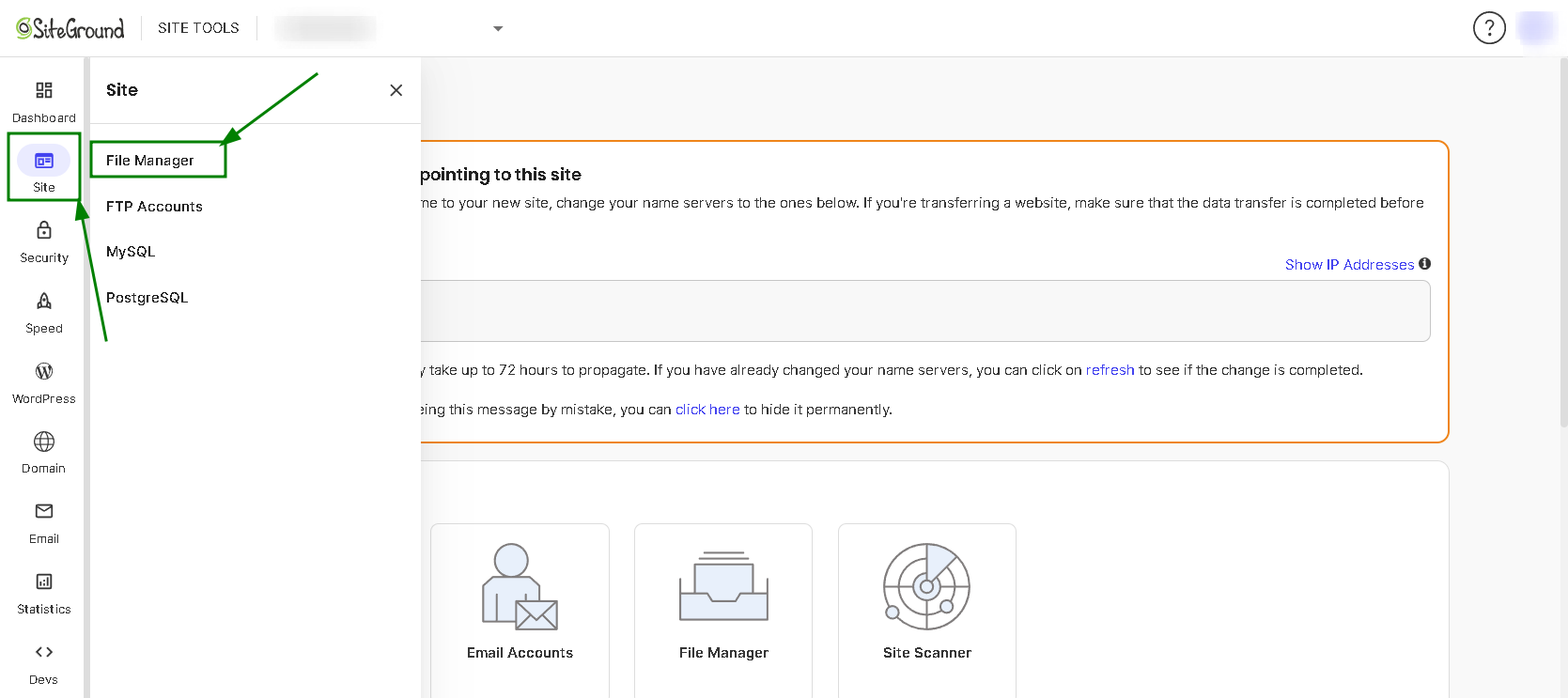
In Site Tools, go to Site > File Manager:
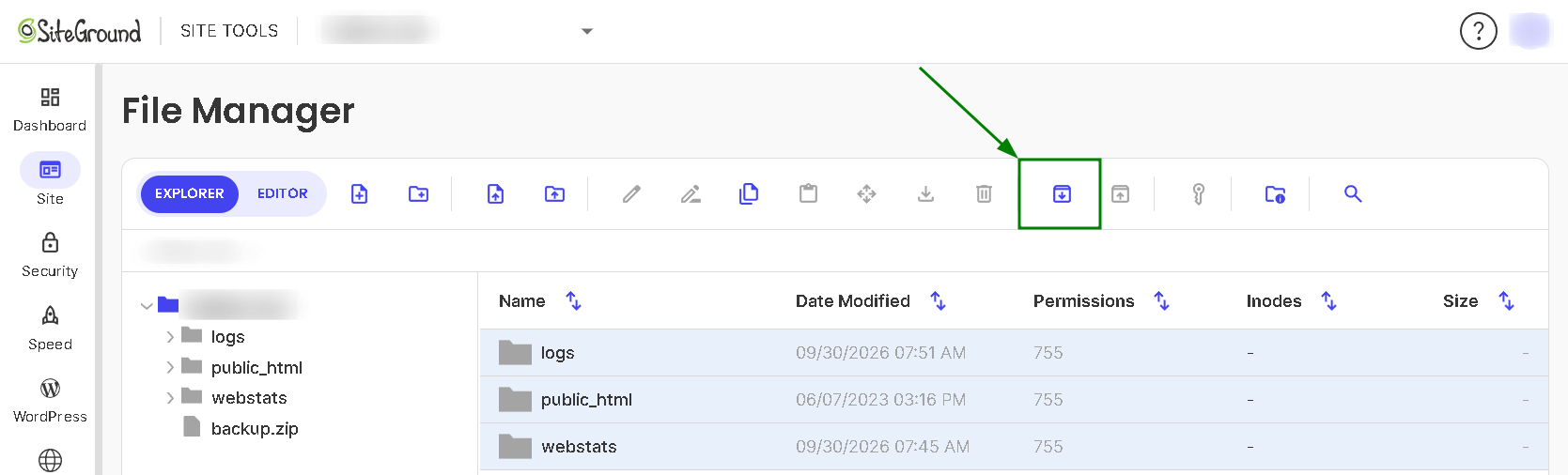
Open your website's root directory (typically public_html). Select all files, right-click, and choose the Archive option to generate a .zip file:
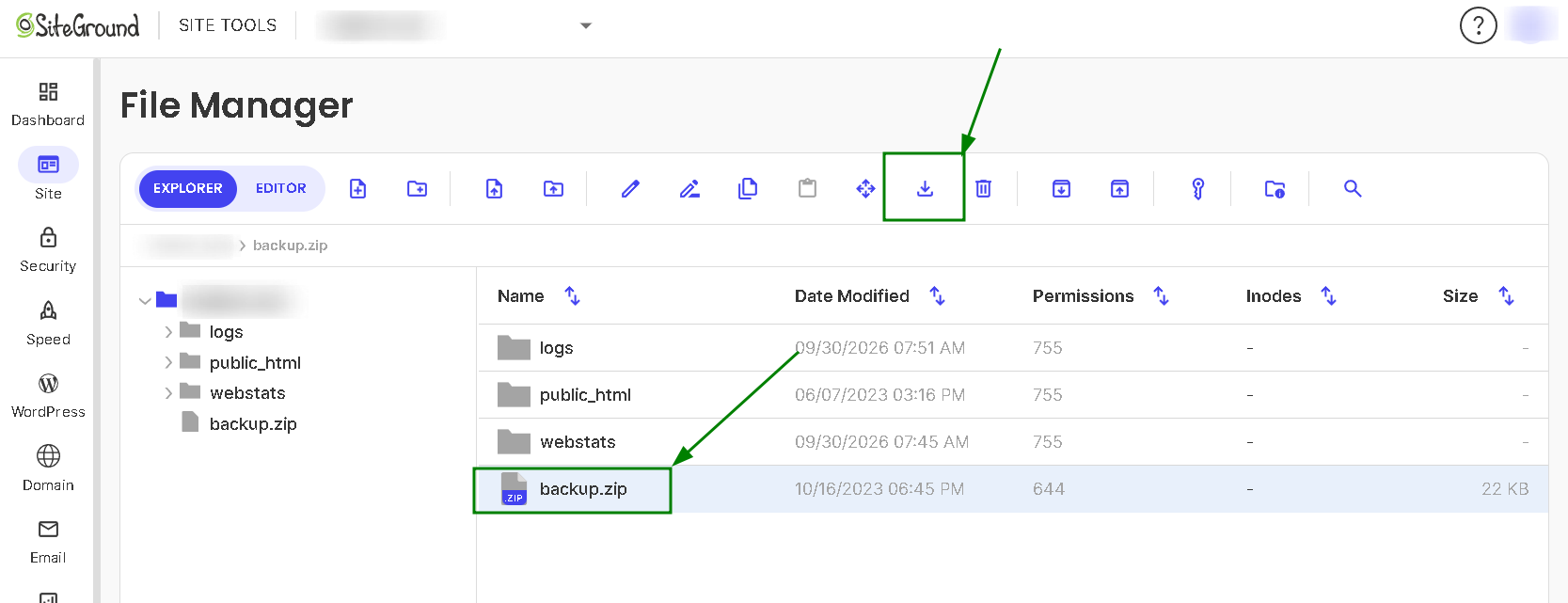
Right-click the .zip file and click Download:
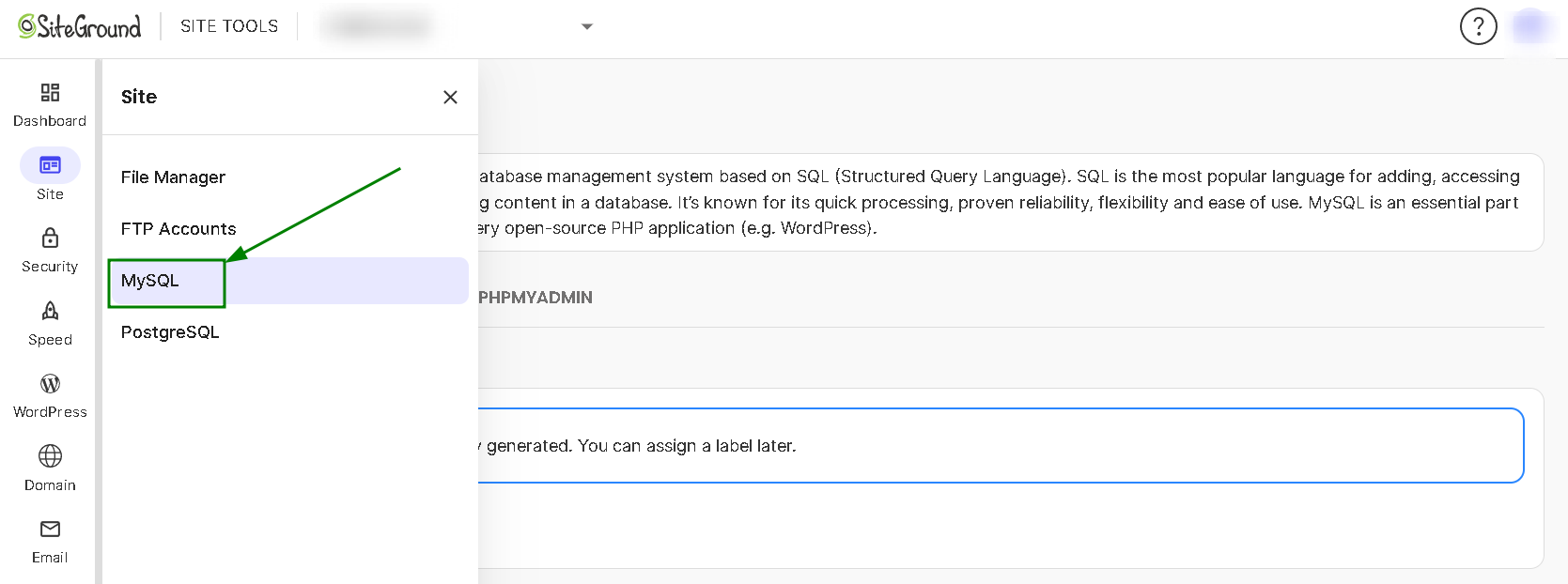
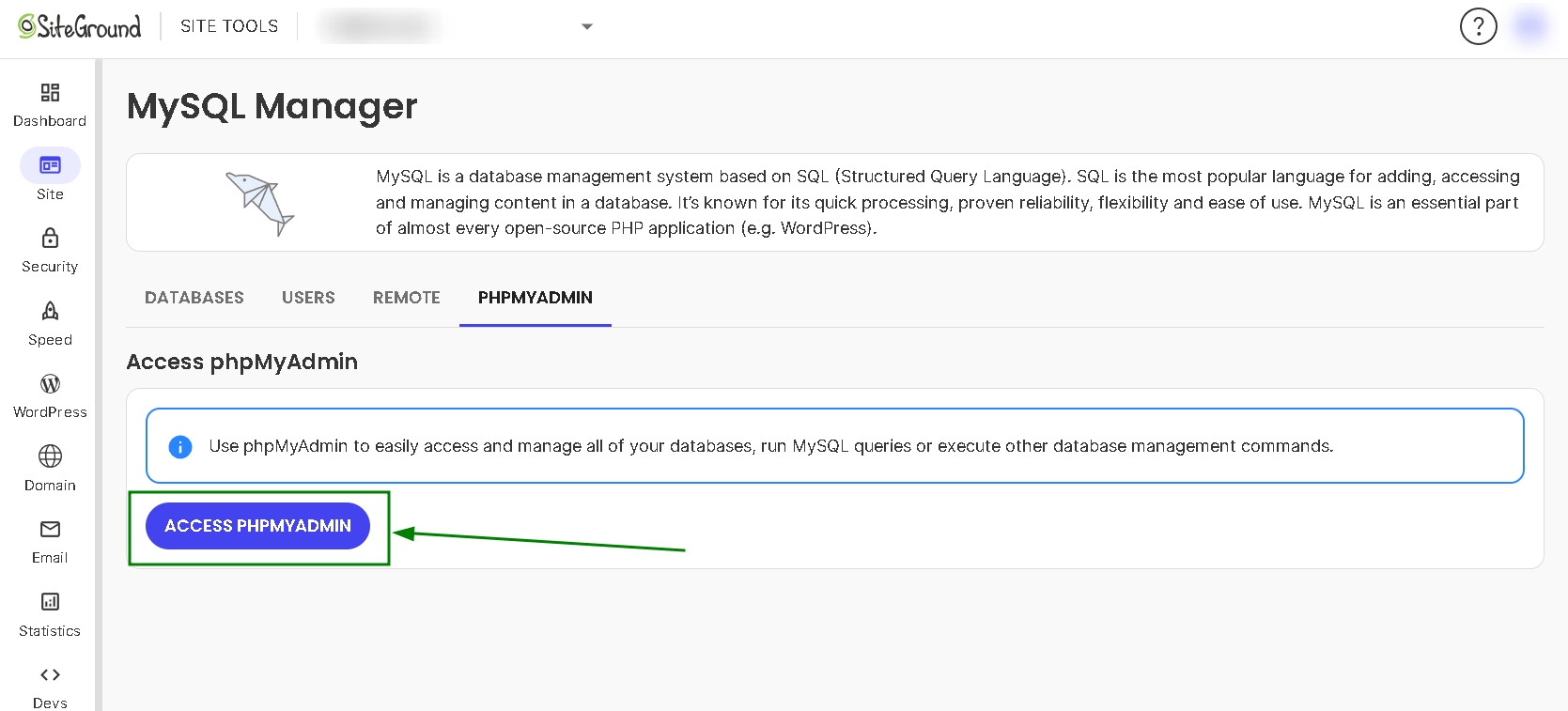
To back up your MySQL database (if applicable), go to Site > MySQL > phpMyAdmin:
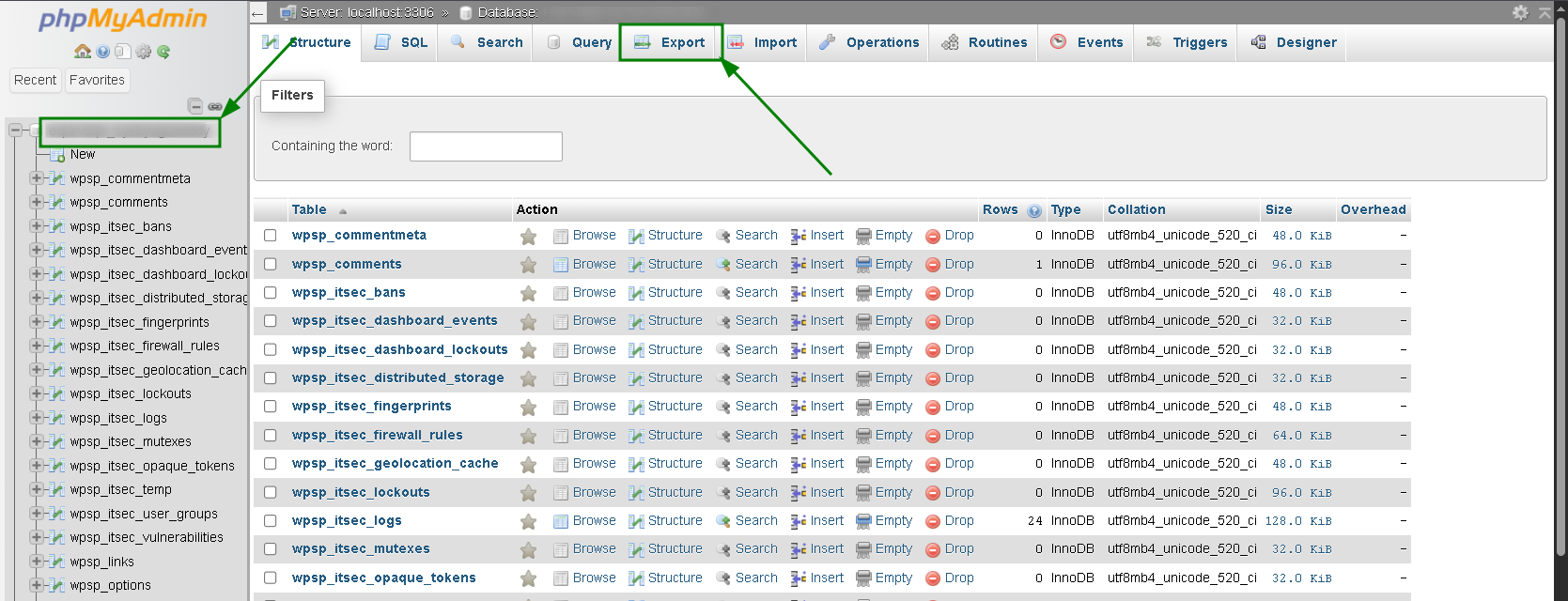
Select your database from the left sidebar. Click the Export tab in the top navigation bar.
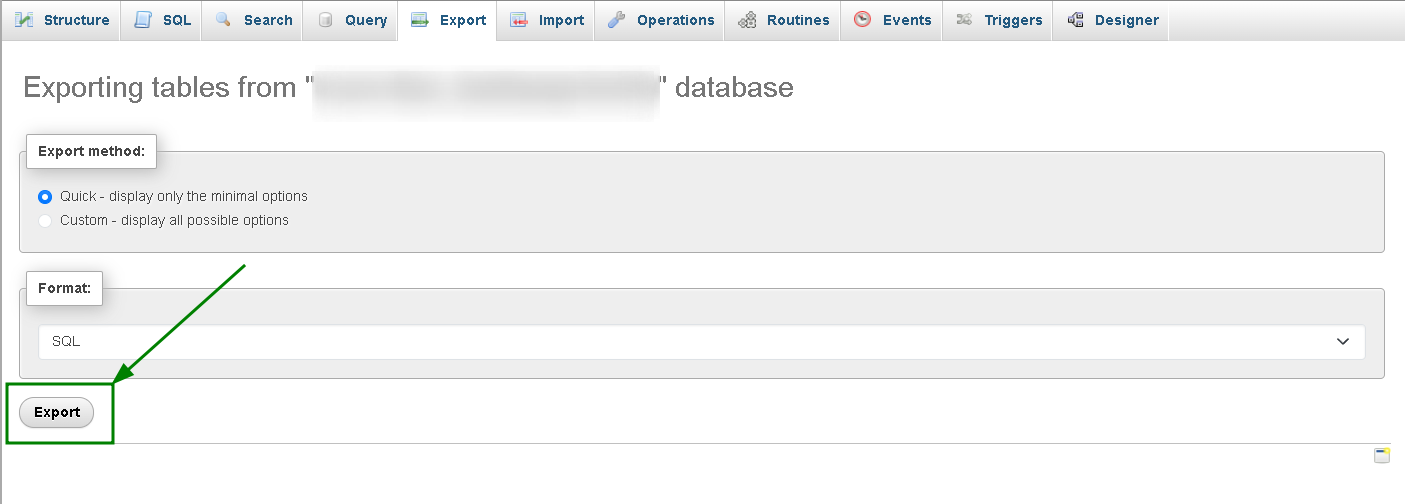
Select Quick export format and click Export to download the .sql file:
Done, you have your files and database backed up.
The next step is uploading your manual backup.
You can upload your site files by connecting to your Namecheap account via FTP or by opening File Manager under cPanel > Files > File Manager:
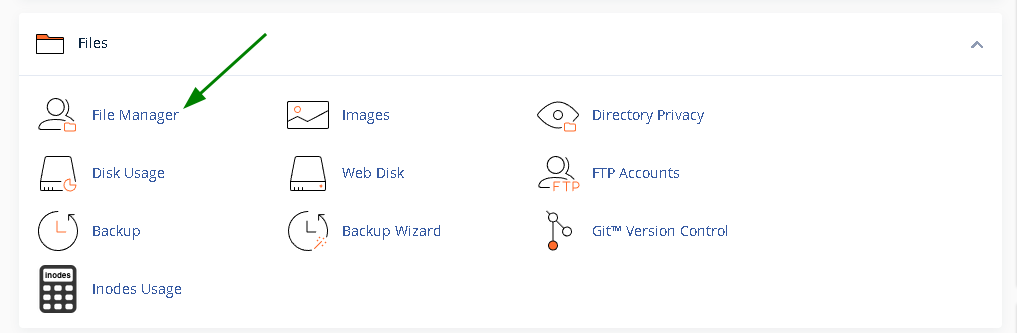
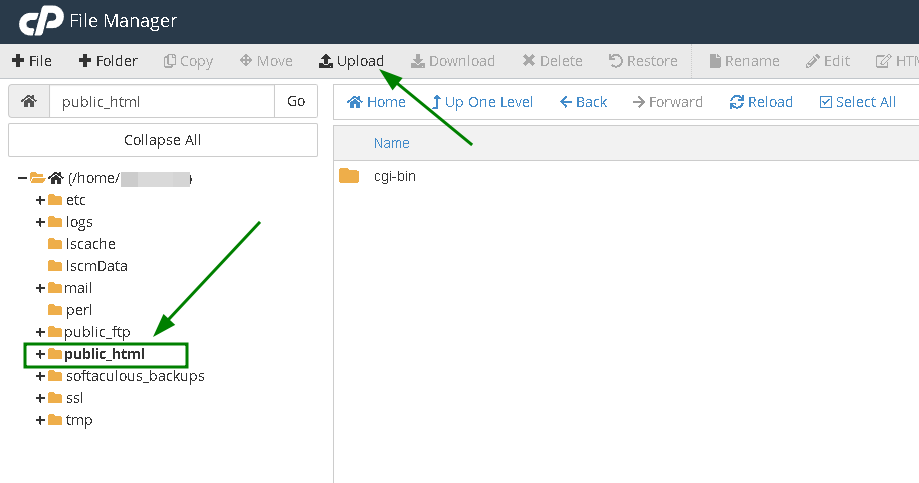
For your main domain, upload the backup file directly into the /home/user/public_html/ folder using the Upload button:
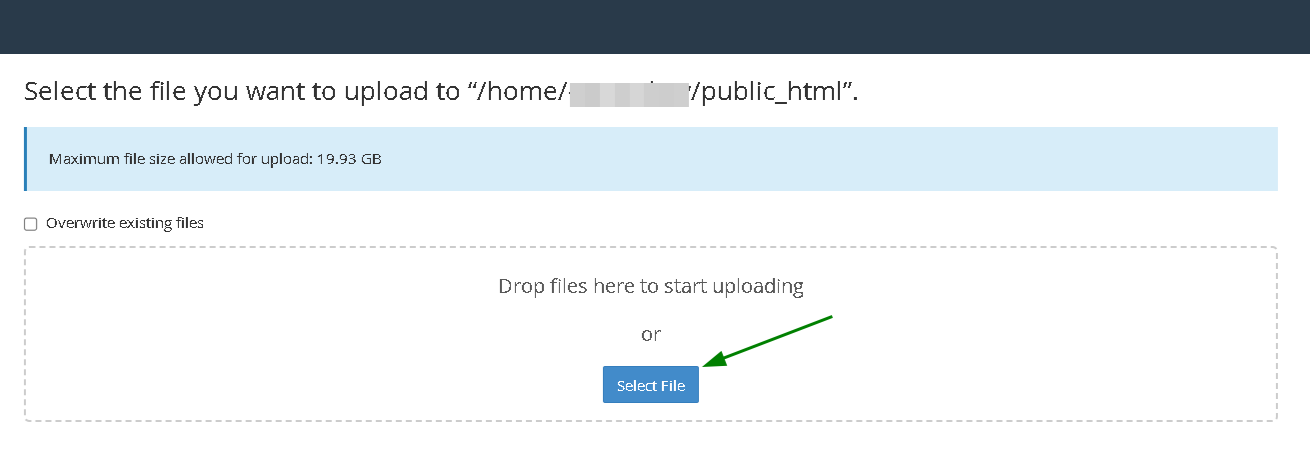
Once prompted to upload the file, choose one from your local storage and proceed with the upload:
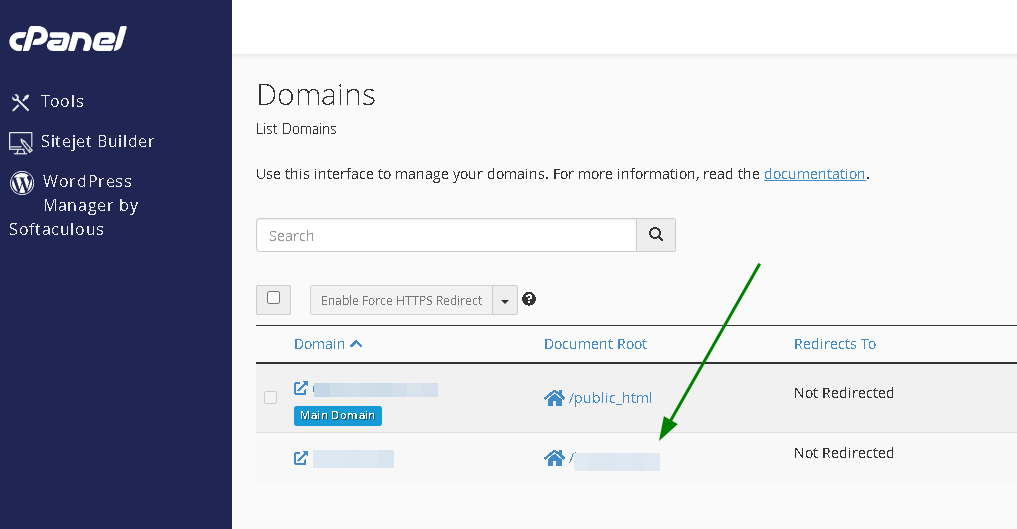
If it is a backup for an add-on domain, you need to upload it to the add-on domain root folder. It can be checked in the Domains menu in cPanel:
Once the backup is uploaded, you will see it in your folder.
After that, you can proceed with manual backup restoration as described here.
Transferring your web hosting migrates your site’s files and databases, but it does not automatically transfer your domain registration. Once your website is restored on Namecheap, point your domain to the new server by updating its nameservers at your domain registrar. You can also transfer the domain itself to Namecheap if you prefer consolidated billing and lower renewal rates.
Make sure to test your website using Namecheap’s temporary preview URL before making DNS changes to ensure zero downtime.
Keep in mind that nameserver settings are locked during a domain transfer, so ensure your site is functioning on Namecheap before initiating the transfer. DNS changes typically take 24–48 hours to propagate globally.
With the free Hosting Migration service, our technical specialists handle the entire transfer for you behind the scenes. The migration team ensures a seamless, hands-off migration of your entire cPanel account, including files, databases, and emails.
For a partial site transfer, a partial email migration, or a migration from non-cPanel-based hosting, we assess the process on a case-by-case basis, as we may encounter limitations that can block the transfer. Email can only be migrated from cPanel-based hosting.
New SSL certificates are issued once the domains are pointed to our hosting and are present on the server.
For a complete transfer to be handled by us, make sure the following requirements are met:
Make sure that the source hosting is cPanel-based and remains accessible throughout the transfer for at least 3-7 days.
Keep your account with the old provider active until we confirm the migration is complete and you have checked your website. Do not cancel it before then.
Access to your source hosting account
Share the login details via a one-time secure share link to provide our Hosting Migration team with the necessary access so they can proceed with the transfer. For security reasons, you may set a temporary password for your source account now, or share your current password and change it once the migration is complete.
If two-factor authentication is enabled on your source account, please disable it for the duration of the migration, or let us know so we can arrange alternative access.
If you already have a hosting plan with us or wish to purchase a new one, let us know. We will check your current account and suggest the best option.
Once you are ready, feel free to submit a transfer request.
Expected downtime depends on your chosen transfer method, website configuration, and DNS updates. Please note that Namecheap’s 24-hour turnaround and 15-minute maximum downtime guarantees cover eligible full cPanel migrations only. Since SiteGround uses Site Tools instead of cPanel, transfers require manual handling and may take longer.
To ensure a seamless transition, keep your active SiteGround hosting running during the transfer, preview the destination site on Namecheap before modifying DNS settings, and establish a strategy for handling any content edits made on the original site before the final switchover.
Can I migrate from SiteGround if it doesn't use cPanel?
Yes, Namecheap can migrate the site from SiteGround. However, we cannot guarantee we will be able to complete the migration on your behalf.
Transfers to cPanel at Namecheap from a non-cPanel hosting account are evaluated on a case-by-case basis.
WordPress sites are transferred completely free by our team, while non-WordPress sites can be moved manually via FTP/SSH and database exports.
How do I move a WordPress site from SiteGround to Namecheap?
You can either request a free managed migration (completed within 24 hours), or use a WordPress backup plugin (like All-in-One WP Migration or Duplicator) to export and import your site yourself.
Will my site have downtime during a SiteGround migration?
There is no noticeable downtime. Your site stays live on SiteGround while files are copied and tested on preview URLs.
How long does it take to migrate from SiteGround?
Standard WordPress and website transfers are guaranteed to finish within 24 hours once all login details are provided.
Does Namecheap handle SiteGround migrations for free?
The website migration service is 100% free for all compatible hosting accounts.
Migrating your site is simple with the right support. You can sit back and let our transfer team handle everything for free, or follow our step-by-step manual walkthrough.
Pick your Namecheap hosting plan now and switch from SiteGround with total confidence.
Need help? We're always here for you.