How to add more storage to your Private Email mailbox

If your Private Email mailbox is running out of storage, you can add more space to keep sending and receiving emails without interruptions.

There are two ways to get more storage:


Upgrade your Private Email plan

If a higher Private Email plan is available for your subscription, upgrading is the easiest way to increase your available storage.

To upgrade your plan:
  1. Sign in to your Namecheap account.
  2. Go to Private Email.
  3. Find the subscription you want to upgrade and click Manage.
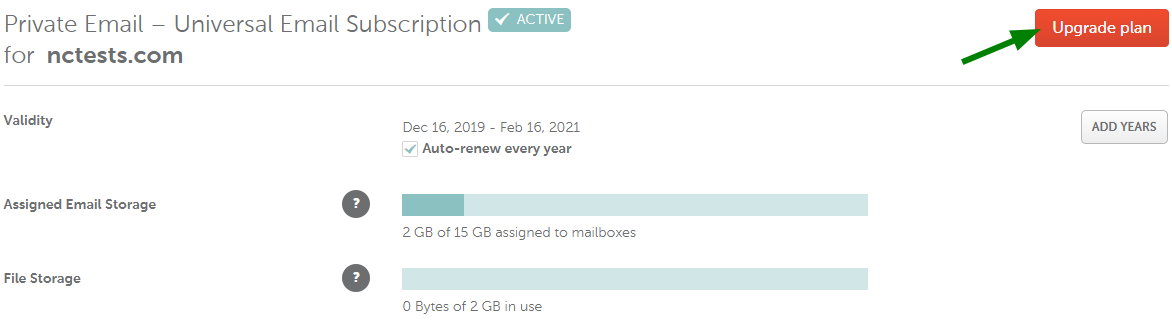
  4. Click Upgrade plan:
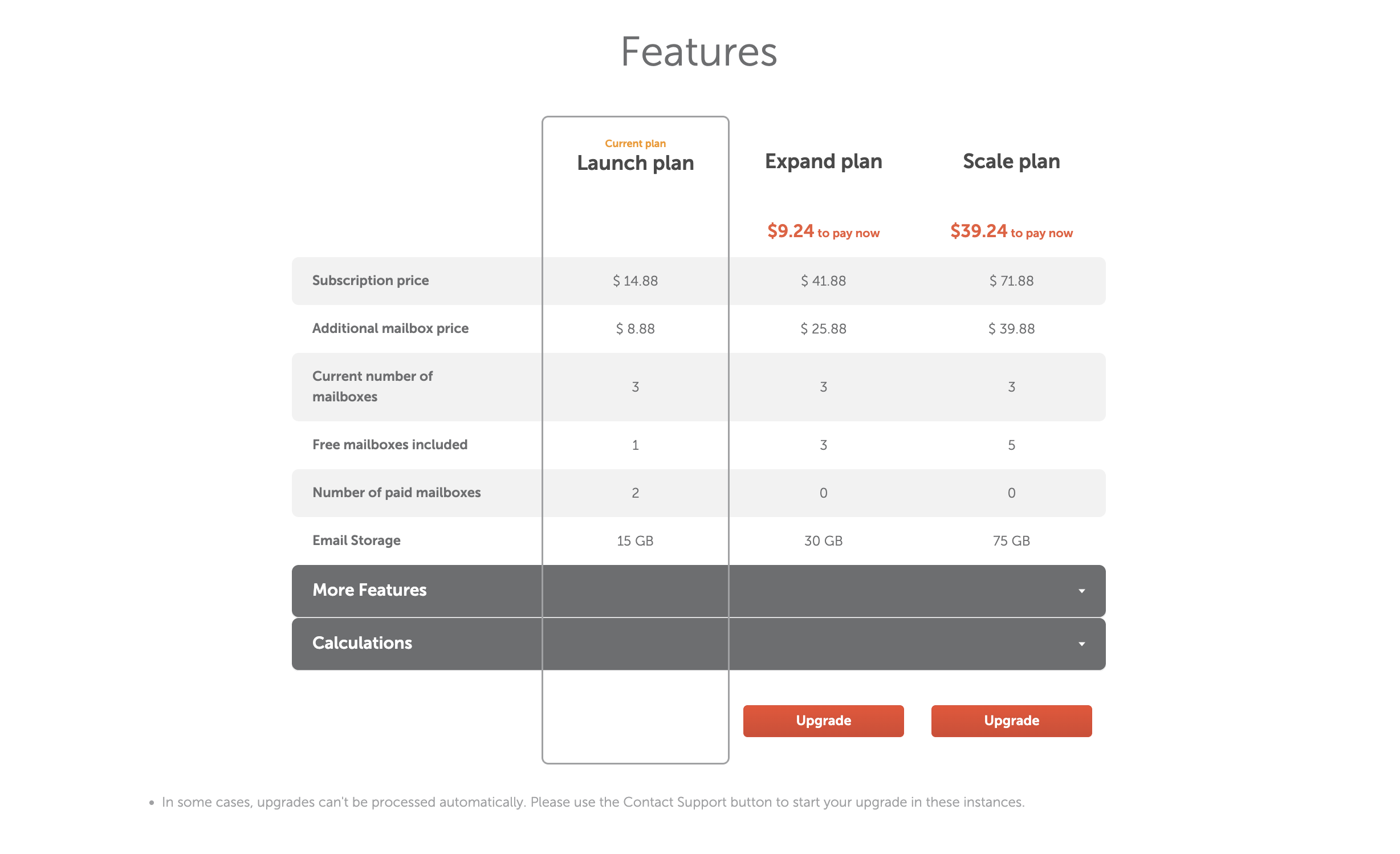
  5. Compare the available plans and choose the one you want to upgrade to:
  6. Review your order and proceed to checkout.

If you upgrade in the middle of your billing cycle, you will only be charged the upgrade cost for the remaining time in the current billing cycle. After that, your subscription will renew at the price of the new plan.

Once the upgrade is complete, you can distribute the newly available storage among the mailboxes in your subscription.


Purchase an additional mailbox

If you are already using the highest available Private Email plan, you can purchase an additional mailbox to increase the total amount of storage available under your subscription.

To purchase an additional mailbox:
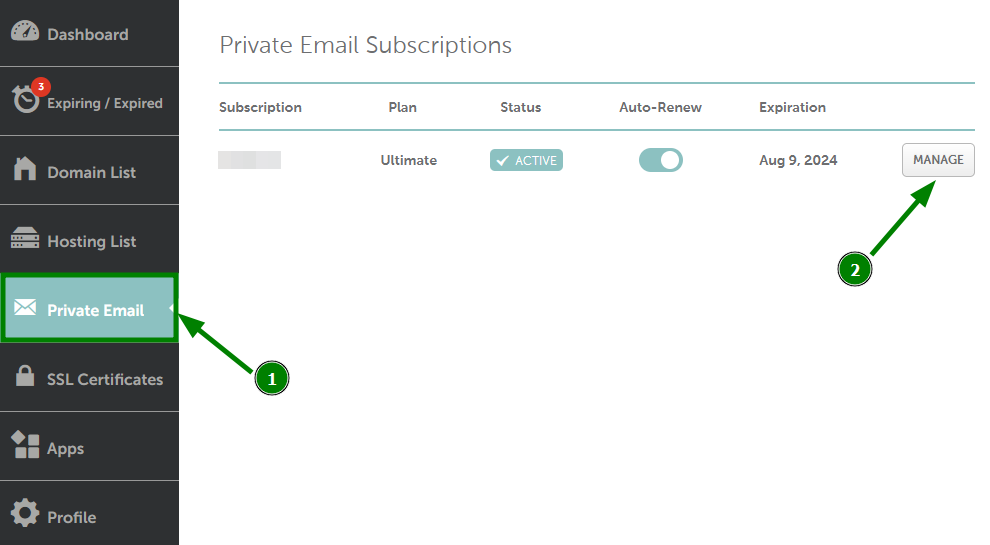
  1. Sign in to your Namecheap account.
  2. Go to Private Email.
  3. Find the subscription you need and click Manage
  4. Scroll down to your current mailboxes.
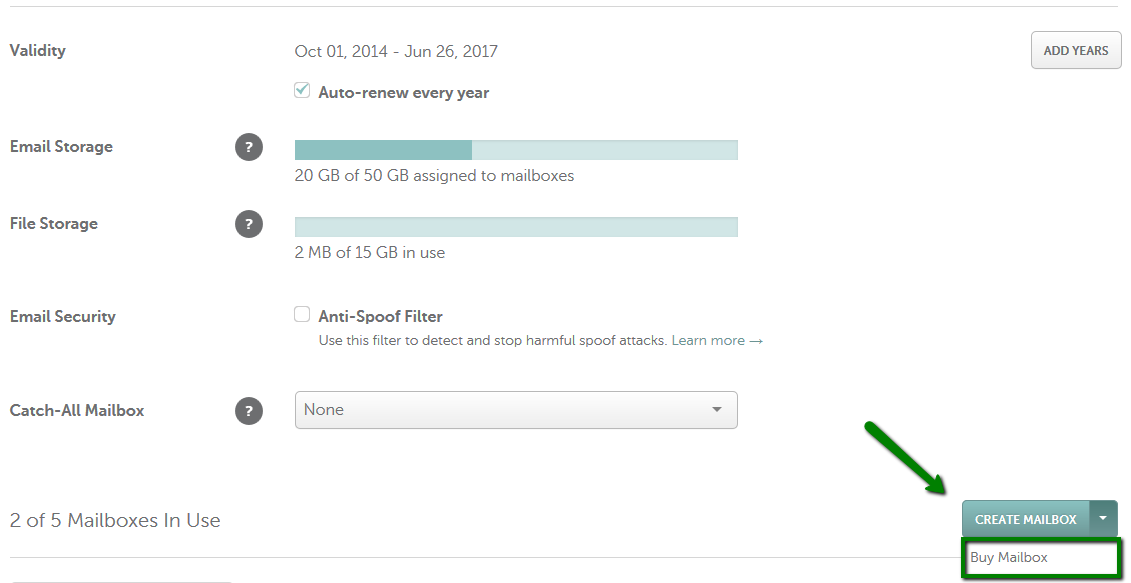
  5. Open the dropdown menu and select Buy Mailbox
  6. Complete the purchase on the payment page.

Additional mailboxes are available for paid Private Email subscriptions.

Distribute the new storage

Private Email allows you to redistribute available storage between mailboxes within the same subscription.

To add the newly available storage to your full mailbox:
  1. Go to Private Email in your Namecheap account and click Manage next to your subscription.
  2. Scroll down to the Mailboxes section.
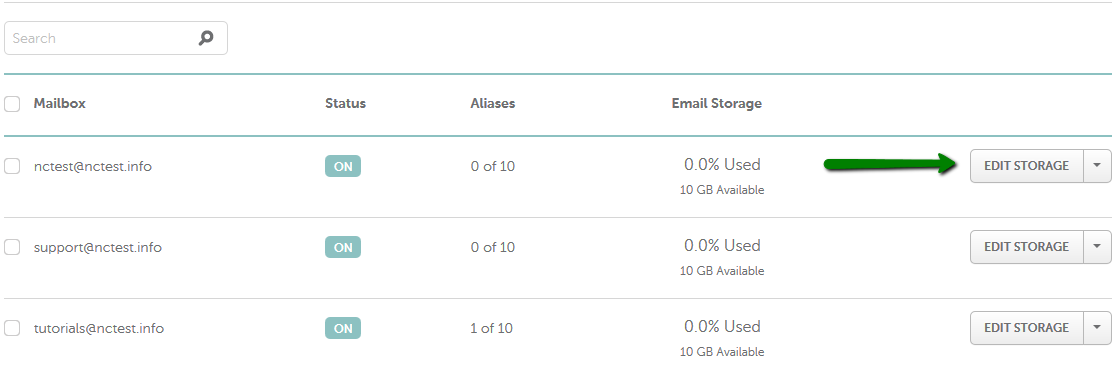
  3. Click Edit Storage next to the mailbox whose storage you want to change: 
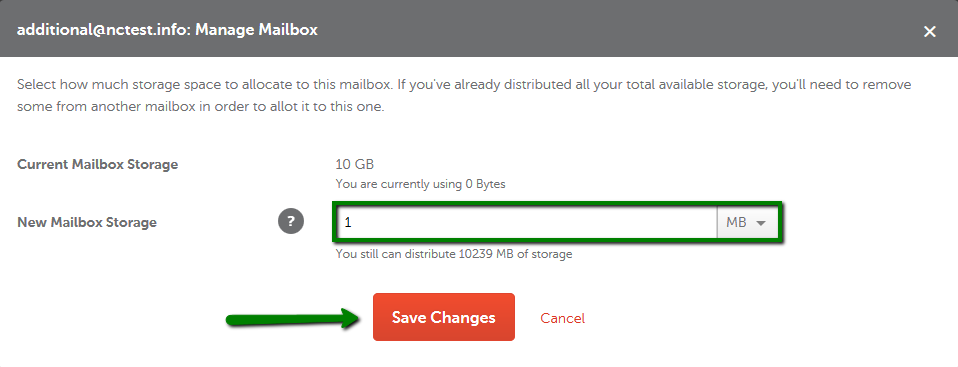
  4. Reduce the storage assigned to the new mailbox to make space available. The minimum amount that can be assigned to a mailbox is 1 MB:        
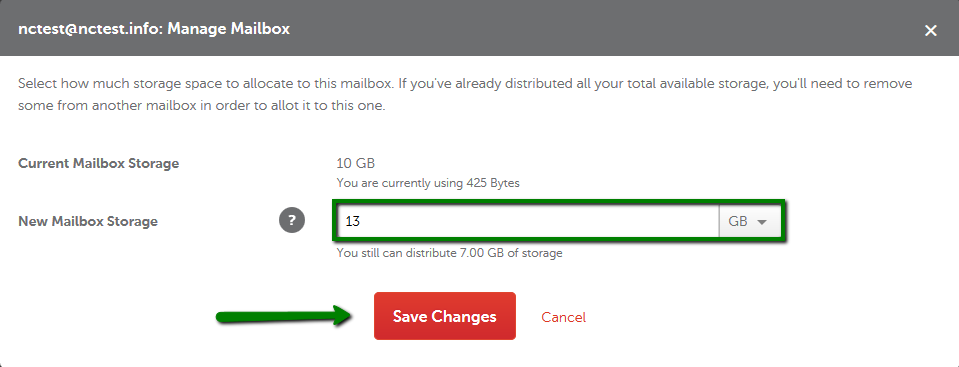
  5. Click Edit Storage for the mailbox that needs more space and assign the available storage to it:        

You can assign all the available storage to one mailbox or distribute it among several mailboxes according to your needs.


Tips for optimizing your mailbox storage

Before adding more storage, or to help prevent your mailbox from filling up again, you can free up space by regularly reviewing its contents.

Consider:

  • Deleting emails you no longer need, especially messages with large attachments.
  • Emptying your Trash and Spam folders regularly.
  • Removing unused folders and their contents when they are no longer needed.
  • Unsubscribing from unwanted newsletters and marketing emails to reduce unnecessary incoming mail.
  • Checking storage usage regularly in the Mailboxes section of your Private Email subscription.

You can also redistribute existing storage between your mailboxes if one mailbox has unused space and another needs more.

Updated
Viewed
214 times

Need help? We're always here for you.

notmyip