This article applies to the new Private Email webmail. If you're using the legacy (Open-Xchange) Private Email webmail, see
this article instead.
This article provides guidance on configuring and managing calendar synchronization on MacOS.
NOTE: Before setting up an email account this way, make sure you already have the required DNS records and mailbox created.
In order to configure
Caldav account on Mac, follow the instructions below:
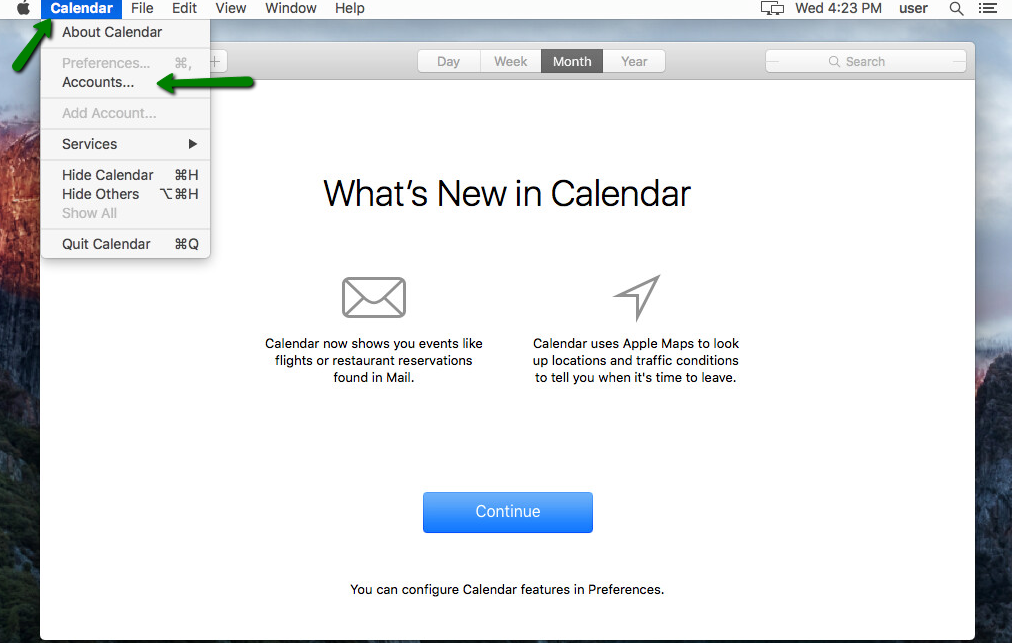
1. Run the Calendar application, then click the on Calendar menu.
2. If you have no account added previously, choose Accounts:
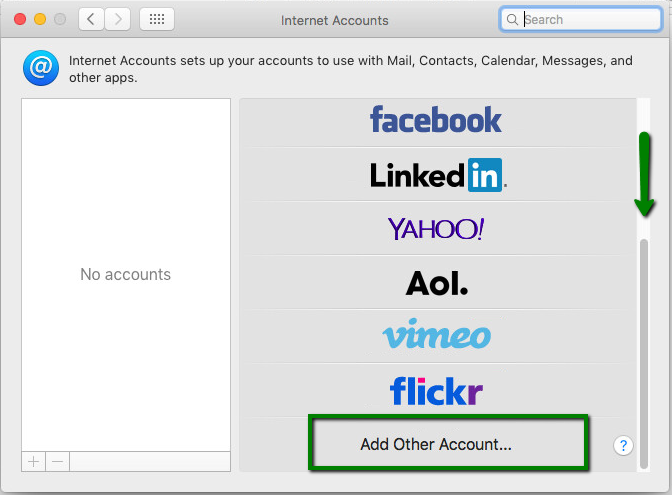
Scroll down to the Add Other Account icon, click on it and choose CalDav account:
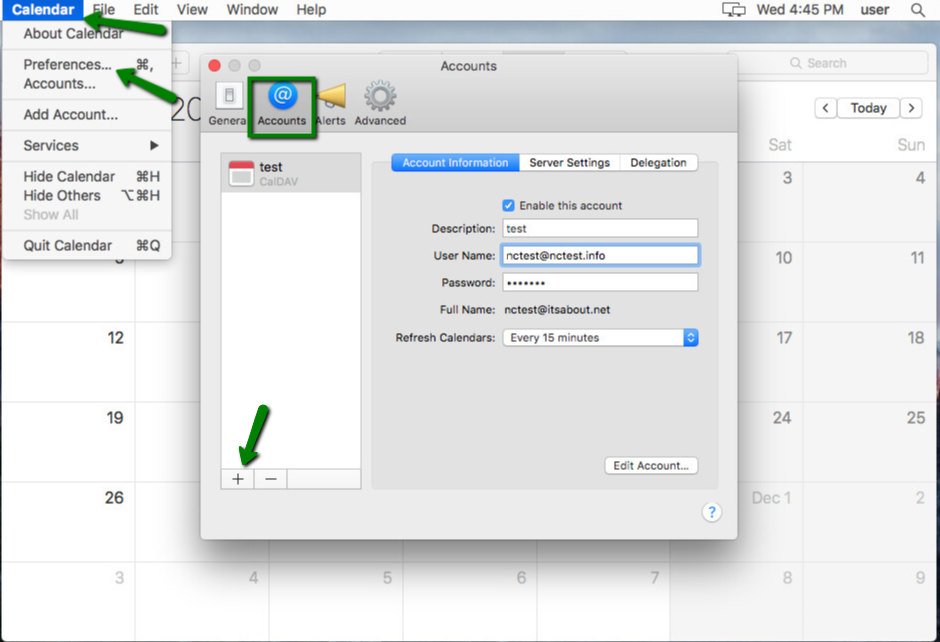
In case you already have some account added, choose Preferences and navigate to the Accounts tab >> click on the + button >> Other CalDav Account:
3. In the next pop-up window, indicate the following information:
-
Account type: Manual
-
User Name: Full Namecheap Private Email email address
-
Password: Application password for this mail account
-
Server Address: dav.privateemail.com
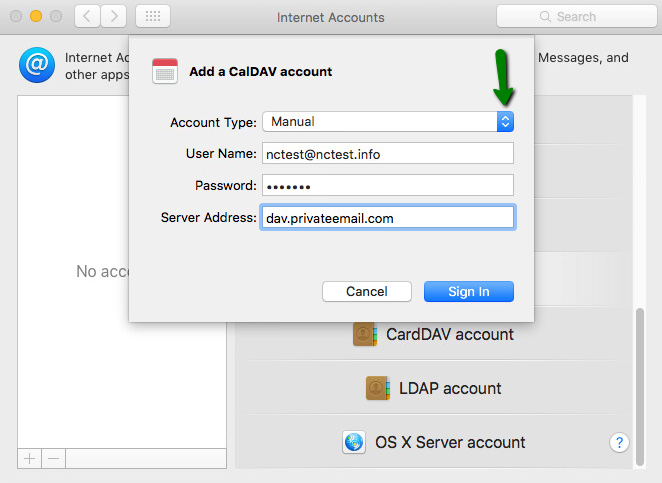
Once done, click on the Sign In button.
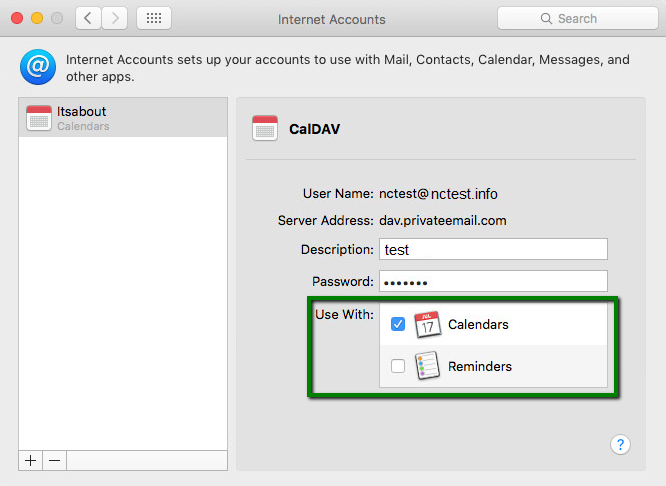
4. In the next window you will be able to change description, password and choose applications to use for this calendar:
5. Go back to the
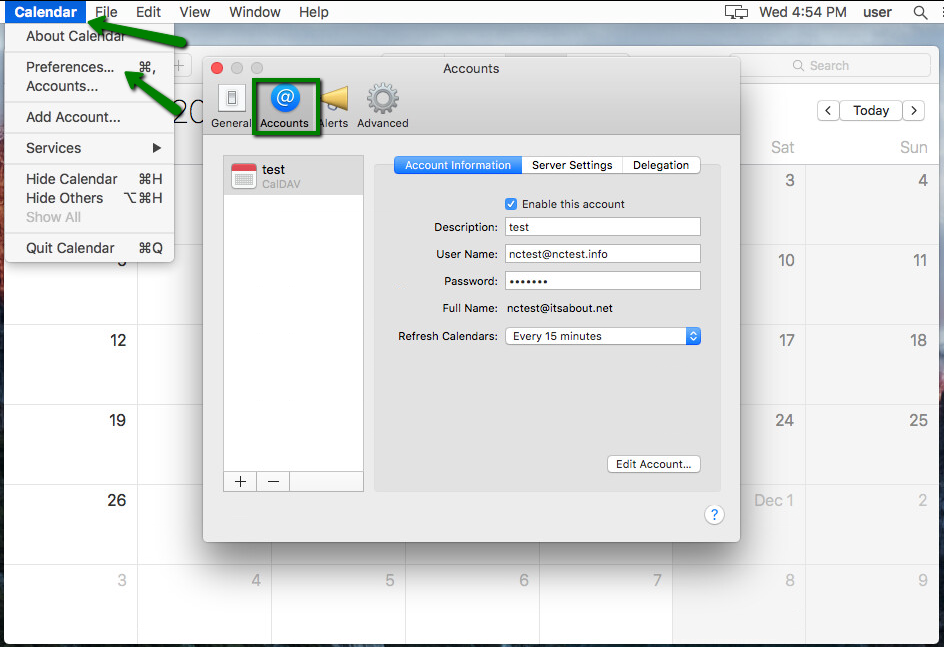
Calendar >> Preferences >> Accounts >> Account Information to check/edit such settings:
- Description: Can be anything you like
- User Name: Full Namecheap Private Email email address
- Password: Application password for this email account
- Refresh Calendar: Frequency to sync the calendar with the server
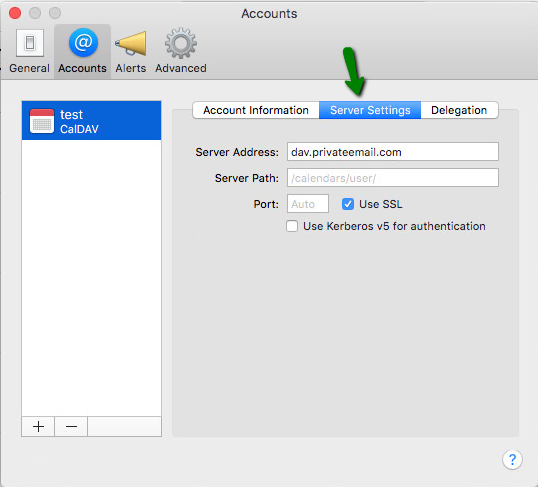
6. Once done, navigate to Server Settings and verify the following settings:
- Internal Server: dav.privateemail.com
- Server Path: Should be blank
- Port: Should be blank
- Use SSL: Should be ticked
Now navigate back to your Calendar application and check if all the Namecheap Private Email calendar appointments and tasks were successfully synchronized.
That's it!
