
In this article, you will learn how app passwords work in Private Email and how you can use them to connect your mailbox to email clients.
When a mailbox is first created, your Master password and the App Password are synchronized, meaning the same password can be used for both Webmail login and configuring email clients.
App password can be used for IMAP/POP3/SMTP connections as well as CalDAV and CardDAV:
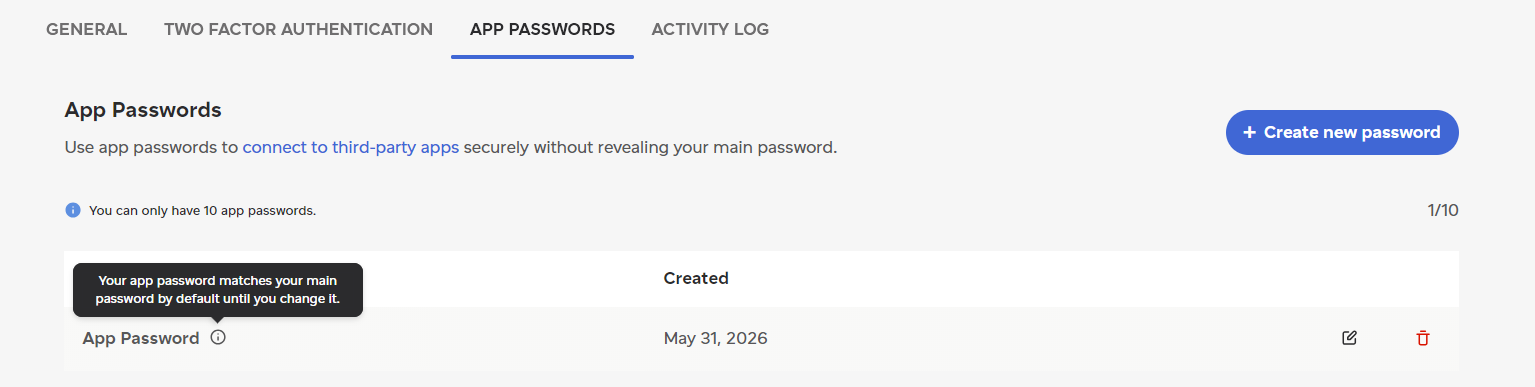
When you change your Master password (a.k.a. your mailbox password), the synchronization no longer occurs:
The App Password format is six groups of four characters separated by five hyphens, for a total length of 29 characters.
You can use the same app password for connections in different email clients. Also, it is possible to generate separate ones for security reasons to use in different apps.
If you are unable to connect your mailbox to an email client, please verify that you are using a valid Application Password, not the current Webmail password.
To set up your Application-specific password, follow these steps:
1. Log in to your Private Email account at https://privateemail.com/.
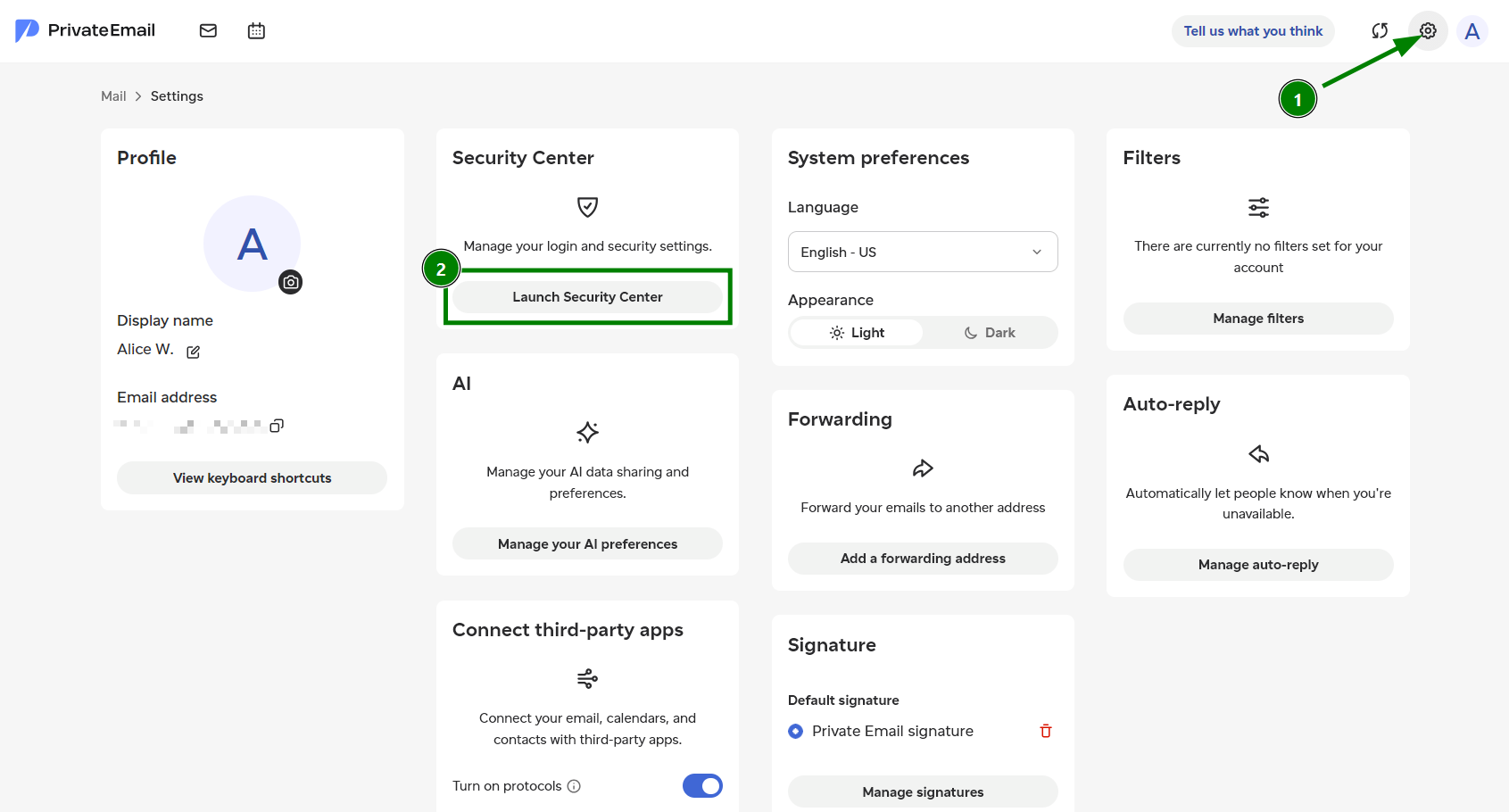
2. Go to Settings, and click "Launch Security Center":
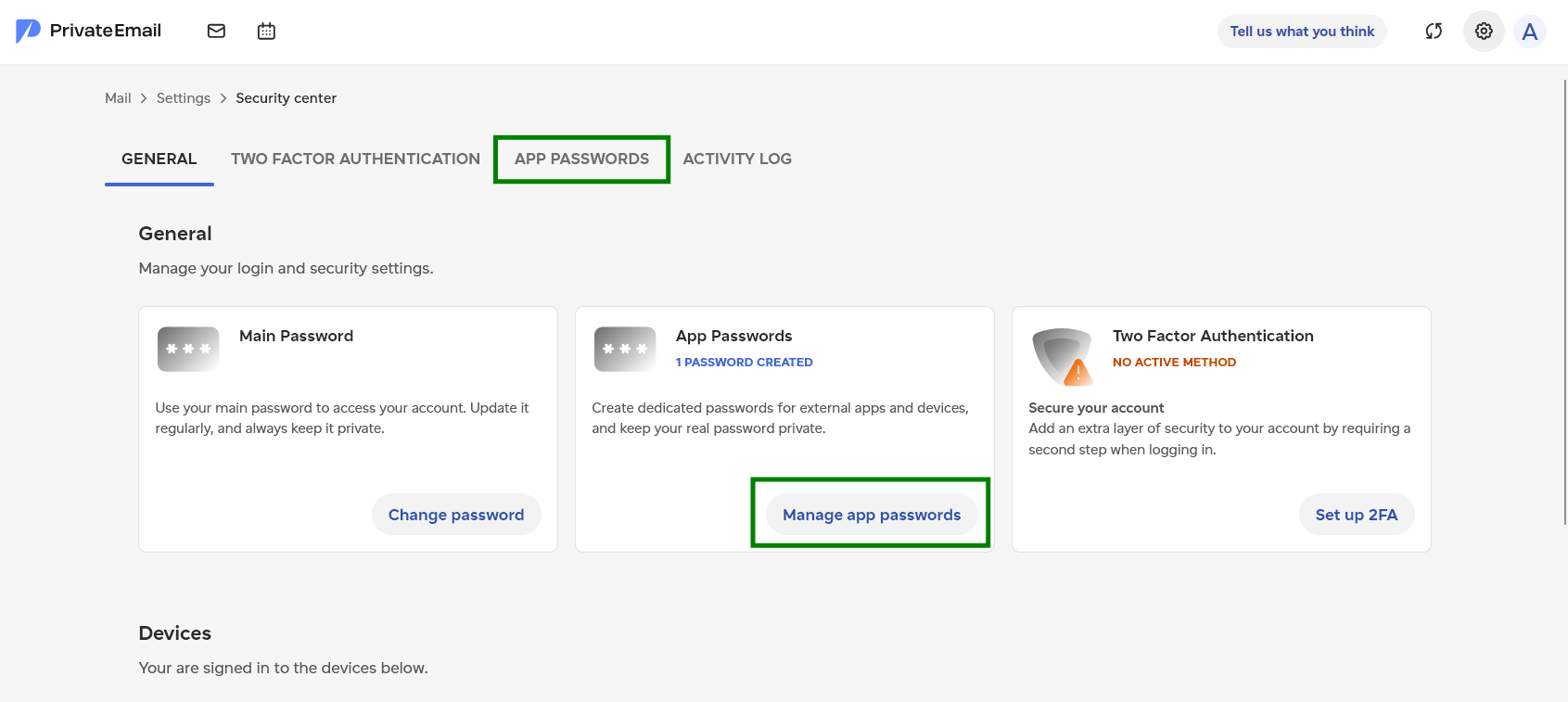
3. In the Security Center, go to the "App passwords" tab or click "Manage app passwords":
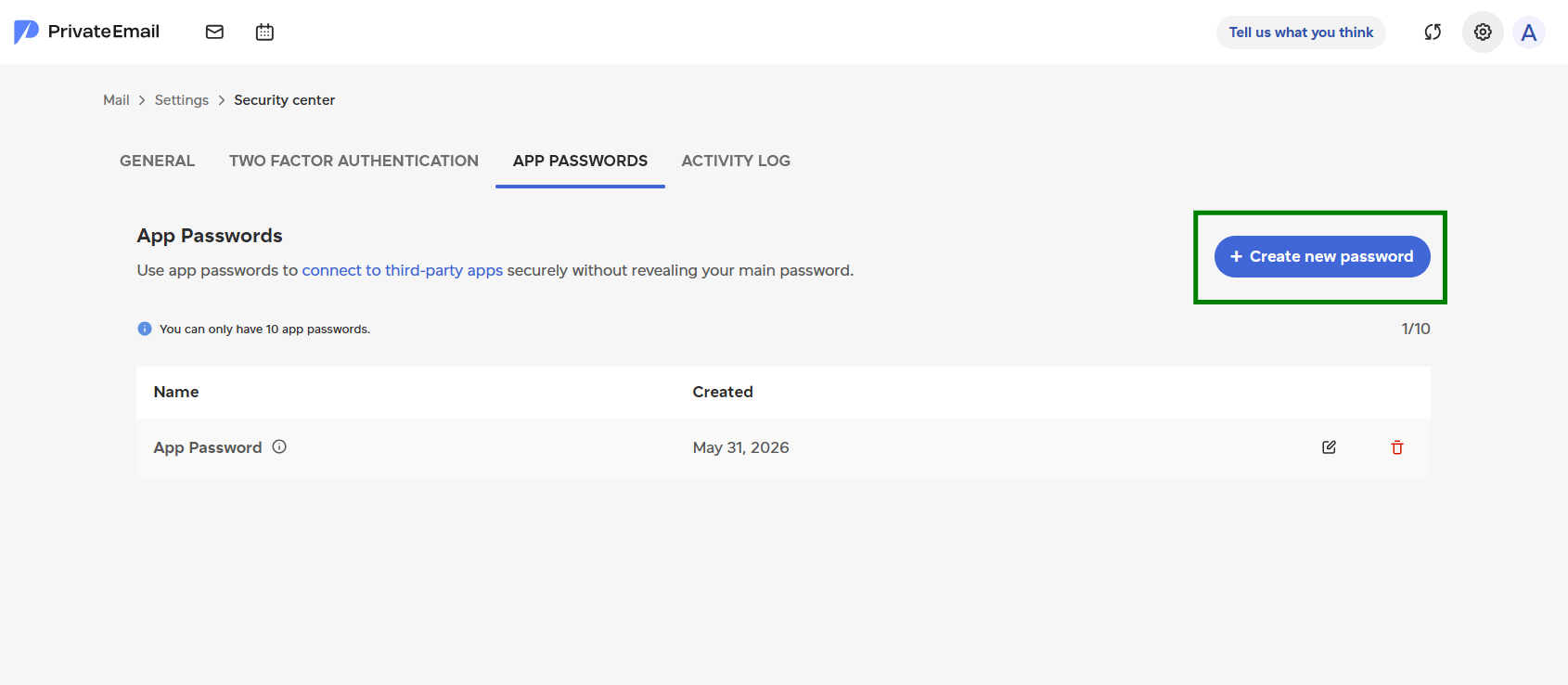
4. Click "Create new password", and a pop-up window will appear prompting you to name it:
5. Give it any name you like and click "Proceed":
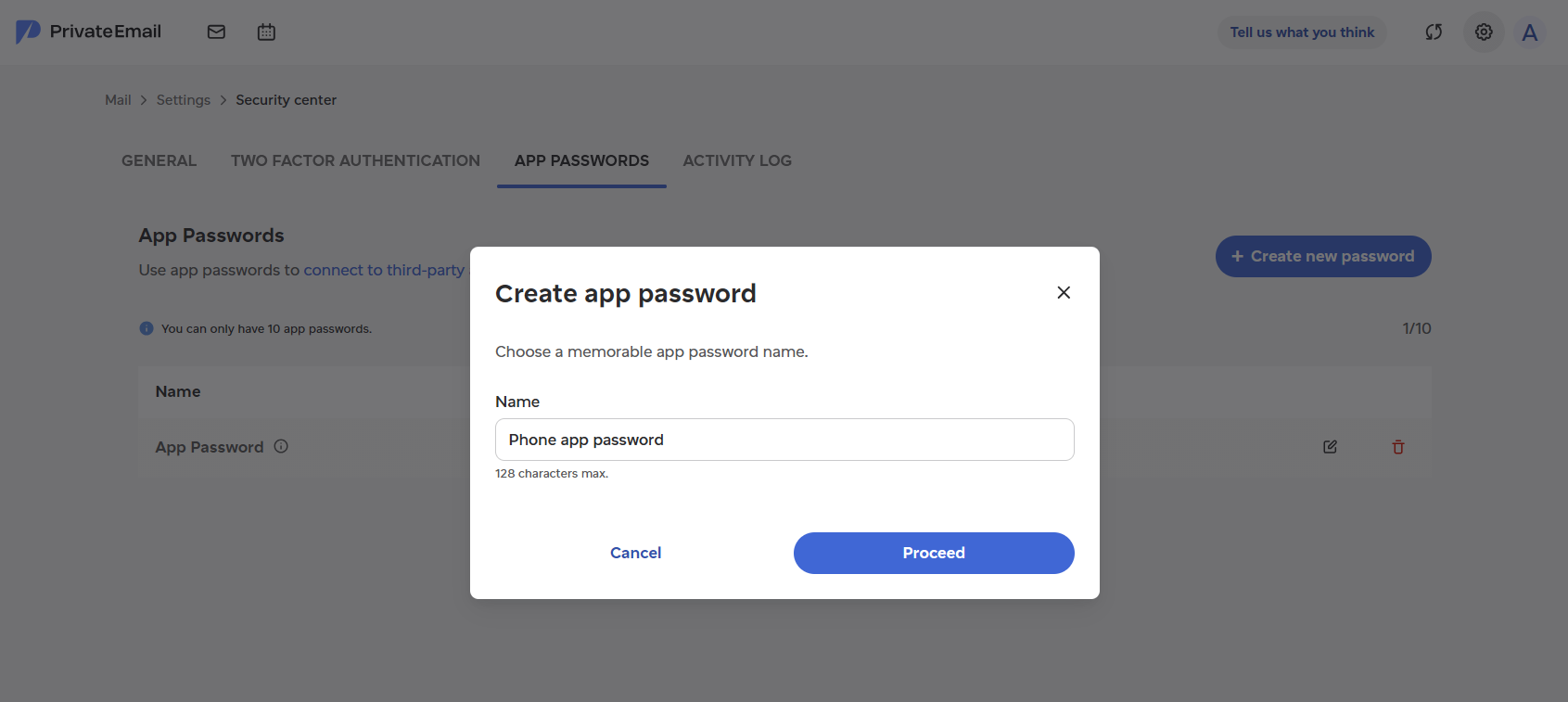
6. Fill in your regular password to verify the action, and click "Confirm":
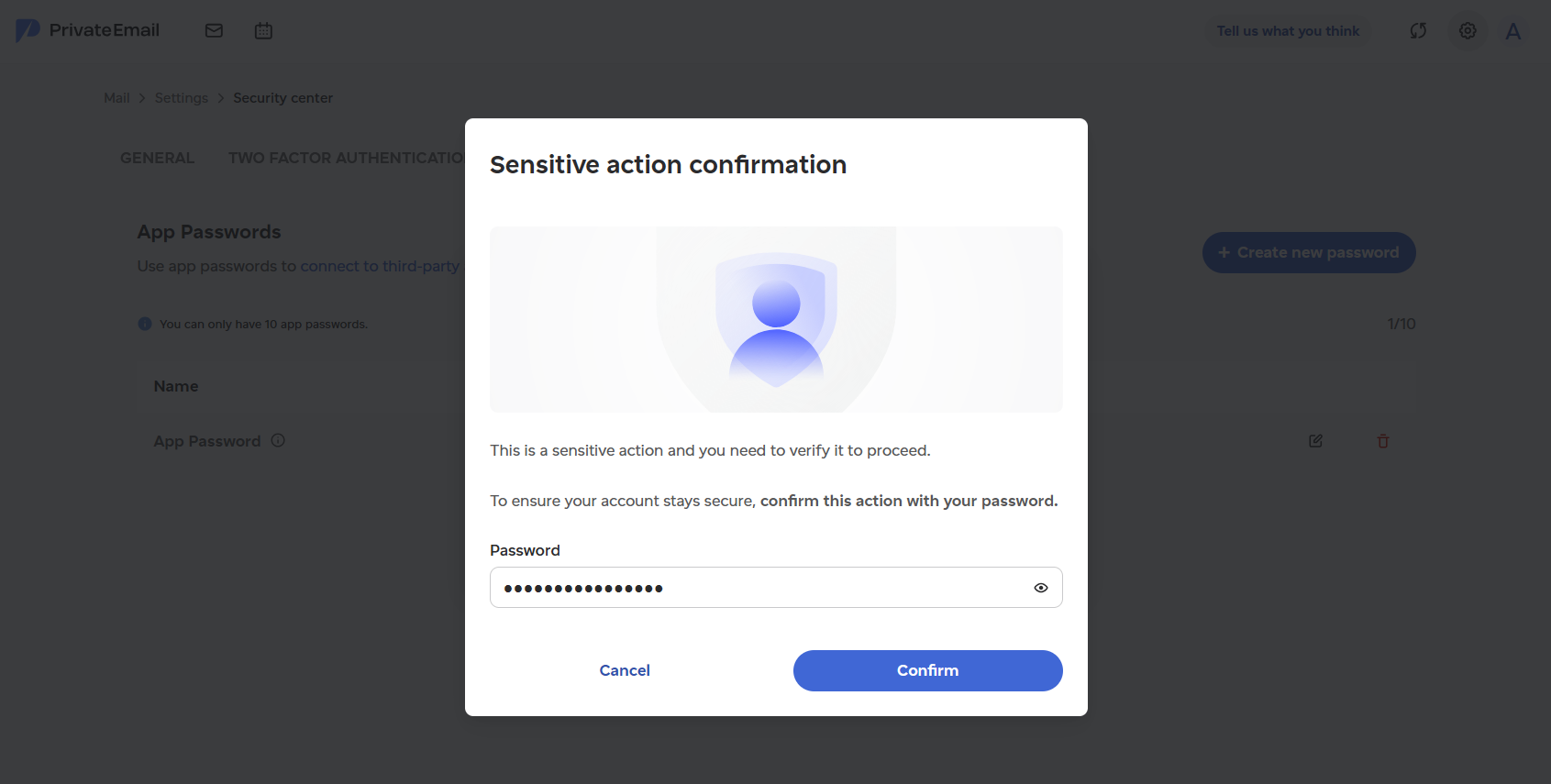
Please note that if you enter your master password 5 times unsuccessfully, you should set a new one to proceed with any changes in Security Center.
7. The generated password will be shown on your screen. You can only see it once - make sure to save it in a secure place.
To finish the action, click "I confirm I have saved the app password" and then press "Done":
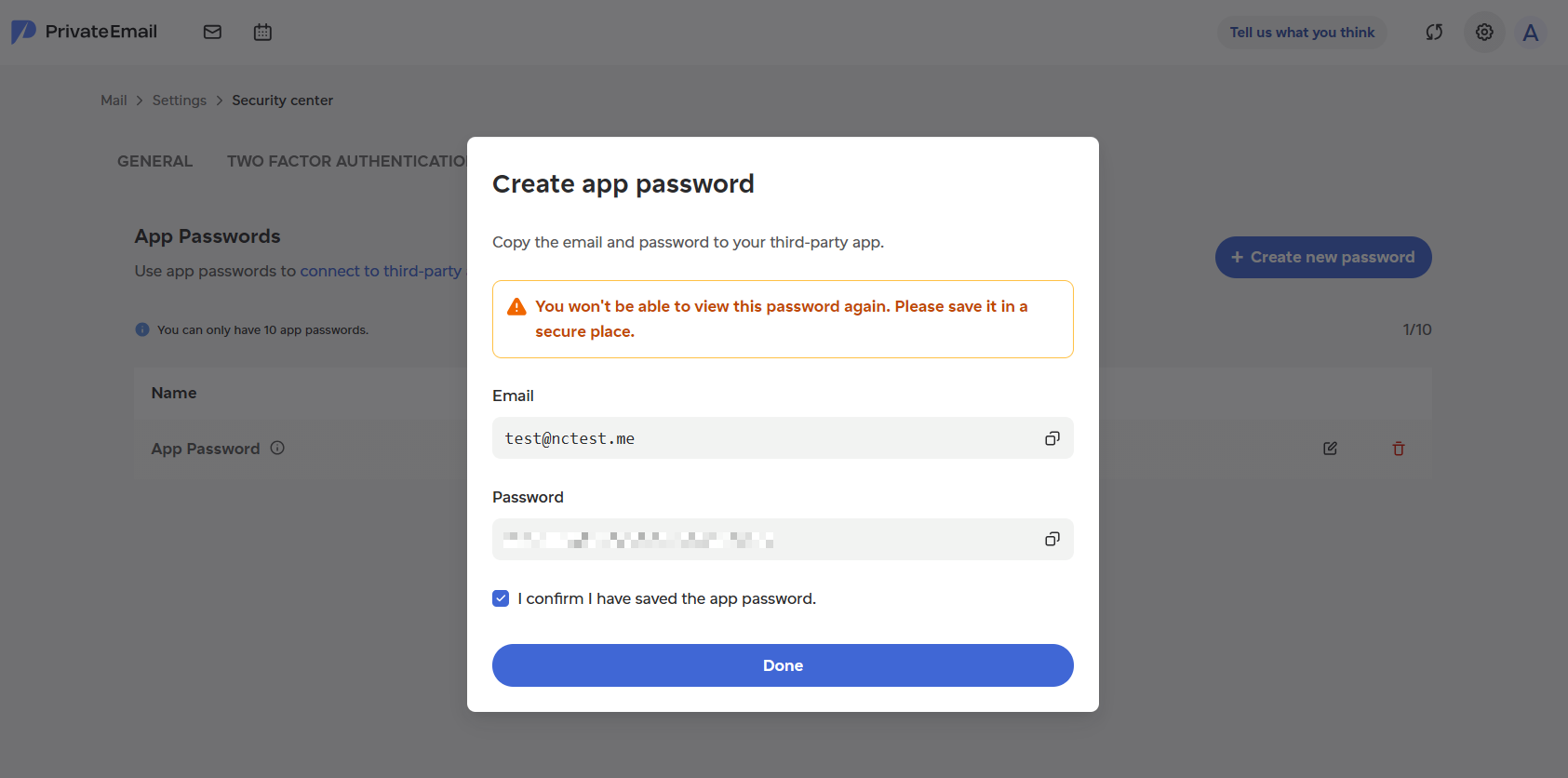
8. That's it! Now, you can see the entry in your list:
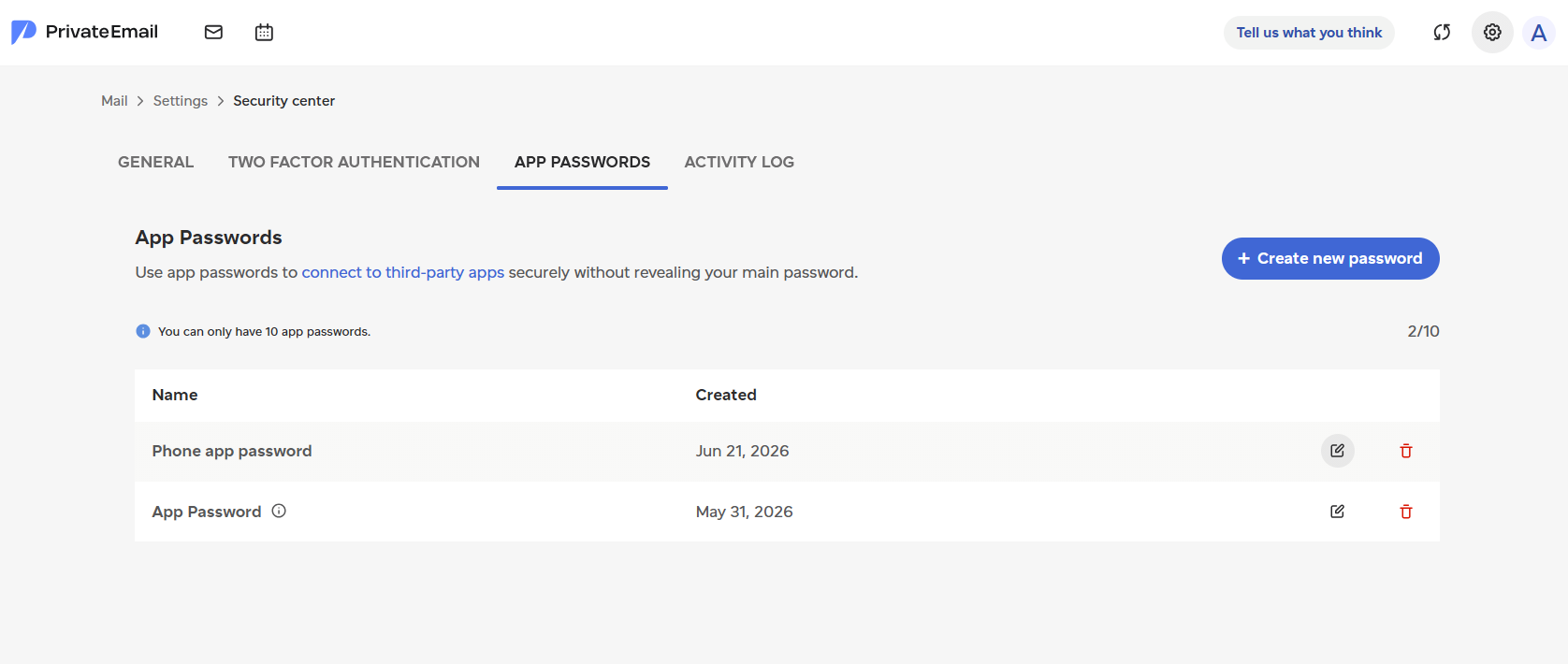
FAQ
Can I check already existing passwords?
No, it is not possible to view the previously generated password; however, you can create a new one at any time.
How can app passwords be managed?
You can rename your existing app passwords or delete them to disconnect third-party apps using them.
What happens when you delete all Application passwords?
When all application passwords are deleted, you won't be able to access your mailbox via email clients. To use email clients, you will need to log in to webmail and generate a new Application password for that.
Can I use App password for webmail login?
If Application Password and Master Password differ, the App Password cannot be used to sign in to webmail, and the Master Password cannot be used to sign in to external mail applications.
Need help? We're always here for you.