
To change the name of your Private Email mailbox, follow the steps outlined below.
NOTE: Once the old mailbox is deleted, emails, contacts, and calendars associated with it will be deleted from the server with no way to restore them.
1. Sign in to your Namecheap account.
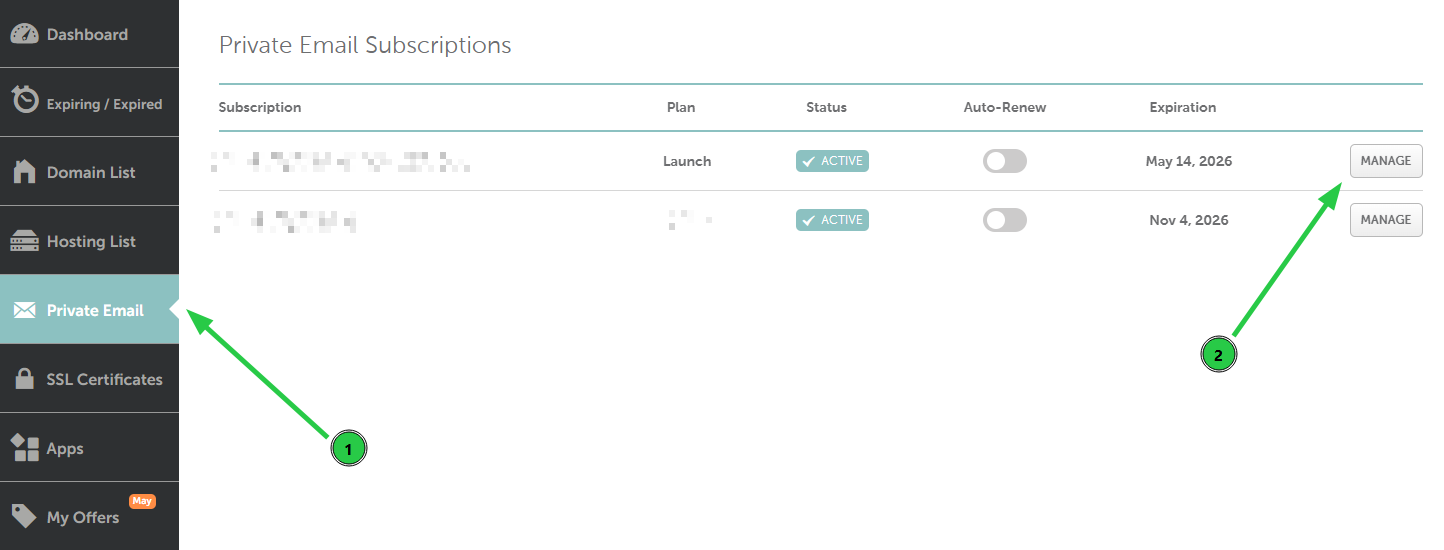
2. Go to the Private Email menu on your left, and then click Manage next to the needed subscription:
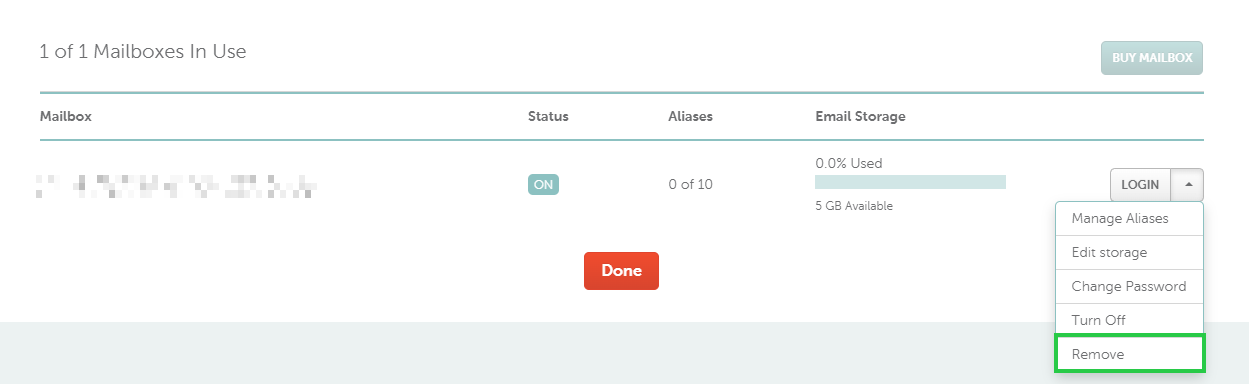
3. Scroll down to the mailbox management section, and select Remove from the drop-down menu next to your mailbox:
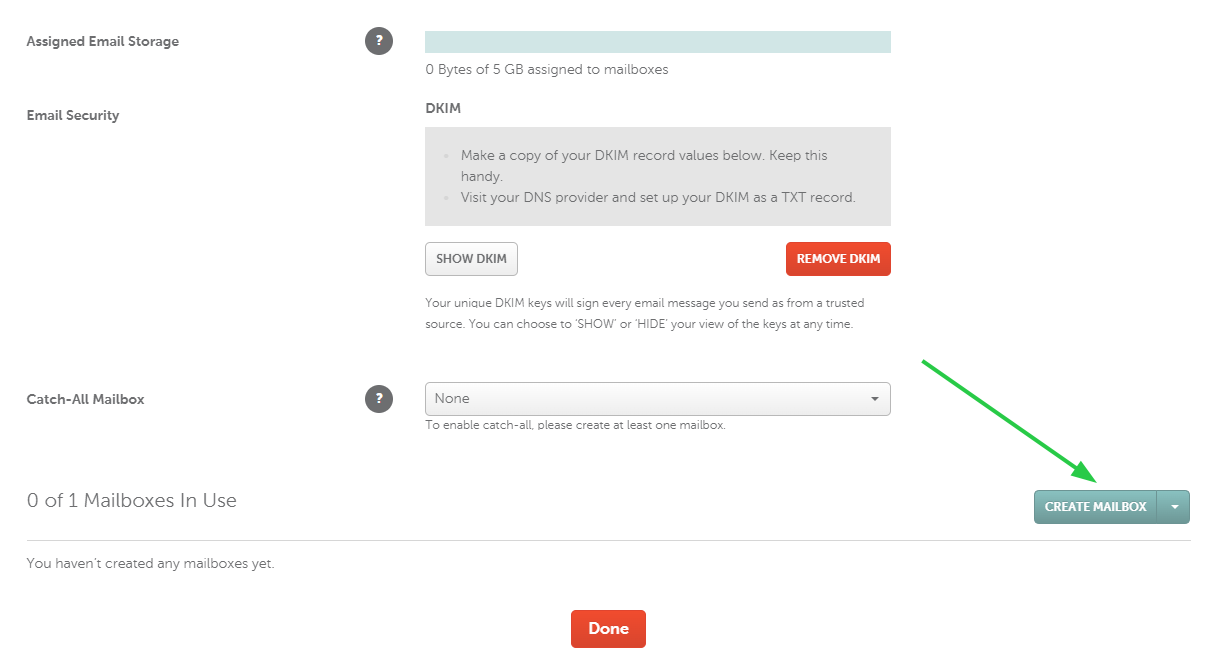
4. Now, you have a free slot to create a new mailbox with a new name. Click on the Create Mailbox button:
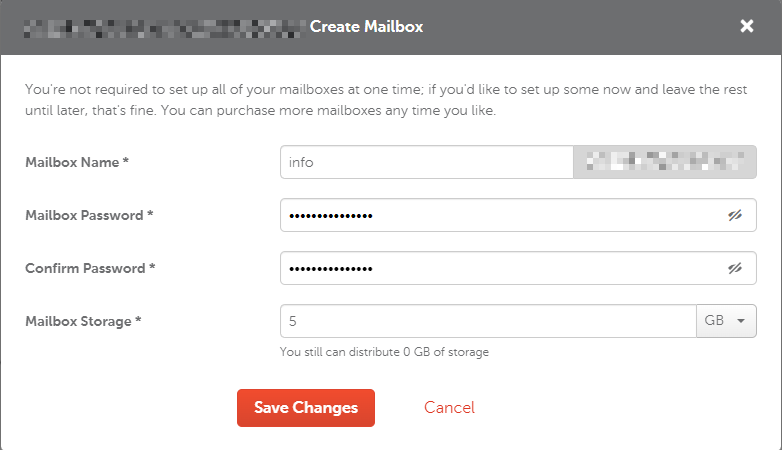
5. Insert the mailbox name you wish to have, its password, and mailbox storage, then click Save Changes:
NOTE: If there is only one mailbox in your subscription and it is deleted, the existing DKIM record will also be removed by the system, and it will not be valid anymore. However, the DKIM record is set up automatically after the recreation of the mailbox.
That’s it!
Need help? We're always here for you.