
Proxmox is a Debian-based open-source virtualization platform that combines a powerful OS with a built-in web-based management interface. It is designed for advanced users who need full control over their virtual environments.
Proxmox VE offers enterprise-grade virtualization without licensing costs. Developers can test and deploy applications safely, resellers can manage multiple clients easily, and hosting providers can ensure high uptime and scalability.
Running Proxmox on a dedicated server gives you maximum control, performance, and flexibility for managing virtual environments:
You can choose to have your server preconfigured with Proxmox during the purchase, or, if you already have a dedicated server with us, you may request a server reinstallation with Proxmox via Live Chat or billing@namecheap.com email at any time.
Below is the recommended specs Proxmox will run on:
Note: With only 2-4 GB RAM, you can run the Proxmox host, but not many (or any) VMs effectively.
Once you’ve completed the installation of Proxmox Virtual Environment (VE) on your dedicated server, the next step is to configure it for everyday use. This setup includes accessing the management interface, configuring storage, and creating your first virtual machine (VM) or container.
Open a browser and go to https://your-server-ip:8006;
Before creating VMs or containers, you’ll need to configure storage for virtual disks and backups. Proxmox supports several storage backends, but the two most common are ZFS and LVM.
ZFS (Zettabyte File System):
Ideal for reliability and performance. ZFS offers advanced features like snapshots, data compression, and built-in redundancy, making it perfect for high-availability setups or critical workloads.
LVM (Logical Volume Manager):
A simpler, efficient option for managing storage volumes. LVM is suitable for general-purpose servers where flexibility and speed are key.
To set up storage, go to Datacenter - Storage - Add in the web interface and choose your preferred type (ZFS or LVM): 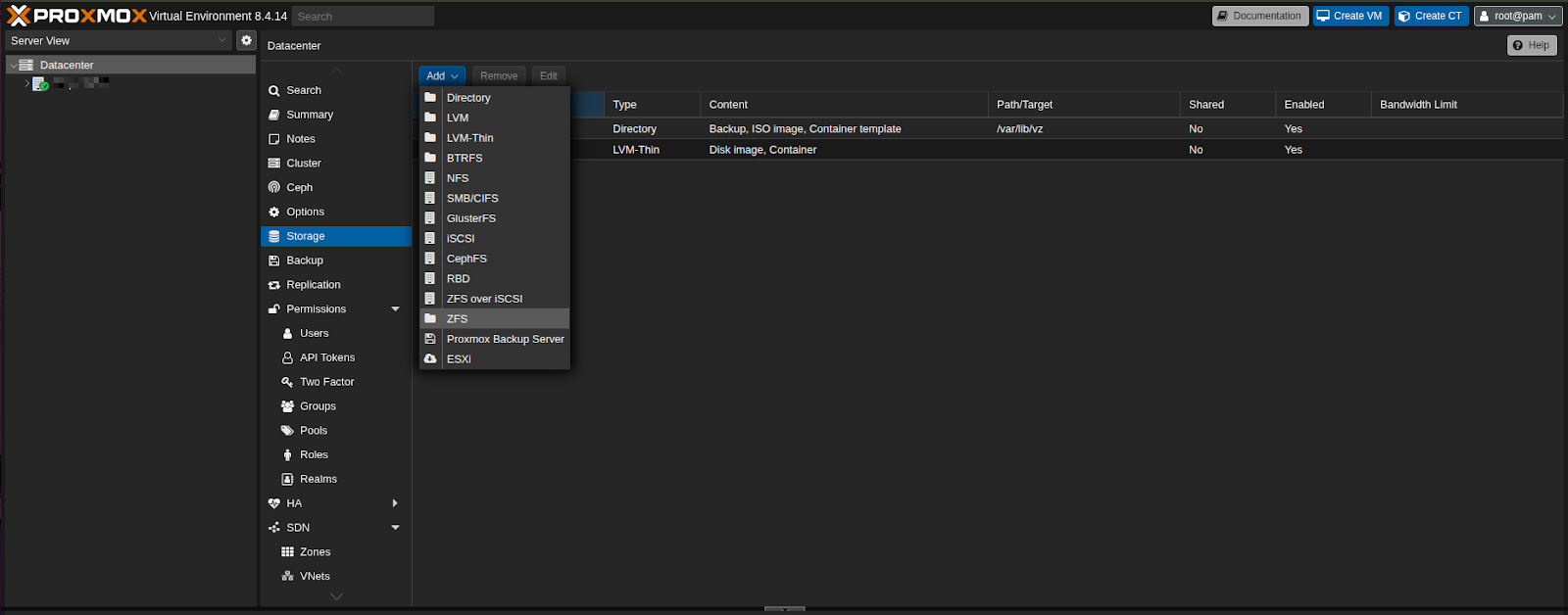
Once storage is ready, you can deploy your first virtual environment.
To create a VM:

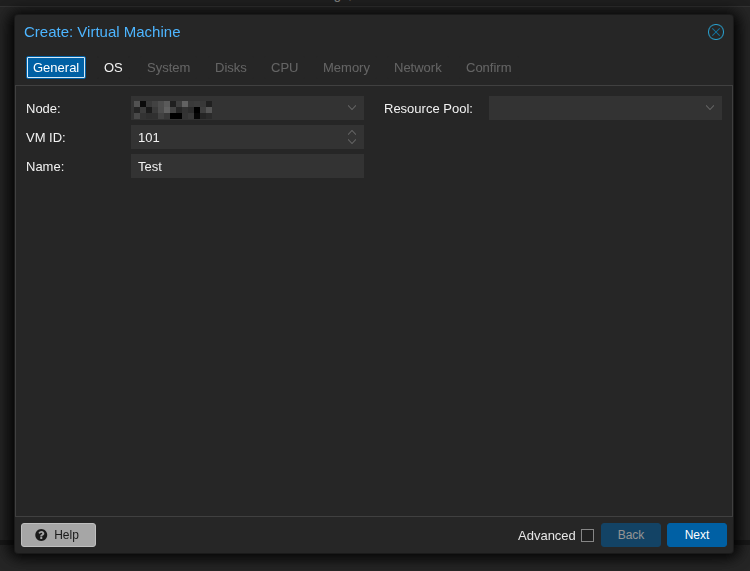
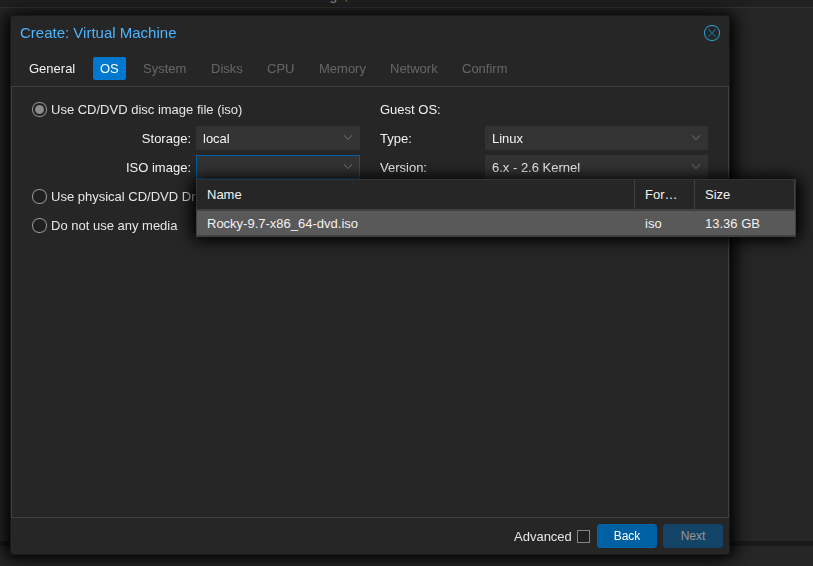
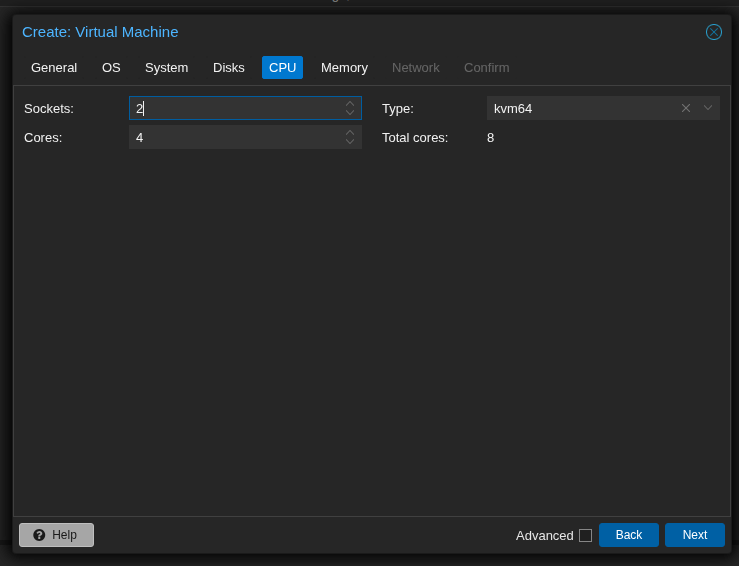
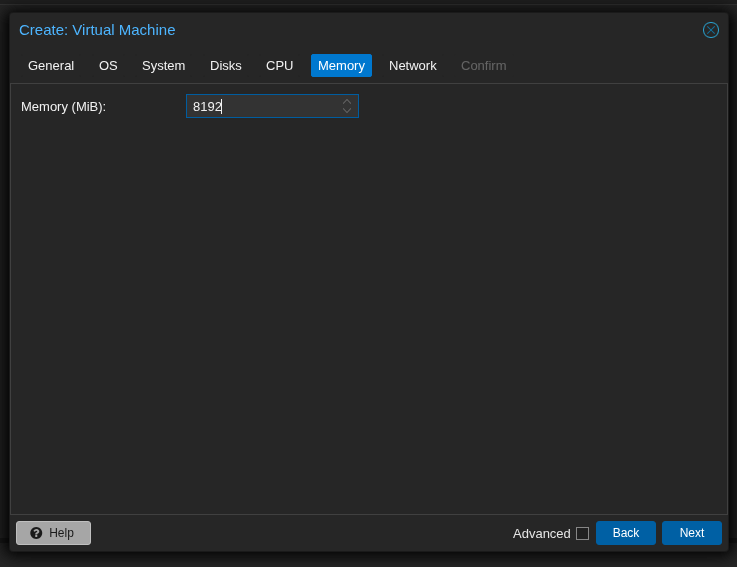
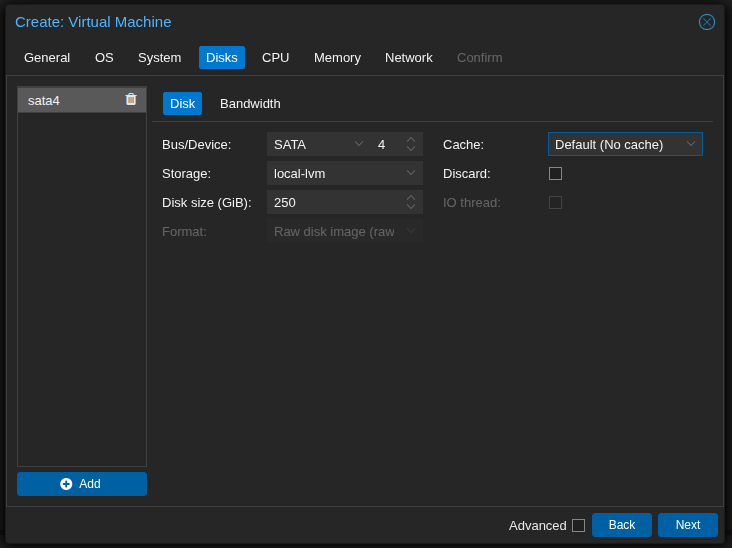
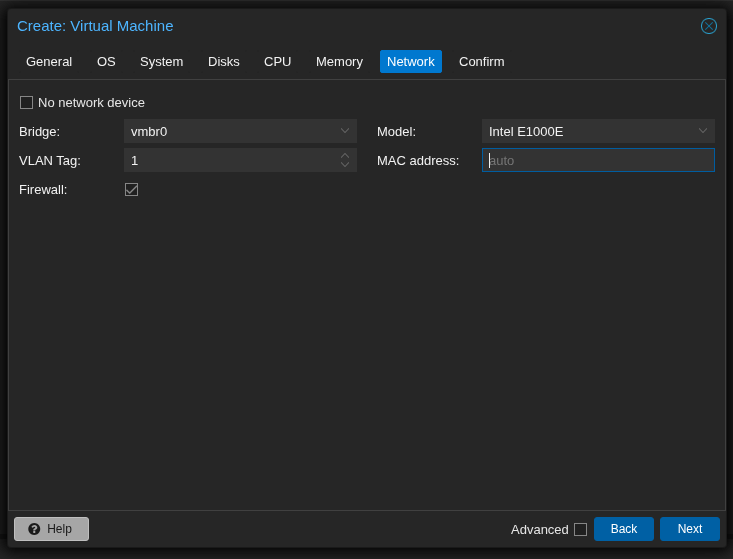
To create a container (LXC):

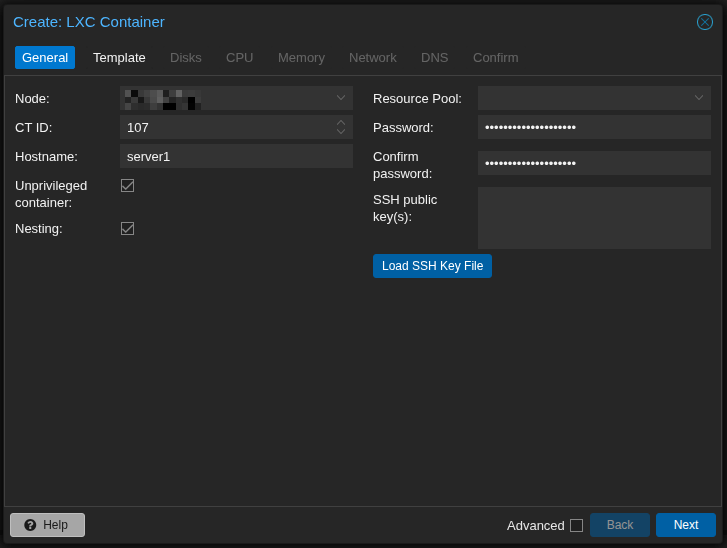
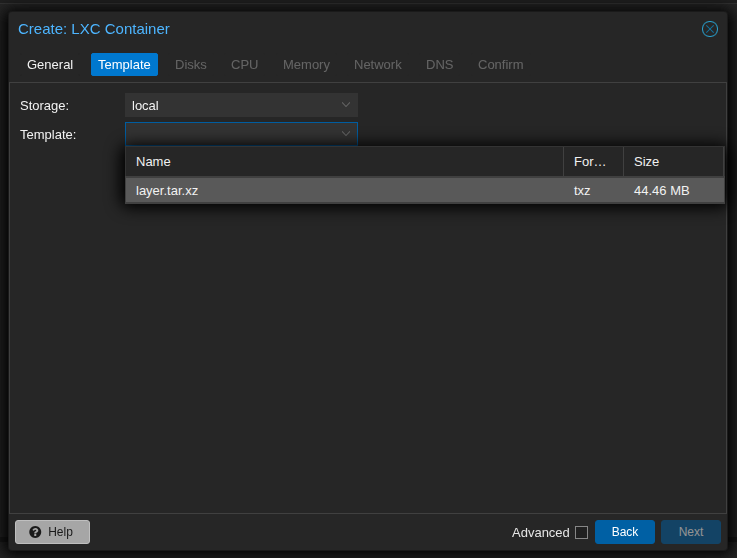
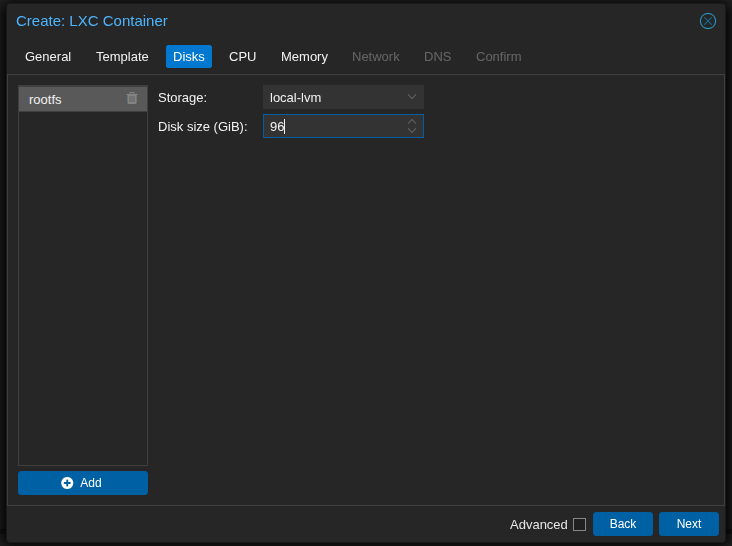
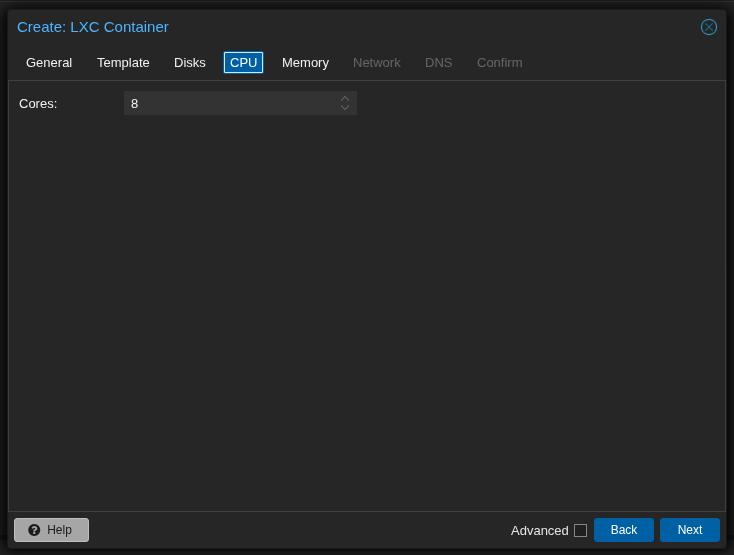
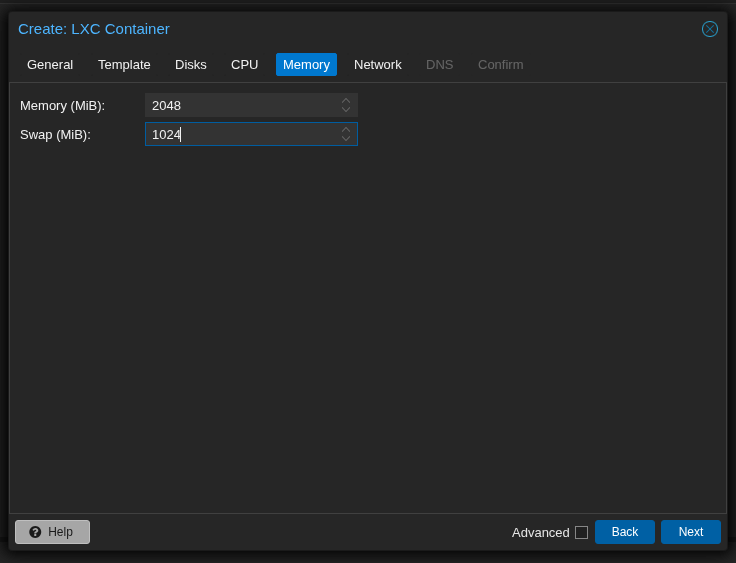
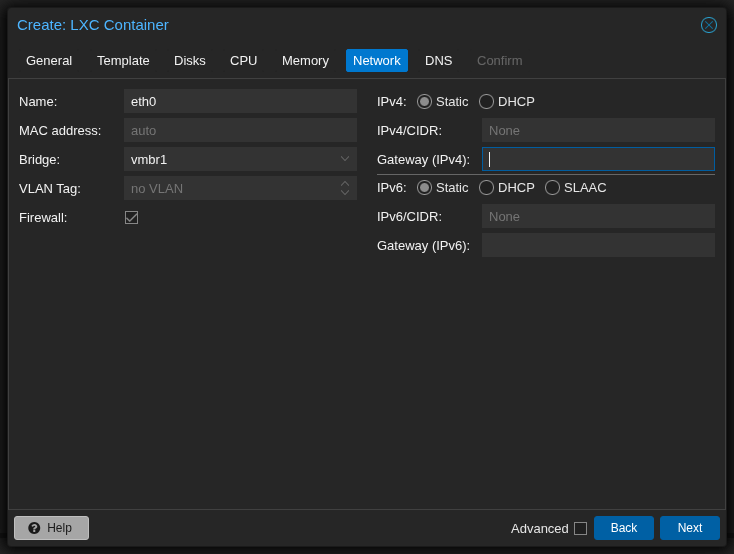
Your new VM or container can now be started and accessed directly from the Proxmox console or through SSH.
Start by enabling the built-in Proxmox firewall to control inbound and outbound traffic at both the host and datacenter levels. Define only the necessary rules and block unused ports to minimize attack surfaces.
Additionally, secure your admin account with two-factor authentication (2FA). This adds an extra verification step during login—typically via a mobile authenticator app—greatly reducing the risk of unauthorized access even if your password is compromised.
Regular updates are vital for maintaining security and stability. Proxmox frequently releases patches that fix vulnerabilities and improve performance.
To update your system run the following command: apt update && apt full-upgrade
Always review the changelog and perform updates during scheduled maintenance windows to avoid service disruptions.
Use Proxmox’s built-in backup scheduler to automate regular backups of your VMs and containers. This ensures you can quickly recover from data loss, hardware failure, or ransomware attacks.
Backups can be stored locally or on remote storage, and it’s good practice to test restore procedures periodically to verify backup integrity.
Proxmox Virtual Environment (VE) is a versatile open-source platform that combines KVM virtualization and LXC containers, making it ideal for a wide range of IT applications. Whether you’re managing a single server or a full-scale cluster, Proxmox offers the flexibility and control needed for modern infrastructure. Below are some of the most common use cases.
Run several Linux or Windows virtual machines on one server with full resource control using KVM virtualization - ideal for web hosting, testing, or server consolidation.
Create sandboxed environments for development or testing. Snapshots let you safely test updates or new configurations and roll back instantly if needed.
Use LXC containers for fast, low-overhead app hosting. Perfect for web servers, databases, and microservices that don’t require full VMs.
Manage multiple Proxmox nodes from one dashboard. Clustering enables centralized control, load balancing, and high availability across remote servers.
Proxmox VE is fully compatible with Namecheap’s Dedicated Hosting, but it is provided only with the User-Responsible management option. Here’s what to know before deploying it.
You can install Proxmox VE using your server’s IPMI console and the official ISO image. Namecheap provides support for detection and resolution of hardware issues only.
Proxmox is ideal for advanced users who want full control without licensing costs. It’s great for running multiple VMs, containers, or client environments.
As a self-managed system, you’re responsible for:
Need help? We're always here for you.