This article is valid for both new plans (purchased on or after June 2, 2026) and legacy Private Email plans (purchased before June 2, 2026).
As a workaround, we suggest configuring email forwarding. You can do this by choosing the "Auto forward" option in your webmail (https://privateemail.com/) and adding the email address to the "Send mail as" section in Gmail. Follow these steps:
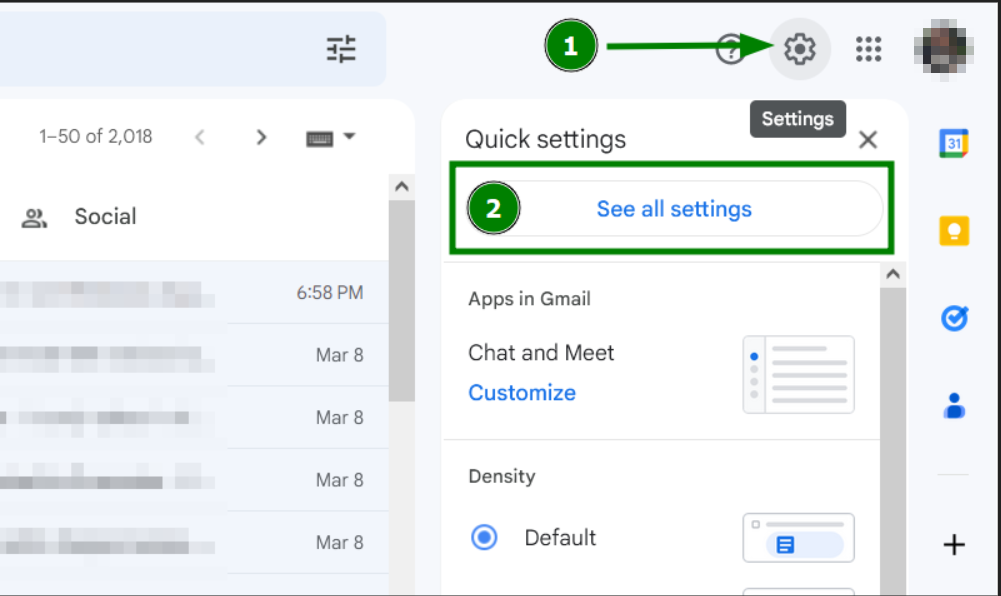
1. Log into your Gmail account, then go to Settings >> See all settings:
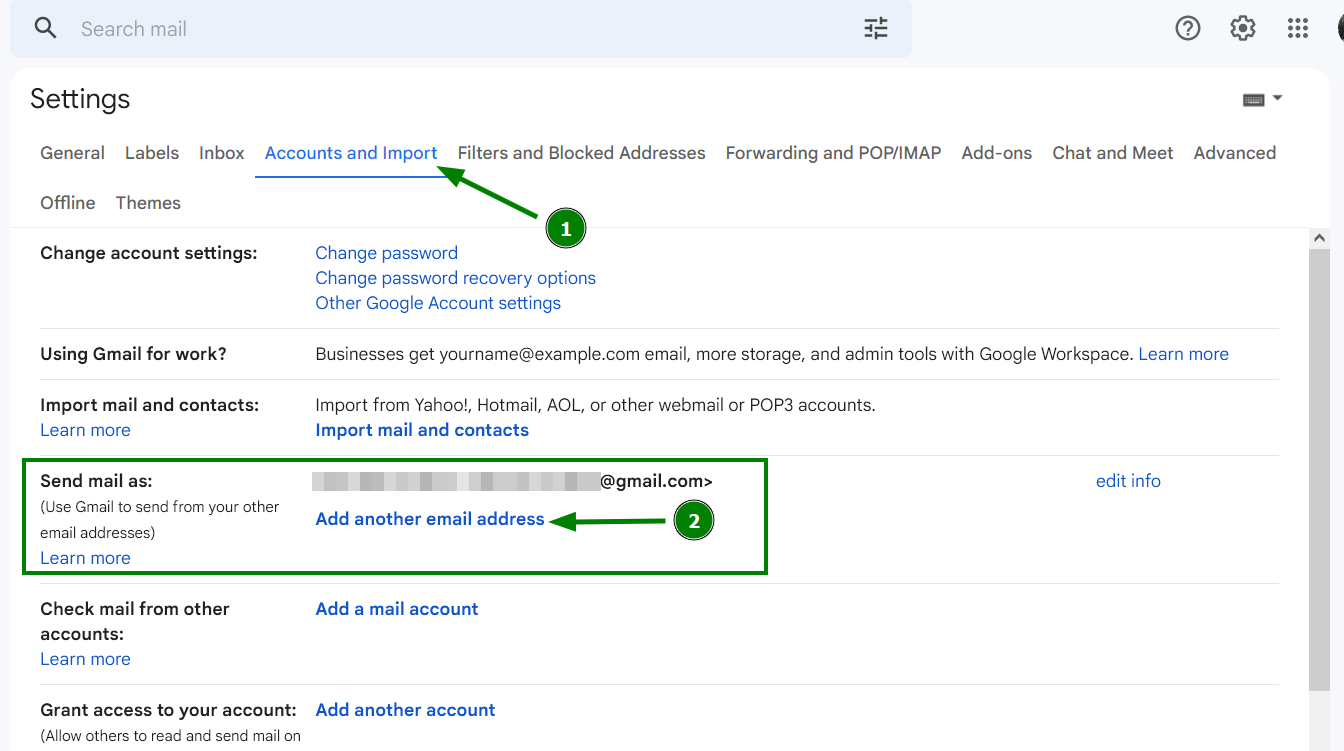
2. Go to the "Accounts and Import" tab, then go to the "Send mail as" section and select "Add another email address":
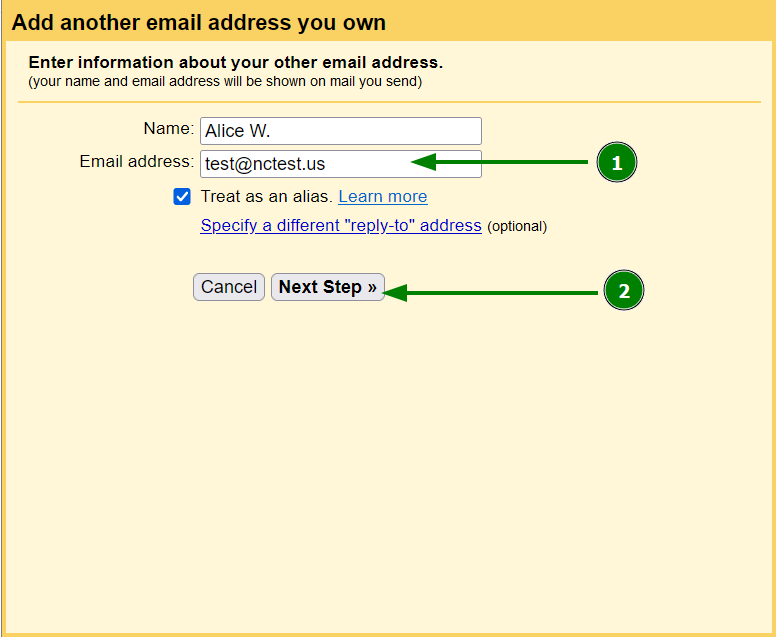
3. Enter the address of your Private Email account in the "Email address" field and hit Next. The "Name" field is usually pre-filled, but you can add the name that will be shown to your recipients:
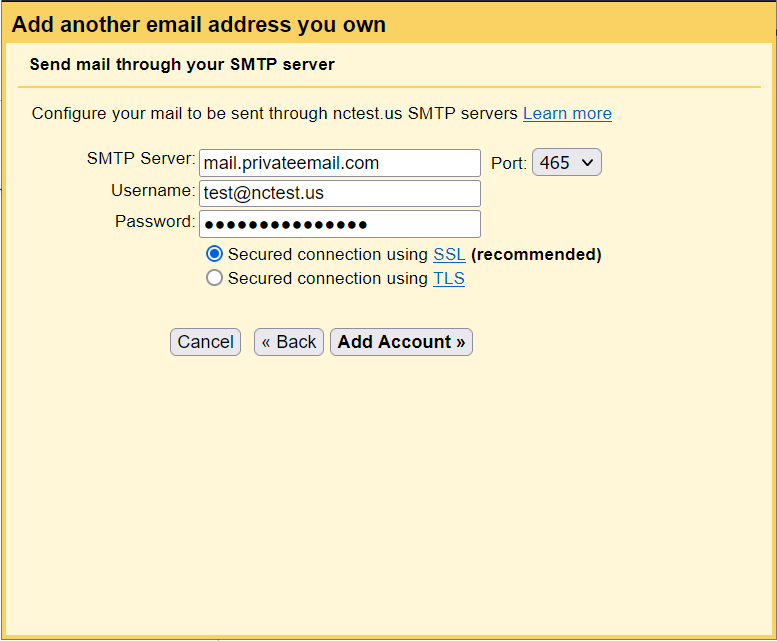
4. Select "Next step" then add the following details:
SMTP server: mail.privateemail.com (please note that it should not be changed)
Username: your Private Email address;
Password: your password for this mail account;
Port: 465 (with "Secured connection using SSL" option enabled) or 587 (with "Secured connection using TLS" option enabled).
Then select "Add Account":
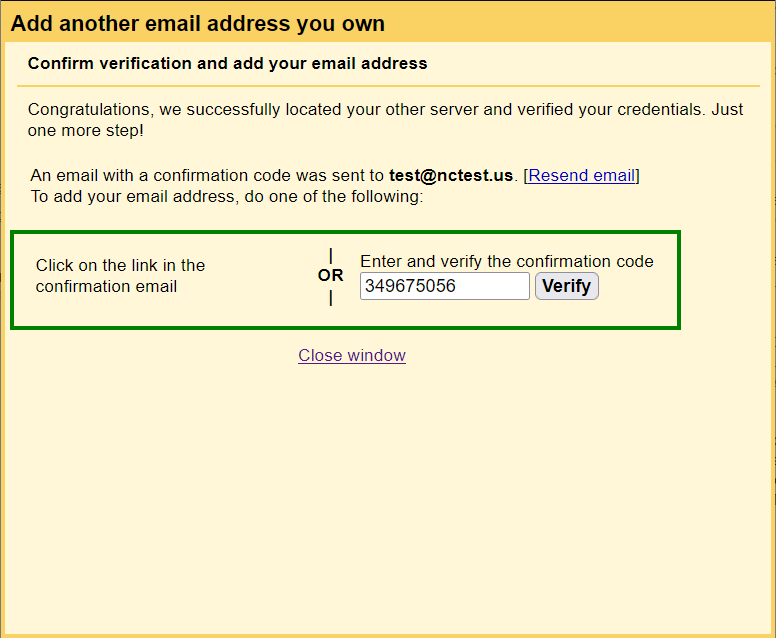
5. A confirmation code from Gmail will be sent to your Private Email address. You can complete the setup process by either selecting the link in the email or by adding the verification code to the Gmail window:
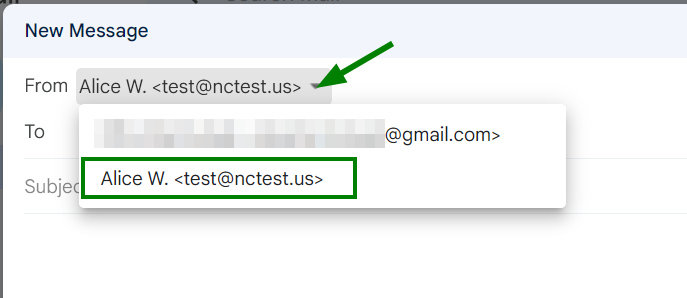
Now you can choose your Private Email account when you use Gmail to send an email:
Success!