Our app can ask for the following permissions: VPN connection, Notifications and Location.
VPN connection
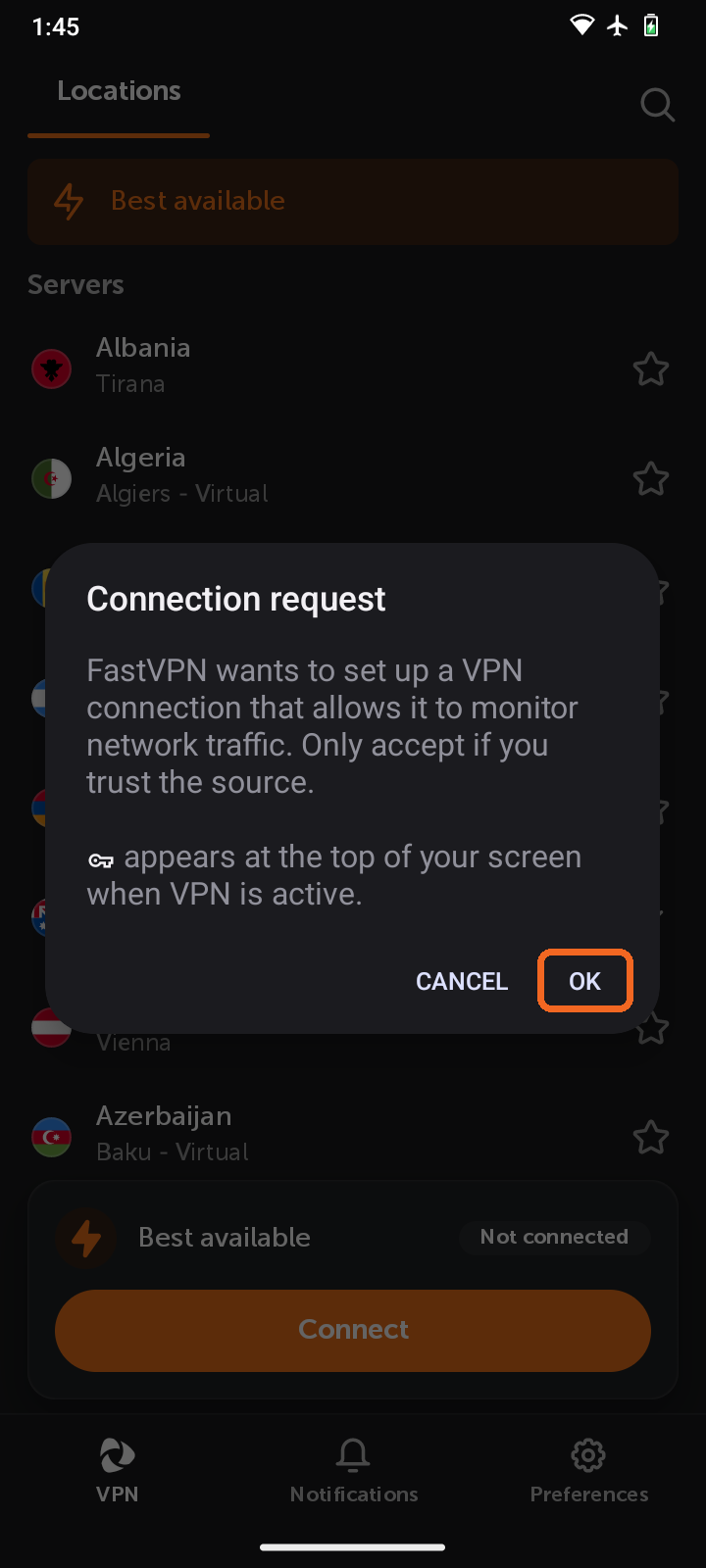
The first time you connect, Android asks you to allow FastVPN to set up a VPN connection. This is required for any VPN app to work. Tap OK on the Connection request pop-up. A key icon appears at the top of your screen whenever the VPN is active.
Notifications
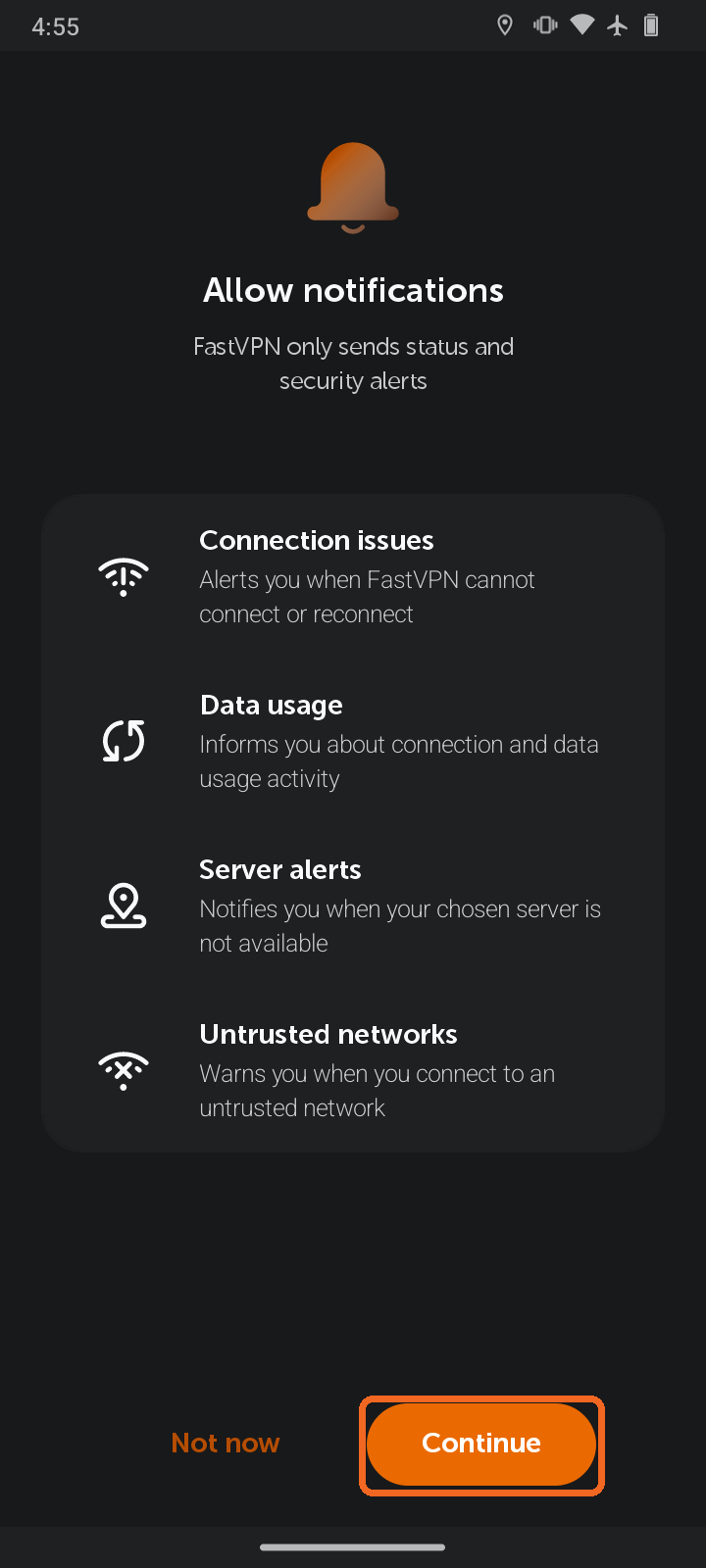
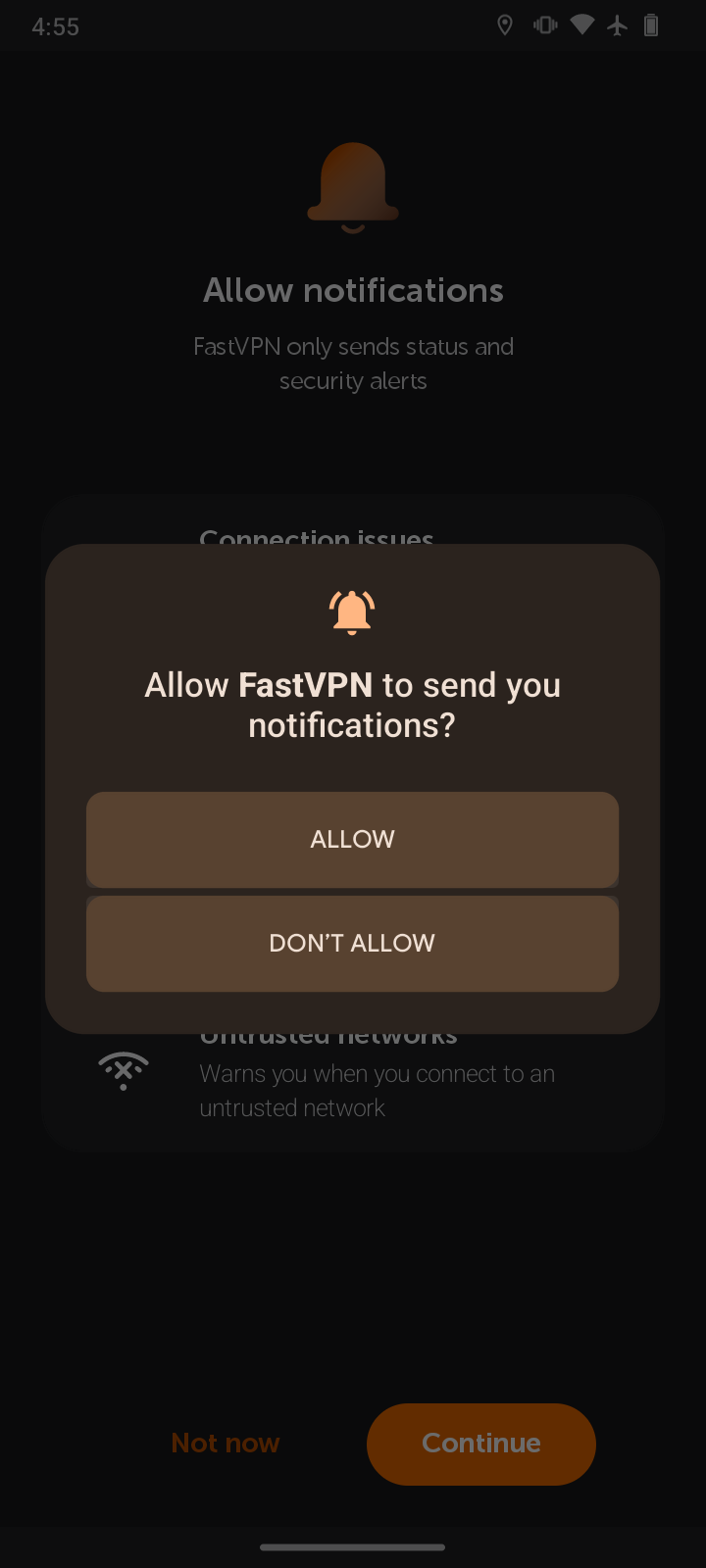
Notifications permission is required for our app to send status and security alerts. FastVPN asks for it right after you log in. Tap Continue and then Allow. FastVPN only sends the following alerts:
-
Connection issues - if you're unable to connect or reconnect to VPN for any reason.
-
Data usage - to provide you with connection and data usage updates.
-
Server alerts - if your chosen VPN server is not available.
-
Untrusted networks - if you connect to an untrusted or insecure Wi-Fi network.
Location
Location permission is required in Android OS 10+ due to an operating system limitation that does not allow apps to view Wi-Fi network names (SSIDs) without it. FastVPN does not collect, in any way, users' GPS location data. It only reads the name of the Wi-Fi network you are currently connected to, including when the app is closed. This allows the Untrusted Wi-Fi alerts feature to warn you about untrusted networks and lets you add networks you trust to the Trusted networks list.
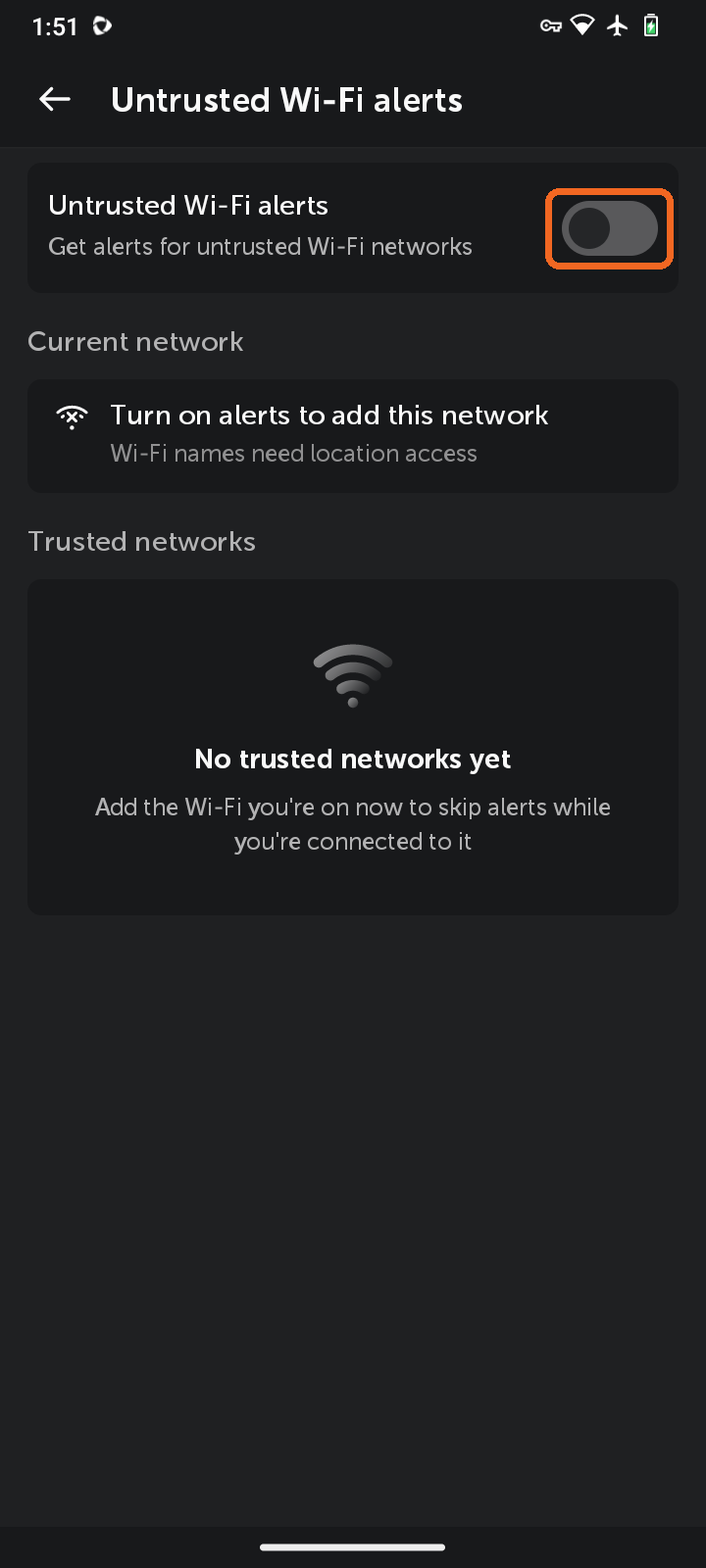
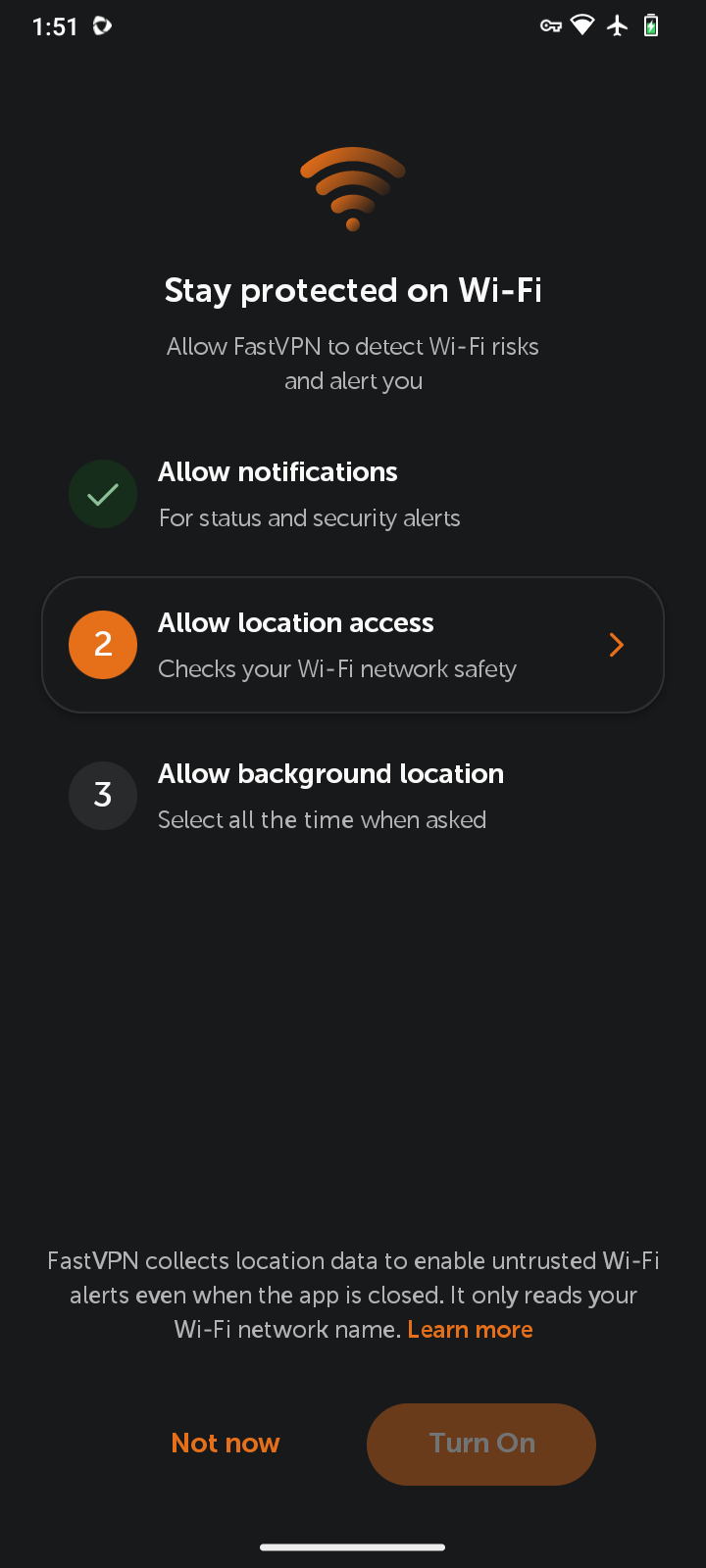
The prompt asking for this permission will only appear when you turn on Untrusted Wi-Fi alerts (Preferences > Settings > Untrusted Wi-Fi alerts). The app will ask you to:
-
Allow notifications - for status and security alerts.
-
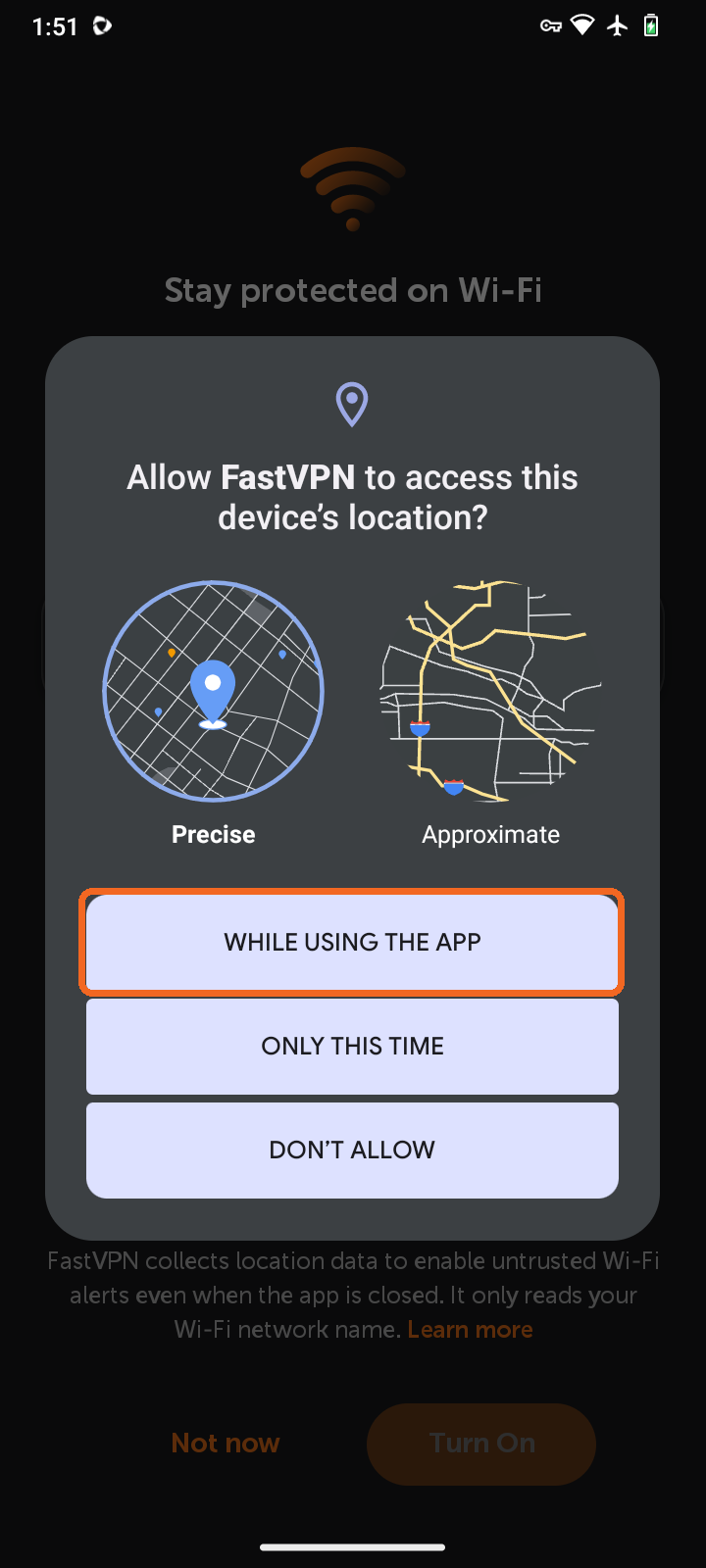
Allow location access - to check your Wi-Fi network safety. Choose While using the app in the Android prompt.
-
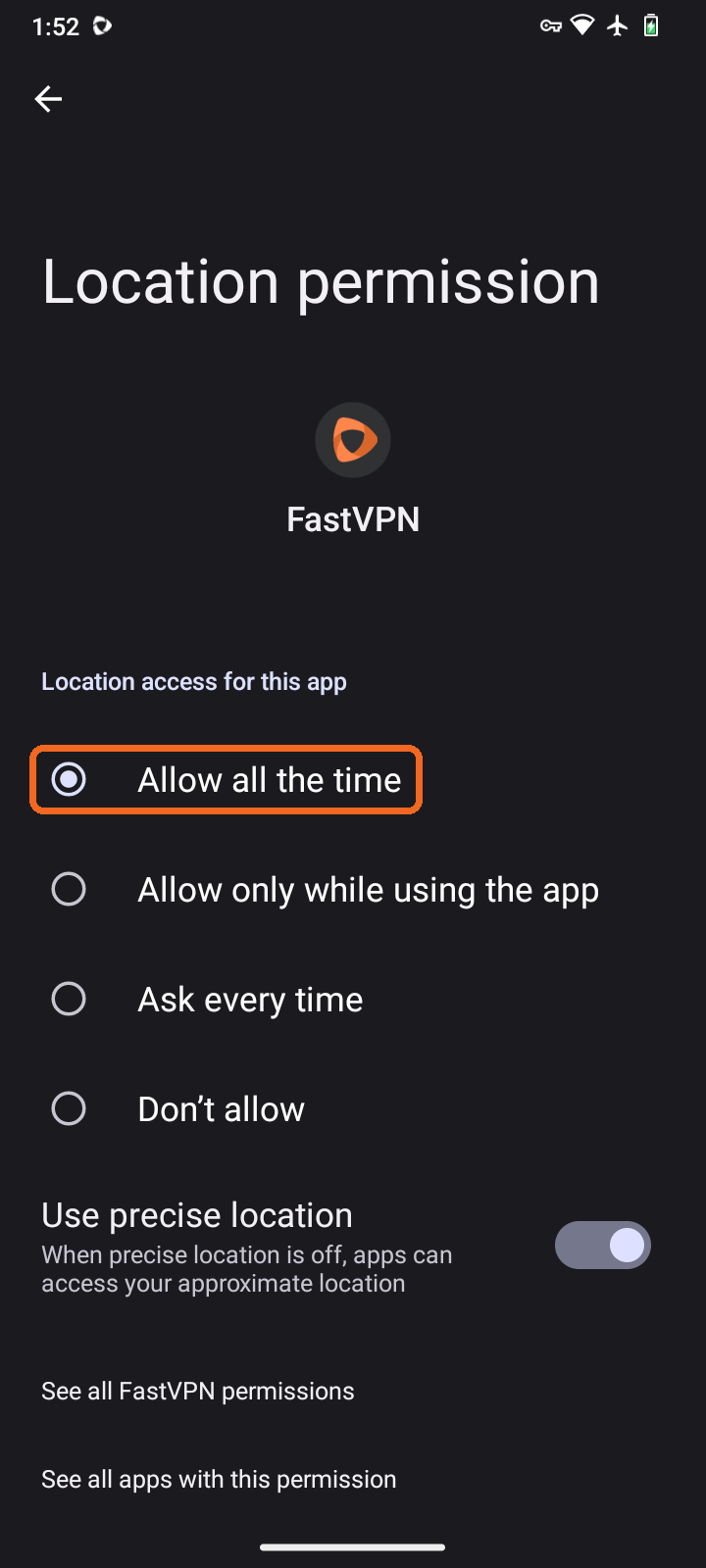
Allow background location - Android opens the Location permission screen for FastVPN. Select Allow all the time, so alerts work when the app is in the background.
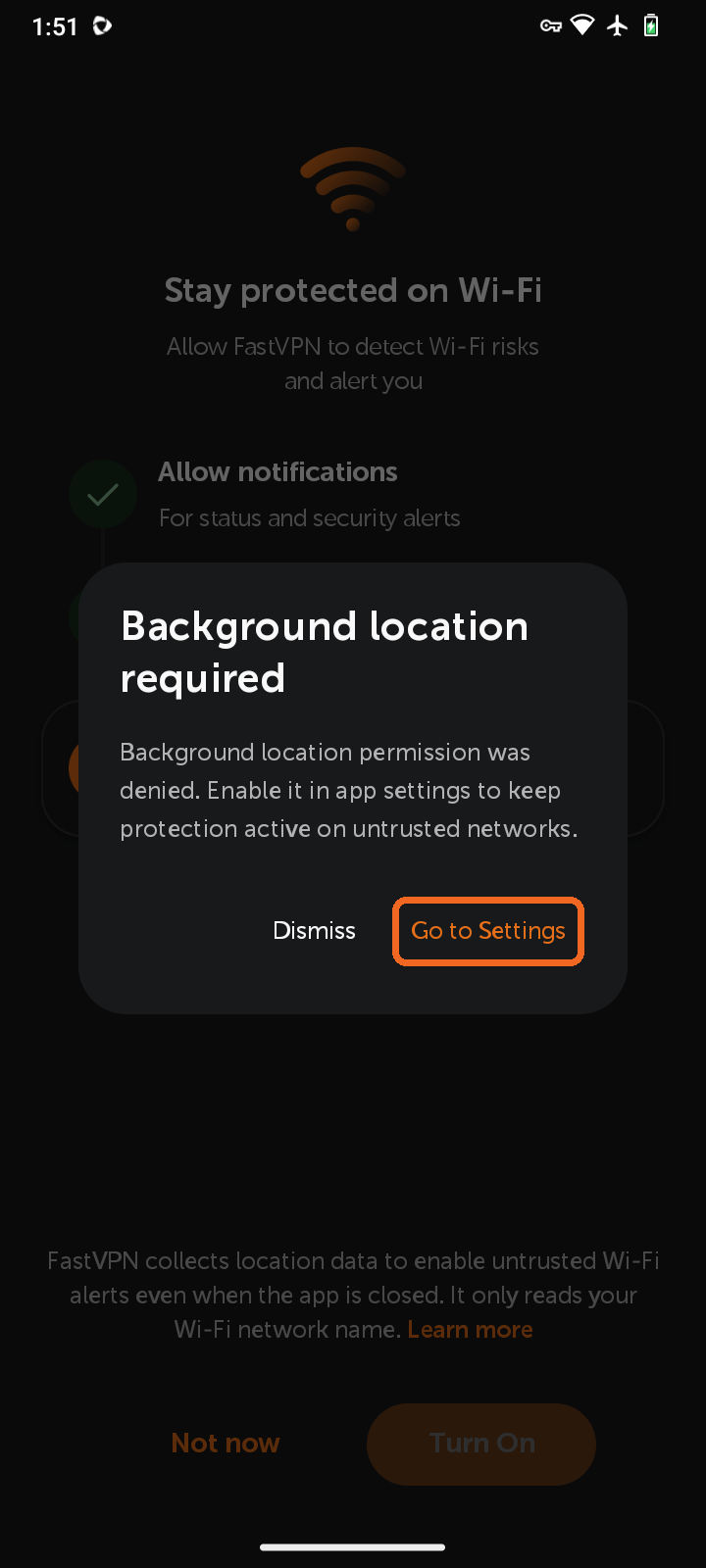
If background location is not allowed, the app shows Background location required. Tap Go to Settings and select Allow all the time to keep protection active on untrusted networks.
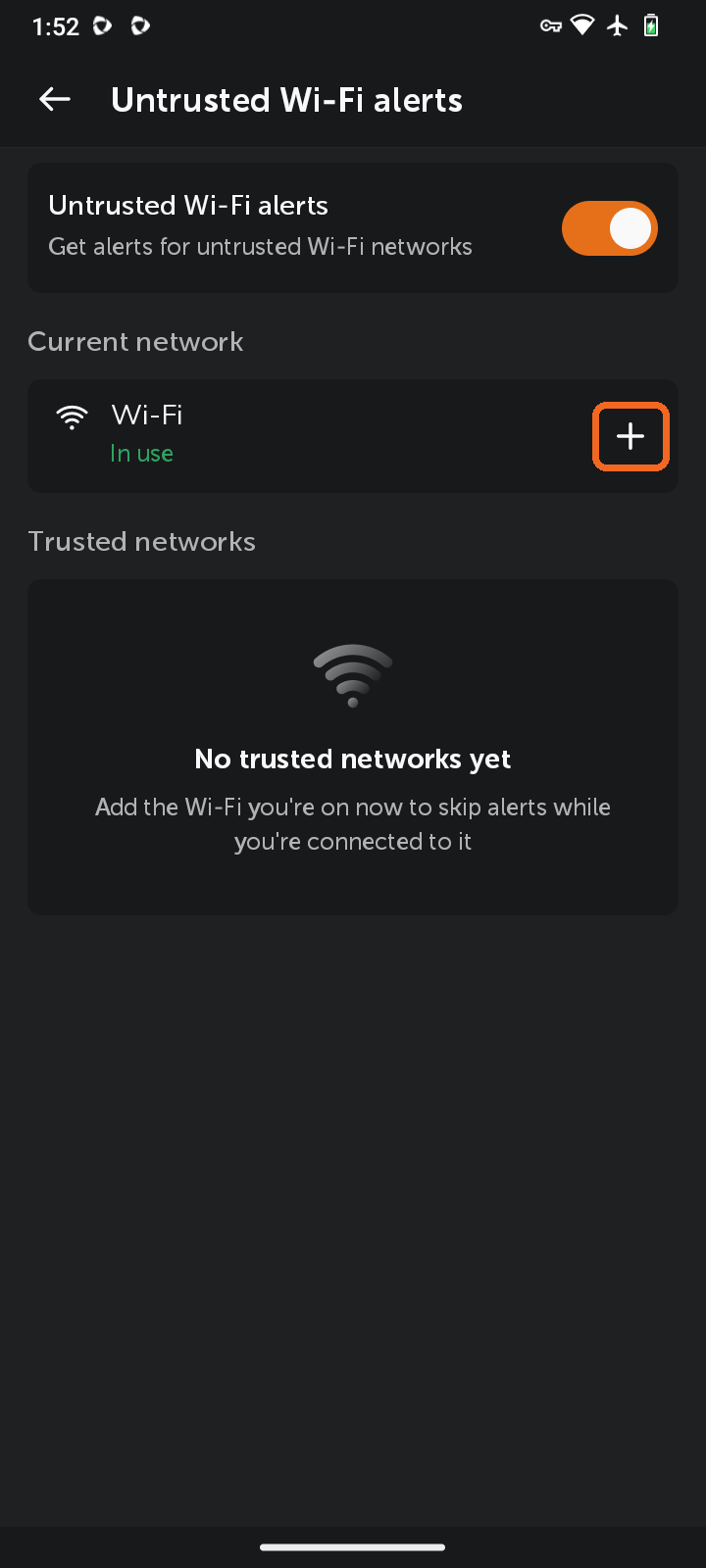
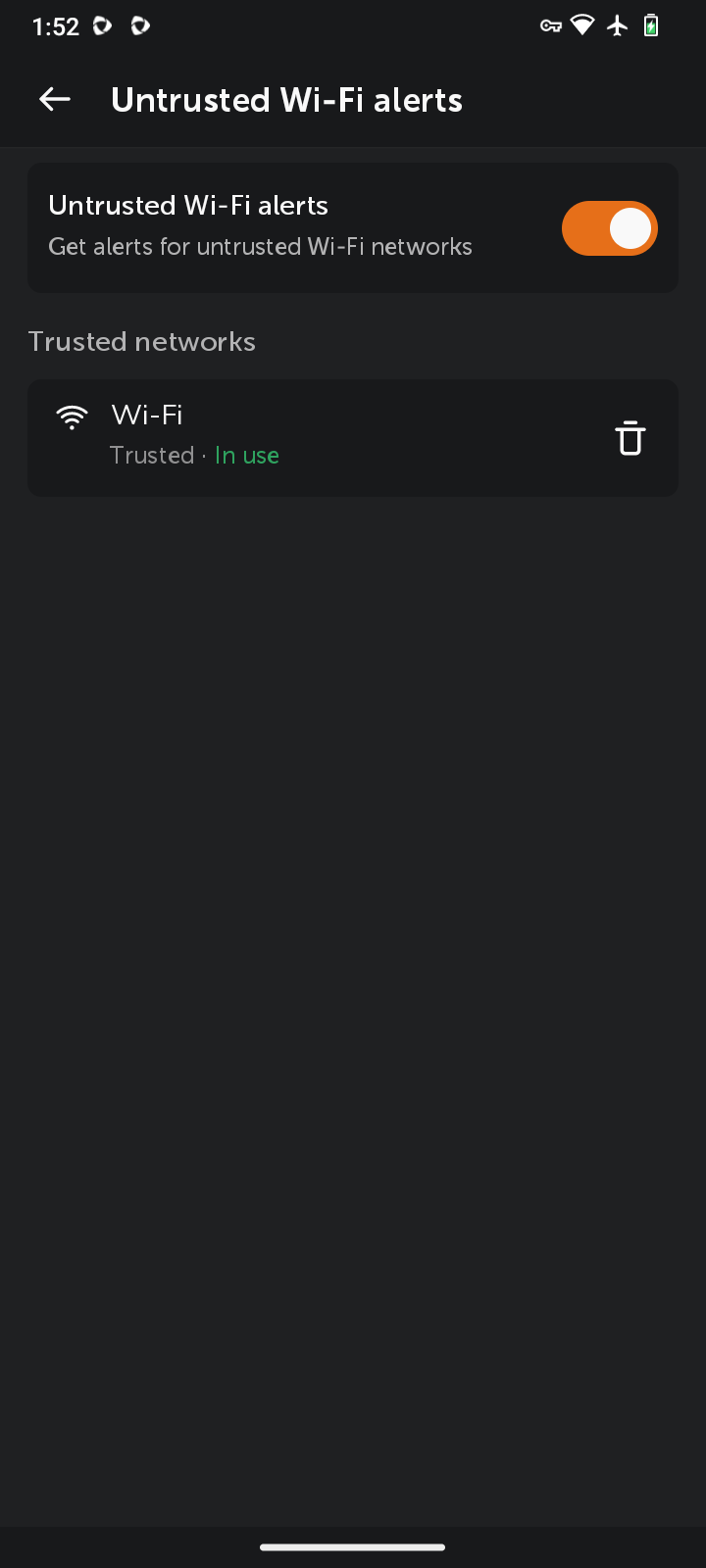
Once location access is granted, the app can show the name of the Wi-Fi network you are connected to under Current network. Tap + to add it to Trusted networks and skip alerts while you're connected to it.
If you don't plan to use this feature, you can remove the location permission granted earlier. Our app has no other need for your location other than to read the Wi-Fi network name.
Learn more about how to manage your Android device's location settings.
If you need any further assistance, please contact our
support team.