
As SSL certificates are becoming more and more required and sometimes even obligatory (it is by now mandatory for any website to be approved by Google Chrome), we’ve started provisioning the Free Let's Encrypt SSL option to our customers with all EasyWP packages. Our free SSL certificate will give your site HTTPS URLs. HTTPS is the current version of HTTP, adding security to its capabilities. Domains with HTTPS offer users peace of mind because the transfer of data is protected. It is a Let's Encrypt SSL certificate from Let's Encrypt CA assigned to your account.
Note: The Free Let's Encrypt SSL feature is available for Namecheap domains that use our DNS. However, the domains registered with another Registrar can use the Free Let's Encrypt SSL feature as well. It can be done only if the domain has our FreeDNS and it is added to the EasyWP dashboard using the Your Domain on Namecheap option.
Note: Find out more about the security options available with EasyWP websites in this article.
You'll need to make just a few clicks to enable your free certificate
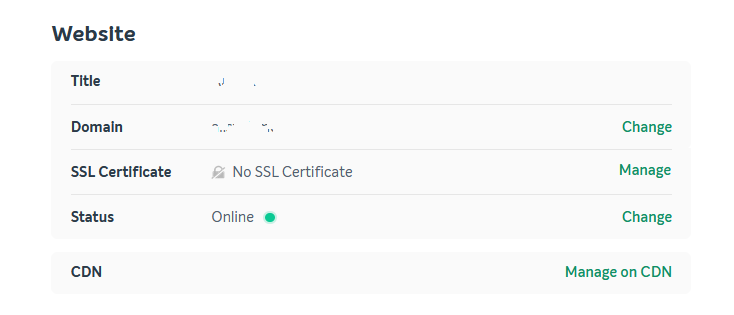
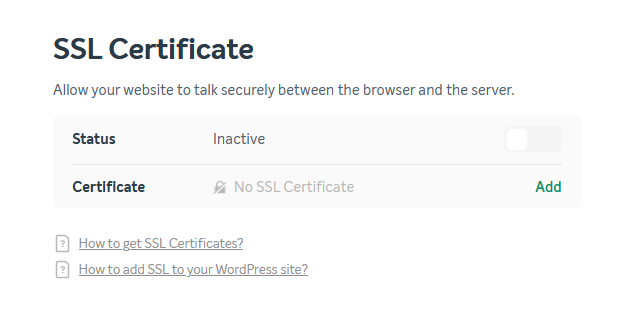
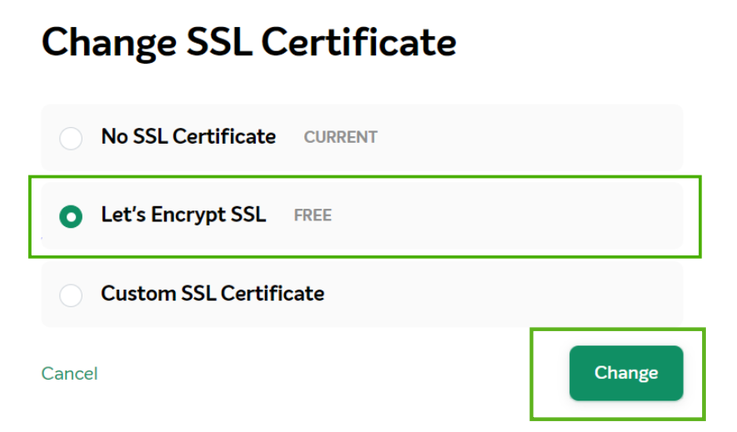
Well done, you’ll see Let's Encrypt SSL enabled in the Dashboard, and that’s basically it!
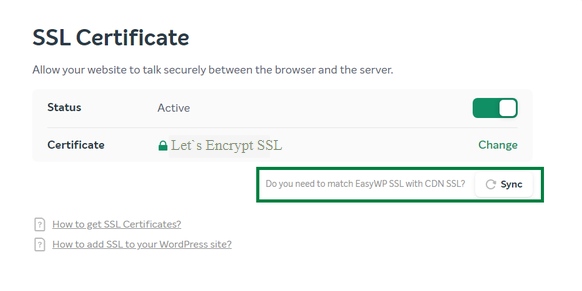
NOTE: If you use the Supersonic CDN service for this website (legacy option), the certificate should be installed in the CDN panel as well. For this, just click the Sync button on the certificate status page. It will appear right below the status toggle shortly after the certificate's been enabled.
Note: You can also switch Let's Encrypt SSL Off or replace it with the custom one, please refer to this article for detailed guidelines.
Need help? We're always here for you.