
This option lets you add any email account of yours to the Private Email web interface through IMAP/SMTP protocols.
Here are two reasons why you might need to use this option:
1) To manage your email account(s) in one place
2) To add email account(s) to transfer emails
But what if an email account you add is created with a Google Workspace email account or a regular Gmail account? Google is known for its user-security approach, so adding a Google email account requires some preparation. This is where the App password option can be used.
The App password is a special password that is created for a particular non-Google device or application that a Google email account will be connected with.
NOTE: The App passwords option is available for accounts with enabled 2FA.
Let’s go through the process of generating an App Password and using it to add your email account:
Make sure you’re logged into your Google account and that 2-Step Verification (2FA) is active.
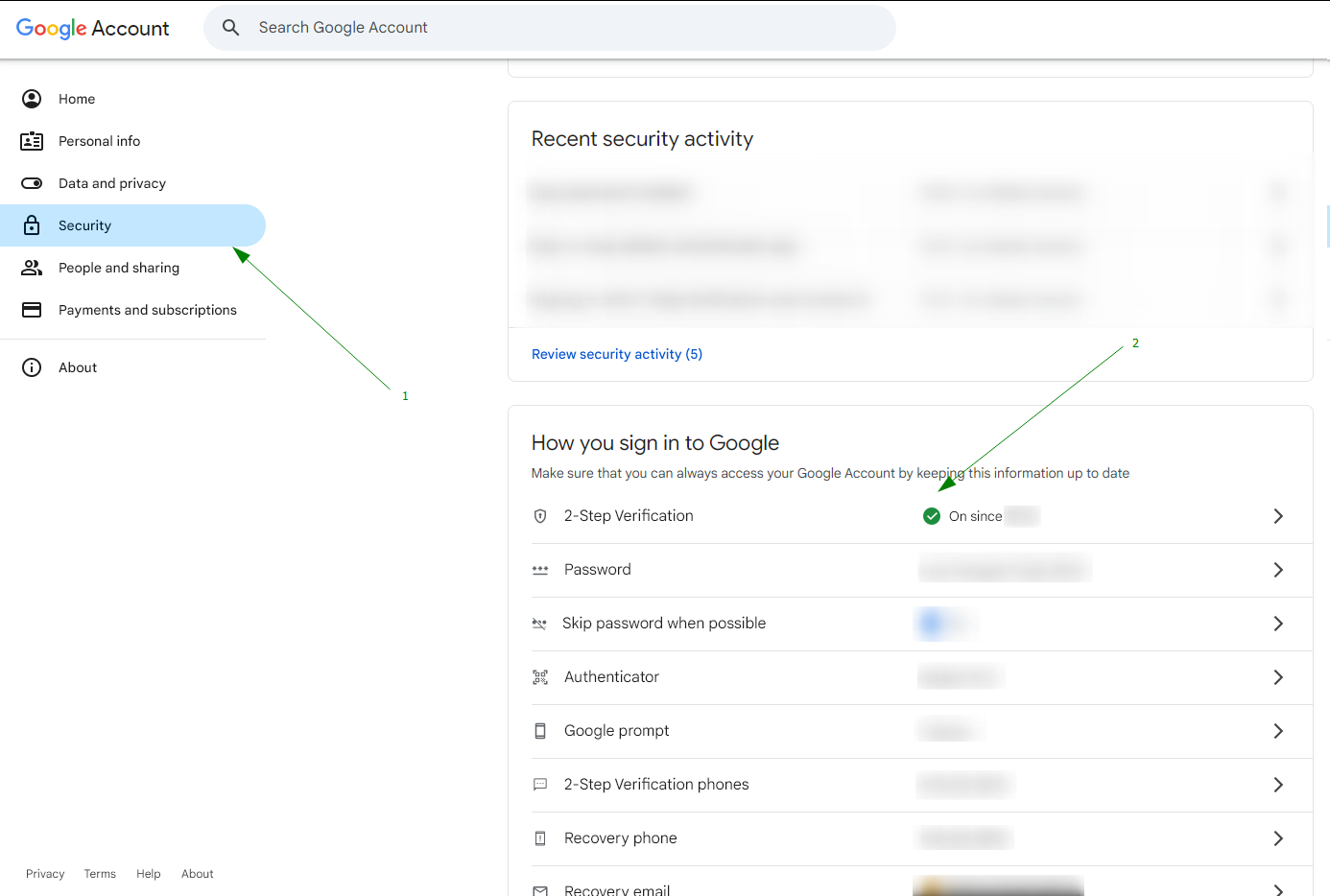
Go to https://myaccount.google.com/apppasswords page. Previously, this option was available in the Security section of your Google Account. Now, it’s only accessible through the direct link once 2-Step Verification is enabled.
You’ll be asked to enter your Google account password again to continue.
On the App Passwords page, type a name for the app. For example, since we’re adding your Gmail address to Private Email webmail, you can enter “Private Email webmail” - though any name will work.
Google will then generate a unique 16-character password (spaces are optional). Copy this password and keep it handy, as you’ll need it when adding the account.
Let’s start by describing the process of adding a @gmail.com email account to the Private Email webmail:
1. Open Private Email webmail and log in to the email account where you want to add a Gmail account.
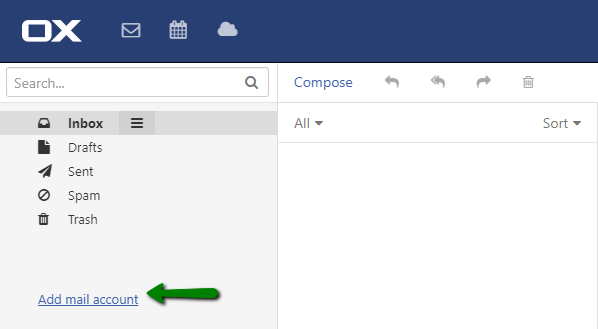
2. On the left side of the Inbox page, click on the Add mail account button:
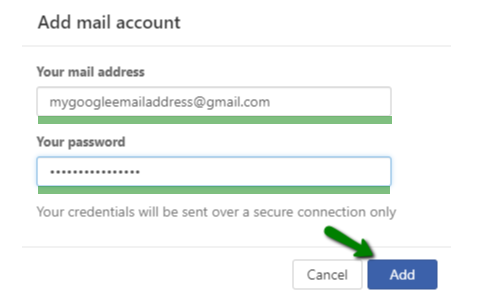
3. Enter your @gmail.com email address in the Your mail address field and the generated password in the Your password field, then click on the Add button.
The system will auto-configure a @gmail.com email account, and the following pop-up window will appear at the top of the page:

Congrats! You’ve added your Gmail account to your Private Email. From now on, you can use this email account as usual.
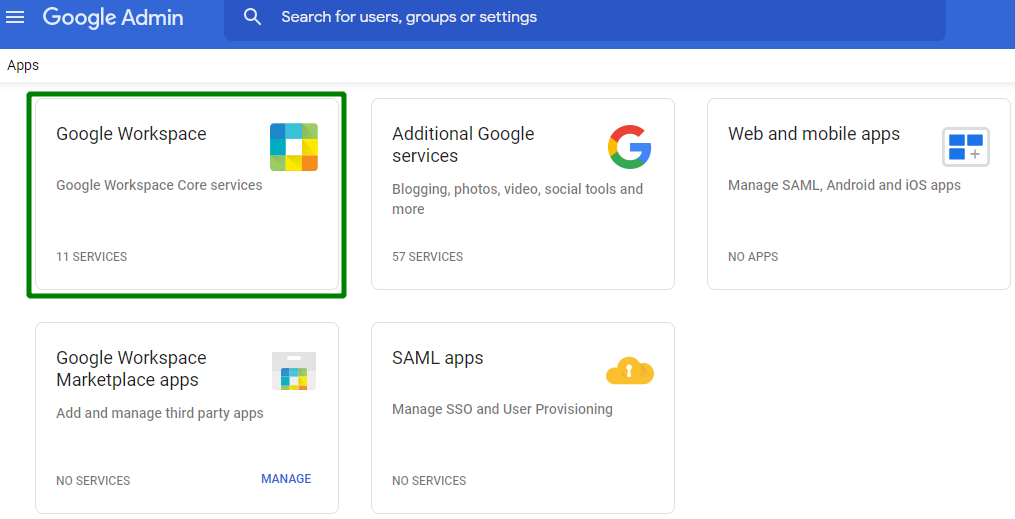
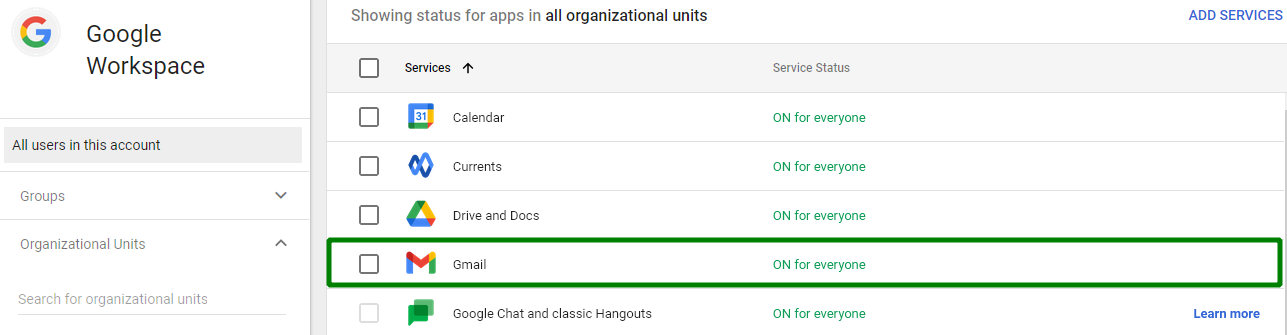
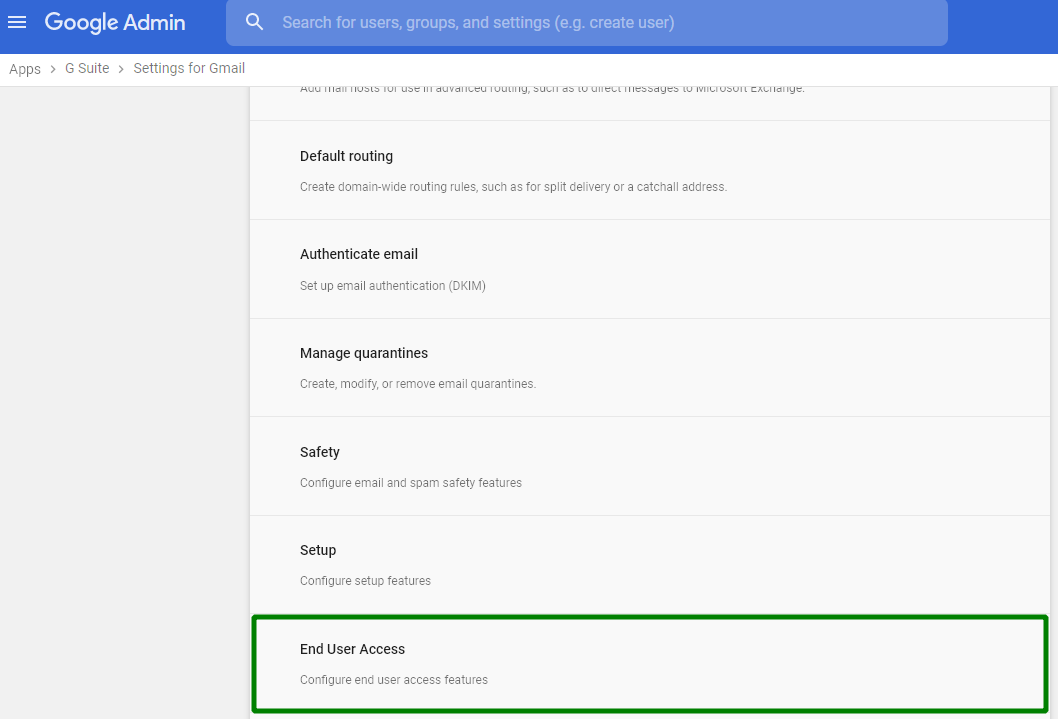
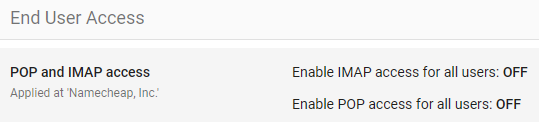
4.Locate the POP and IMAP access section and click on it:
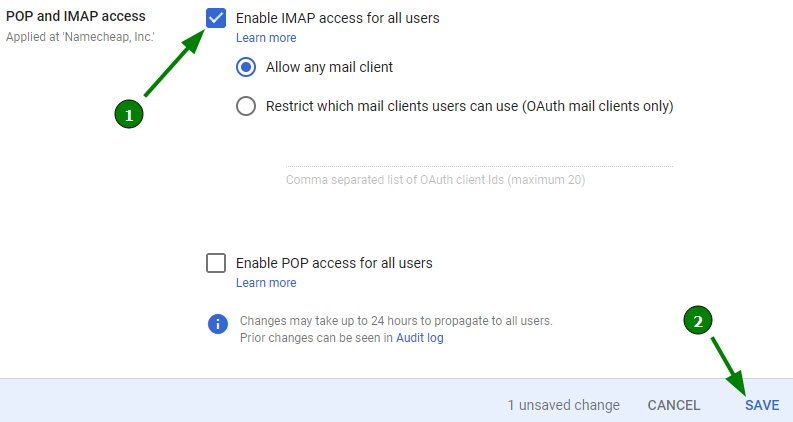
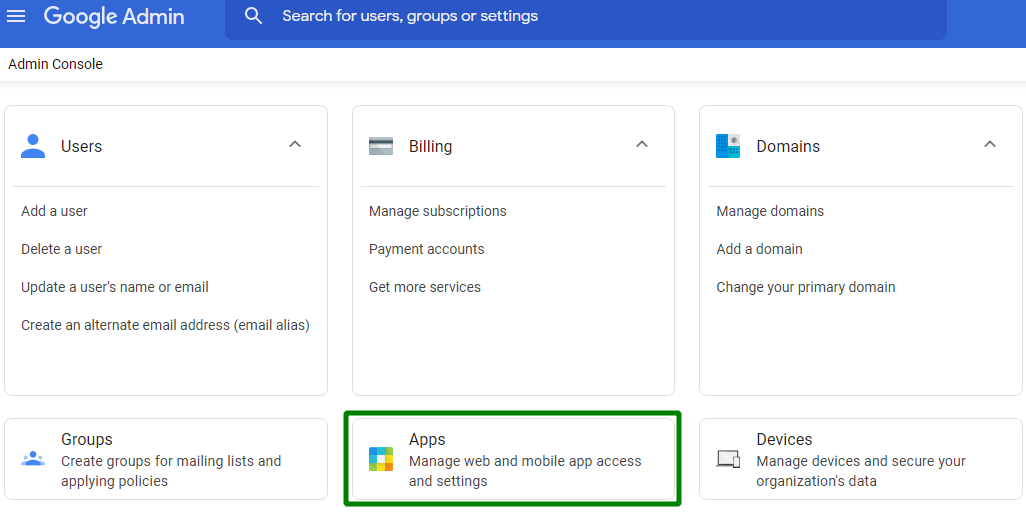
1. Access the admin panel here
2. Locate the Security icon: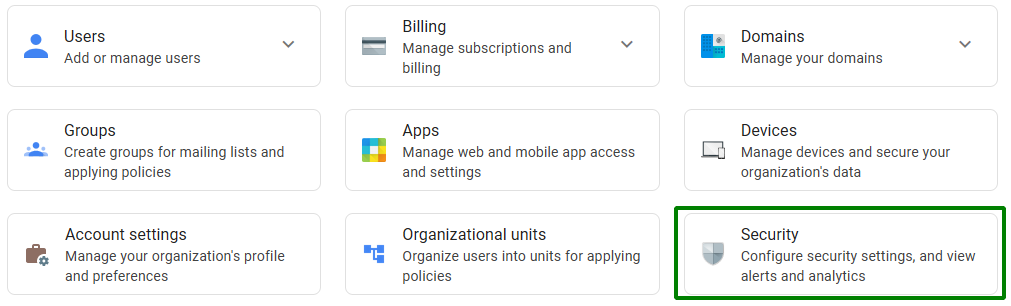
3. Now locate the Less Secure Apps line and click on it: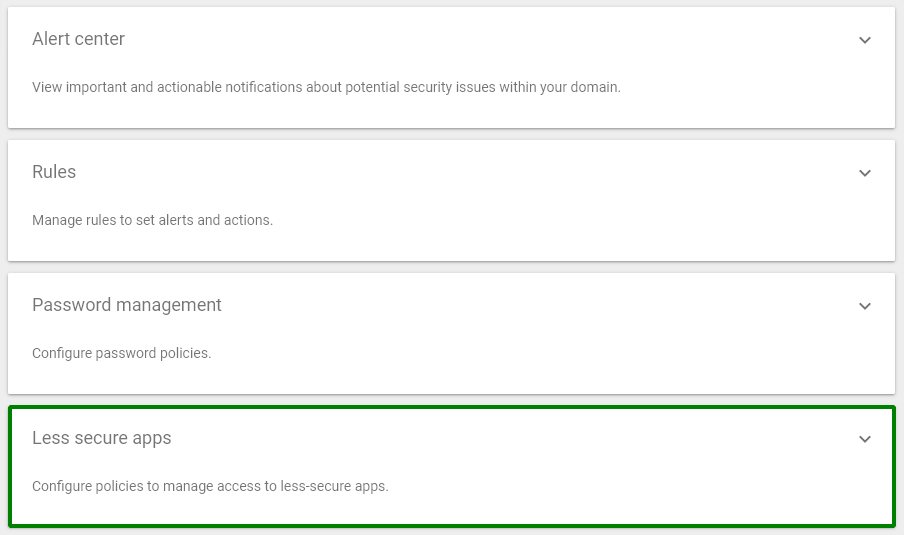
4. Enable the Allow users to manage their access to less secure apps option and save the changes: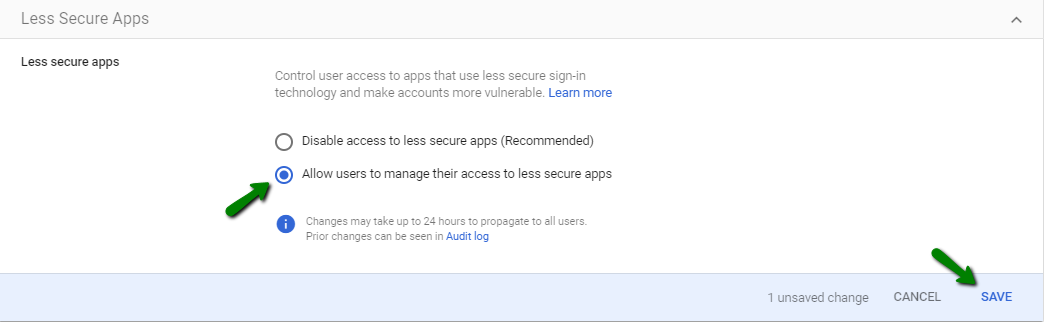
NOTE: Before adding a Google Workspace email address to Private Email webmail, make sure you have not reached the limitation of 5 failed IMAP login attempts. Otherwise, you’ll need to wait for 24 hours until the block is automatically lifted.
So, let’s start!
1. Go to the Private Email webmail.
2. Click on the Add mail account button: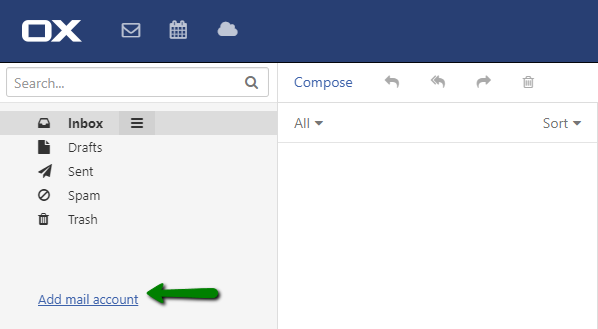
3. Enter your Google Workspace email address to the Your mail address field and an app password to the Your password field. Then click on the Add button.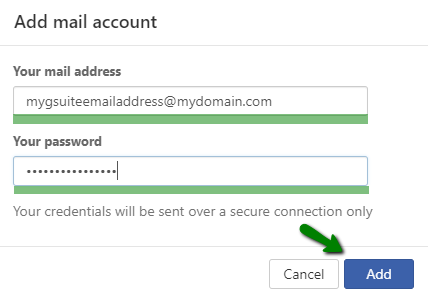
The system will make an attempt to configure an email account manually, but the process will fail, and the following warning will appear: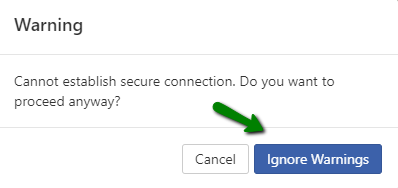
Skip the warning by clicking on the Ignore Warnings button.
The next error message will confirm the failed auto-configuration and a manual configuration will be offered: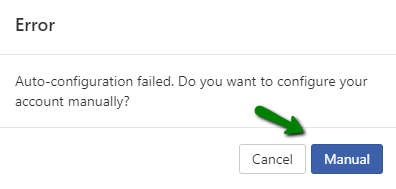
Click on the Manual button to start configuring a Google Workspace email account manually. The settings for the manual configuration are as follows:
Account name: the name of your account
Your name: your first and last names, or any other name
Email address: the email address of your Google Workspace email account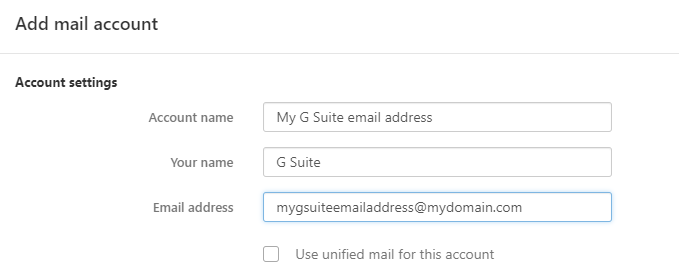
The Use unified mail for this account option is not enabled by default but you are free to enable this option if needed. To learn more about it, visit this article.
NOTE: To generate an app password for your Gmail account, please follow these steps from the guide.
Incoming server
Server type: IMAP
Server name: imap.gmail.com
Connection security: SSL/TLS
Server port: 993
Username: your Google Workspace email address
Password: an app password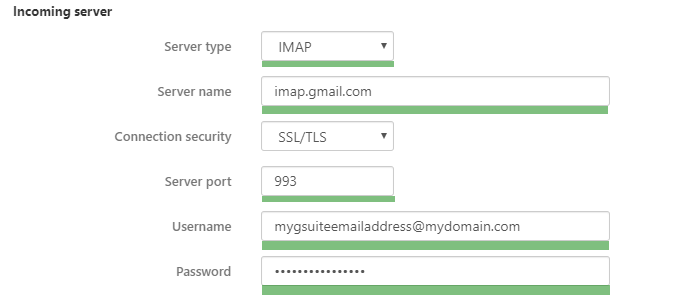
Outgoing server
Server name: smtp.gmail.com
Connection security: SSL/TLS
Server port: 465
Authentication: As incoming mail server
Username and Password will be fetched automatically (the ones already specified in the Incoming server settings)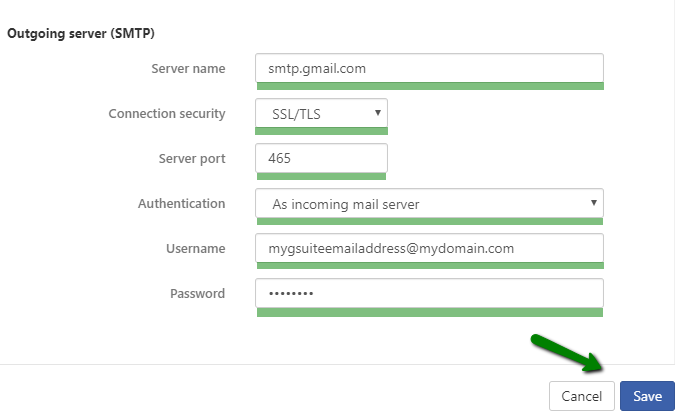
If all the entered details are correct, the following pop-up window will appear:
Congrats! You can now start managing your email accounts through the same web interface or move emails to a Private Email account.
Need help? We're always here for you.