If your domain is pointed to Cloudflare nameservers, follow these steps to configure email DNS records:
for Private Email email service
for cPanel Email email service
How to set up Private Email DNS records at Cloudflare
1. Log into your Cloudflare account at https://www.cloudflare.com/a/login.
2. Go to the DNS menu:
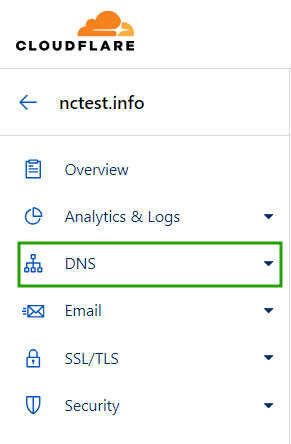
3. Add the following DNS records using 'Add Record' option:
Type: MX | Name: @ | Server: mx1.privateemail.com | Priority: 10 | Automatic TTL
Type: MX | Name: @ | Server: mx2.privateemail.com | Priority: 10 | Automatic TTL
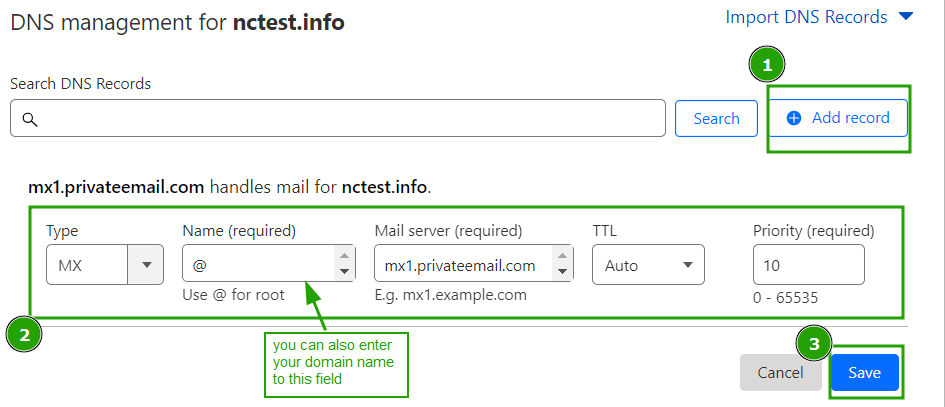
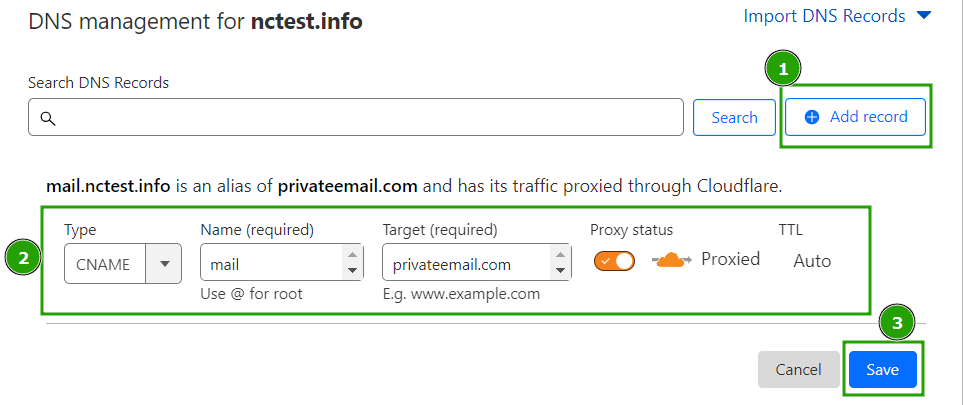
Type: CNAME | Name: mail | Domain name: privateemail.com | Automatic TTL
Type: CNAME | Name: autoconfig | Domain name: privateemail.com | Automatic TTL
Type: CNAME | Name: autodiscover | Domain name: privateemail.com | Automatic TTL

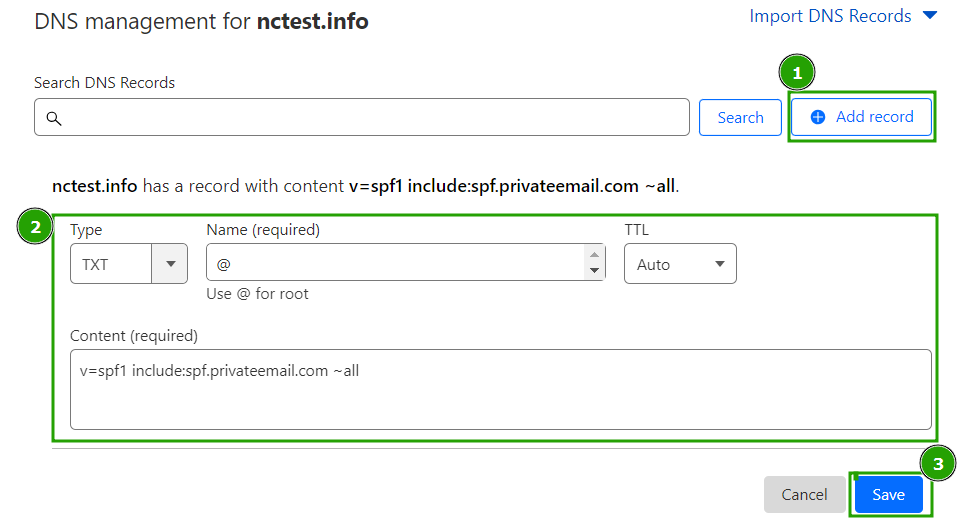
Type: TXT | Name: @ | Content: v=spf1 include:spf.privateemail.com ~all | Automatic TTL
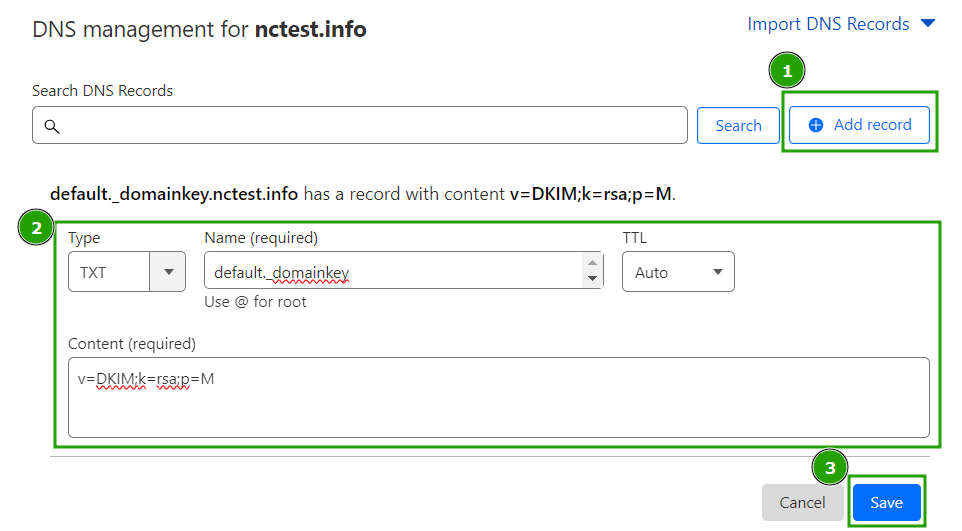
Type: TXT | Name: privateemail._domainkey | Content: generate and copy string using this guide
NOTE: For Private Email subscriptions purchased before June 2, 2026, DKIM record's name is default._domainkey.
Type: TXT | Name: _dmarc | Content: v=DMARC1; p=reject; rua=mailto:postmaster@yourdomain.tld
NOTE: SPF, DKIM and DMARC records are mandatory entries to ensure that outgoing mail works correctly.
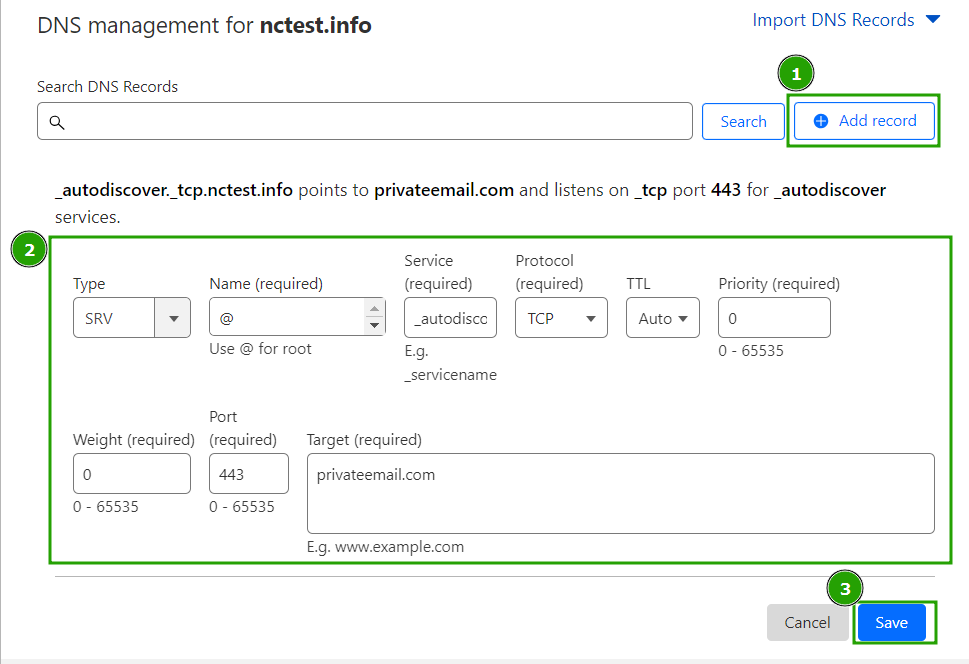
Type: SRV |
Service name: _autodiscover |
Protocol: TCP
| Name: yourdomain.tld
| Priority: 0
| Weight: 0 |
Port: 443
| Target: privateemail.com
| Automatic TTL
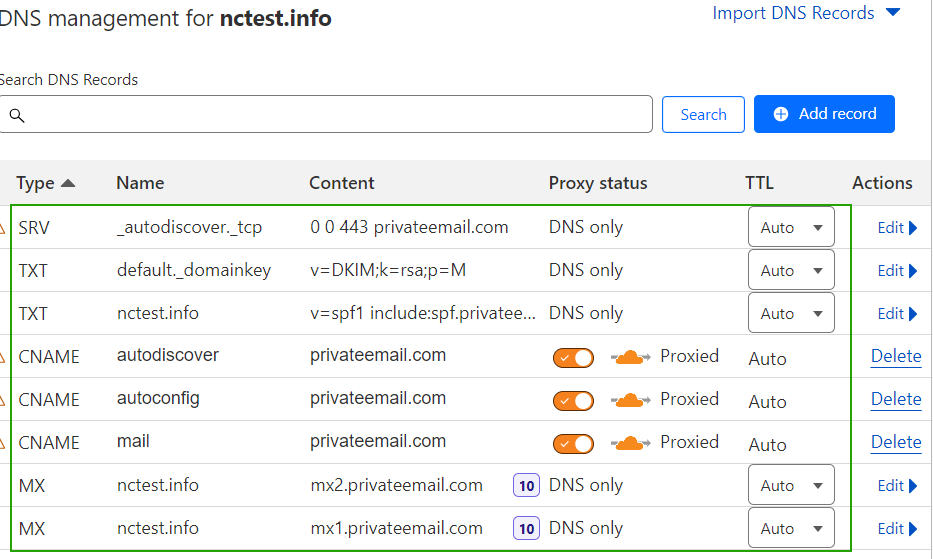
4. Check that all the records are added and wait 30-40 minutes for the records to propagate:
How to set up cPanel Email DNS records at Cloudflare
1. Log into your cPanel and Cloudflare accounts in two separate browser tabs.
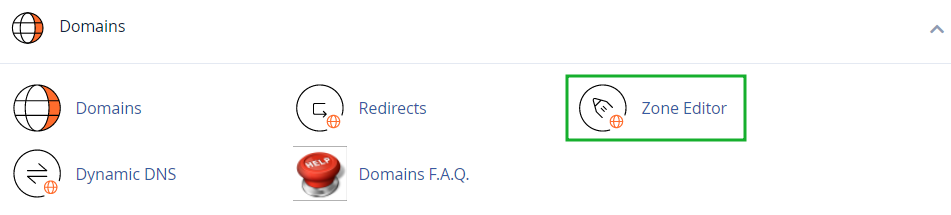
2. 1. Go to cPanel > Domains section > Zone Editor menu:
3. Click the Manage button next to the domain which DNS zone you would like to edit:

Choose the MX type and copy the MX record(s). You will see either a default email MX record (custom MX record):
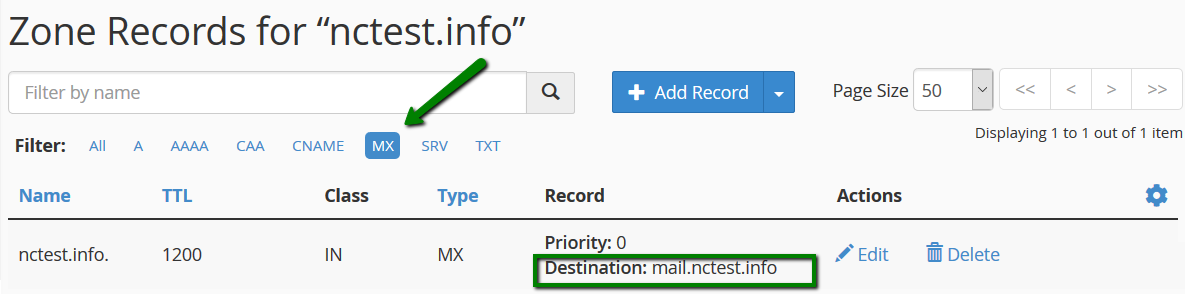
or Jellyfish MX records:
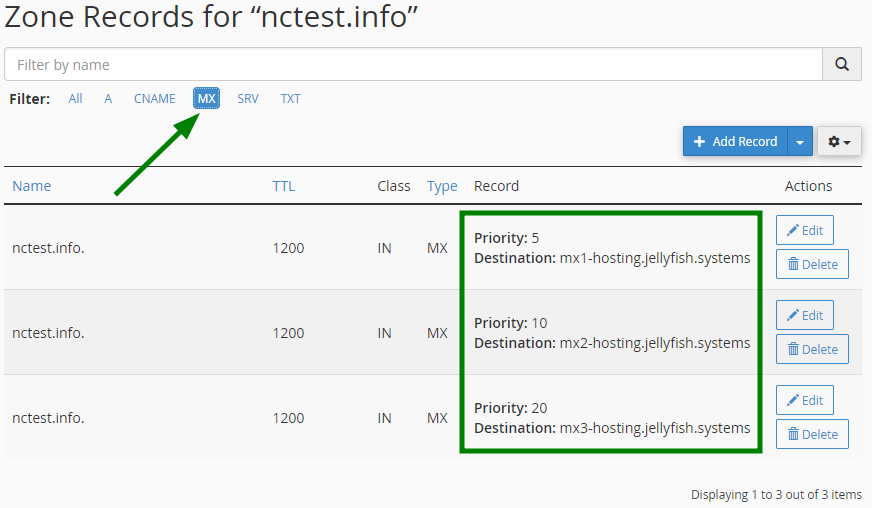
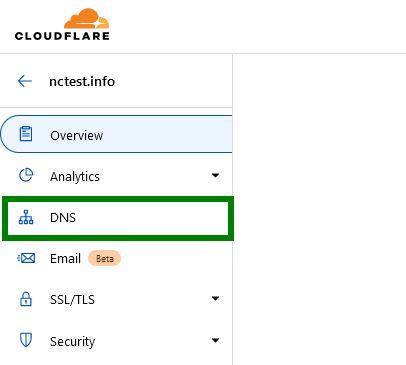
3. Go to Cloudflare > DNS:
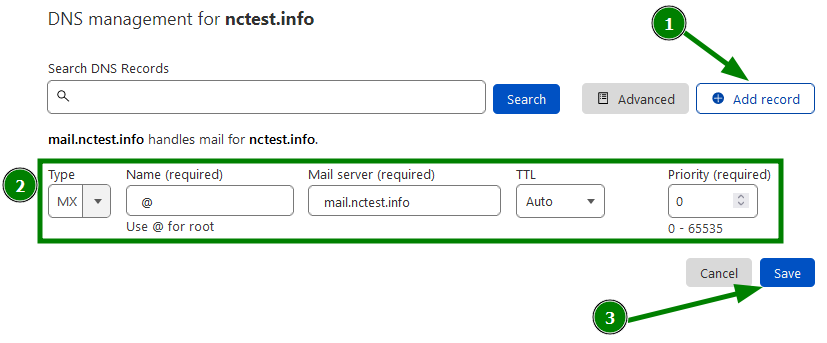
Add the MX record(s) you copied using the 'Add record' option:
Type: MX | Name: @ | Server: the record you copied | Priority: copy the priority | Automatic TTL
IMPORTANT: When you're setting up MX record for the cPanel email service, it is also needed to add an A record for the "mail" subdomain with the necessary cPanel IP address:
Type: A | Name: mail | IP address: cPanel IP | Automatic TTL
Also, make sure that the proxy status is disabled for this record so that your emails were routed correctly.
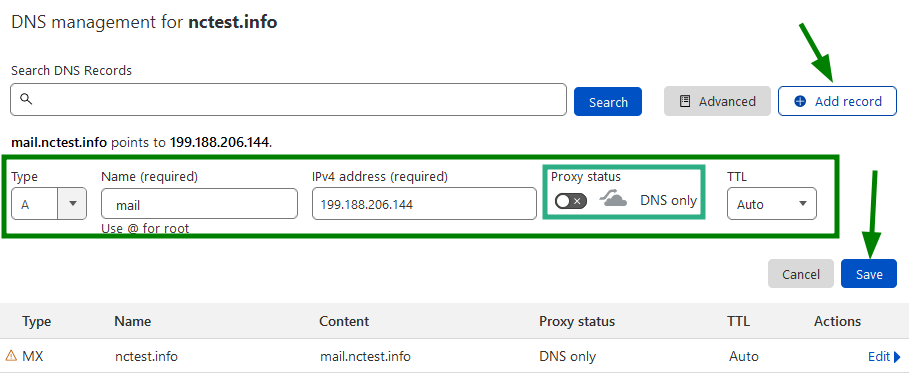
4. Go back to cPanel > Zone Editor > Manage > All and copy the following DNS records to Cloudflare:
Type: A | Name: webmail | IP address: cPanel IP | Automatic TTL
Type: A | Name: autodiscover | IP address: cPanel IP | Automatic TTL
Type: TXT | Name: @ | Content: v=SFP_value...| Automatic TTL

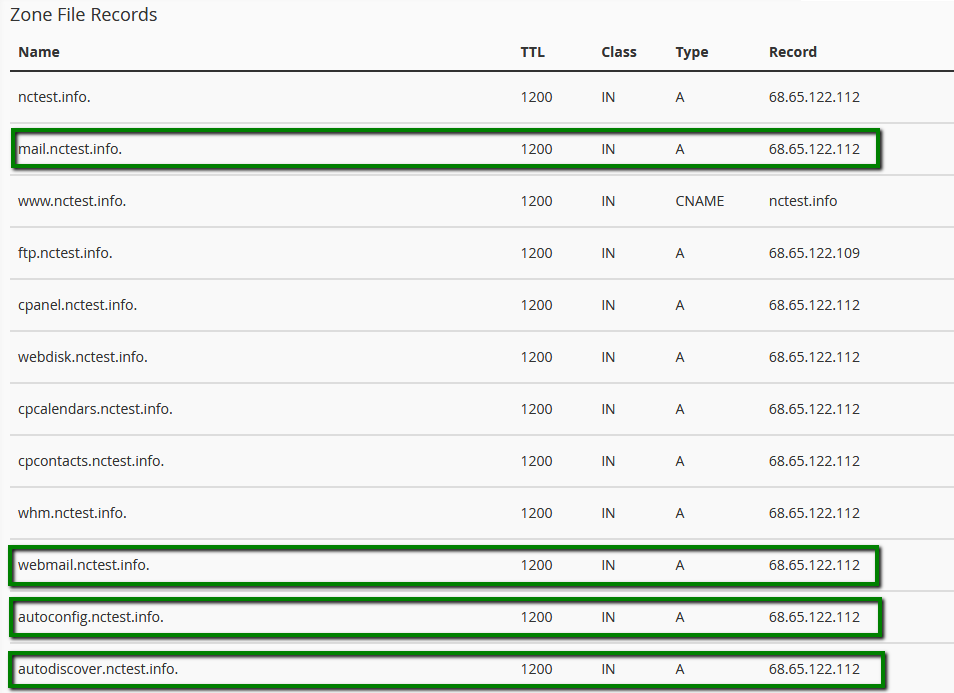
Check that all the records are added and wait 30-40 minutes for the records to propagate.
That's it!
