
Before an SSL certificate can be issued, the certificate applicant should confirm their domain ownership rights. This is called domain control validation (DCV). When you are activating your certificate, you will be presented with three methods of DCV to choose from:
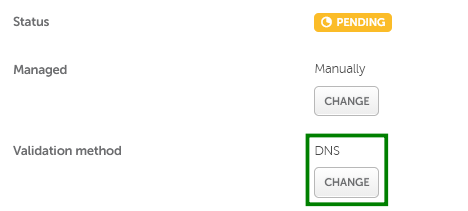
If you need to switch your chosen DCV method, check the following guide:
This validation method involves adding a CNAME record to the DNS settings of your domain.
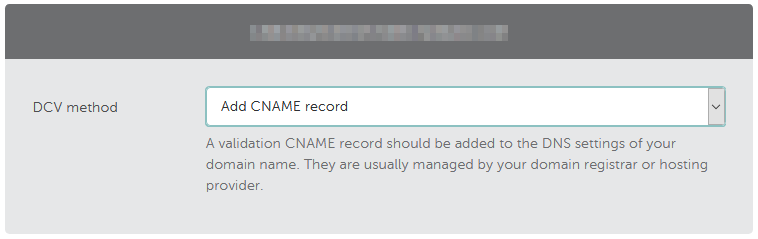
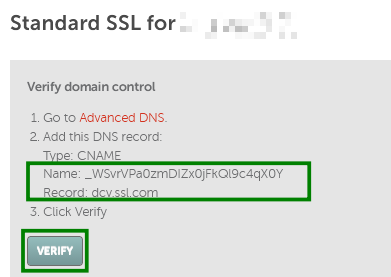
For single-domain and wildcard SSL.com certificates, you can get the CNAME record values from the SSL details page.
Once the CNAME record is created, click "Verify"
Note: If you have a conflicting CAA record (e.g., for the Sectigo CA instead of the SSL.com CA) for the domain, you will see instructions to create a CAA record for the SSL.com CA. Follow the provided steps to create the required CAA record. Otherwise, the certificate issuance will fail.
The explanation on how to locate the CNAME values for other certificates and steps to add the CNAME record for all certificates is in this how-to video:
Note: If you are using DNSSEC for the domain, ensure that it is configured correctly or maintain it (including key rollovers). Otherwise, certificate issuance will be paused until the DNSSEC issues are resolved.
Here is the text version of the guide:
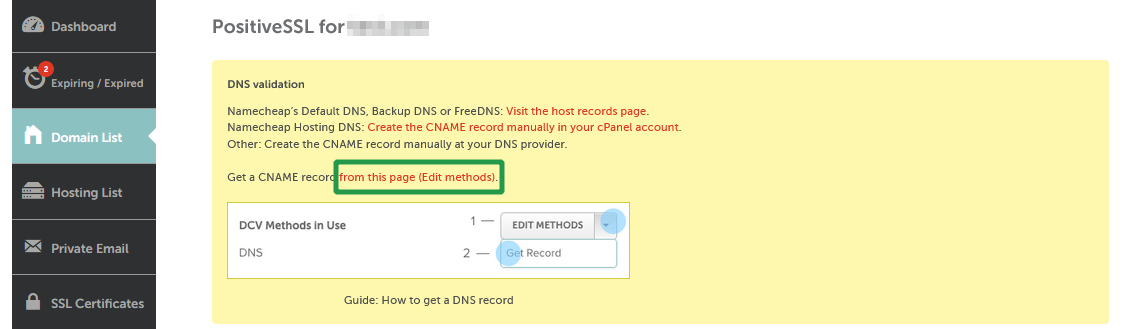
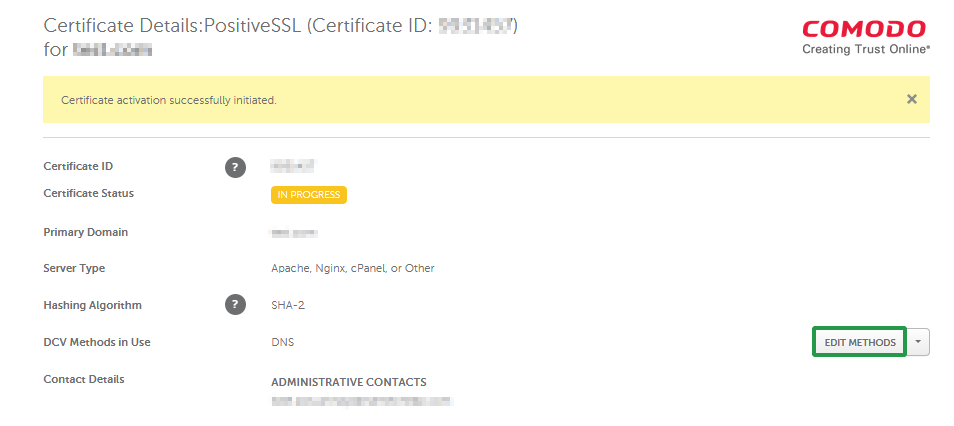
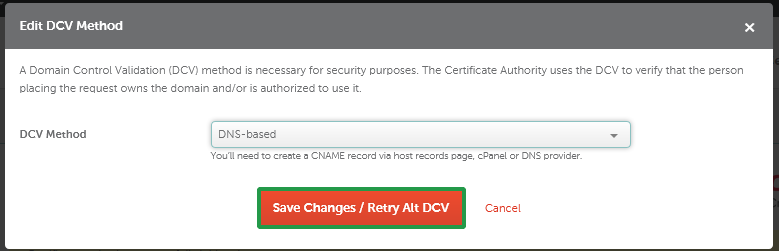
After you complete SSL activation, you’ll find instructions on completing this DCV method as well as the values you will need for the CNAME record in the SSL Details page of your account:
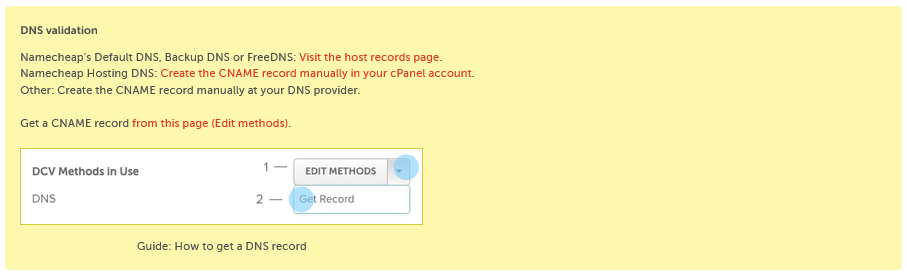
Click on Get Record to see the CNAME record values.
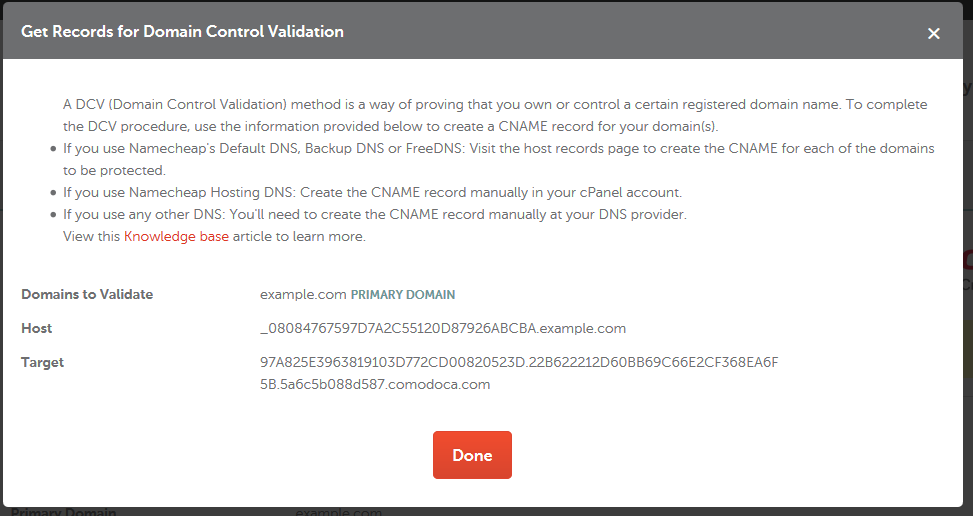
If you are activating a single-domain certificate for a subdomain, feel free to set the DNS record either for the bare domain directly, or for the subdomain. It will work both ways for the domain validation process.
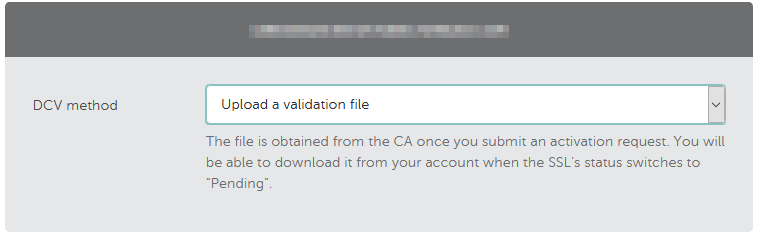
For SSL.com certificates, you can download the validation file from the SSL details page.
Once the file is uploaded, click "Verify".
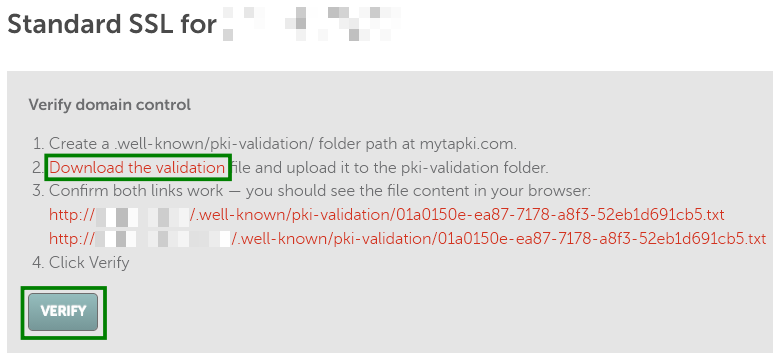
Note: If you have a conflicting CAA record (e.g., for the Sectigo CA instead of the SSL.com CA) for the domain, you will see instructions to create a CAA record for the SSL.com CA. Follow the provided steps to create the required CAA record. Otherwise, the certificate issuance will fail.
The explanation on how to locate the validation file for other certificates and steps to upload it to cPanel is in this how-to video:
Here is the text version of the guide.
When you’ve completed the activation process, you'll be directed to the SSL Details page in your Namecheap account, where you'll find instructions and a link to the Edit methods page where you can download the validation file.
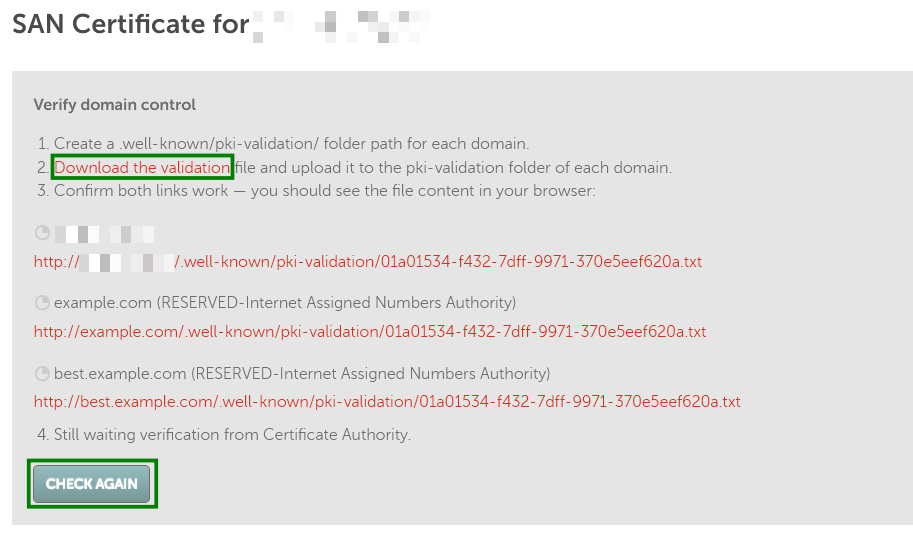
Note: If you have a Multi-Domain SSL and choose this method of DCV for several domains, no link will appear in the yellow panel as each domain will have a different link. To verify each of the domains, you will need to create the corresponding links by following the instructions in the yellow box and checking each URL in your browser. In most cases, if a simple text line like the one below is shown on the screen, the validation file is accessible.

Once the file is uploaded and accessible externally via the following URL http://your_domain_name.com/.well-known/pki-validation/filename.txt, please click Save Changes/Retry Alt DCV. This will force the Certificate Authority to perform the DCV check.
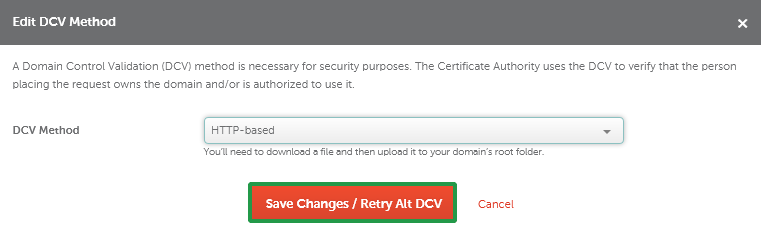
If you activated your SSL manually using a CSR code that has www.domain.com as the FQDN, please make sure that the file is also available via the link http://domain.com/.well-known/pki-validation/file.txt .
Note: The email-based validation with WHOIS email is not available due to the upstream provider updates.
Here is the text version of the guide:
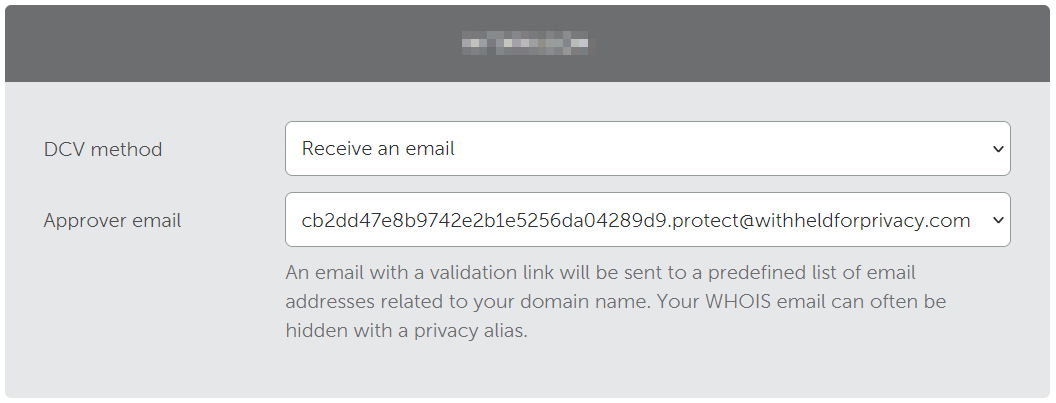
After you complete SSL activation process, the Certificate Authority will email you at the selected address.
If you do not receive the approval email, you can always retry it.
For single-domain and wildcard SSL.com certificates, click "Resend email" on the SSL details page.
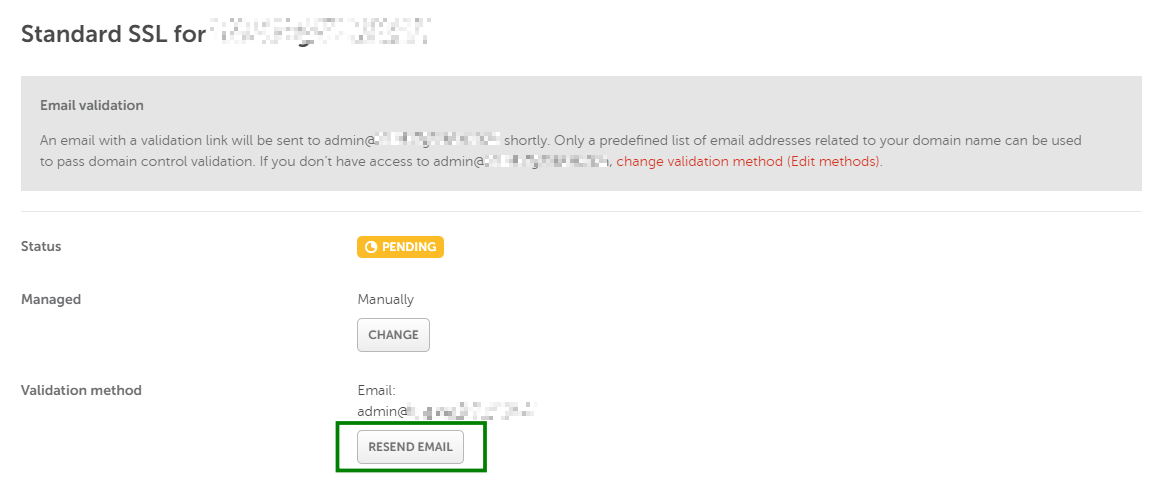
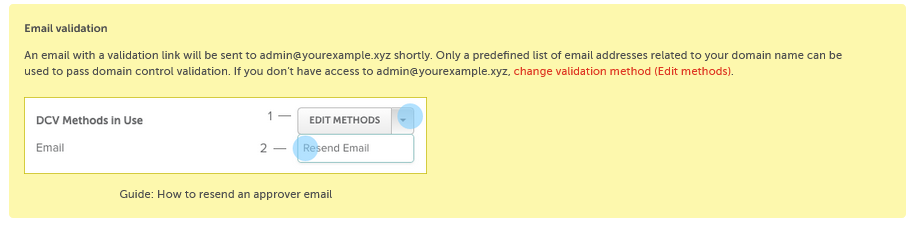
For other certificates, use the "Resend email" on the Edit methods page on the Edit methods page. Its link is available in the validation instructions panel placed on the SSL Details page.

Then, perform the required steps to complete the DCV.
Note: If you have a Sectigo SSL (e.g. PositiveSSL), you can also use this SSL Validation Tool to check your SSL status, switch the validation method, and speed up the SSL certificate issuance.
The tool also allows you to select the order to the "DNS TXT random value" DCV method. More details on how to use it are here.
Note: If you have a Domain Validation certificate, it will be emailed to you shortly after DCV is complete.
If you have an OV or an EV certificate, your order should undergo business validation. Once you complete DCV, you will be contacted with further instructions.
Need help? We're always here for you.