Before an SSL certificate can be issued, the certificate applicant should confirm their domain ownership rights. This is called domain control validation (DCV). When you are activating your certificate, you will be presented with three methods of DCV to choose from:
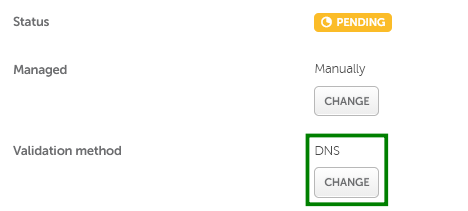
If you need to switch your chosen DCV method, check the following guide:
Add CNAME record
This validation method involves adding a CNAME record to the DNS settings of your domain.
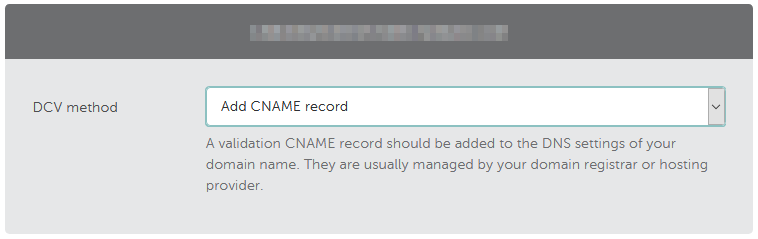
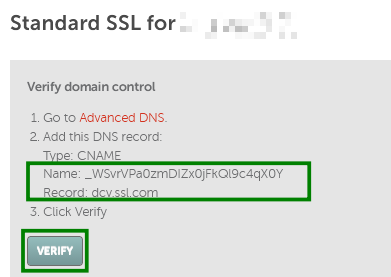
For single-domain and wildcard SSL.com certificates, you can get the CNAME record values from the SSL details page.
Once the CNAME record is created, click "Verify"
Note: If you have a conflicting CAA record (e.g., for the Sectigo CA instead of the SSL.com CA) for the domain, you will see instructions to create a CAA record for the SSL.com CA. Follow the provided steps to create the required CAA record. Otherwise, the certificate issuance will fail.
The explanation on how to locate the CNAME values for other certificates and steps to add the CNAME record for all certificates is in this how-to video:
Note: If you are using DNSSEC for the domain, ensure that it is configured correctly or maintain it (including key rollovers). Otherwise, certificate issuance will be paused until the DNSSEC issues are resolved.
Here is the text version of the guide:
After you complete SSL activation, you’ll find instructions on completing this DCV method as well as the values you will need for the CNAME record in the SSL Details page of your account:
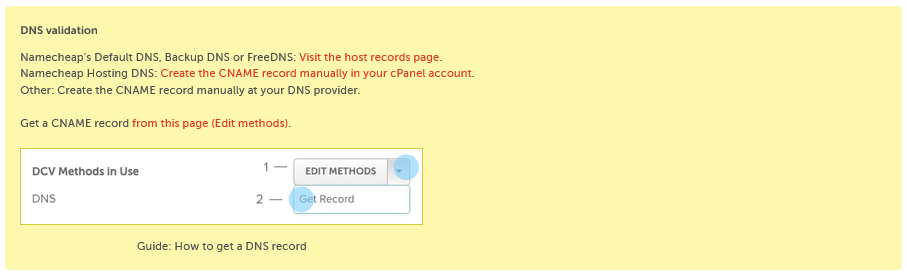
Click on Get Record to see the CNAME record values.
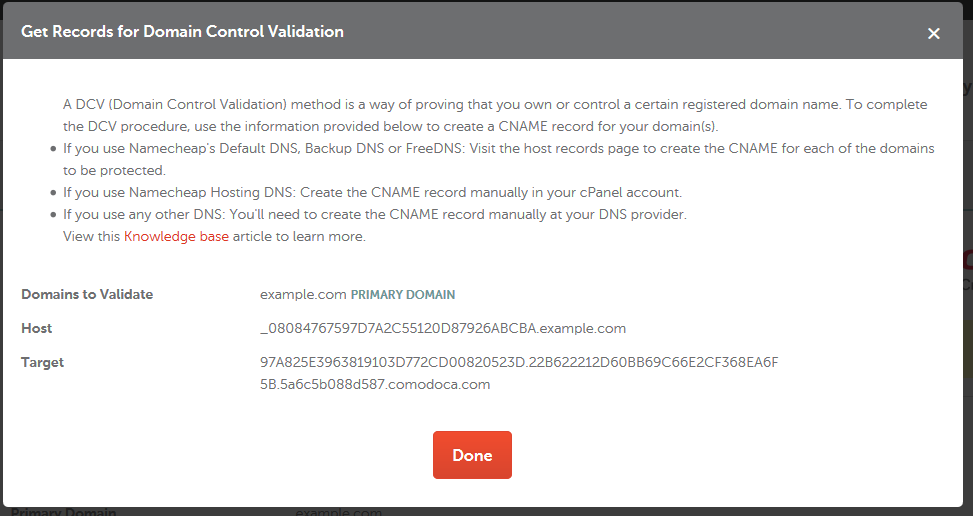
Note: Some DNS systems (including the Namecheap system) automatically add the domain name to the values submitted during record creation. Please make sure that your domain name is not duplicated in the values. If your domain is using Namecheap Basic nameservers or PremiumDNS, remove the ".example.com" part of the provided Host value before adding it to the validation record for the domain. Copy the Host and Target values and paste them into the corresponding fields in your DNS provider account. Set the minimum possible TTL value.
Note: Please keep in mind that if you are activating a Multi-domain certificate, the DNS record created for the bare domain (without www.) will verify this domain and its subdomain(s) included in the certificate. Nevertheless, to get the certificate issued, all domains/subdomains included in the certificate should be verified.
Once the correct values are set up, head to the SSL details page again, click the link beside "Get a CNAME record".
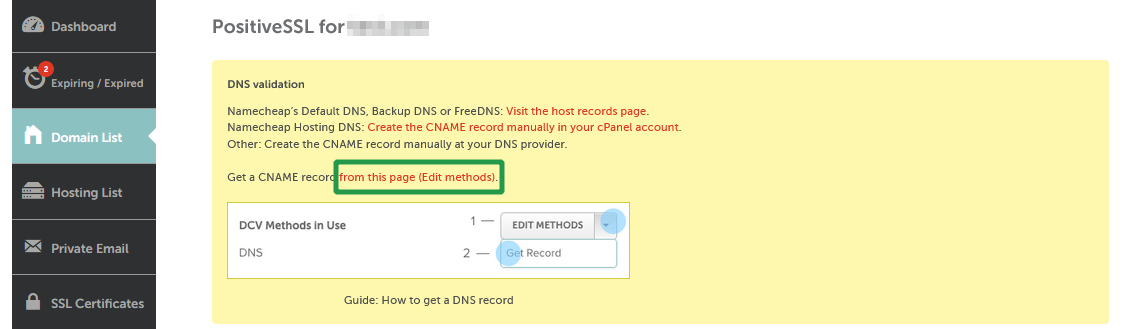
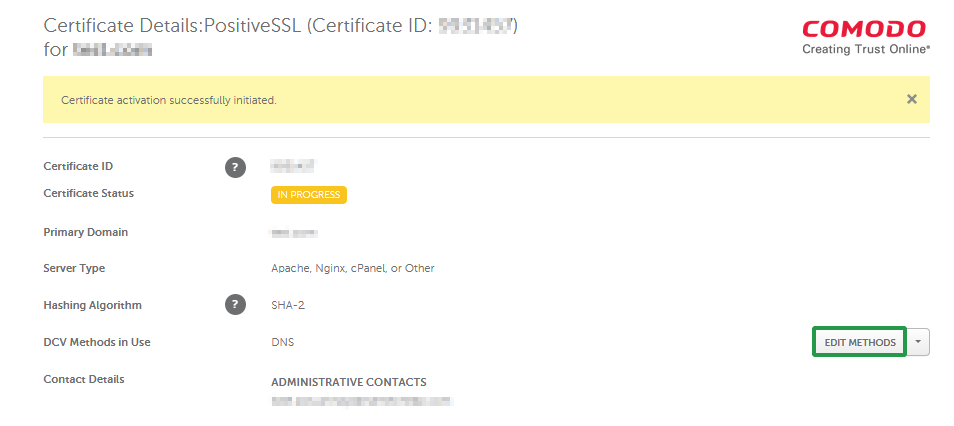
On the new page, click the 'EDIT METHODS' button.
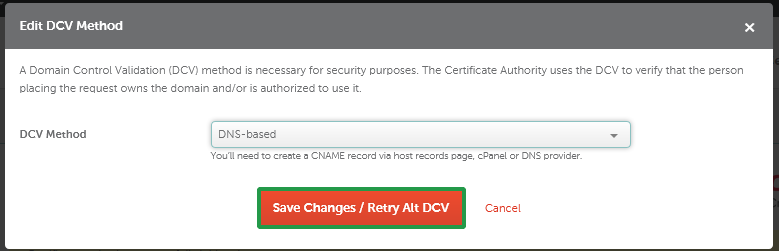
In the pop-up window, please click Save Changes/Retry Alt DCV to speed up the process of domain control validation.
If you are activating a single-domain certificate for a subdomain, feel free to set the DNS record either for the bare domain directly, or for the subdomain. It will work both ways for the domain validation process.
Upload a validation file
This DCV method involves uploading a file to your website hosting server.
The validation file is a TXT file with a name featuring a combination of numbers and letters, e.g., 019ff430-f5dd-79a0-9a42-9d5242054d52.txt.
Important note: When uploading the file, please do not change the file name or its content.
Important note: A brand new file with unique name and content is generated for each issue and reissue of the certificate. Ensure to upload the correct file from the current SSL issue during the DCV process.
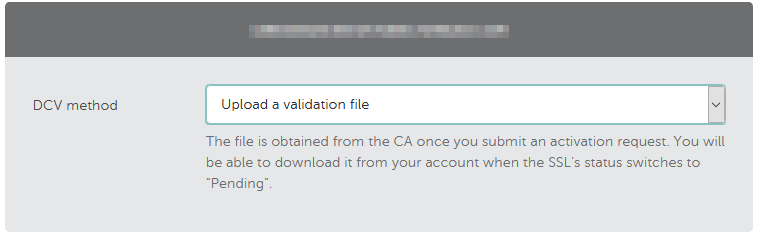
For SSL.com certificates, you can download the validation file from the SSL details page.
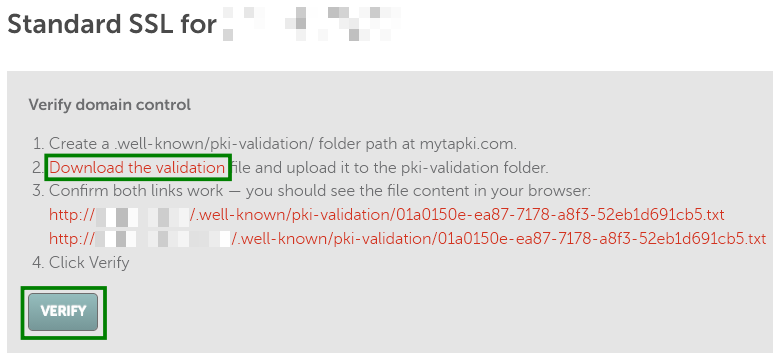
Once the file is uploaded, click "Verify".
Note: If you have a conflicting CAA record (e.g., for the Sectigo CA instead of the SSL.com CA) for the domain, you will see instructions to create a CAA record for the SSL.com CA. Follow the provided steps to create the required CAA record. Otherwise, the certificate issuance will fail.
The explanation on how to locate the validation file for other certificates
and steps to upload it to cPanel is in this
how-to video:
Here is the text version of the guide.
When you’ve completed the activation process, you'll be directed to the SSL Details page in your Namecheap account, where you'll find instructions and a link to the Edit methods page where you can download the validation file.
You’ll need to place the file in the document root directory of your domain name in the subfolder of the '.well-known' folder called 'pki-validation'.
Once you place it here, the validation file should be accessible via the following link: http://yourdomainname.com/.well-known/pki-validation/019ff430-f5dd-79a0-9a42-9d5242054d52.txt, where ‘yourdomainname.com’ is the domain name in the certificate, and ‘019ff430-f5dd-79a0-9a42-9d5242054d52.txt’ should be the exact name of the validation file you downloaded from your Namecheap account without any changes.
Uploading a validation file, please note that SSL.com certificates do not support DCV via HTTPS. The redirect to HTTPS (from port 80 to port 443) is supported but if port 80 is unavailable and the validation file can only be accessed via port 443, the validation will fail. In this case, make sure port 80 is available or use another DCV method.
Single-domain SSLs:
If you have a Single-domain SSL, the file should be accessible both via http://yourdomainname.com/.well-known/pki-validation/019ff430-f5dd-79a0-9a42-9d5242054d52.txt and http://www.yourdomainname.com/.well-known/pki-validation/019ff430-f5dd-79a0-9a42-9d5242054d52.txt.
These requirements also apply to SSLs activated for subdomains. You should make the file accessible both via http://sub.yourdomainname.com/.well-known/pki-validation/019ff430-f5dd-79a0-9a42-9d5242054d52.txt and http://www.sub.yourdomainname.com/.well-known/pki-validation/019ff430-f5dd-79a0-9a42-9d5242054d52.txt
If you activate your SSL for yourdomainname.com and the file is accessible via yourdomainname.com but not accessible via www.yourdomainname.com, then the SSL will secure only yourdomainname.com. At the same time, if your SSL has been activated for www.yourdomainname.com and the file can be accessed via the www subdomain but cannot be accessed via the bare domain (yourdomainname.com), then the SSL will only be issued for www.yourdomainname.com.
Multi-domain SSLs:
For Multi-domain SSLs, the validation file should be accessible for each hostname you specified during the SSL activation process.
For example, if you activated your Multi-domain SSL for example.com, www.example.com and domain_2.net, the validation file should be accessible for all of these hostnames.
Once your file is uploaded, you can verify it by clicking on the links in the yellow panel with DCV instructions at the top of the SSL details page:
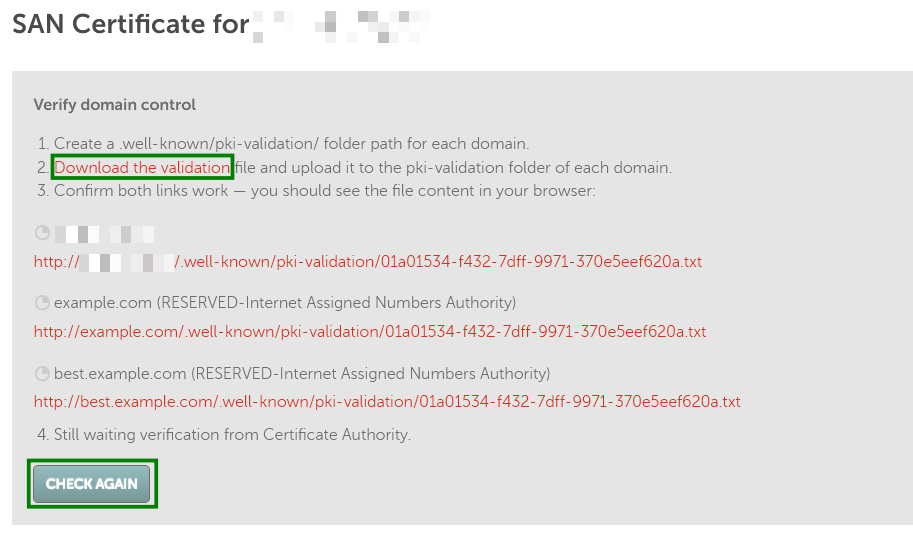
Note: If you have a Multi-Domain SSL and choose this method of DCV for several domains, no link will appear in the yellow panel as each domain will have a different link. To verify each of the domains, you will need to create the corresponding links by following the instructions in the yellow box and checking each URL in your browser. In most cases, if a simple text line like the one below is shown on the screen, the validation file is accessible.

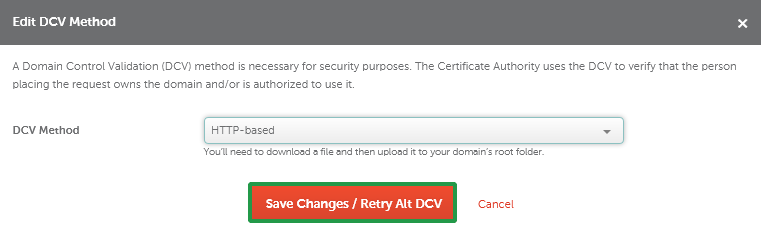
Once the file is uploaded and accessible externally via the following URL http://your_domain_name.com/.well-known/pki-validation/filename.txt, please click Save Changes/Retry Alt DCV. This will force the Certificate Authority to perform the DCV check.
If you activated your SSL manually using a CSR code that has www.domain.com as the FQDN, please make sure that the file is also available via the link http://domain.com/.well-known/pki-validation/file.txt .
Receive an email
This option requires you to have a domain-related email address from the suggested list. The exact email address that will be used for the purpose of DCV is selected during the SSL activation process.
Here is a how-to video:
Note: The email-based validation with WHOIS email is not available due to the upstream provider updates.
Here is the text version of the guide:
Due to CA/B forum regulations, you can only use one of the following domain-related generic emails to receive the approval email:
- admin@example.com
- administrator@example.com
- postmaster@example.com
- webmaster@example.com
- hostmaster@example.com
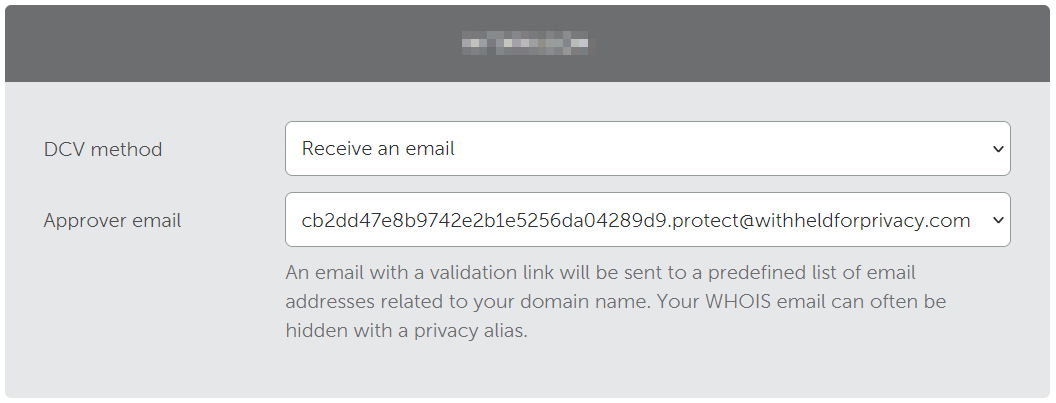
After you complete SSL activation process, the Certificate Authority will email you at the selected address.
Once activation is complete, an email will be sent to you. Follow the instructions in the email to complete the domain validation process.If you do not receive the approval email, you can always retry it.
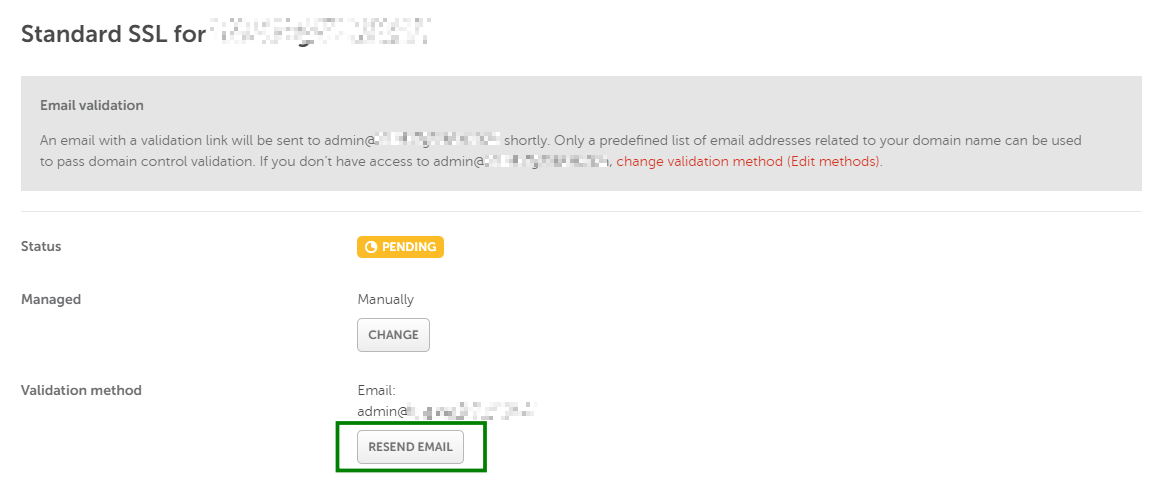
For single-domain and wildcard SSL.com certificates, click "Resend email" on the SSL details page.
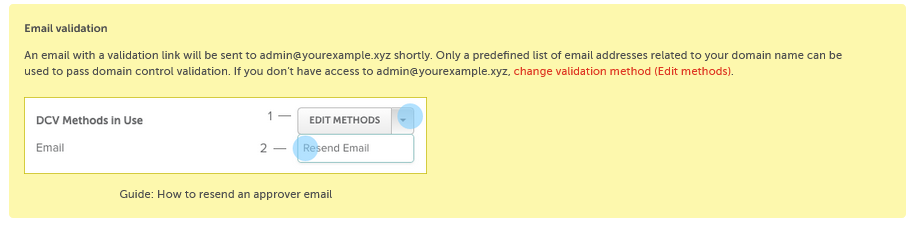
For other certificates, use the "Resend email" on the Edit methods page on the Edit methods page. Its link is available in the validation instructions panel placed on the SSL Details page.
Changing DCV methods
If you chose a particular DCV method during activation but want to switch to a different one later, you can change it on your account page.
For single-domain and wildcard SSL.com certificates with CNAME and file-based validation selected, click the "Edit method" button next to validation method. After this, you will be redirected to the Edit methods page.
For other certificates and validation methods, click the link in the with DCV instructions to go to the Edit methods page.
Then, for all other certificates, you will see the following button on the Edit methods page:
When you click it, you will be presented with the three possible DCV options in a drop-down menu.
Choose the desired method and click Save Changes / Retry Alt DCV.
Then, perform the required steps to complete the DCV.
Note: If you have a Sectigo SSL (e.g. PositiveSSL), you can also use this SSL Validation Tool to check your SSL status, switch the validation method, and speed up the SSL certificate issuance.
The tool also allows you to select the order to the "DNS TXT
random value" DCV method. More
details on how to use it are here.
Note: If you have a Domain Validation certificate, it will be emailed to you shortly after DCV is complete.
If you have an OV or an EV certificate, your order should undergo business validation. Once you complete DCV, you will be contacted with further instructions.