
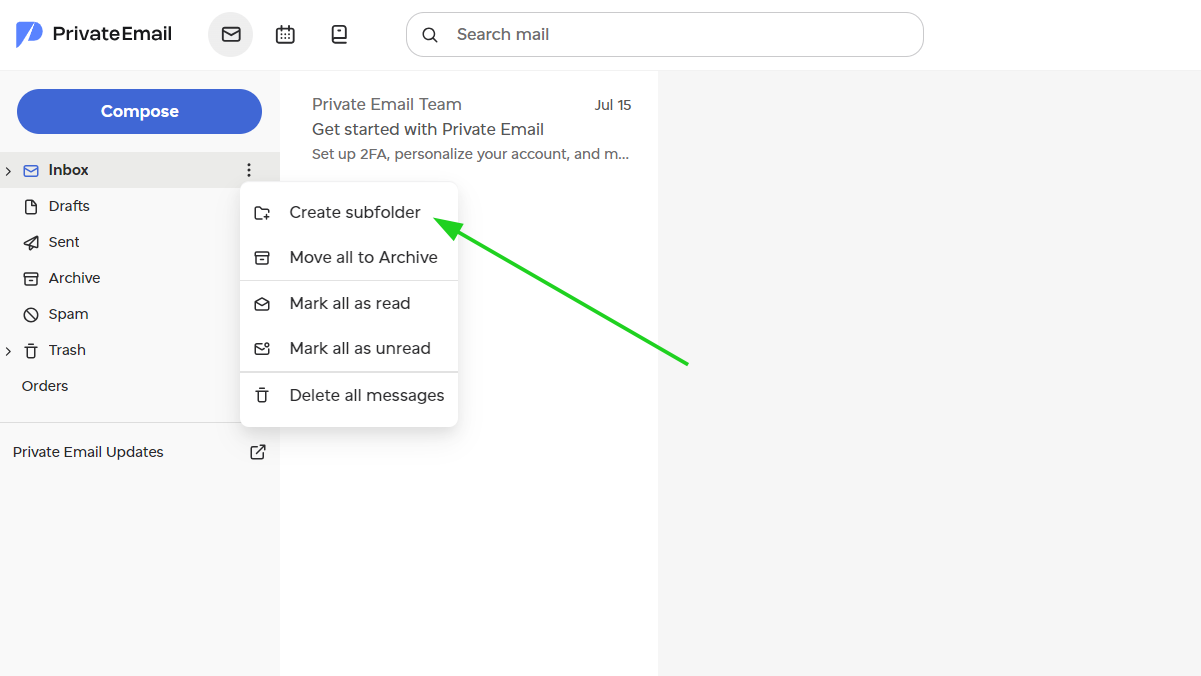
You can also create subfolders to better organize your emails. To do this, simply hover over the Inbox folder, click on the three dots next it, and select the Create subfolder option:
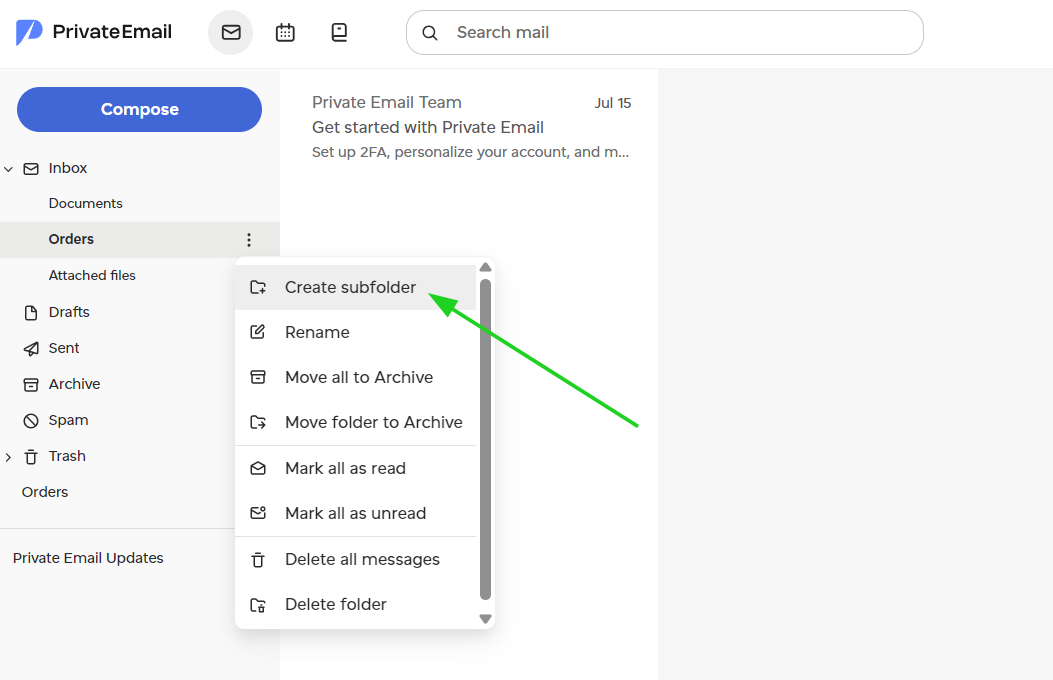
NOTE: Creating new main folders (such as Inbox or Sent) is currently not supported in Private Email. You can still create subfolders within existing subfolders:
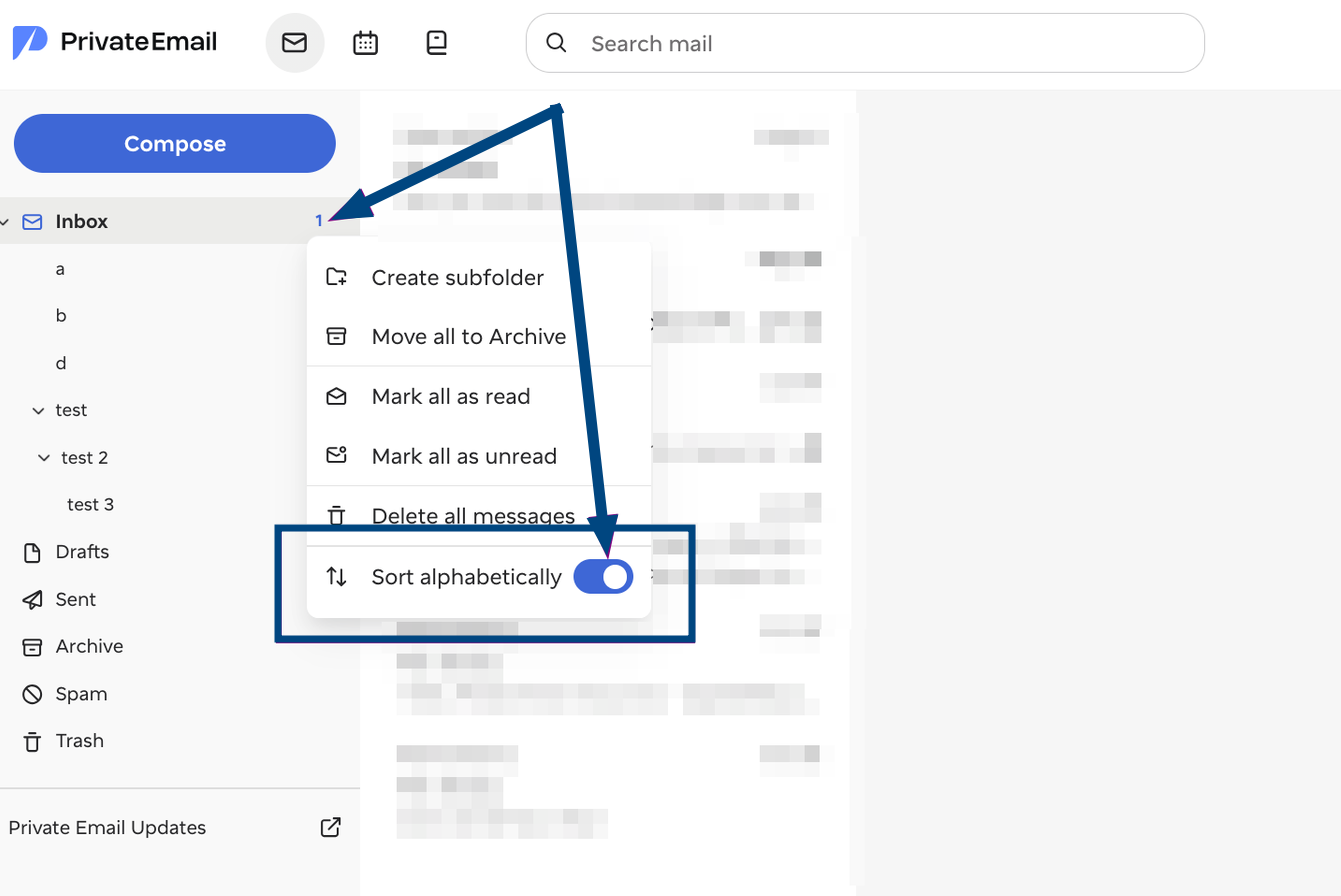
To sort your folders alphabetically, hover over the folder menu, click the three dots next to the folder name, and enable the Sort alphabetically option. When enabled, folders and subfolders are automatically displayed in alphabetical order.
You can switch off Sort alphabetically at any time to return to the custom/manual folder order.
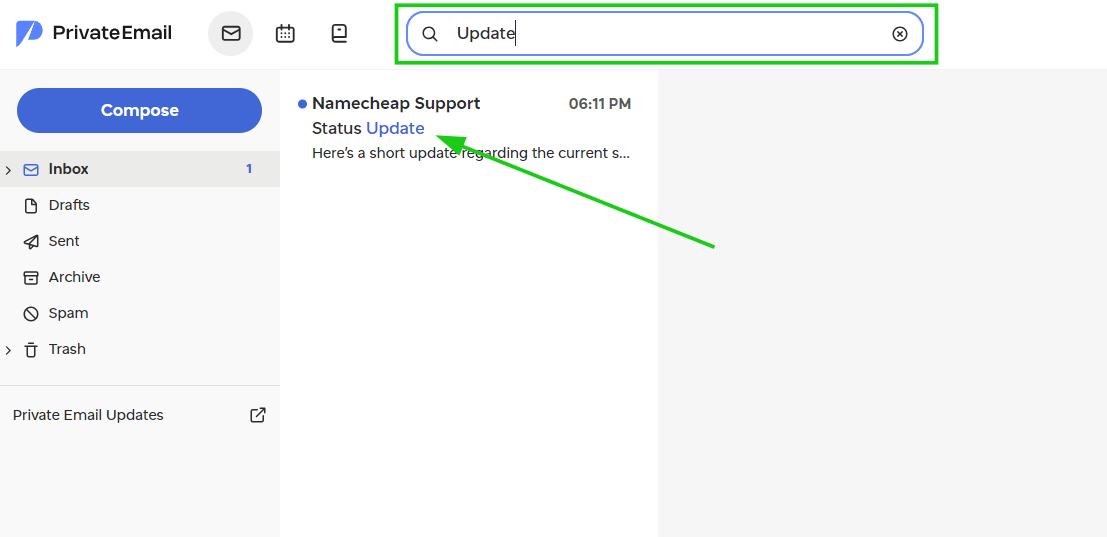
Inside your folders, emails are automatically displayed in chronological order - from newest to oldest. Each email in Private Email is currently displayed individually rather than grouped into email threads (conversations). Threaded view is not available at the moment.
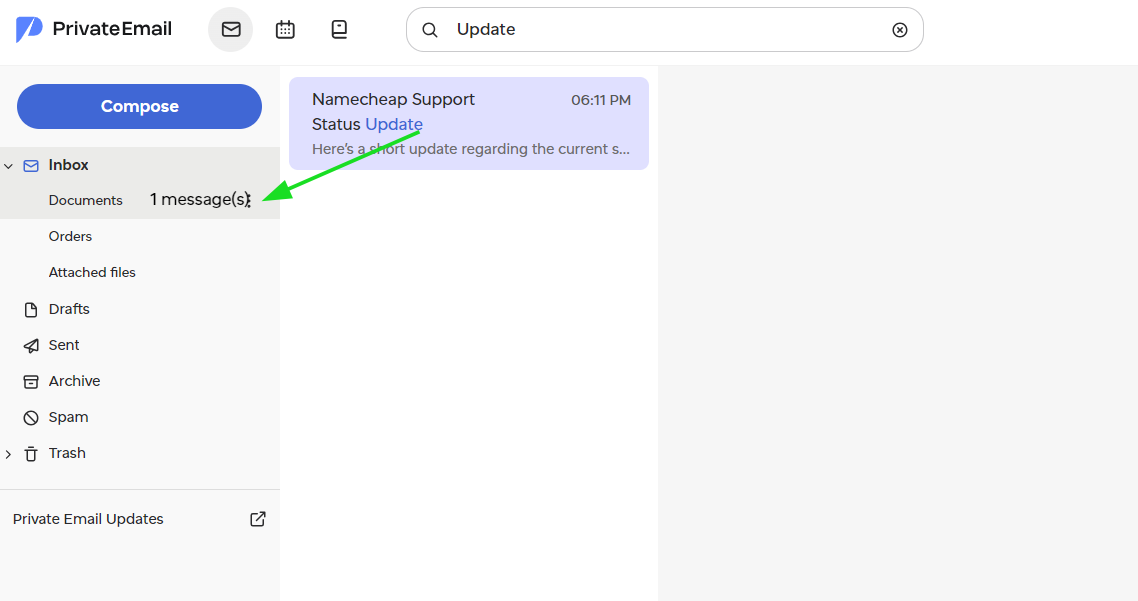
To select multiple individual emails, open the Inbox or the needed folder and select the checkboxes next to the emails you want to choose. Selected emails are highlighted, making it easy to identify the messages included in your current selection.
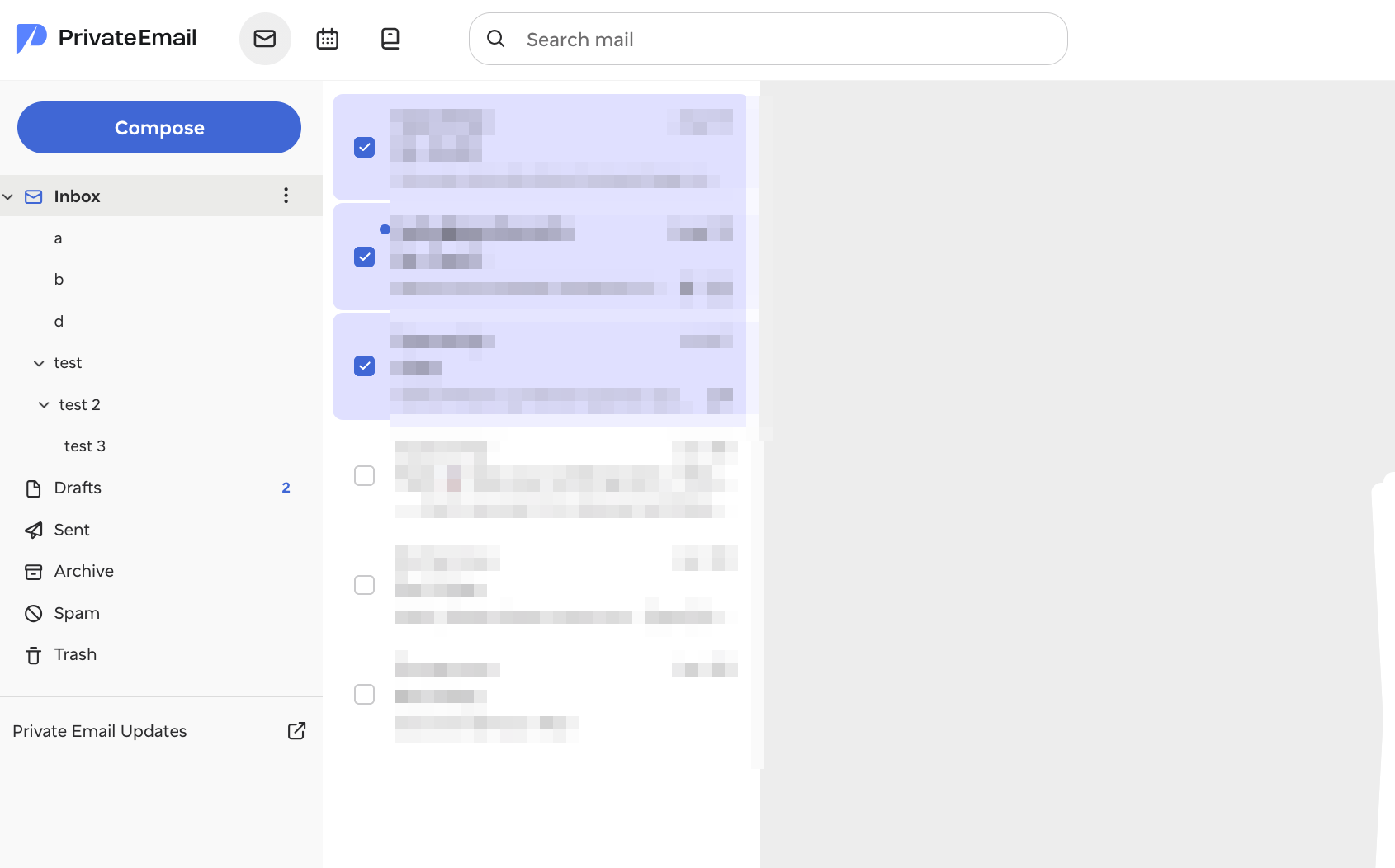
Alternatively, it's possible to open the Inbox or the needed folder, press and hold Ctrl (or Cmd on Mac) on the keyboard, and select the needed emails with a mouse:
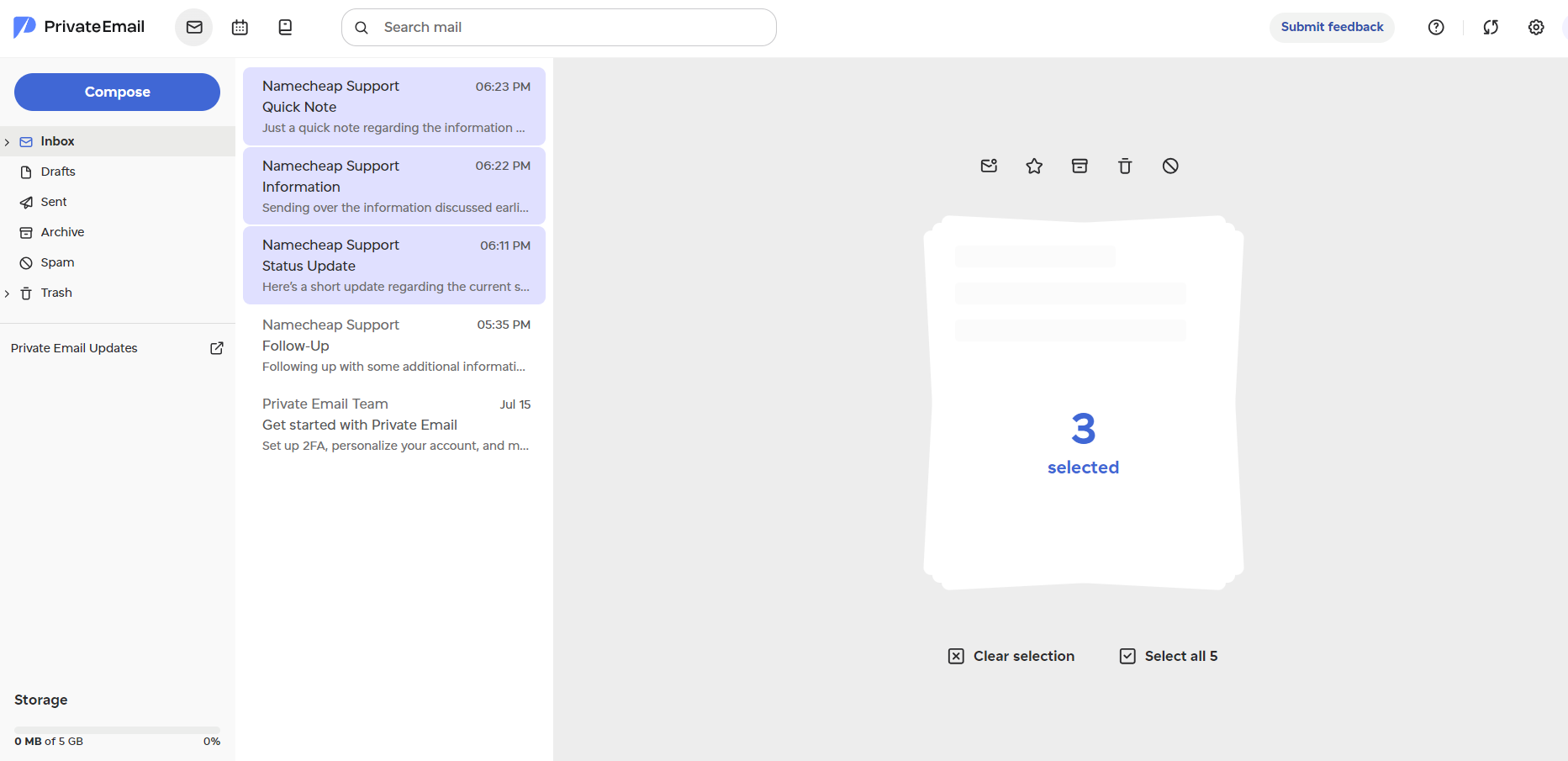
If you want to select all emails in a folder at once, simply click the Select All button after selecting multiple messages or Ctrl+A (or Cmd+A on Mac).
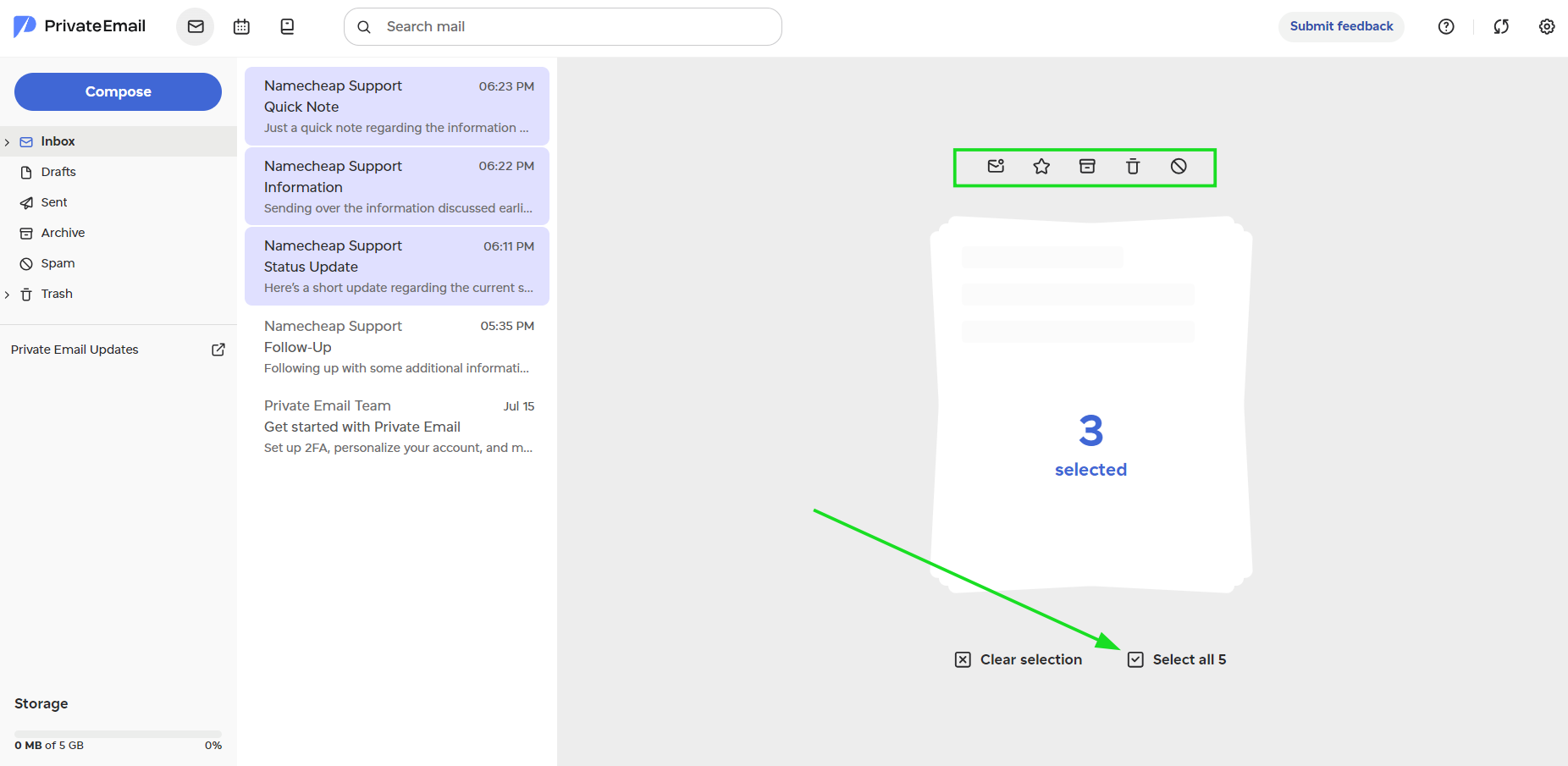
Once selected, you can mark the emails as Unread, add them to Favorites, Archive or Delete them, or mark them as Spam using the toolbar options on your screen. You can also drag and drop the selected emails directly into any other folder:
NOTE: Clicking on an email directly will automatically open it and mark it as read. However, if you hold down the Ctrl key (or Cmd on Mac) to select multiple emails, the additional emails you select will remain unread.
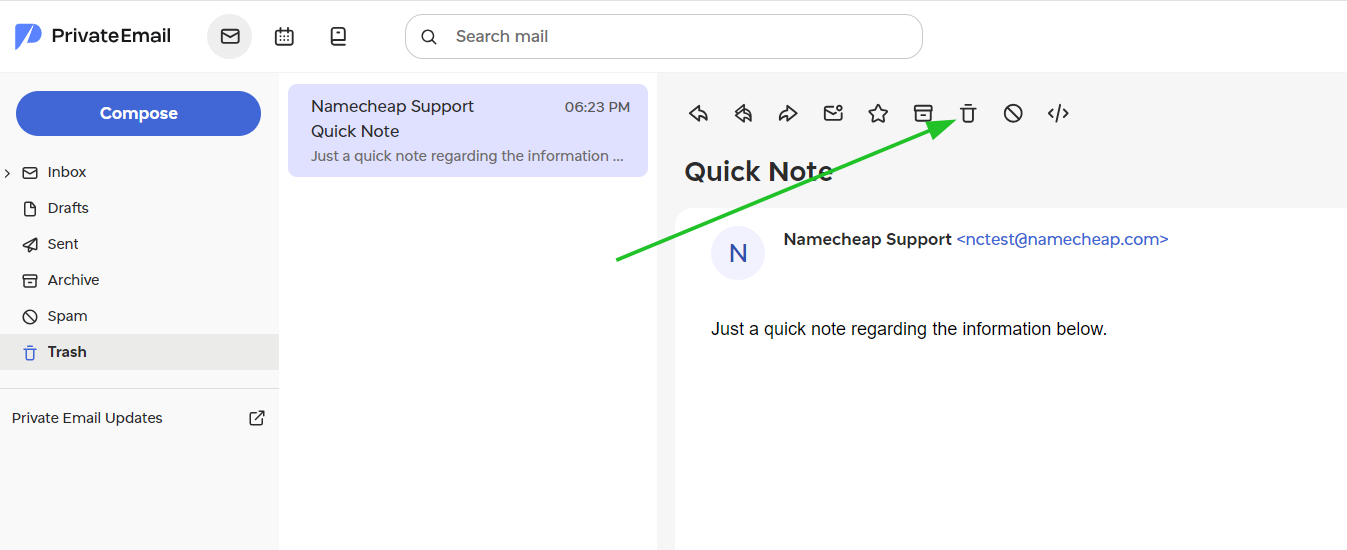
If you only want to remove specific messages from the Trash folder, select individual emails inside the Trash folder and click Delete:
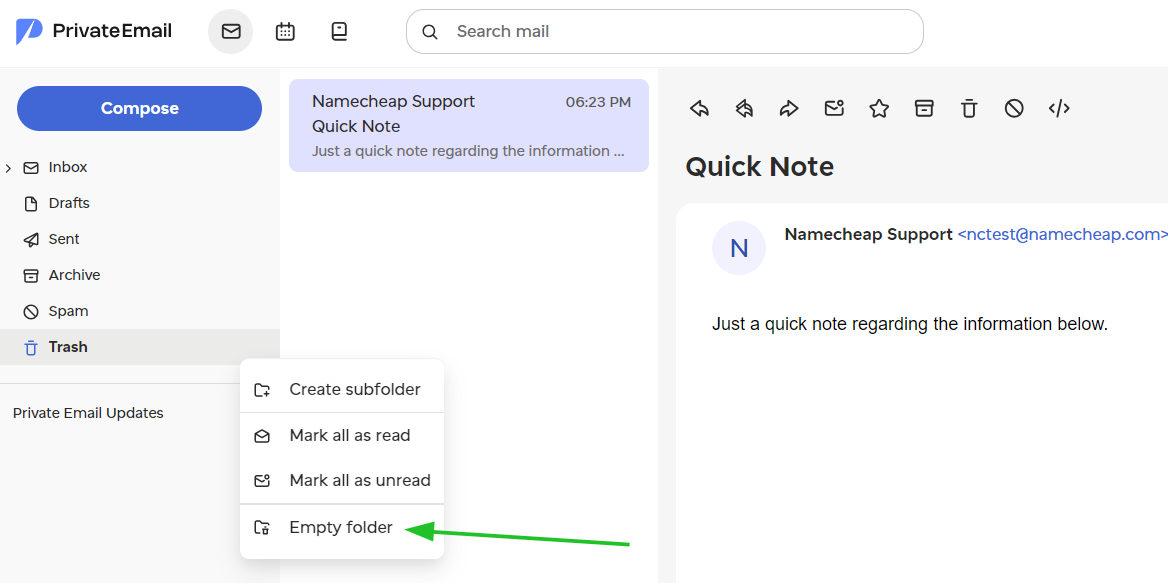
To permanently delete all messages from the Trash folder at once, click the three dots next to the Trash folder name in the sidebar and select Empty folder:
If you need to move an email out of the Trash folder, simply drag and drop the message back into your Inbox or any preferred subfolder.
NOTE: Auto-deletion for old emails is currently not available. Messages in the Trash folder are not removed automatically, so they can only be deleted manually - either by removing individual emails or clearing the entire folder.
We are constantly working to improve your experience! Private Email is in active development, and the feedback from customers has a direct impact on what features get priority. If you would like to share feedback or suggest new features for Private Email, please use the Submit Feedback option in your webmail. You're also welcome to check Private Email updates here: https://www.namecheap.com/blog/private-email-updates/
Need help? We're always here for you.