
This tutorial will show you how to set up Namecheap Private Email Calendar in the popular KDE organizer application - KOrganizer. We will use a test email account example@ncsupport.info.
NOTE: Before setting up an email account this way, make sure you already have the required DNS records and mailbox created.
1. Open KOrganizer via KRunner (Alt+Space) and search for KOrganizer:

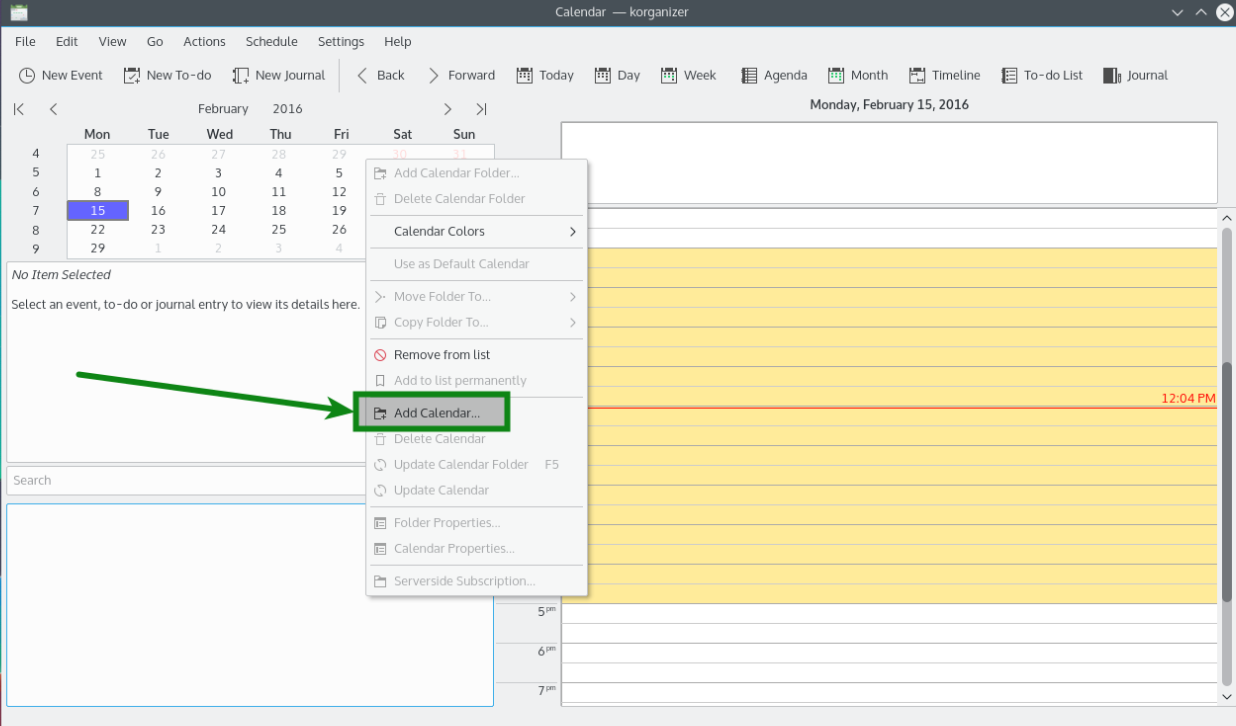
2. Right-click on the space of the left-side calendar list area and select Add Calendar option:
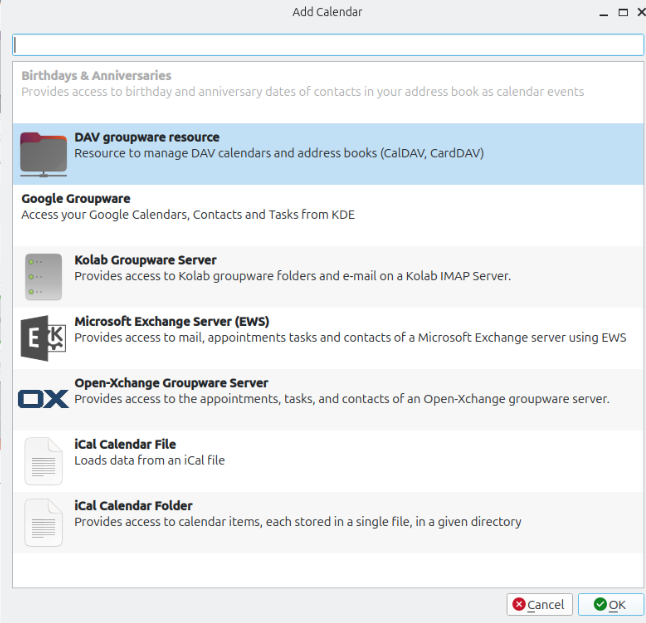
3. In the new Add Calendar window, find and select DAV Groupware resource option and click OK:
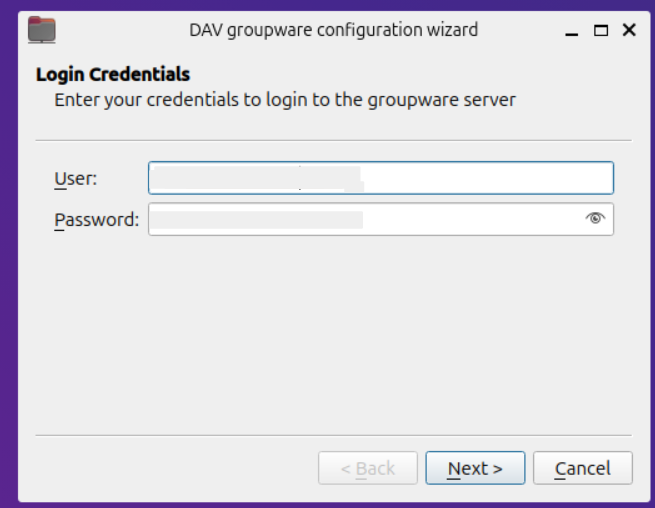
4. Enter your Private Email Username (full email address) and password in the next window:
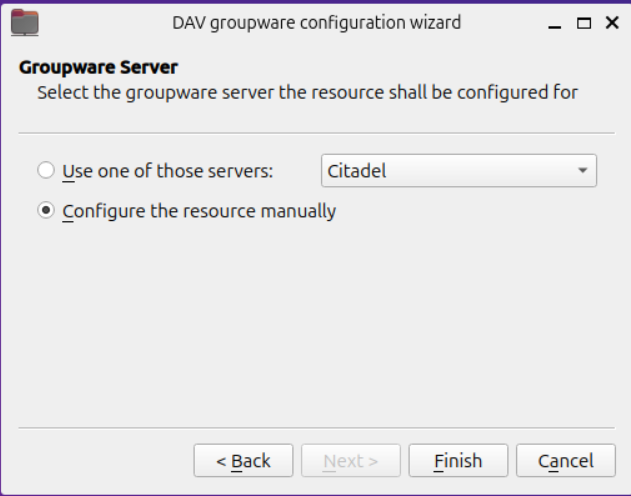
5. Next, select Configure the resource manually and click Finish:
6. Enter Namecheap Private Email server name and your credentials in the next windows, then click Fetch and Ok:
Server URL: https://privateemail.com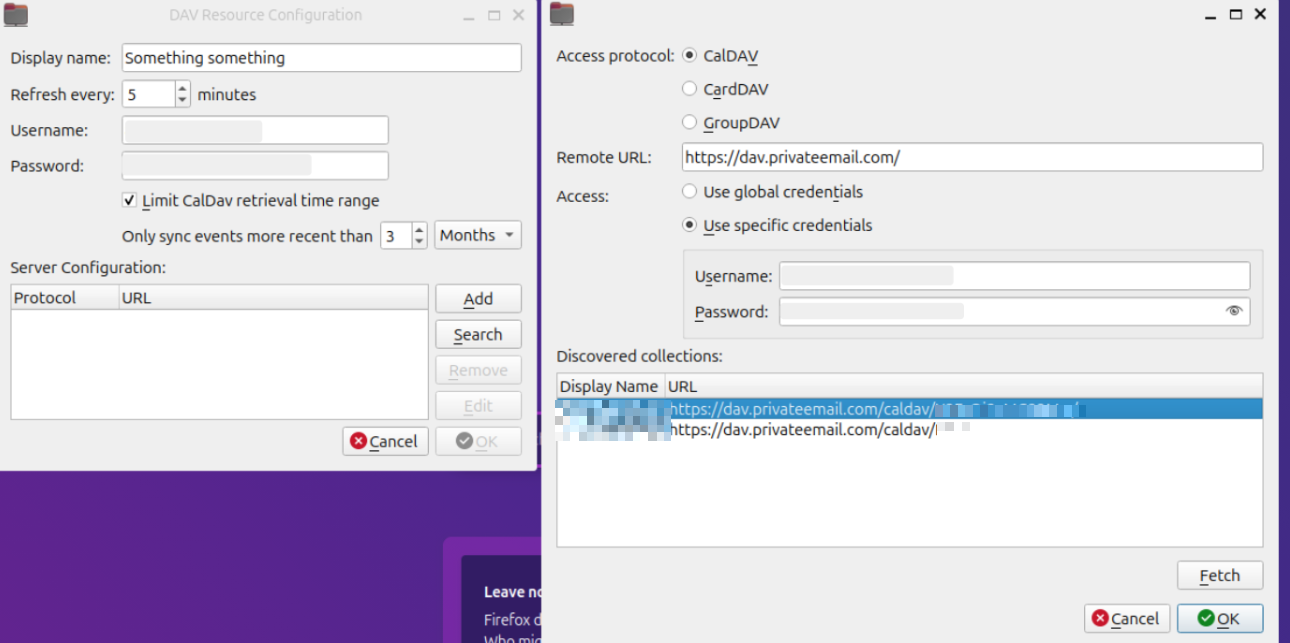
That's it!
Need help? We're always here for you.