
In this article, you will find the instructions on how to synchronize calendar appointments of your Namecheap Private Email account with Thunderbird.
Before we start, make sure the mail account you want to sync Calendar with is already configured in Thunderbird.
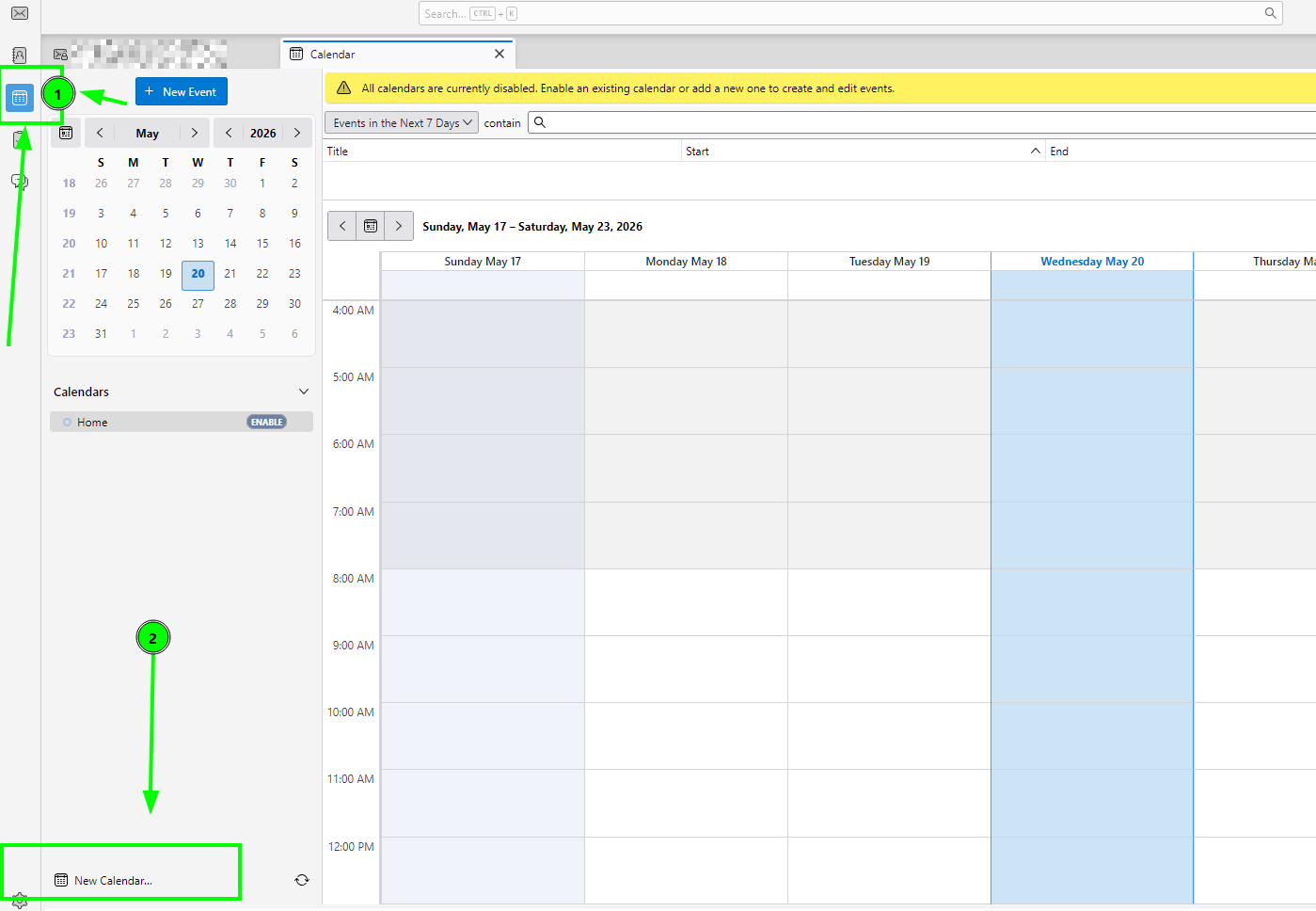
1. Open Calendar tab.
2. Click New Calendar:
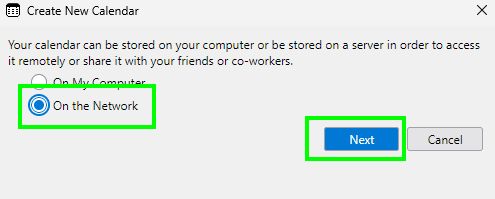
3. Choose On the Network:
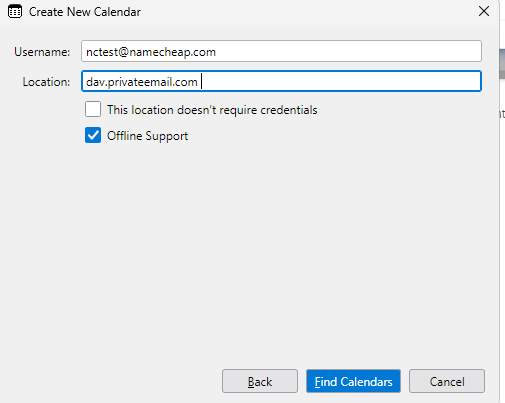
4. Enter the following details:
Click "Find Calendars":
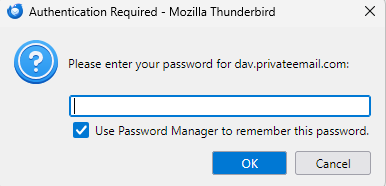
5. On the next window, enter your password for the Private Email account >> click OK:
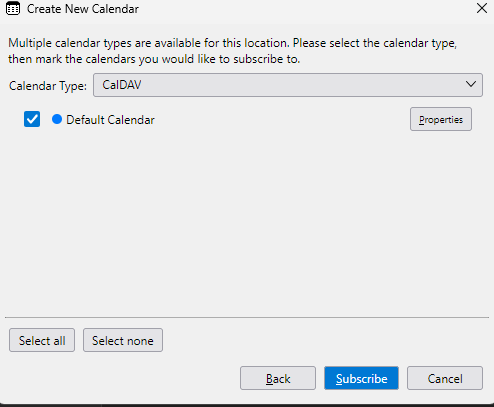
6. Choose "CalDav" >> Subscribe:
You should now be able to see your appointments synced.
That's it!
Need help? We're always here for you.