This article applies to the new Private Email webmail. If you're using the legacy (Open-Xchange) Private Email webmail, see
this article instead.
IMAP folder subscriptions allow you to choose which folders appear in your email program/client interface.
Usually, all folders are shown by default, but some email clients have peculiarities and may not show all your folders by default. For example, there's sometimes an issue with syncing your sent items folder.
Below, you can find instructions on how to change your sent folder in some of the most common email clients.
NOTE: If your email account is set up using POP3 in an email client, changing which folder is the sent items folder won’t be possible. Unlike POP3, IMAP offers two-way communication between your web email and your email client. With POP3, the actions you perform in an email client are not applied to the actual mailbox on the server - they are applied only locally (e.g.: if you put an email into a different folder in your email client, and then open that mailbox via webmail, the change won’t be shown in webmail).
Outlook
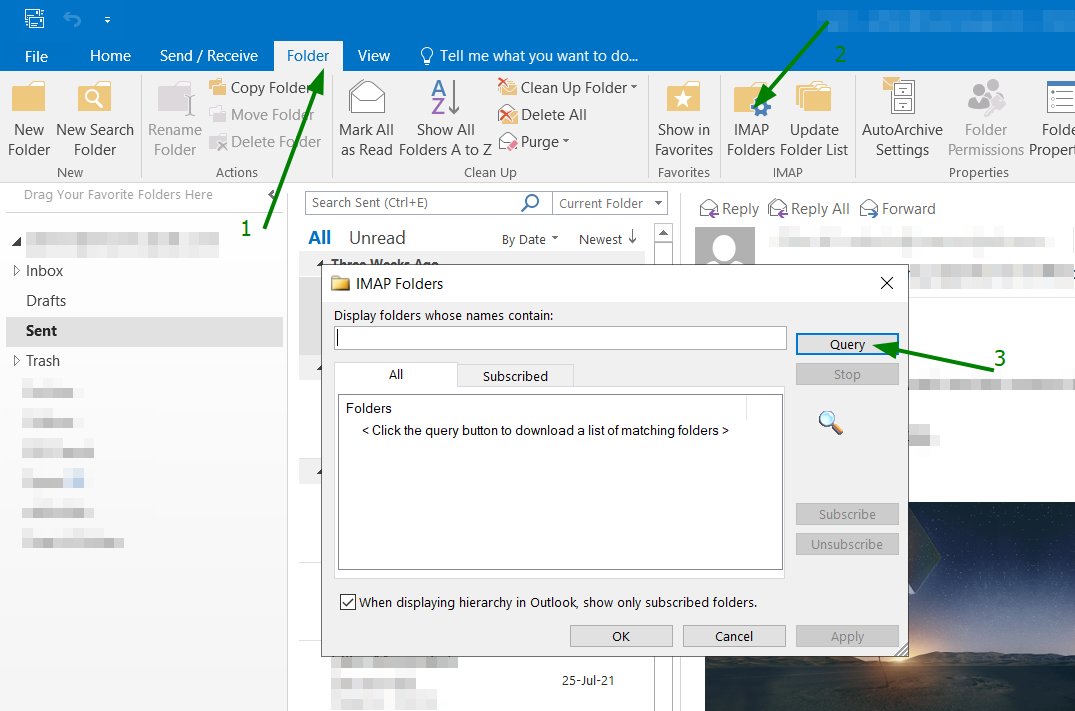
Click the "Folder" tab in Outlook, then "IMAP folders". In the resulting pop-up window press the "Query" button.
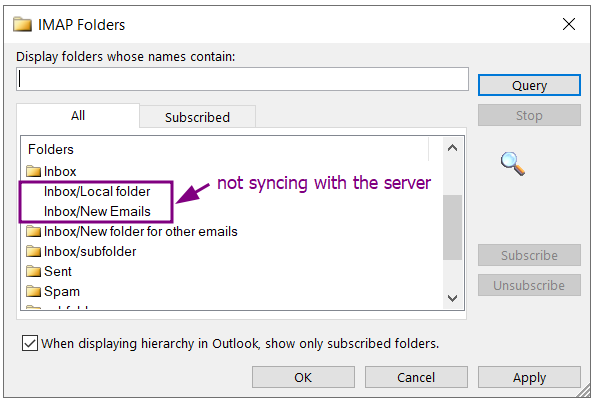
A list of folders will appear. The ones with a folder icon are syncing with the server, and the ones without do not sync, they only exist locally:
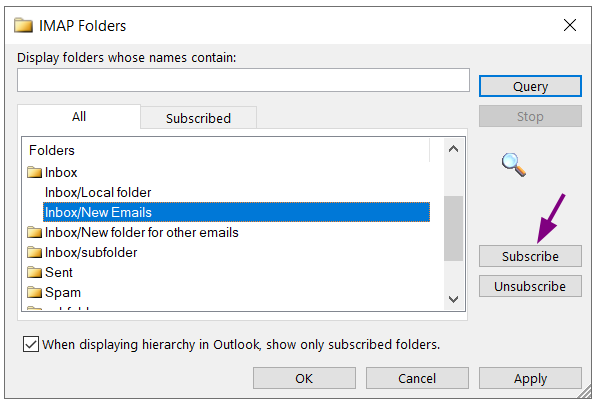
If any of the folders you want to sync don't have the icon, please select them and click "Subscribe":
We’re using Outlook 2016 in this example. Other versions of Outlook for desktop have a similar process for IMAP, but the newest edition doesn’t support IMAP subscriptions.
Mac Mail
Mac Mail usually syncs all folders by default. Still, the folder for sent emails can be manually selected if it doesn’t match your mapped mailbox.
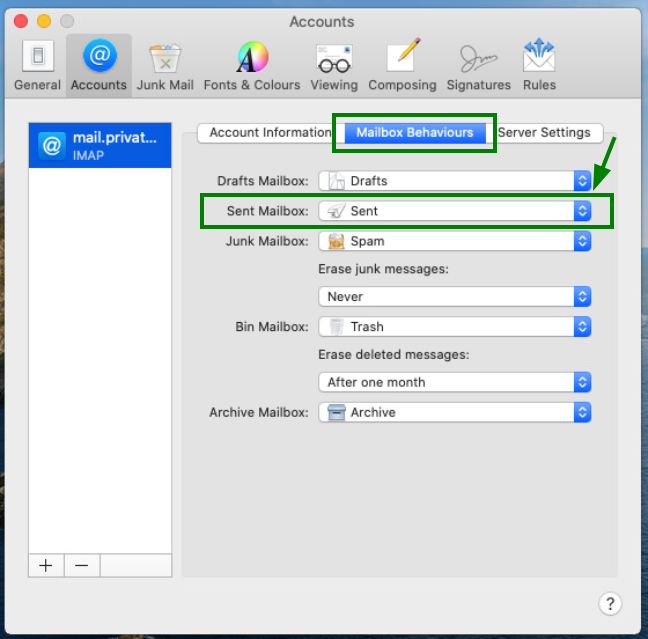
To set the preferred folder for sent emails in MacMail, go to Mail >> Preferences >> Accounts, and select the correct account. Open the Mailbox Behaviors tab on that account, and choose the necessary folder from the drop-down menu for Sent Mailbox under the server section. This folder will now be used by MacMail to store sent emails.
iPhone
To change the folder for syncing sent emails on your iPhone, tap Settings >> Mail >> and then select your email account in the Accounts section.
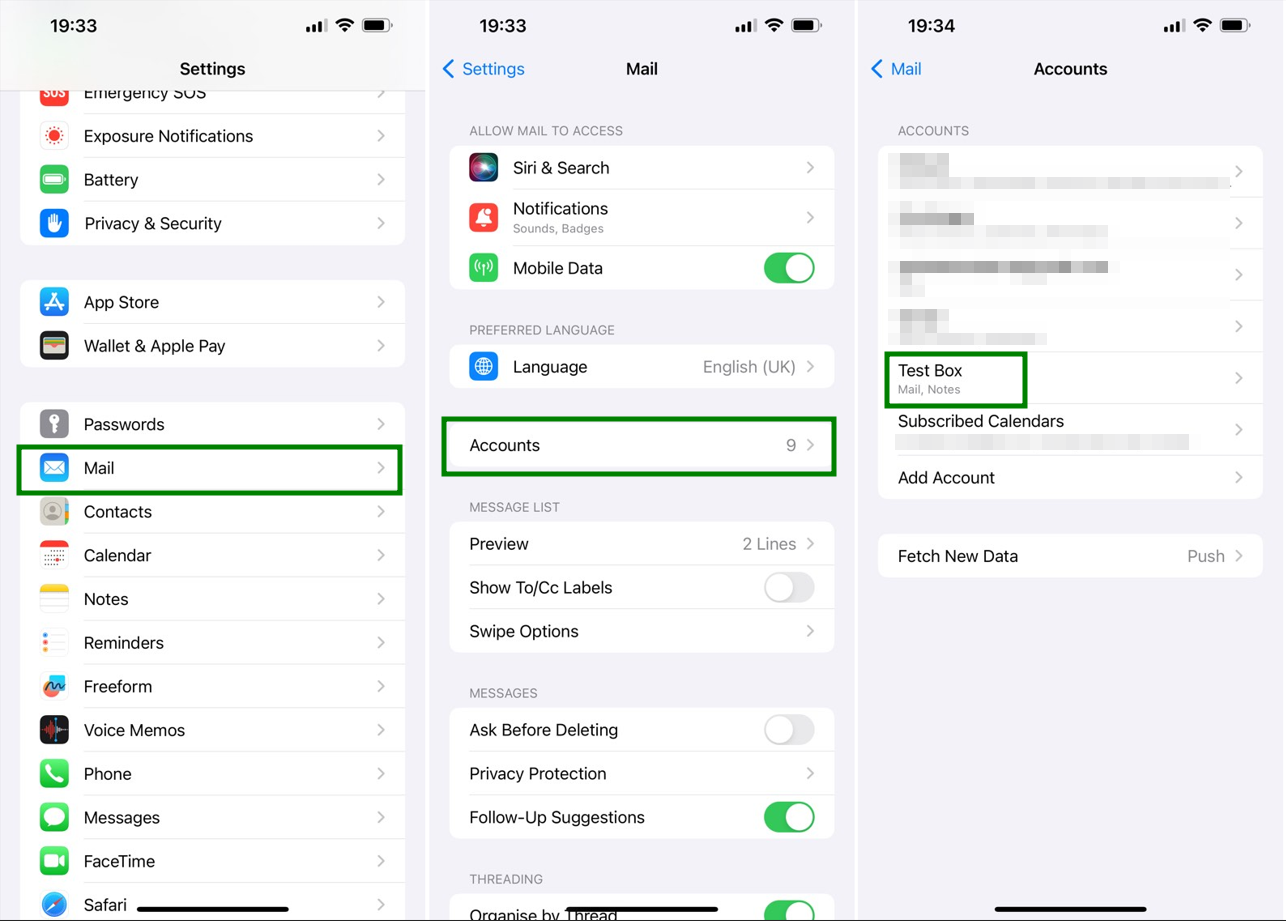
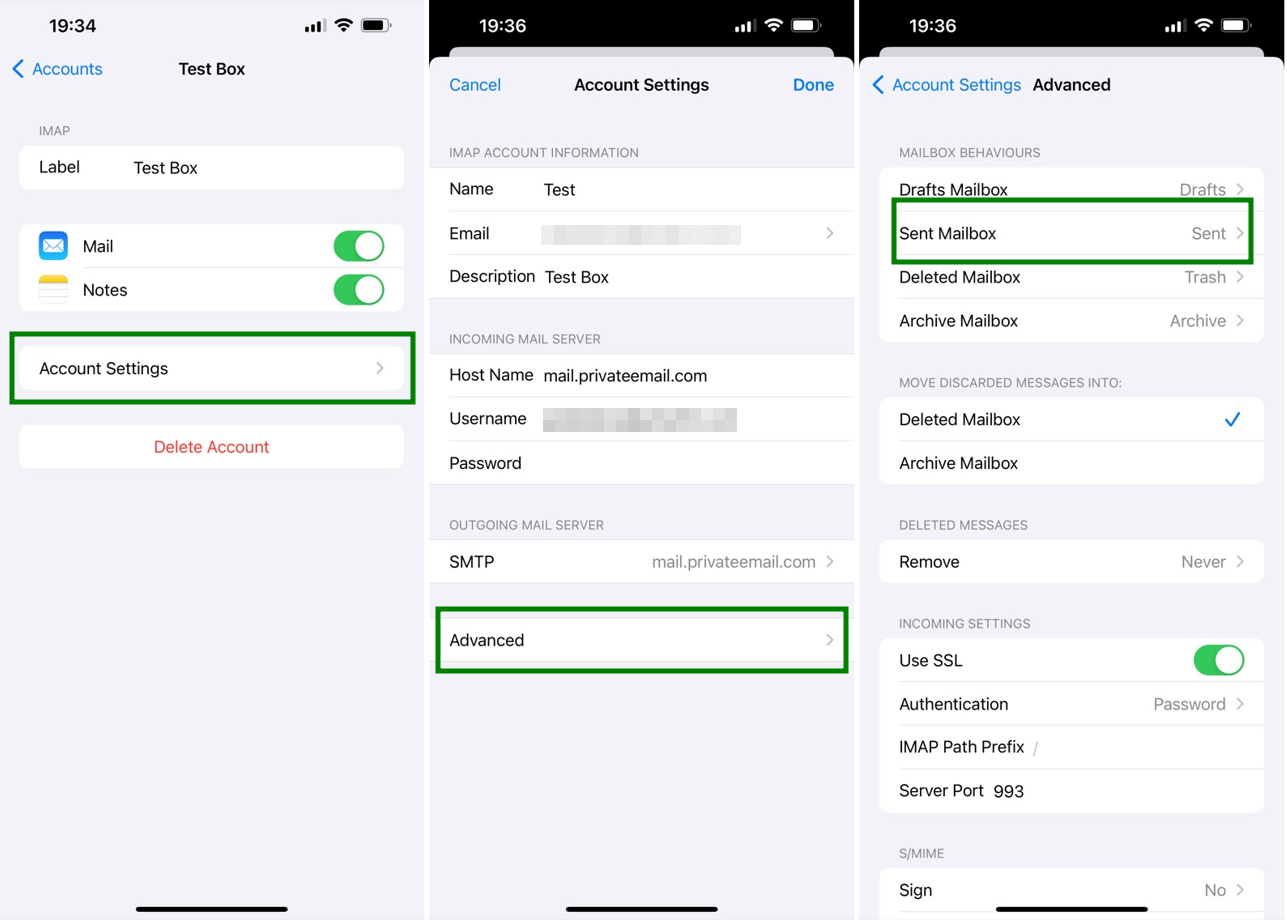
Next, click Account settings, scroll down (if needed), and tap Advanced. You’ll see a section titled Mailbox Behaviors at the top. To change the behavior for sent emails, choose 'Sent mailbox' there.
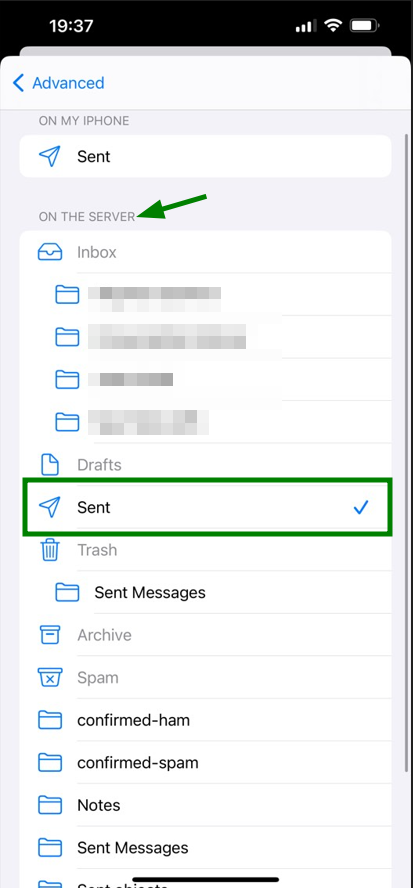
Click the “sent” folder in the "On The Server" section. A check will appear next to the folder — from now on, emails you send from your iPhone will be stored in it.
Thunderbird
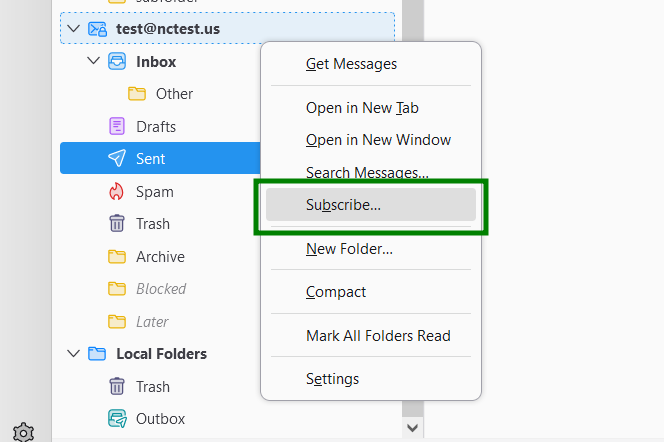
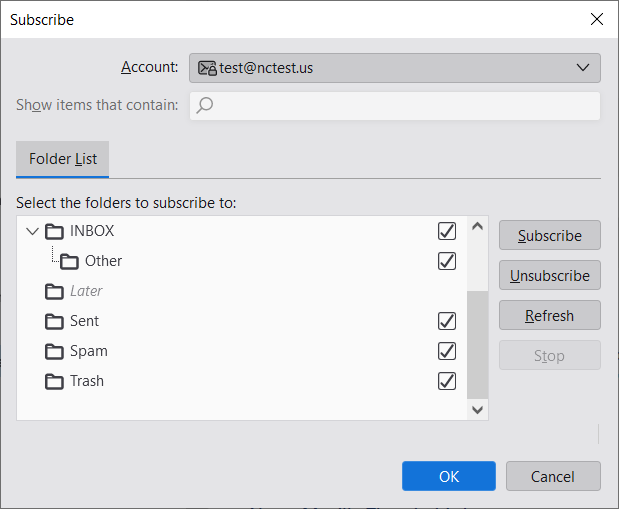
In Thunderbird, right-click on your email account and choose "Subscribe...".
A pop-up window with a list of your folders will appear. As with the other ones, folders with a check will be the ones shown in your email client.
That`s it!
