
In this guide, we’ll walk you through the essential steps of using the calendar in Private Email. With the calendar, you can create events, invite participants, and manage your schedule directly in the webmail interface.
1. Log in to Private Email mailbox.
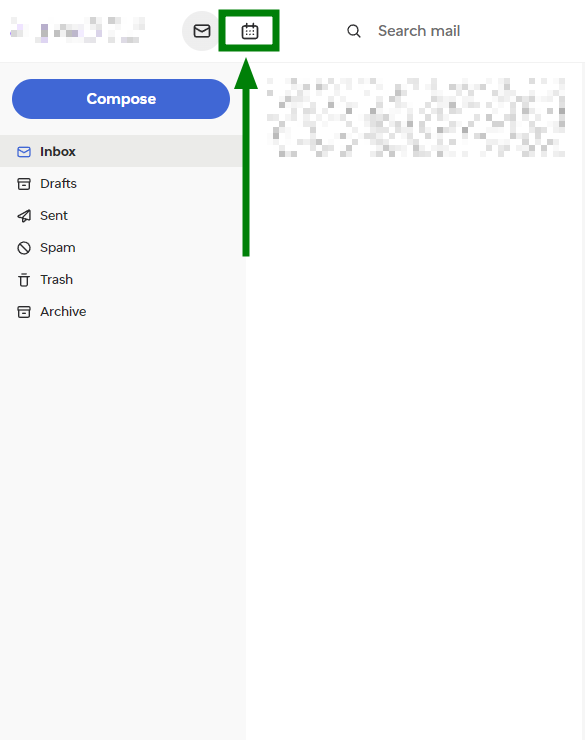
2. Once logged in, use the toggle at the top of the interface to switch between email and calendar views:
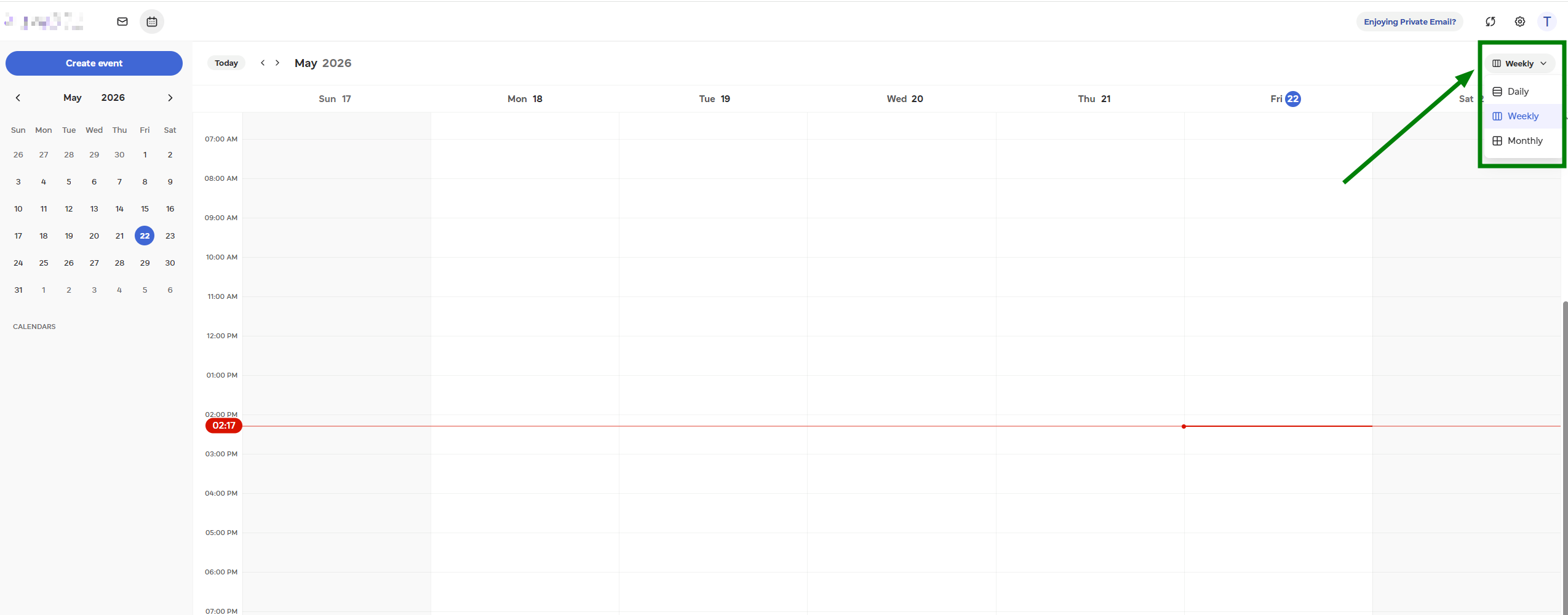
3. You can choose to view your schedule in one of three ways: Daily, Weekly, or Monthly. For this, select the option from the drop-down menu in the top-right corner of the calendar:
1. In the Calendar, click the "Create event" button to add a new event. A separate pop-up window will appear where you can enter the event details:
NOTE: All-day events will appear at the top of the date cell or column header, depending on the selected view.
3. Once all details are filled, click "Create event".
1. Email invitation – an email will arrive in your inbox with the event details and response options: Accept, Decline, or Maybe.
2. Calendar view – the event will also appear in your Calendar in a pending state until you choose one of the responses: Accept, Decline, or Maybe.
Only the event organizer can edit or delete the event. Participants will see any updates the organizer makes.
NOTE: Private Email automatically adjusts times based on your time zone, so all participants see the event in their local time.
Private Email supports the standard iCal (.ics) format. This means that events and invitations can be exchanged with external calendars such as Gmail, Outlook, Apple Calendar, and similar clients.
That’s it!
Need help? We're always here for you.