
To make your emails more professional, you can create an email signature for your Private Email account.
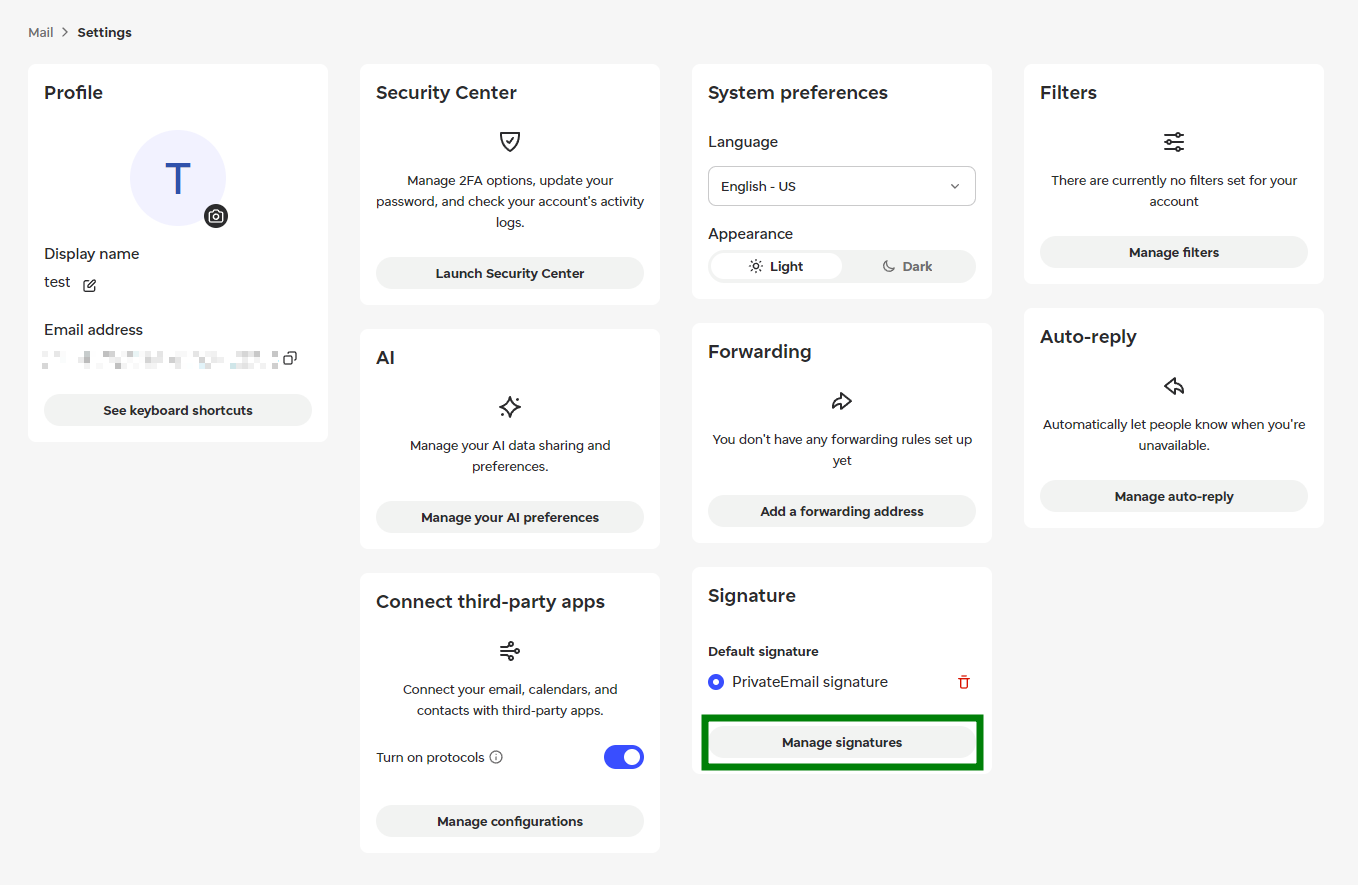
In Private Email webmail, go to Settings, then go to the Signature tile, and select Manage signatures:
On the next page, select + New signature, fill in its name (e.g., signature1), and then hit Enter. After that, add your signature text to the text editor.
You can format your signature using undo/redo, font and size changes, bold, italics, underline, strikethrough, as well as tools to insert images or links, change text and background (highlight) color, create bullet and numbered lists, and apply left text alignment. Additional tools under the arrow include other alignment options, tables, and clearing formatting.
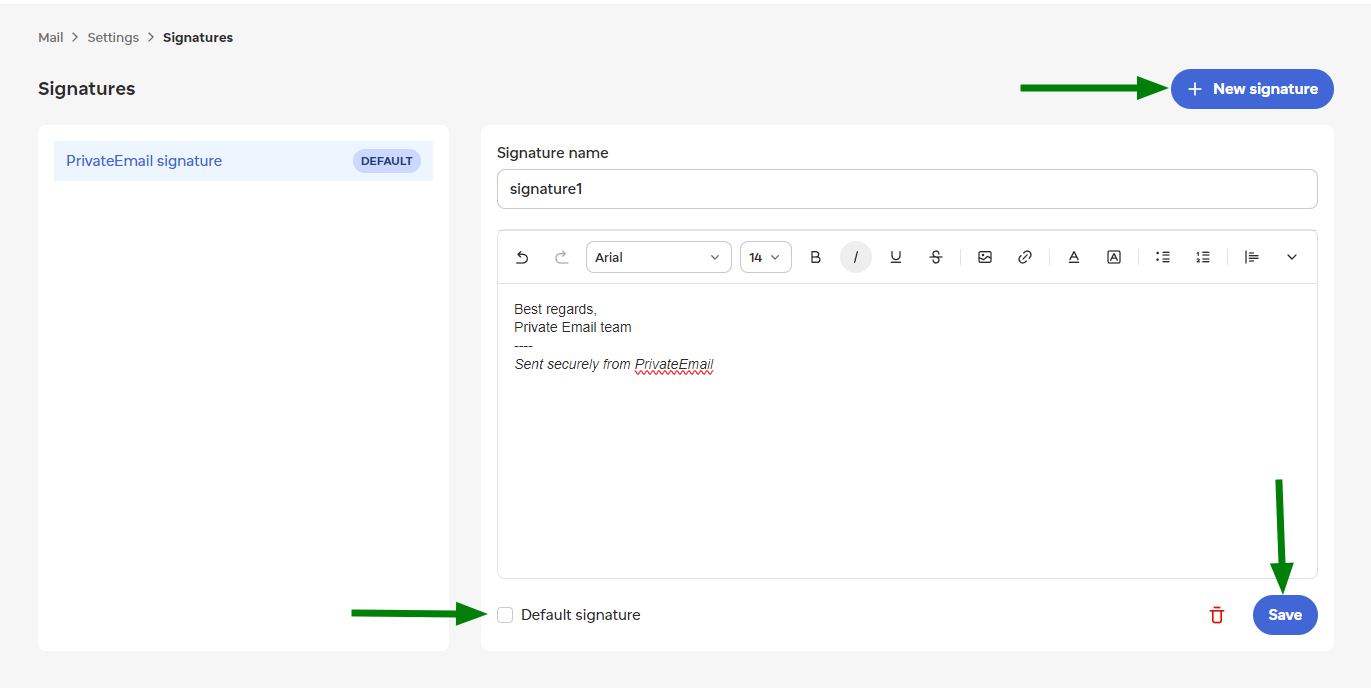
You can choose to make this your default signature (in case you need several) by clicking the check mark below the editing field. You can also do this later from Settings.
Once you’ve added a signature, a pop-up will notify you that it was saved.
NOTE: If you use other email clients or apps for sending emails besides Private Email webmail, you will need to set up your signature in these third-party apps separately, as they do not sync via IMAP.
Need help? We're always here for you.