The Namecheap Auction app is designed to simplify the entire auction process. It brings all the features available in the web version of Namecheap Auctions to your mobile device.
Currently, the app is available on:
Let’s review the interface and main functions of the application.
Initial steps
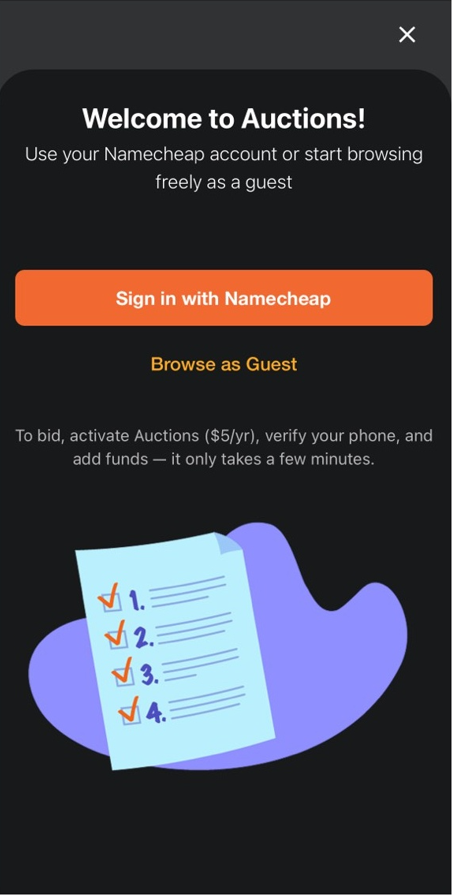
After you launch the application, you will see two options to continue:
Sign in with Namecheap and
Browse as Guest. There is also a note about
requirements to start bidding on the same page:
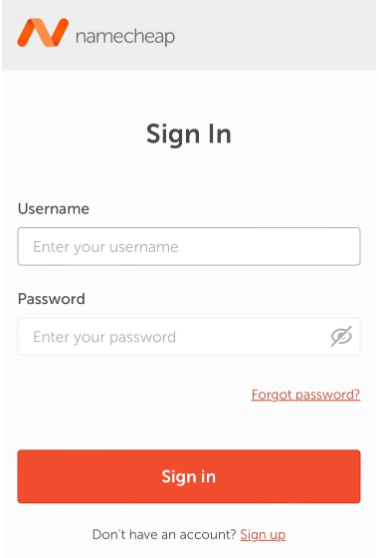
If you select the Sign in with Namecheap button, you will be redirected to our site in a browser to log in to your Namecheap account:
If you select Browse as Guest, you will be redirected to the Market tab immediately, but some options, such as placing a bid, will not be available in guest mode. There will also be a Finish Account Setup to Bid button, which redirects to the previous screen.
Market tab
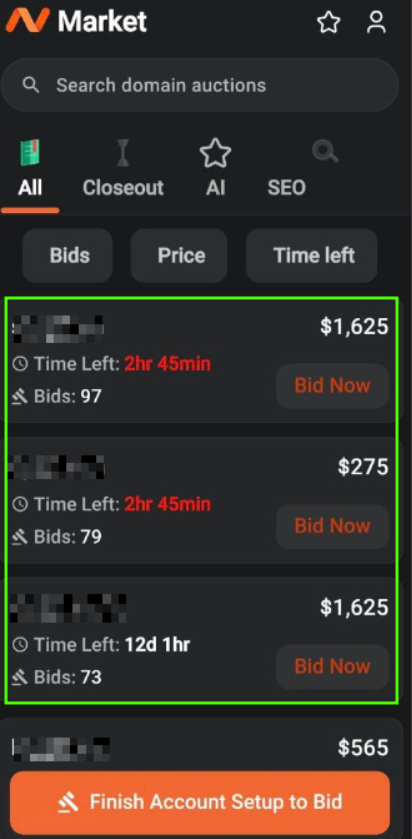
This is the main tab of the application, where you can see all the current auctions:
It’s also possible to select categories showcasing different kinds of domains (All, Closeout, AI, SEO) and sort the auctions by number of bids, total price, or time left until the end of an auction.
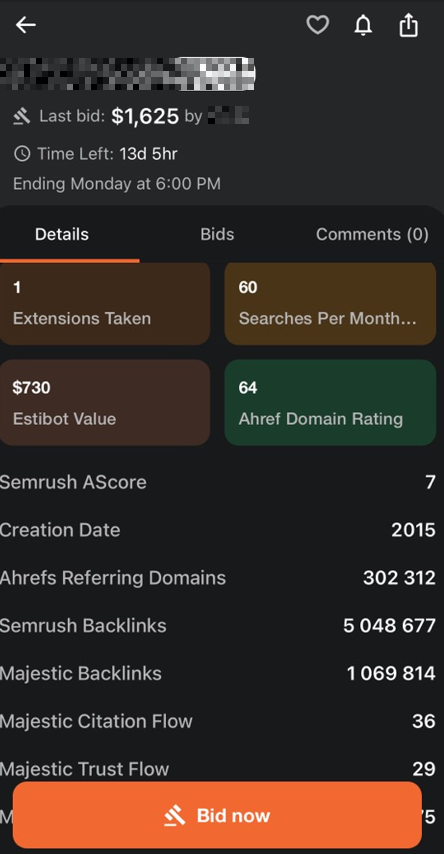
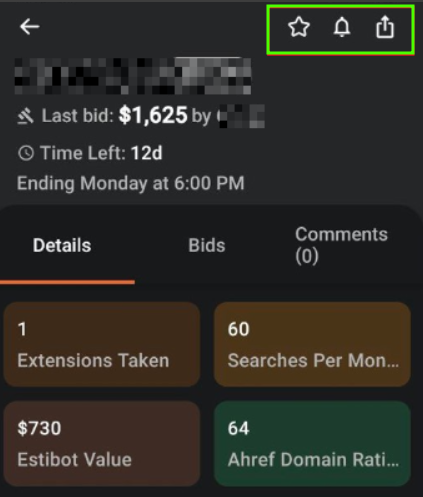
If you select any auction on the Market tab, you will get more information about a domain:
You can also save the auction for later, subscribe to notifications related to this auction, or share the link to it using the corresponding options at the top right corner:
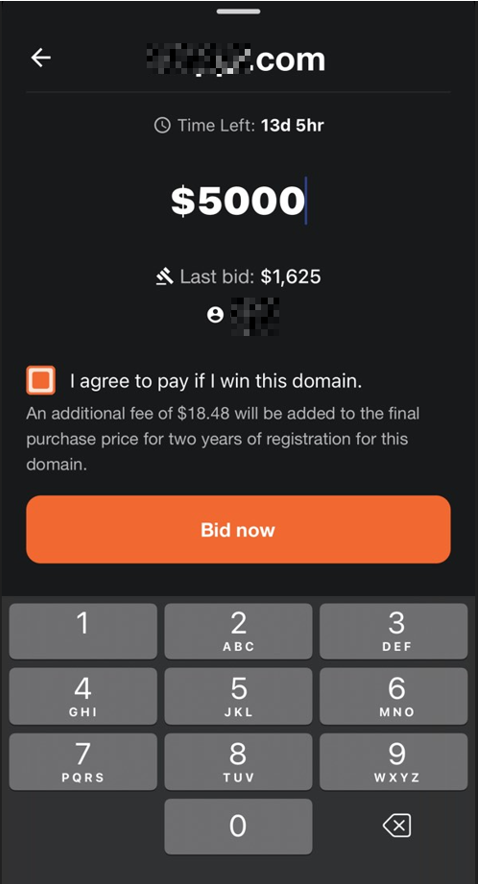
The Bid now button lets you place a bid. You will need to enter the bid amount, check the I agree to pay if I win this domain option, and select Bid now:
Note: you won’t be able to place a bid if the auction
admission steps are not completed.
Search tab
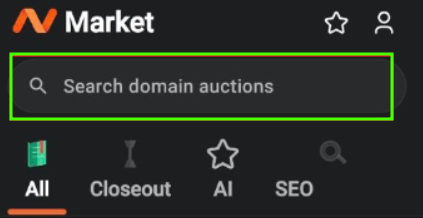
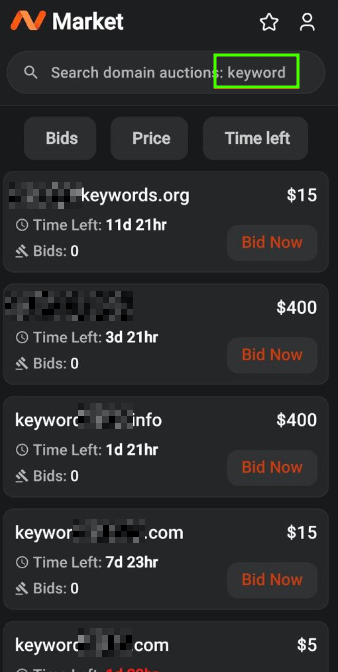
To access our easy-to-use Search tab, you need to select the search field on the Market tab:
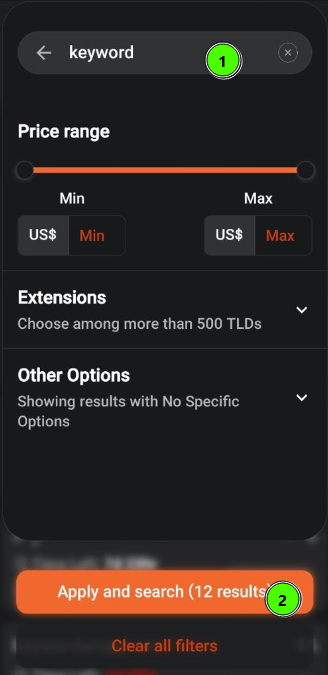
This tab allows you to perform auctions lookup by entering keywords into the corresponding field. It’s also possible to apply filters, such as price range, extension, and other specific options here.
The results will be displayed on the main page after selecting Apply and Search:
Dashboard tab
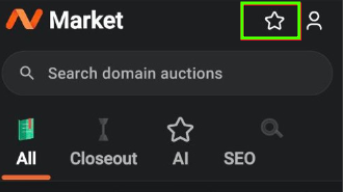
To access this tab, just select the Star icon at the top right corner of the Market tab:
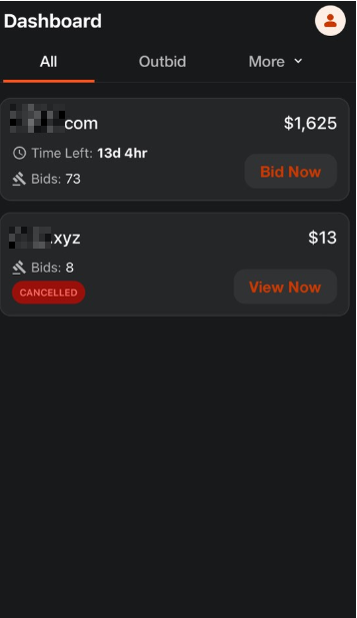
You will see all your auctions there, including active auctions, won auctions, cancelled auctions, and more:
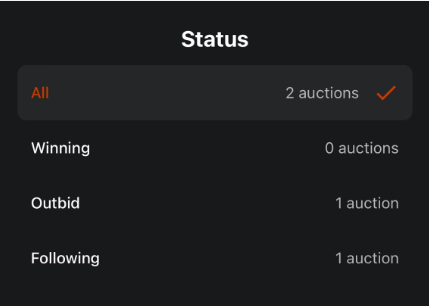
It's also possible to filter auctions by their statuses by selecting More:
The iOS app also offers the Live Activity support. When you subscribe to an auction or place a bid, a Live Activity is created that tracks the auction in real time on your lock screen and the Dynamic Island.
Settings tab
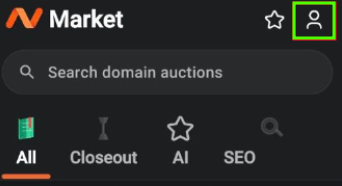
To access your settings, select the Account icon at the top right corner of the Market tab:
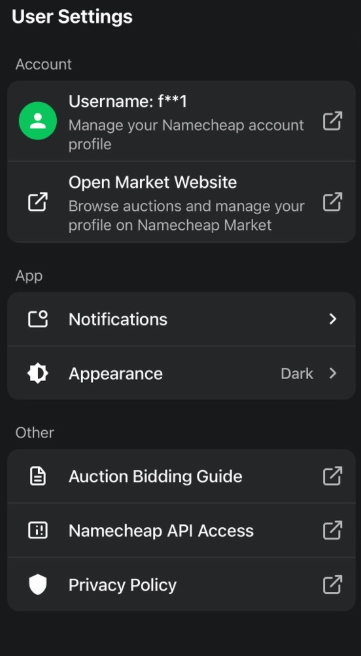
You will be able to configure your account and app settings here: manage your profile, open the web version of the application, configure appearance, notifications, and open the related guides and articles on our site.
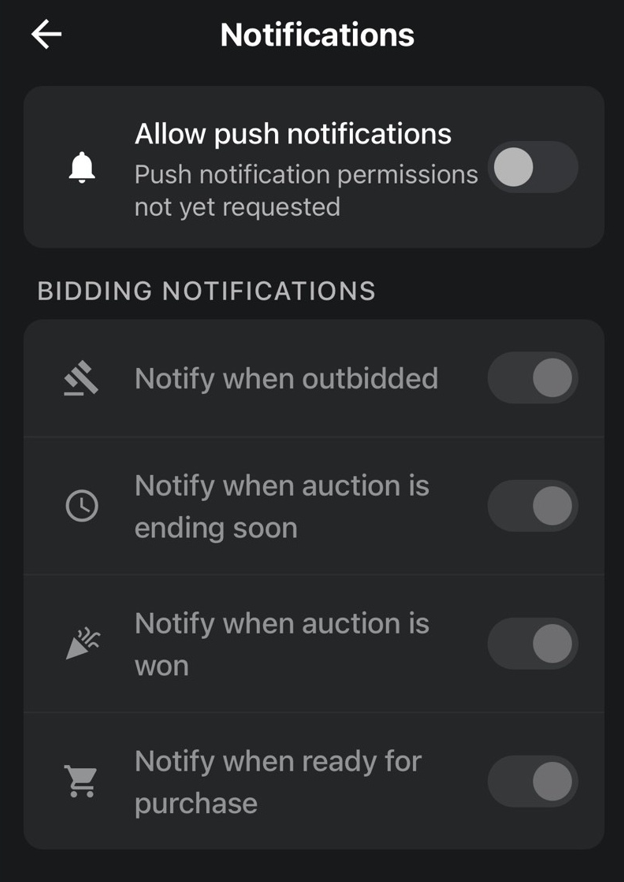
The main advantage of our Auctions mobile app is the ability to configure push notifications on your mobile device. To do it, just select the Notifications button, and the following menu will appear:
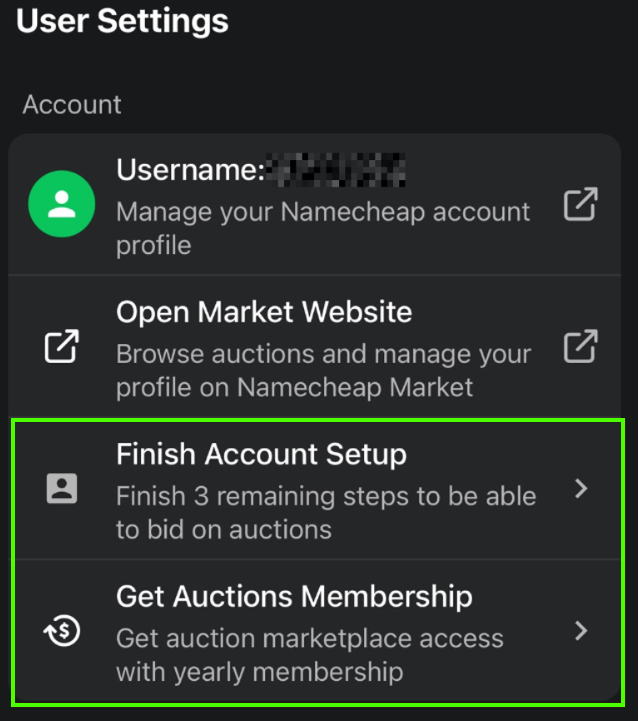
Note: if you haven’t completed all the
admission steps, you will see the additional options in your settings:
That’s it!