$ U.S. Dollar€ Euro£ British PoundC$ Canadian DollarsA$ Australian DollarsRs Indian Rupees¥ China Yuan RMBMore Info
How to add your cPanel email account to Gmail
Starting January 2026, Gmail will no longer support importing emails from third-party accounts using POP. As a result, you can no longer add your cPanel email account to Gmail webmail via POP to view both inboxes in one place. New emails sent to your cPanel email address will no longer automatically appear in your Gmail inbox, as they did with POP fetching.
To keep seeing emails sent to your cPanel email address in your Gmail inbox, use one of the options below to add your cPanel email account to Gmail.
The Gmail mobile app does not need POP3 to add a third-party email account. It uses a standard IMAP connection instead. If you plan to use Gmail only on the Android or iOS app, you can add your cPanel email account by following this guide.
Open the Gmail application on your phone.
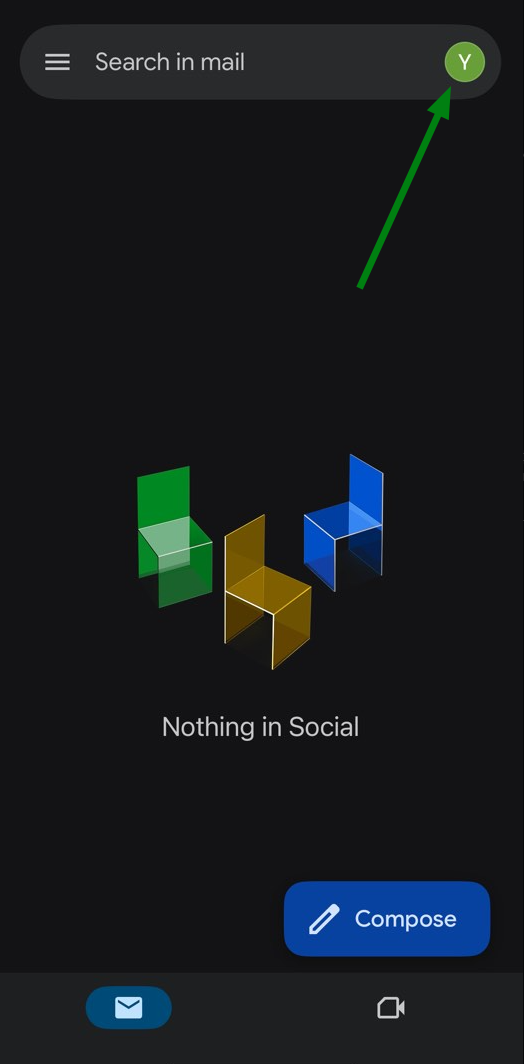
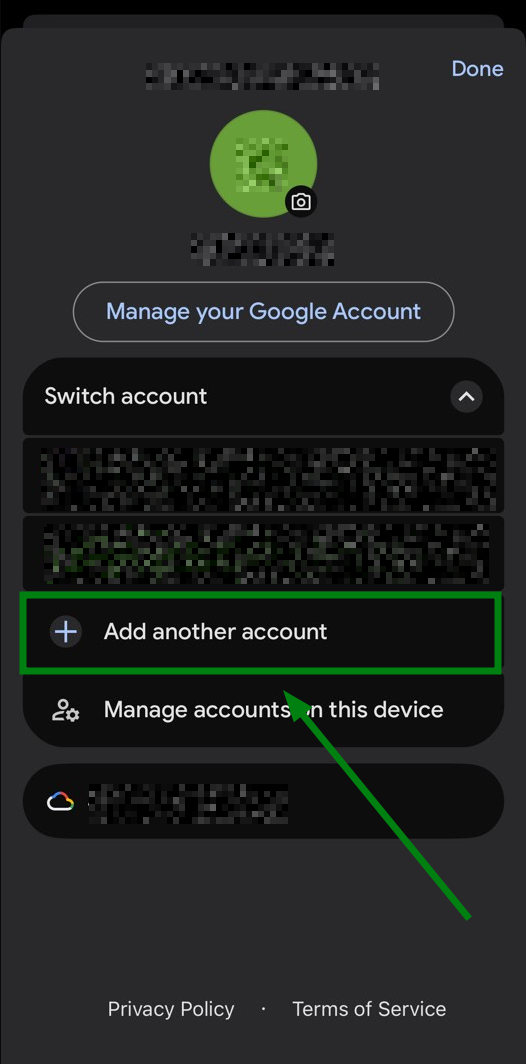
Tap Profile in the top-right corner, near the search bar, then select Add another account:
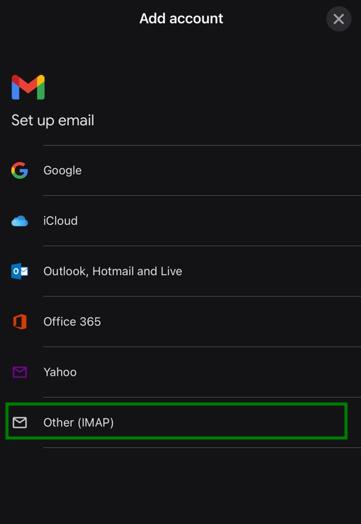
To add your cPanel email account, click on the Other (IMAP) option:
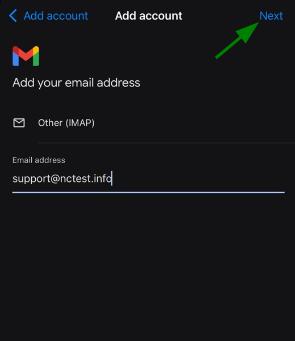
Enter your cPanel email address and click on Next:
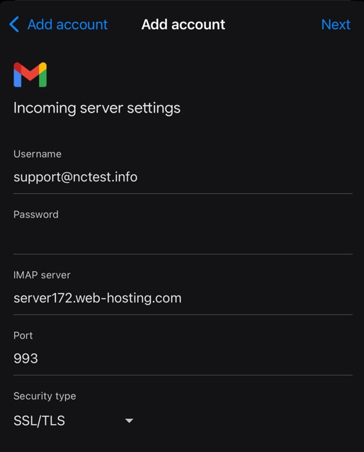
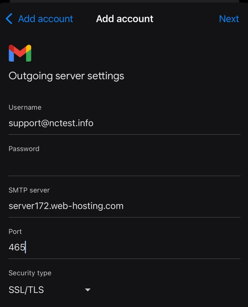
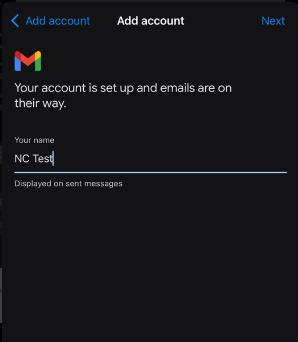
Enter the following incoming mail server settings for your cPanel account and click on Next:
If you plan to use the Gmail desktop version, you need to configure incoming and outgoing email separately.
First, set up email forwarding from your cPanel email account to Gmail so you can receive incoming messages. To do this, follow the steps below:
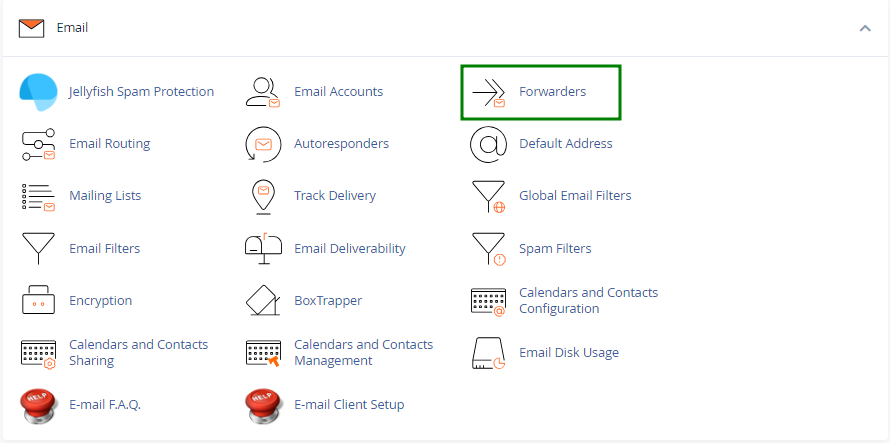
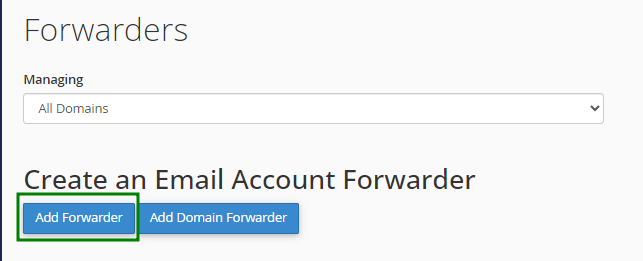
Log in to your cPanel, navigate to the "Email" section > Forwarders:
To create a new forwarding rule, click on Add Forwarder:
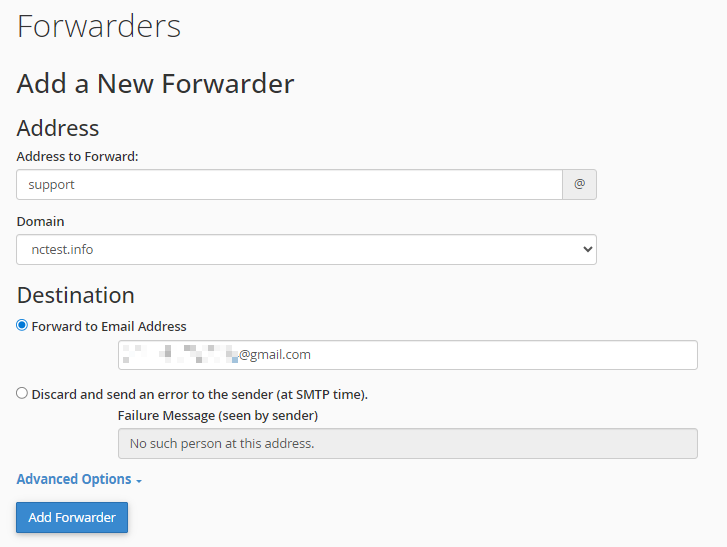
Enter your cPanel email address (from which emails will be forwarded) and your Gmail address (to which emails will be sent), then click "Add Forwarder" once again to save the changes:
Once the forwarder is successfully added, all emails sent to your cPanel email account will be automatically forwarded to your chosen Gmail inbox.
Next, to send emails from your cPanel email address using Gmail, you need to add the same cPanel email account to Gmail. This step-by-step guide will help you complete this setup.
NOTE: Emails sent from your cPanel email address using Gmail will not sync back to cPanel.