
Each cPanel email account can have a storage quota that determines how much disk space the mailbox can use. You may need to adjust it if the mailbox is running out of available space or if you want to limit how much hosting space a particular email account can use.
To change the storage quota for an existing email account, log in to your cPanel account and follow the steps below:
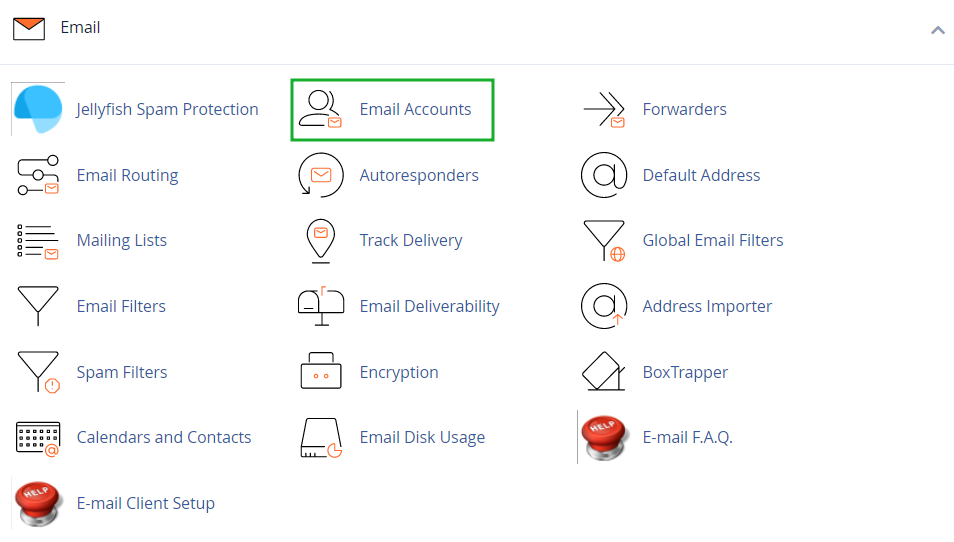
Navigate to the Email section >> Email Accounts menu:
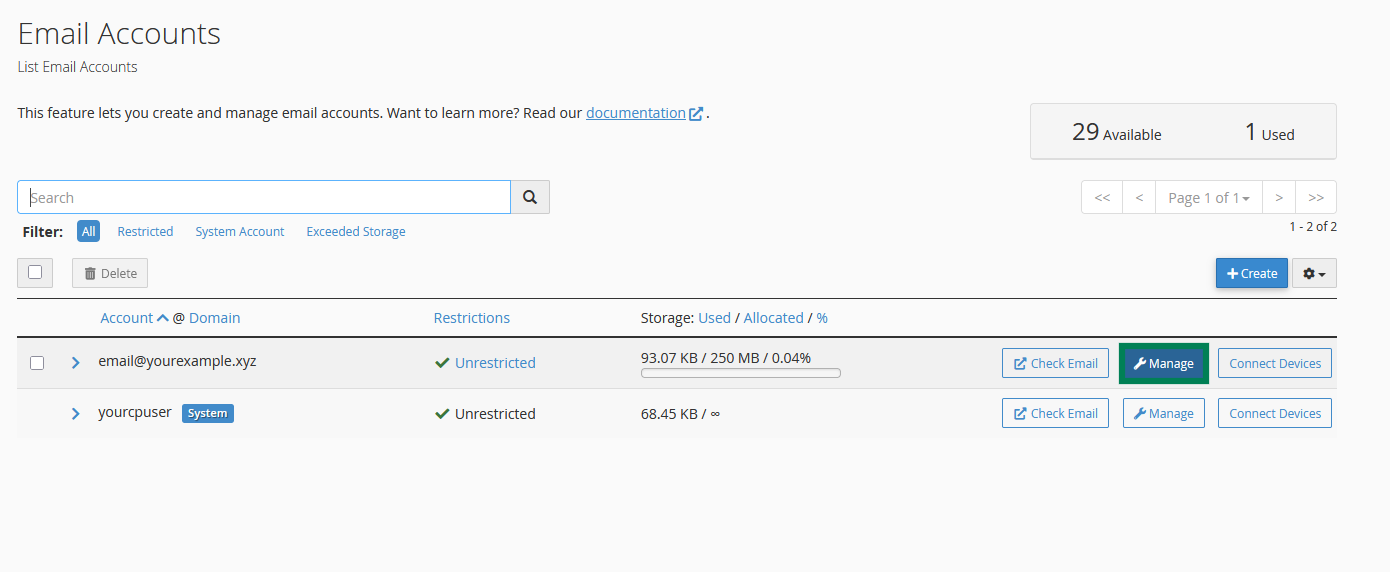
Find the email account you want to update and click Manage:
Scroll down to the Storage section. Here, you can specify the amount of storage space allocated to the mailbox by entering the required value or selecting 'Unlimited':
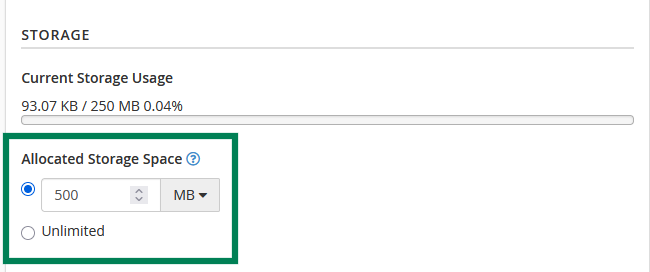
NOTE: Setting the storage quota to Unlimited means that the mailbox can use the disk space available within your cPanel account instead of having a separate mailbox-specific limit. However, according to our Acceptable Use Policy (point 10), email storage for Shared Hosting/Single Reseller cPanel accounts must not exceed 10 GB in total. Please keep this limit in mind when adjusting mailbox storage.
Click Update Email Settings to save the changes.
That's it!
Need help? We're always here for you.