
This guide covers common commands for managing files and directories via SSH.
Before proceeding, make sure that SSH access is enabled for your hosting account. If needed, refer to this guide to enable it. Once done, you can connect through an SSH client or use cPanel Terminal.
Unlike cPanel File Manager, the command line interface (CLI) does not automatically show the current location or its contents. Instead, you can use pwd to check the current directory, ls to view its contents, and cd to move between directories.
Here's how:
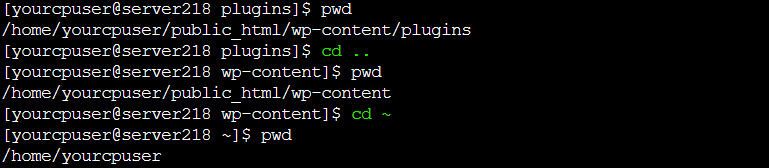
pwd stands for print working directory. The command shows the full path to the directory you are currently working in:

This can help confirm that you are working in the correct directory before changing or removing any files.

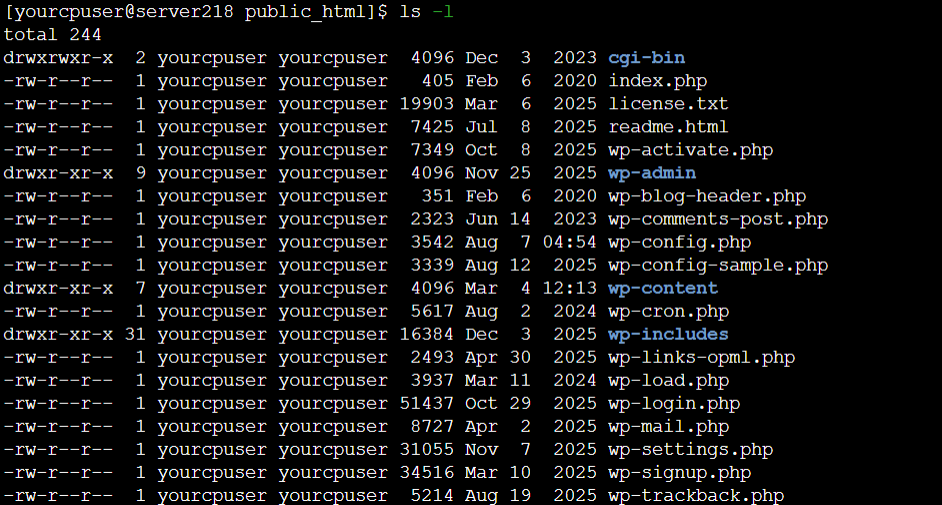
The command can also be used with the following options:
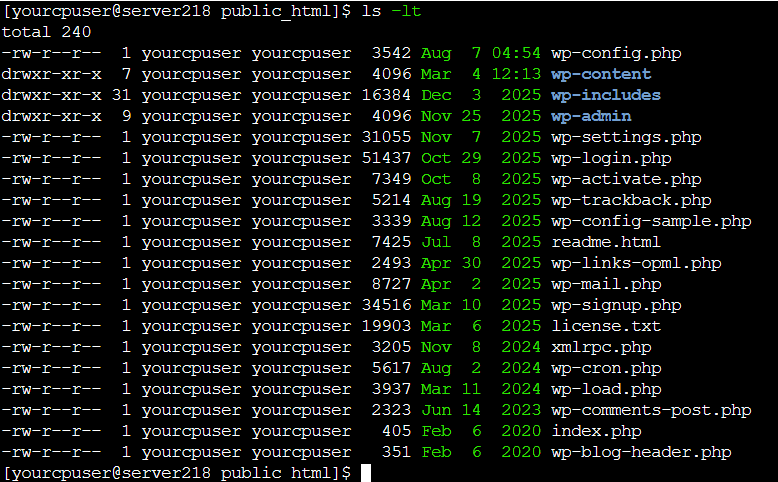
ls -lt sorts the entries by their last modification time:
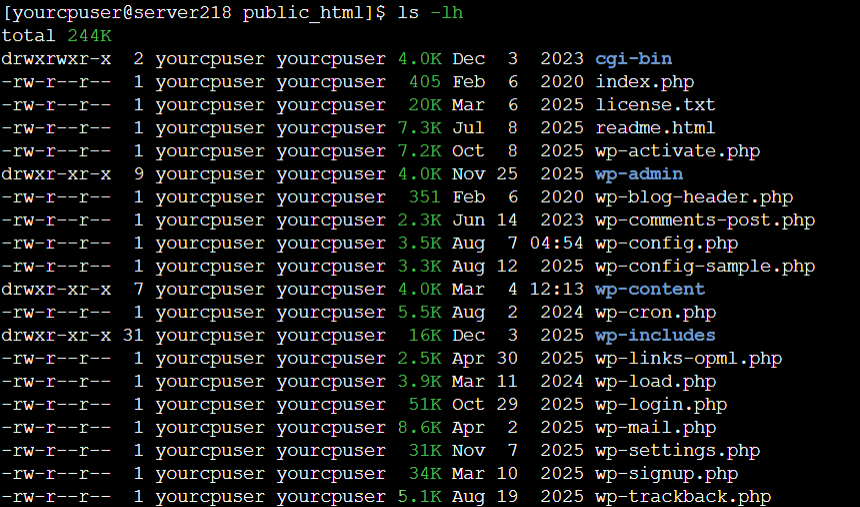
ls -lh displays file sizes in a readable format:
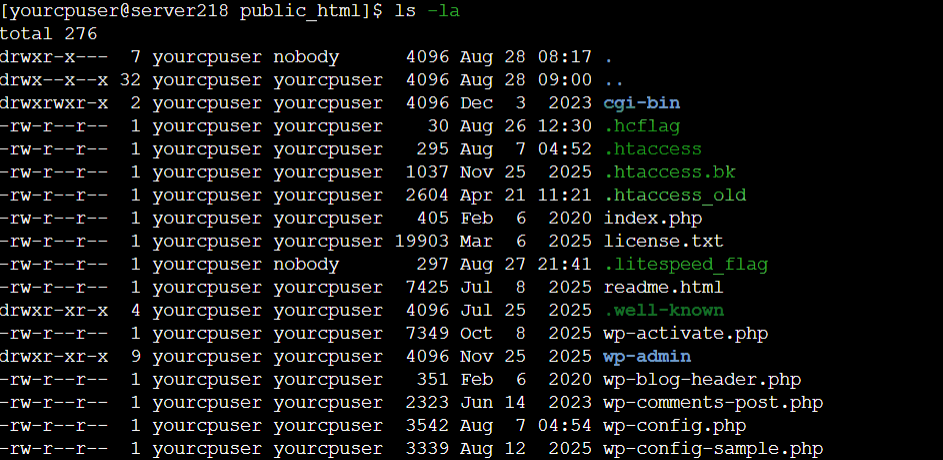
ls -la includes hidden files and directories:
ls -ld dir displays information about a directory instead of its contents:

cd stands for change directory. To open a directory located in the current location, run the command followed by the file directory name or full path:

To create an empty file, run the command followed by the file name:
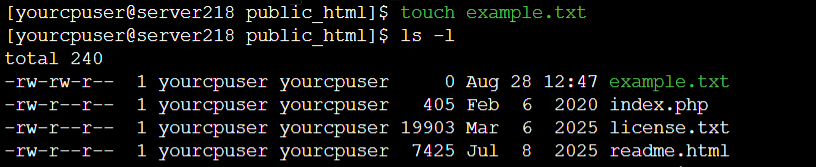
If the file already exists, the command updates its timestamp without changing its contents.
A file can also be created inside an existing subdirectory by specifying its path: touch dir/file.txt
mkdir stands for make directory. To create a directory, run the command followed by the directory name:

To create a directory together with any missing parent directories, use the -p option: mkdir -p dir-1/dir-2
You can create several directories at once by listing their names after the command, e.g. mkdir images css scripts
nano is a simple command-line text editor that can be used to quickly view and edit files. To open a file in nano, run the command followed by the file name:
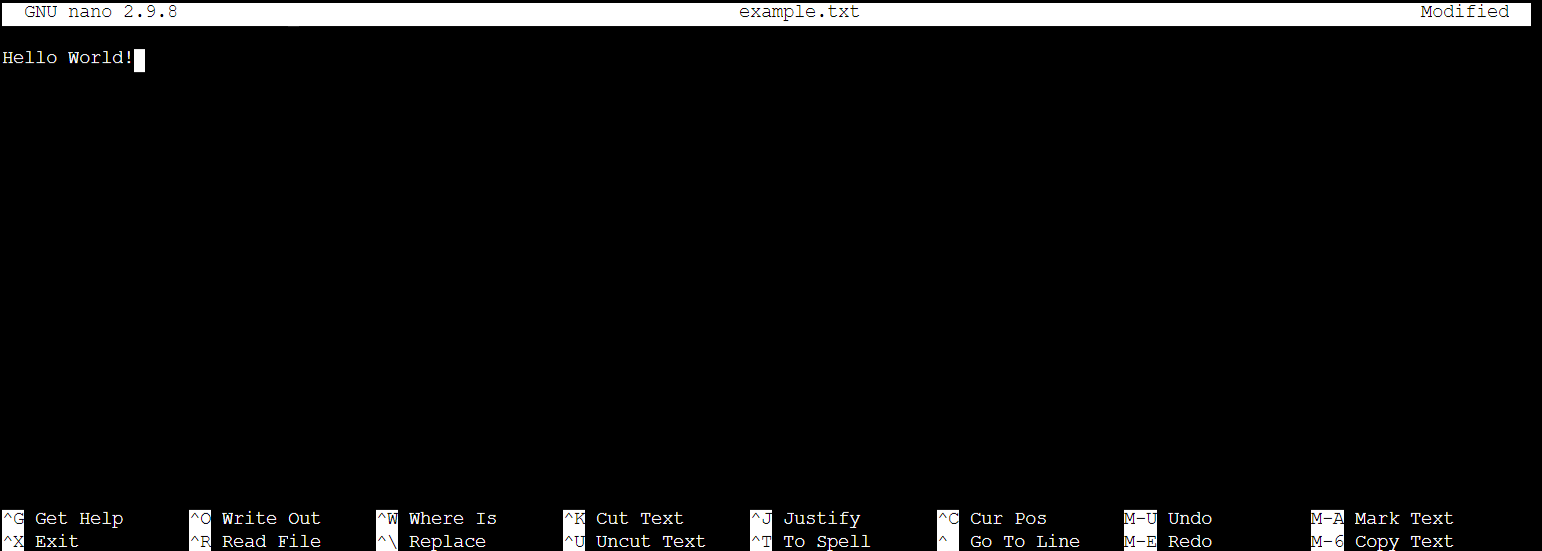
If the specified file does not exist, nano will create it when the changes are saved.
Use these combinations to save the changes after editing the file:
If you want to create a backup of the original file version, use the -B option: nano -B file.txt
This way, the backup copy will be saved with a ~ suffix:

mv stands for move. The command can be used with both files and directories. The first value after mv is the source file/directory, and the second is its destination, e.g. mv file.txt public_html
In this example, we're moving the file example.txt to the images directory:

If an item with the same name already exists in the destination, it will be replaced.
The mv command can also be used to rename a file by providing its current and new names, such as mv old-name.txt new-name.txt

The same command can be used to rename a directory: mv old-dir new-dir
Note: Files removed through SSH are not moved to Trash and cannot be recovered. Make sure you have a backup and verify the current directory and item name before using the below commands.
rm stands for remove. To delete a file, run the command followed by the file name:

Use the -i option to receive a confirmation prompt before removal: rm -i file.txt

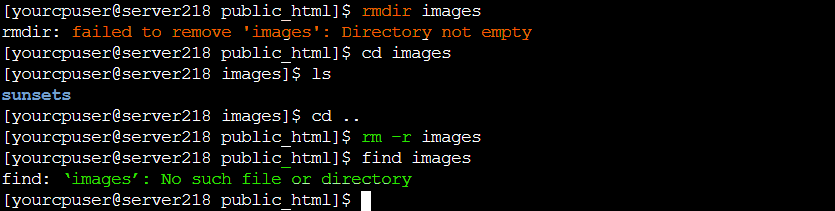
rmdir stands for remove directory. To delete a folder, run the command followed by the directory name:

The command removes a directory only when it is empty. If the directory contains files or subdirectories, rmdir returns the Directory not empty error. Check its contents before deciding whether to remove it recursively.
To remove a directory together with its contents, use the -r option: rm -r dir
That's it!
Need help? We're always here for you.