
cPGuard is an advanced server security solution designed to protect Linux hosting environments from malware, intrusions, and other cyber threats. It integrates directly with popular control panels like cPanel, providing real-time monitoring and proactive protection for websites and servers.
This guide shows you how to initiate a server-wide scan and review the results. You can start a server scan in cPGuard in two ways: via the UI or from the CLI.
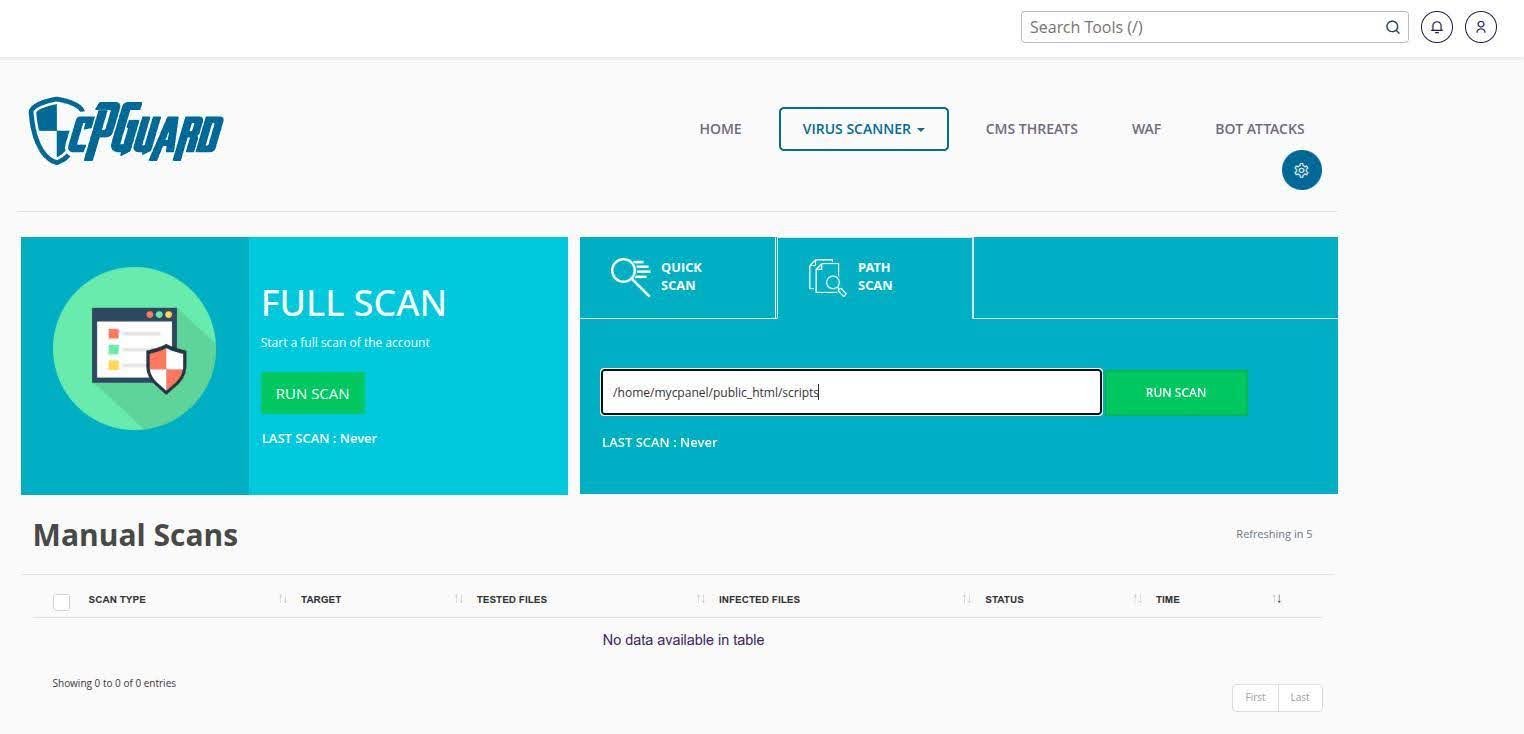
Before you start a server scan, you may need to choose between scanning the files in the cPGuard watchlist and scanning a specific folder.
Log into WHM as root, go to Plugins > cPGuard Security, and click Continue to App Portal:
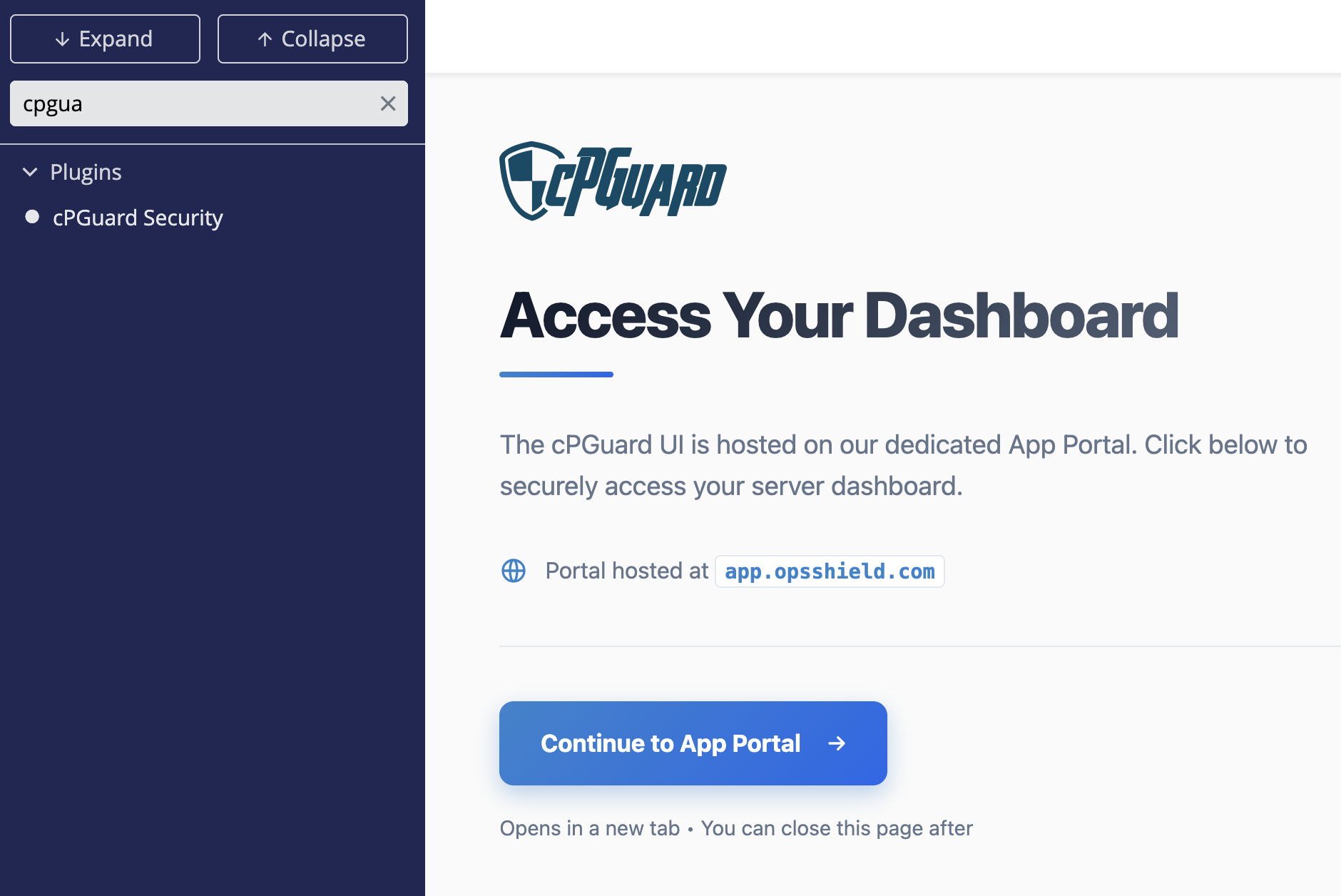
If the interface asks for login credentials, you can enable Admin access to the cPGuard portal as root:
cpgcli panel-integration --admin-sso enable
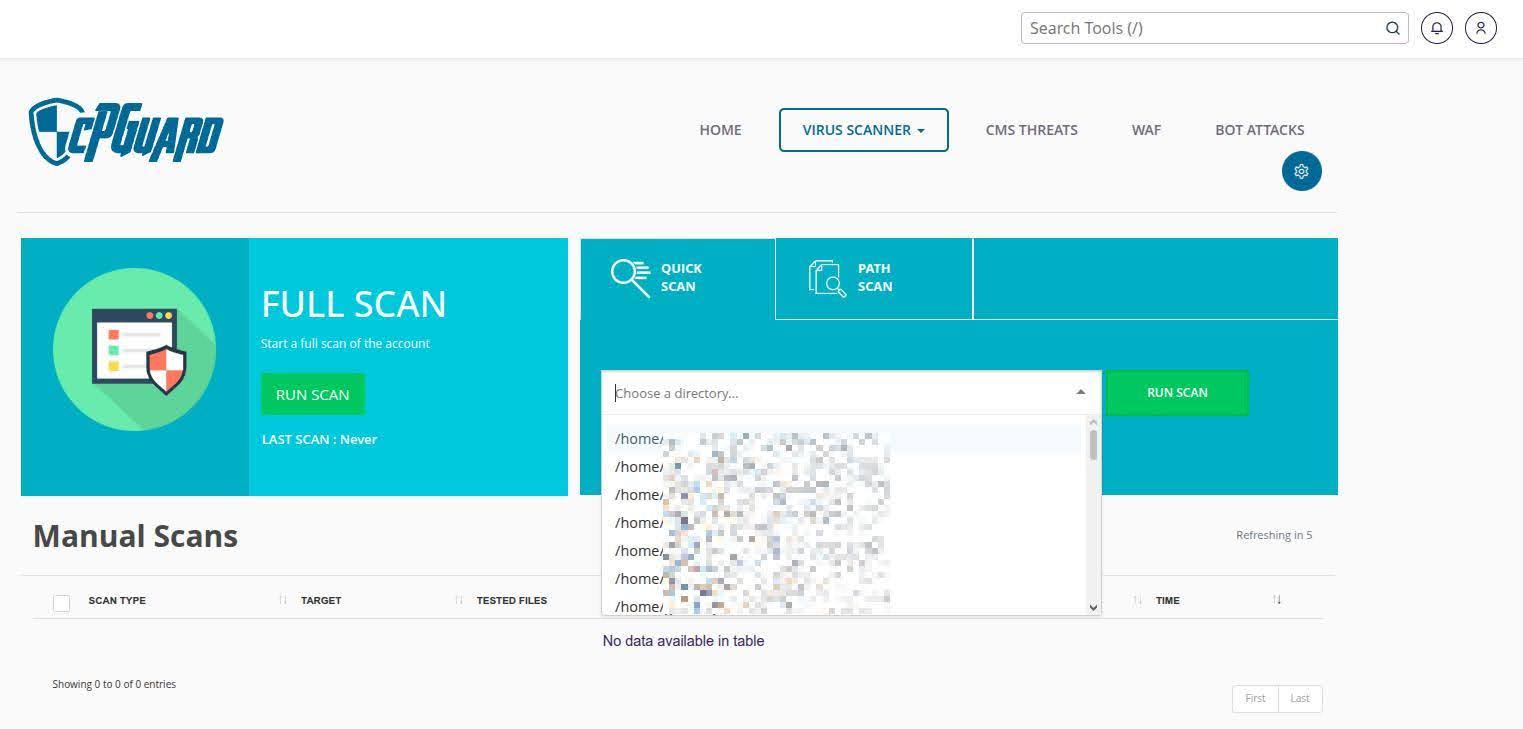
2. Open Virus Scanner > Manual Scans:
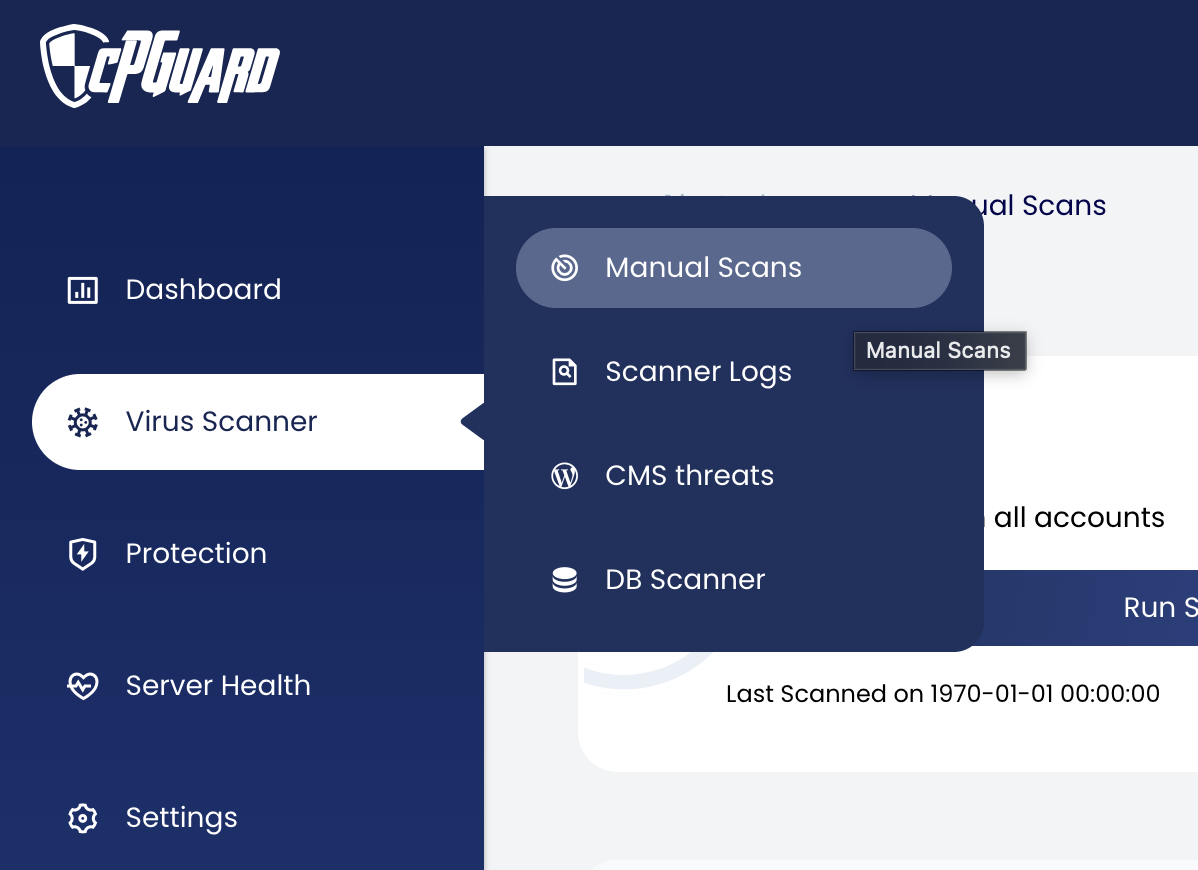
This page contains 3 options:
The list of scans and their status appears on the same page. To view a scan report, choose View next to a completed scan:
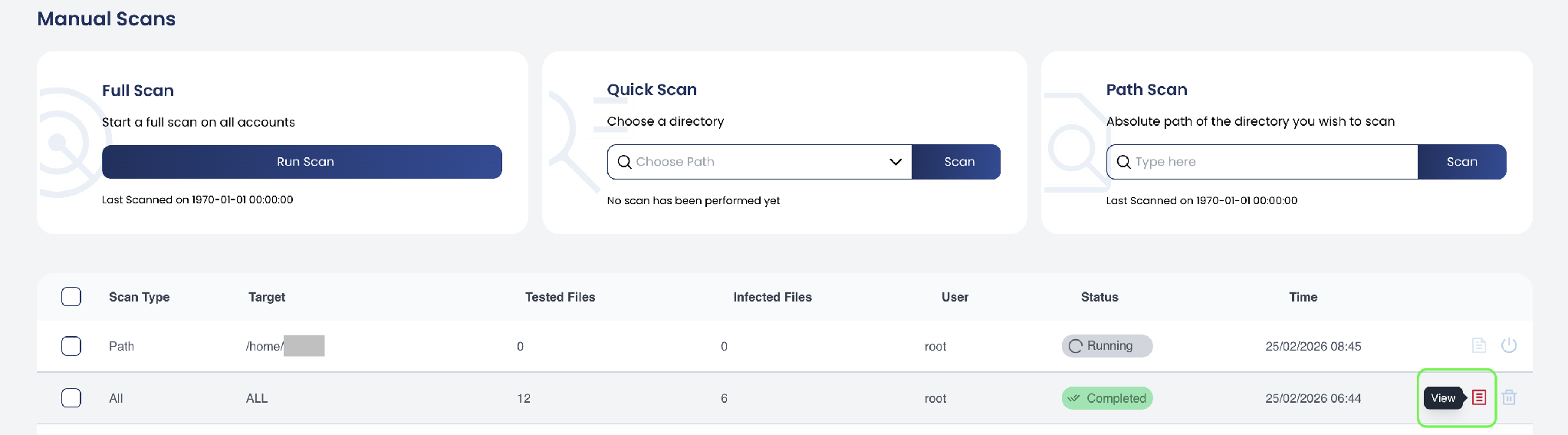
Once the scan starts, cPGuard displays the current progress and status. Depending on the size of the server and the number of files being examined, the scan may take some time to complete.
You may keep using the interface while the scan runs in the background.
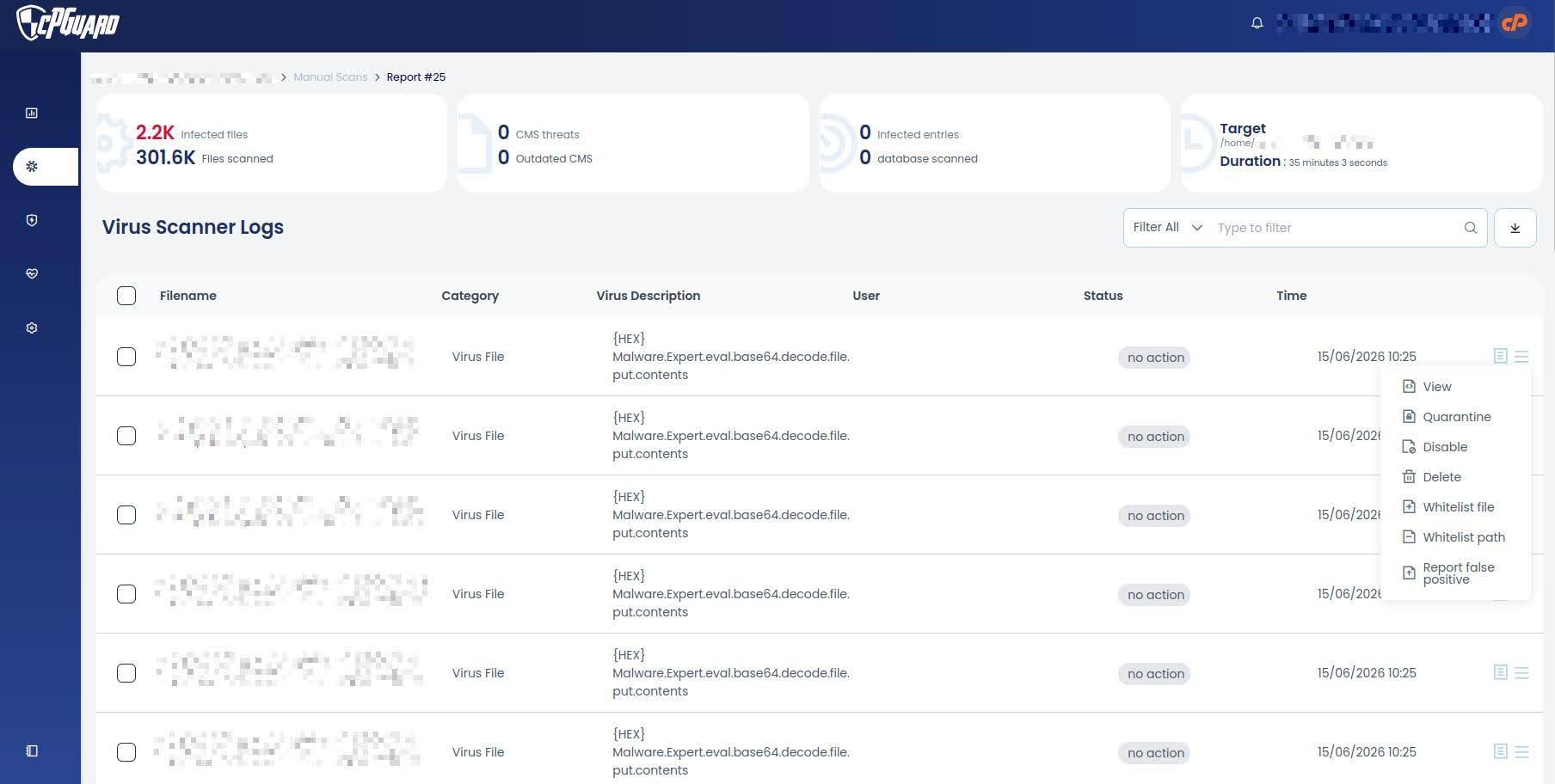
After the scan finishes, review the generated report to identify any threats or suspicious files. cPGuard lists everything flagged as malicious or suspicious in a CSV file you can export:

The results page shows details such as:
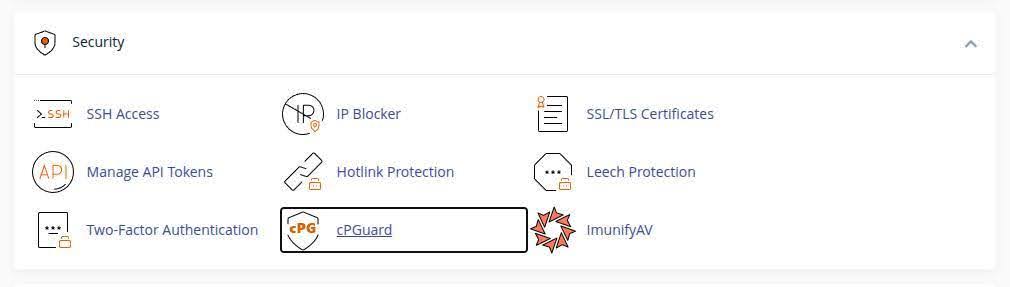

If threats are detected, use cPGuard’s remediation options to quarantine, clean, or remove the affected files. We recommend maintaining current backups before making changes to production systems.
To access the report and choose an action for a specific or multiple files, open the Manual Scan menu in the WHM or cPanel and tap View next to the scan report.

You’ll see a list of the files cPGuard flagged as suspicious, and you can choose what to do with each:
Need help? We're always here for you.