
With Private Email, you can create filter rules to help manage your Inbox more efficiently by automatically organizing future incoming emails based on specific criteria. These rules can sort emails into designated folders based on the From, To, CC, Subject, and Body criteria. This is important because it helps to reduce clutter and ensures that important emails are never missed while keeping unwanted or low-priority messages out of the way.
To set up your custom rule, follow the steps below:
1. Log in to your Private Email webmail.
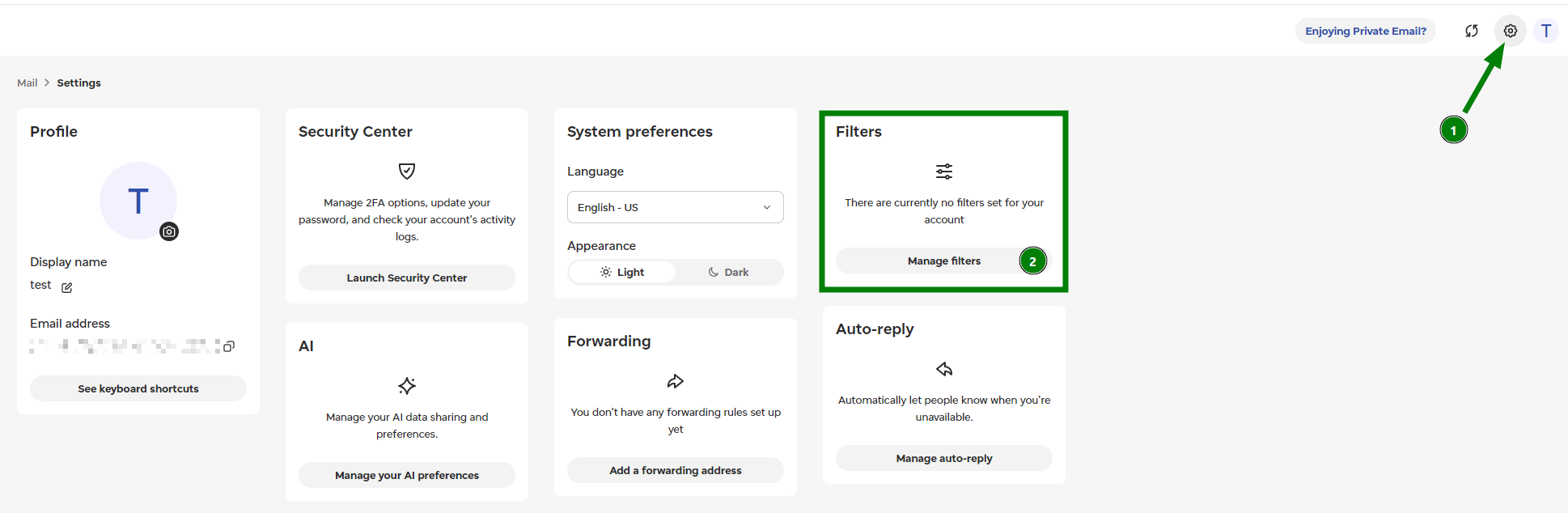
2. Click on the Gear icon in the upper right corner. Once done, locate the Filters widget and click on Manage filters:
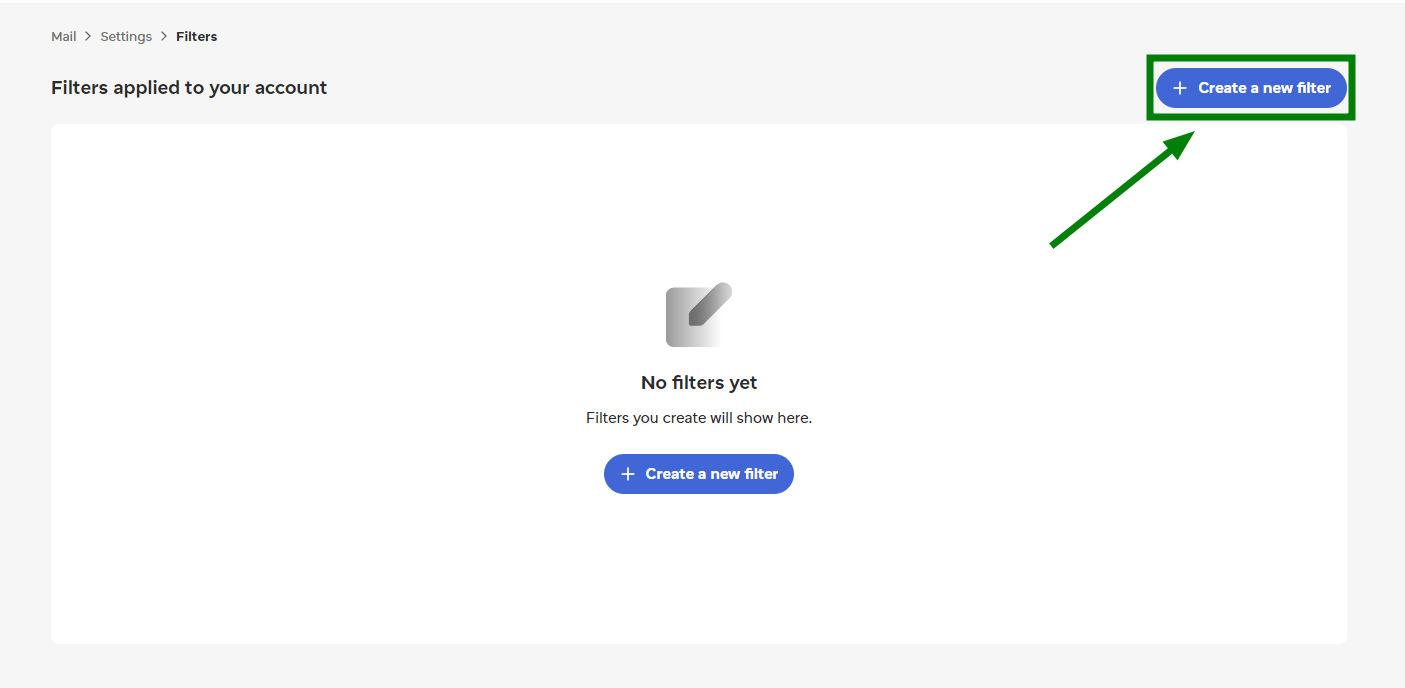
3. Click on Create a new filter in the new window:
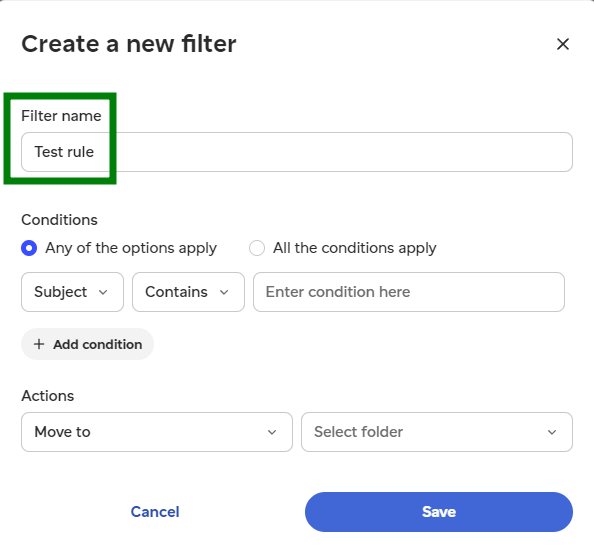
4. Firstly, you need to specify a Filter name, which is the name of your filter:
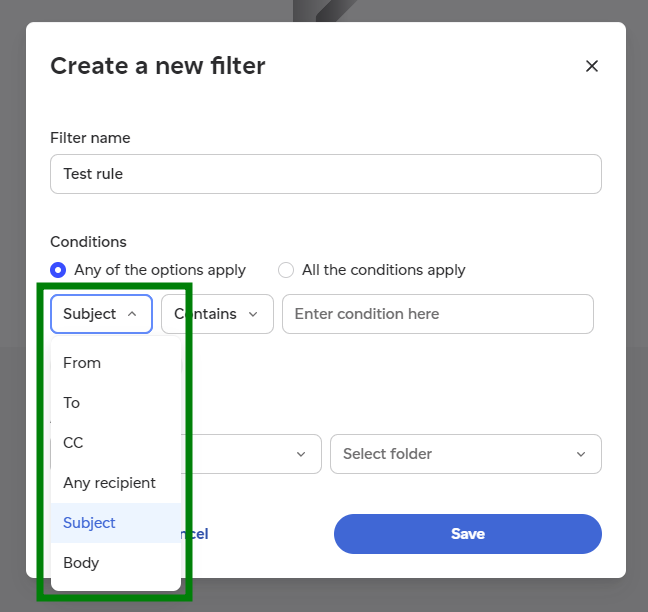
5. Then, choose the Condition to limit the rule for the specific messages, so the emails are forwarded only if the condition matches – sender, recipient, subject, etc.:
6. Choose the matching type and enter the mail filter parameter, for instance, the email address:
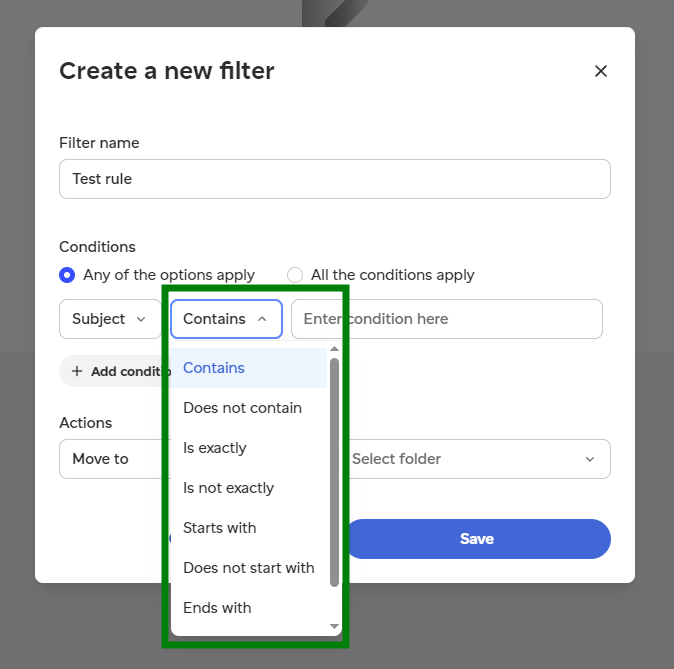
We recommend choosing the Contains option if you want to make the rule less strict.
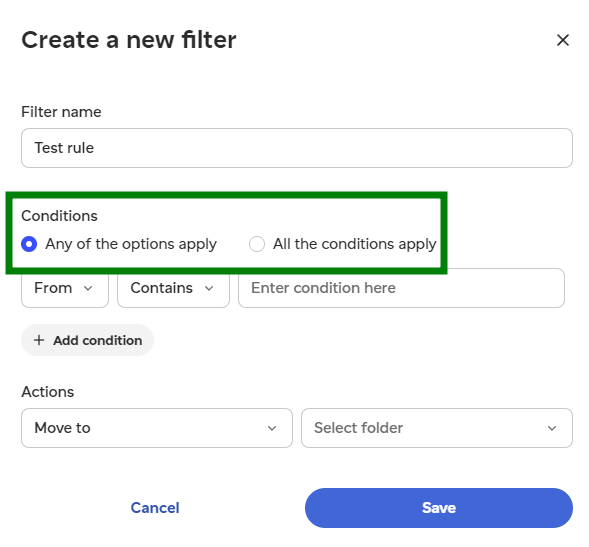
NOTE: If you choose the "All the conditions apply" type of behavior, the rule is only applied to an email if it satisfies all the specified conditions.
If you need a rule to be applied as soon as at least one of the conditions defined within the rule is satisfied, you should choose "Any of the options apply":
7. Then select the folder to move the emails to and click on the Save button:
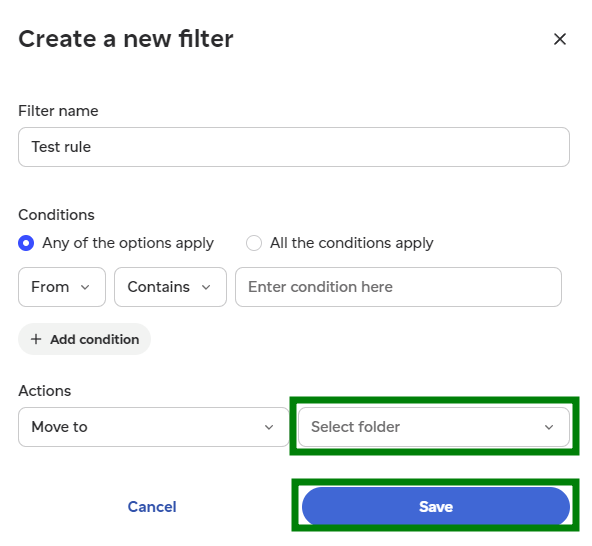
NOTE: It is also possible to forward emails by setting up a filter rule that consists of a "Forward to" action.
That’s it!
Need help? We're always here for you.