
You can easily add your Private Email address to the Gmail app to manage your email address using your mobile device.
To do it, please follow the steps listed below:
1. Open the Gmail app.
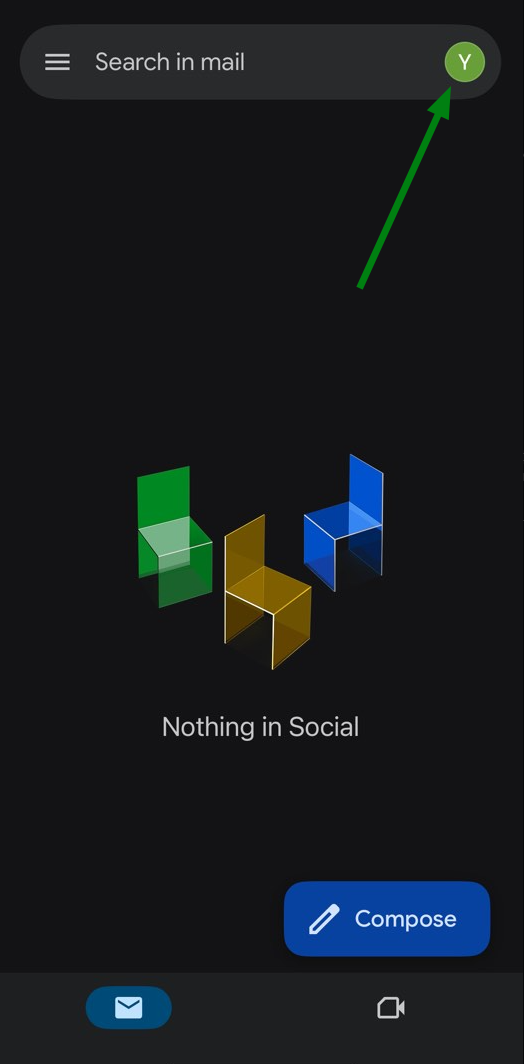
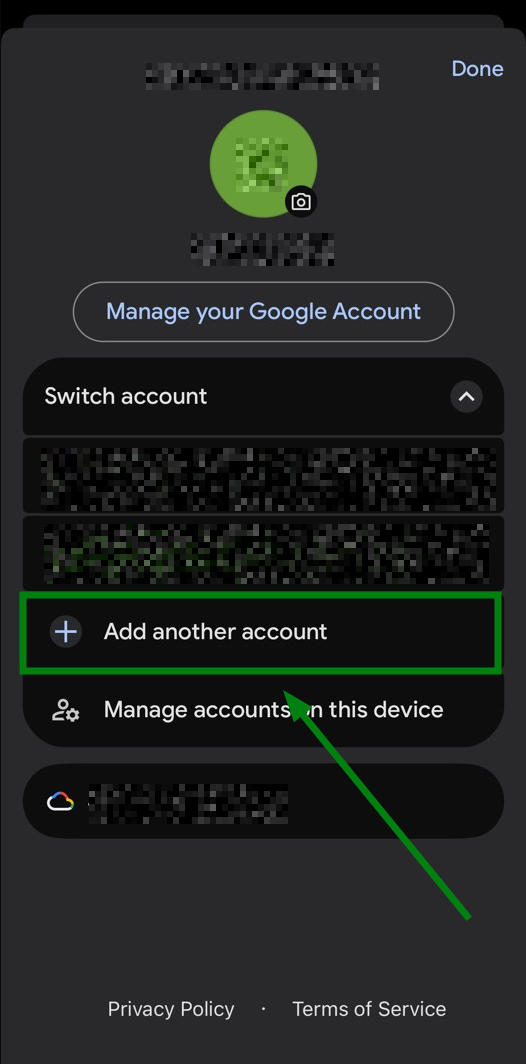
2. If you are not logged in to your Google email address, select "Add another account". If you are logged in to your Google email address, click on the user icon at the top right of the screen, select "Add another account":
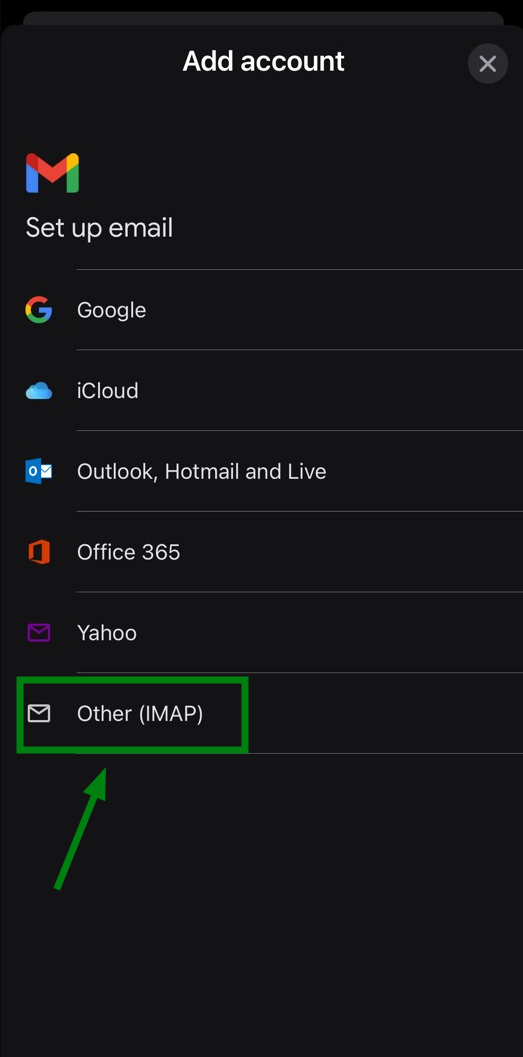
3. Select "Other (IMAP)":
NOTE: Gmail app doesn’t support POP3 protocol.
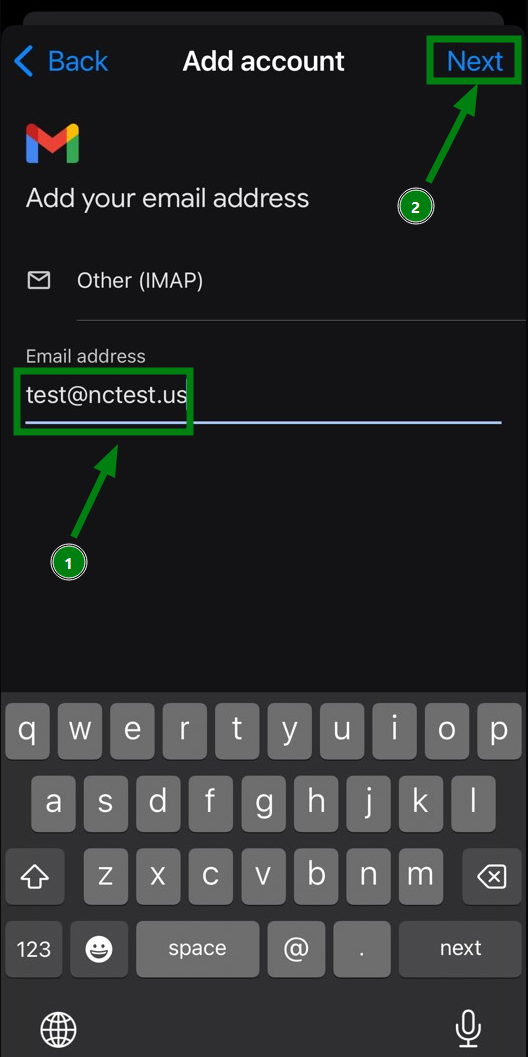
4. Enter your Private Email address and click Next:
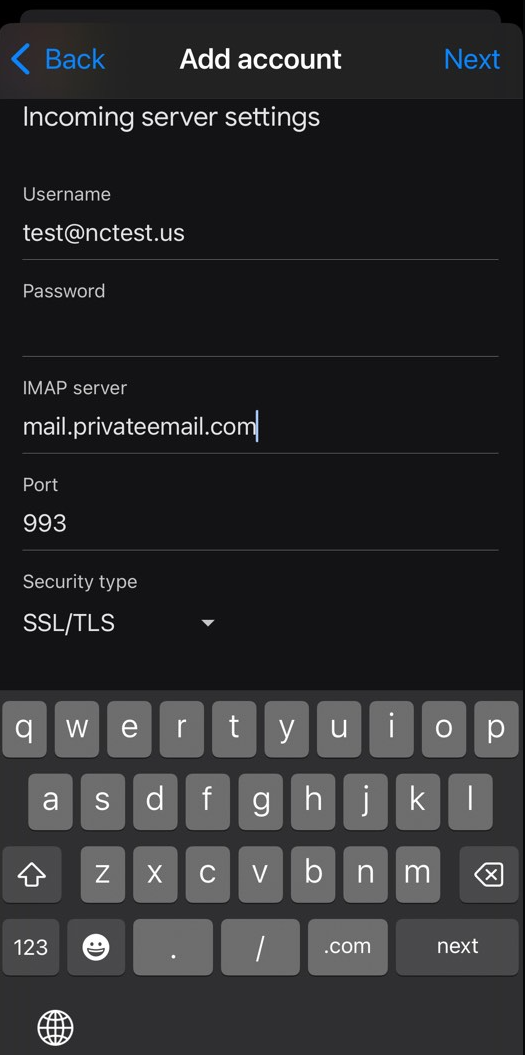
5. Enter incoming server settings for your Private Email address:
Username: your Private Email address
Password: the Master or Application password for this account
IMAP Server: mail.privateemail.com
Port: 993
Security type: SSL/TLS
Click Next:
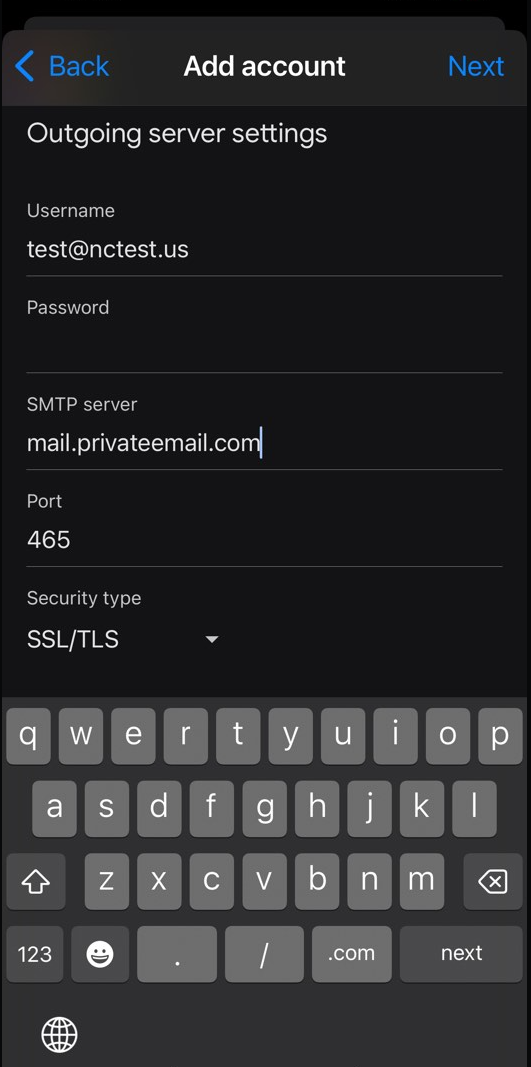
6. Enter outgoing server settings for your Private Email address:
Username: your Private Email address
Password: the Master or Application password for this account
SMTP Server: mail.privateemail.com
Port: 465
Security type: SSL/TLS
Click Next:
7. Finalize the Setup: You may be prompted to set up your account name (for display purposes) and other personal settings. Enter your name and customize other options.
Click Next to complete the setup process:
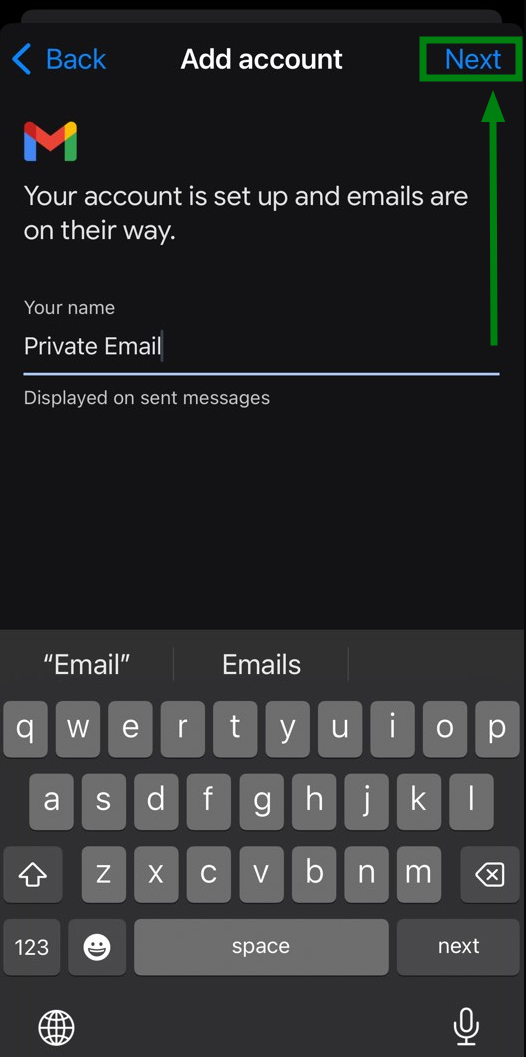
Your Private Email email address is now added to your Gmail app, and you'll be able to send and receive emails from that account directly through Gmail.
That's it!
Need help? We're always here for you.