FastVPN for Amazon Fire TV allows you to enjoy secure and unrestricted streaming directly on your device - no router configuration required.
This guide explains how to install, activate, and connect FastVPN on Amazon Fire TV.
What you’ll need:
- An active FastVPN subscription;
- Amazon Fire TV device;
- Internet connection;
- A mobile device with a browser to complete authentication.
Get a FastVPN Subscription
From the browser on your mobile device open the
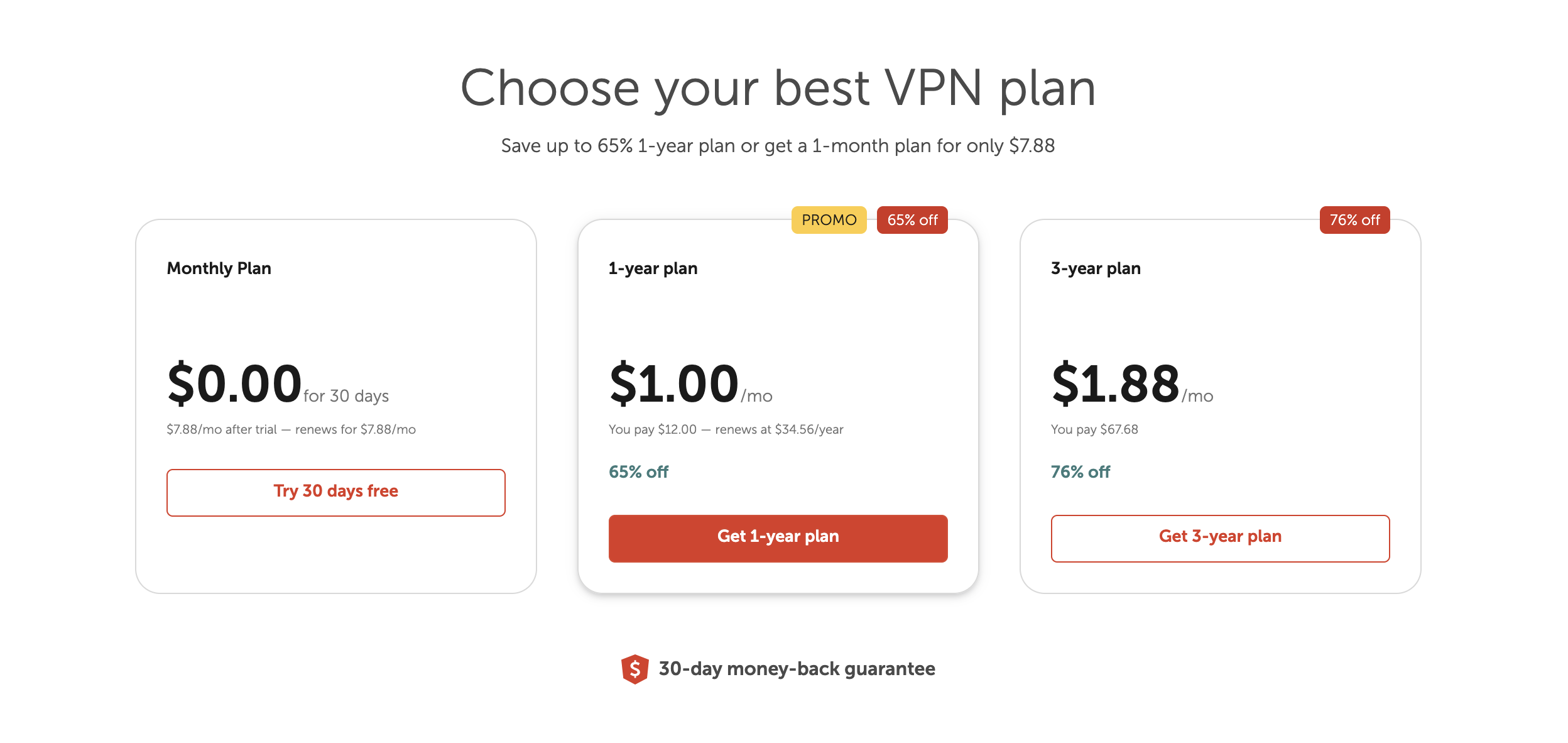
FastVPN page and select your desired plan:
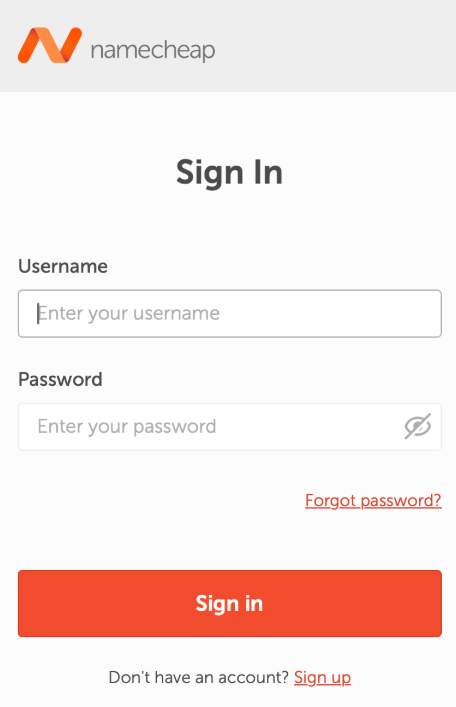
Once you click Get Started, you will be prompted to sign in to your Namecheap account:
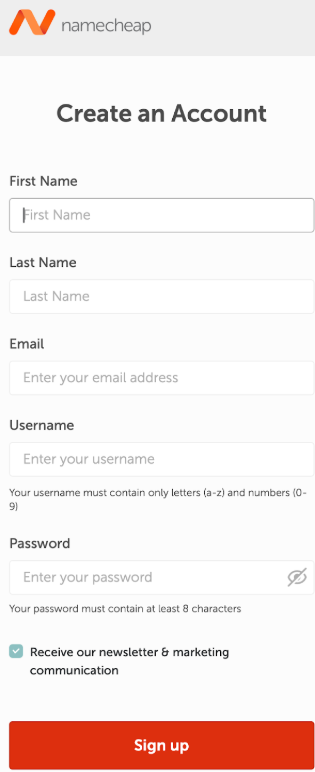
or to create a new account:
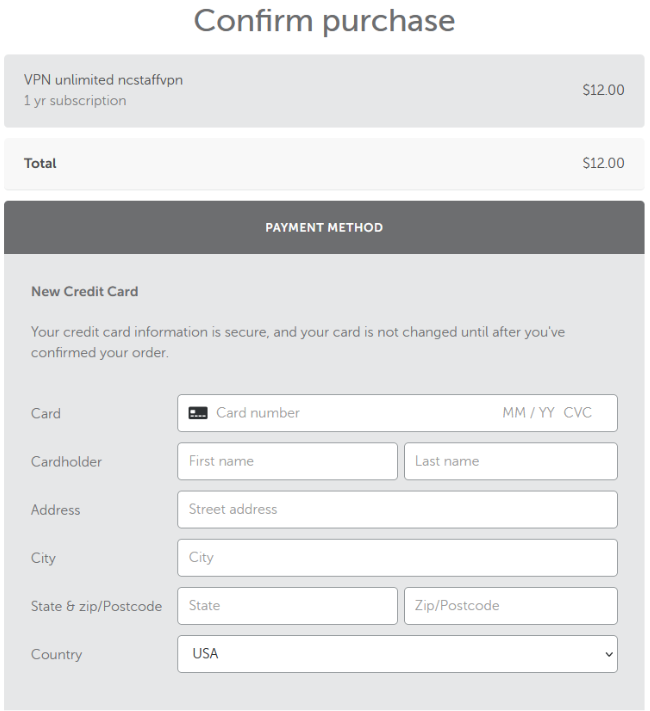
Once you logged in, enter payment details and confirm your purchase:
Install FastVPN on Amazon Fire TV
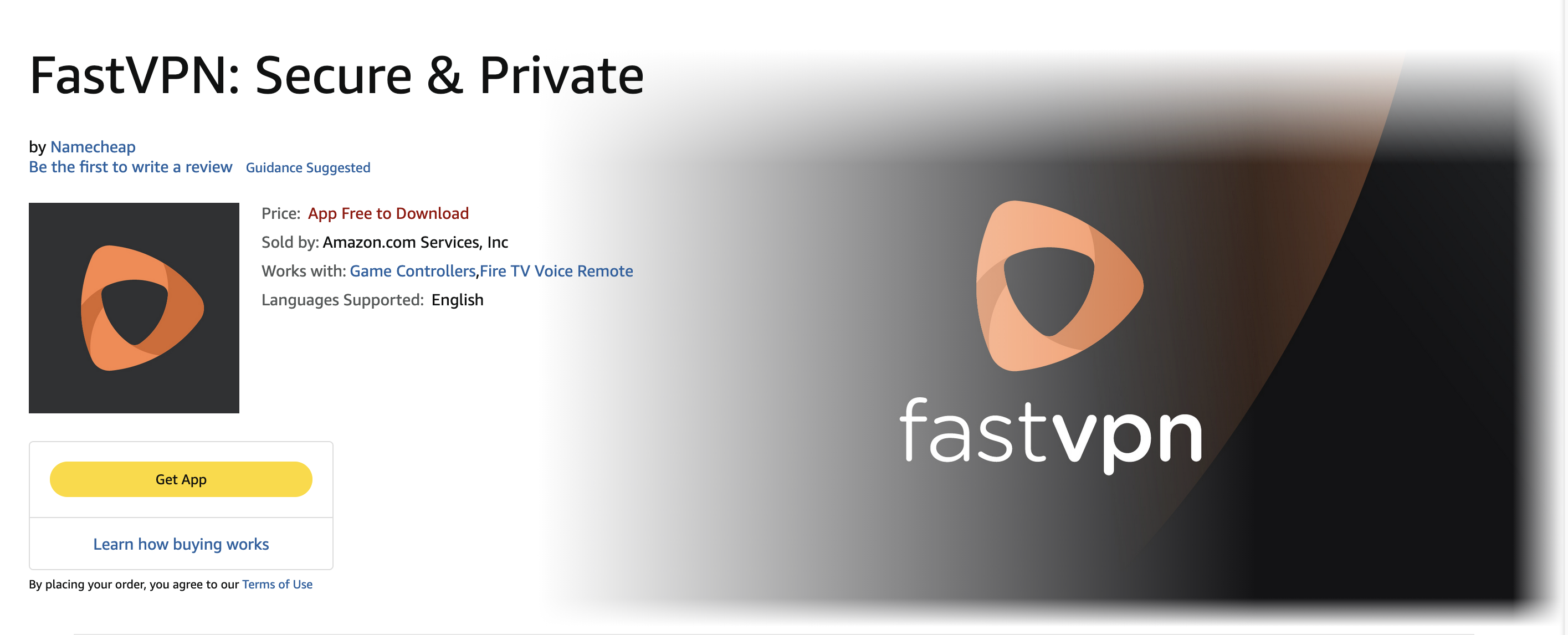
1. On your Amazon Fire TV, open the App Store.
2. In the search bar, type FastVPN and select the app published by Namecheap or directly by the following link.
3. Click Get App or Install.
Sign in to your FastVPN account
1. Start the FastVPN app on your TV.
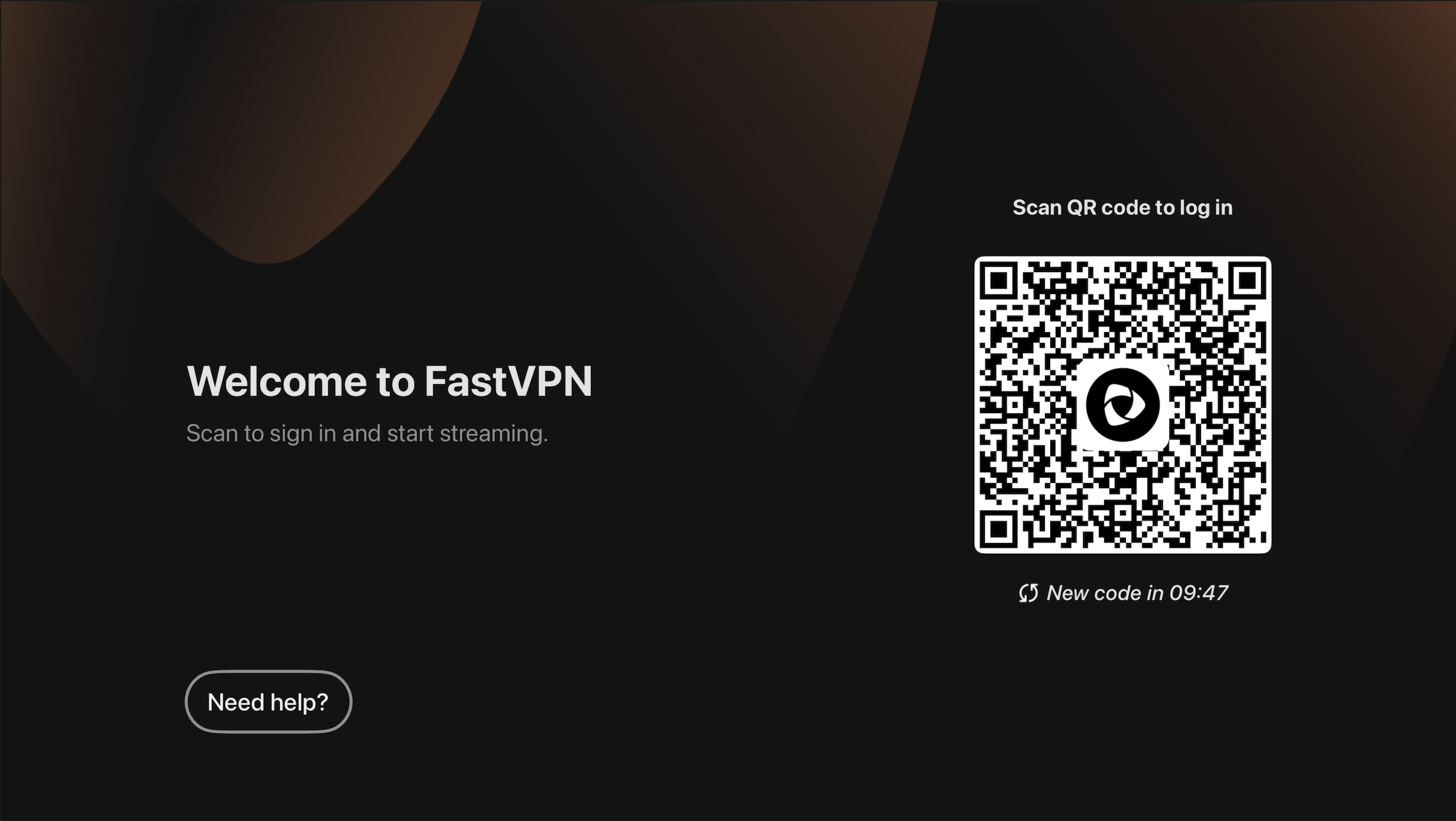
2. After the splash screen, the Welcome to FastVPN screen will appear with a QR code:
- Scan the QR code using your mobile phone or tablet camera.
- It will open the FastVPN login page in your default browser.
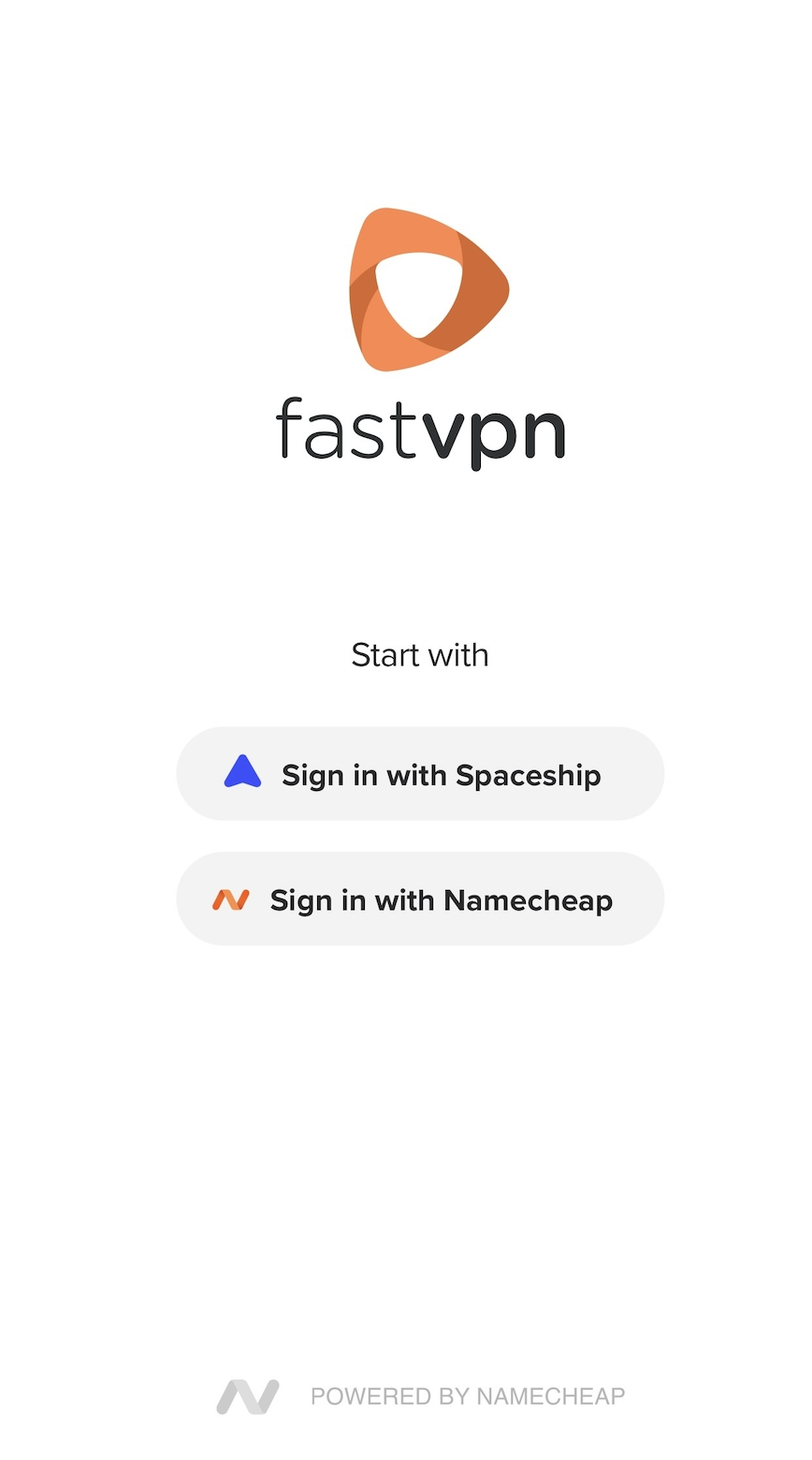
3. Choose your login method:
- Sign in with Namecheap - if your FastVPN subscription is tied to your Namecheap account.
- Sign in with Spaceship - if you purchased FastVPN via Spaceship.
4. Enter your credentials and tap Sign in.
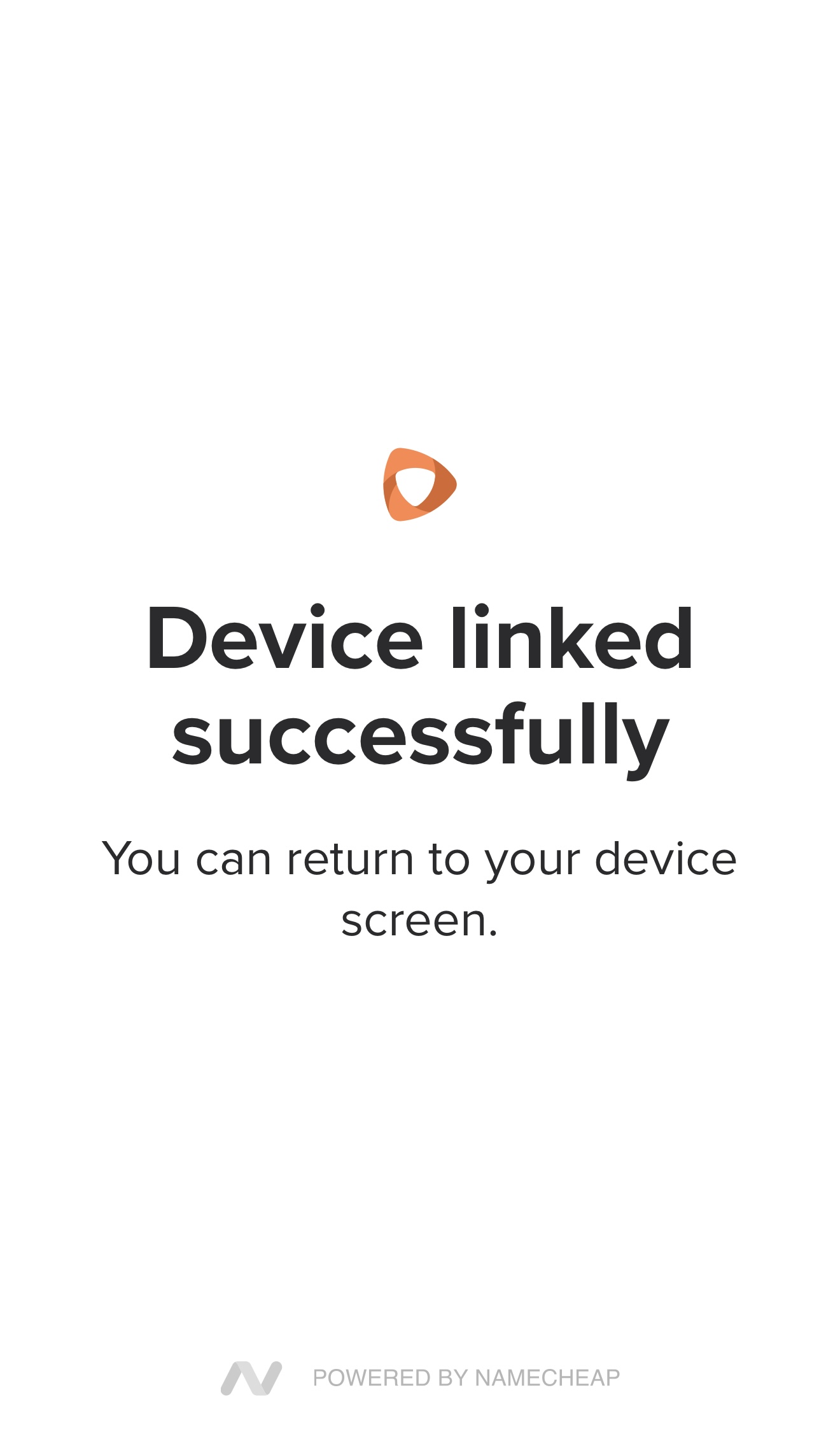
5. Once authentication completes, you’ll see the message “Device linked successfully” on your mobile browser.
6. Return to your Amazon Fire TV - the app will automatically continue to the next step.
Review Privacy Policy
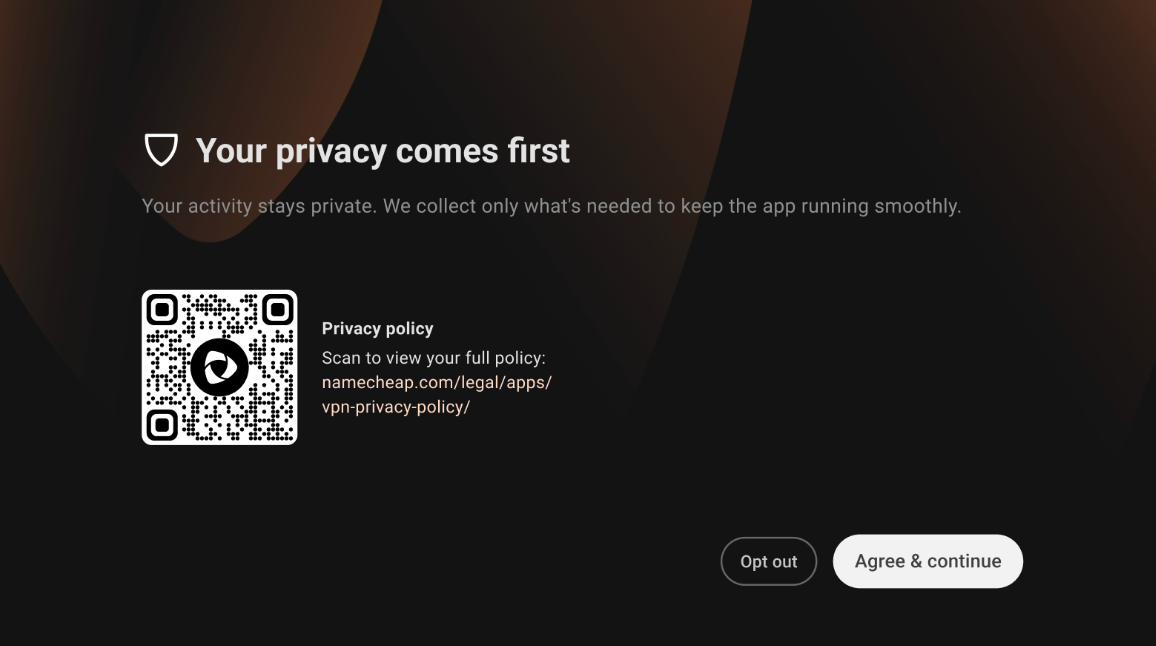
1. On your Amazon Fire TV, the app will display a Privacy Policy screen.
2. You can scan the QR code to view the full policy online.
3. Select Agree & Continue to proceed.
Connect to FastVPN
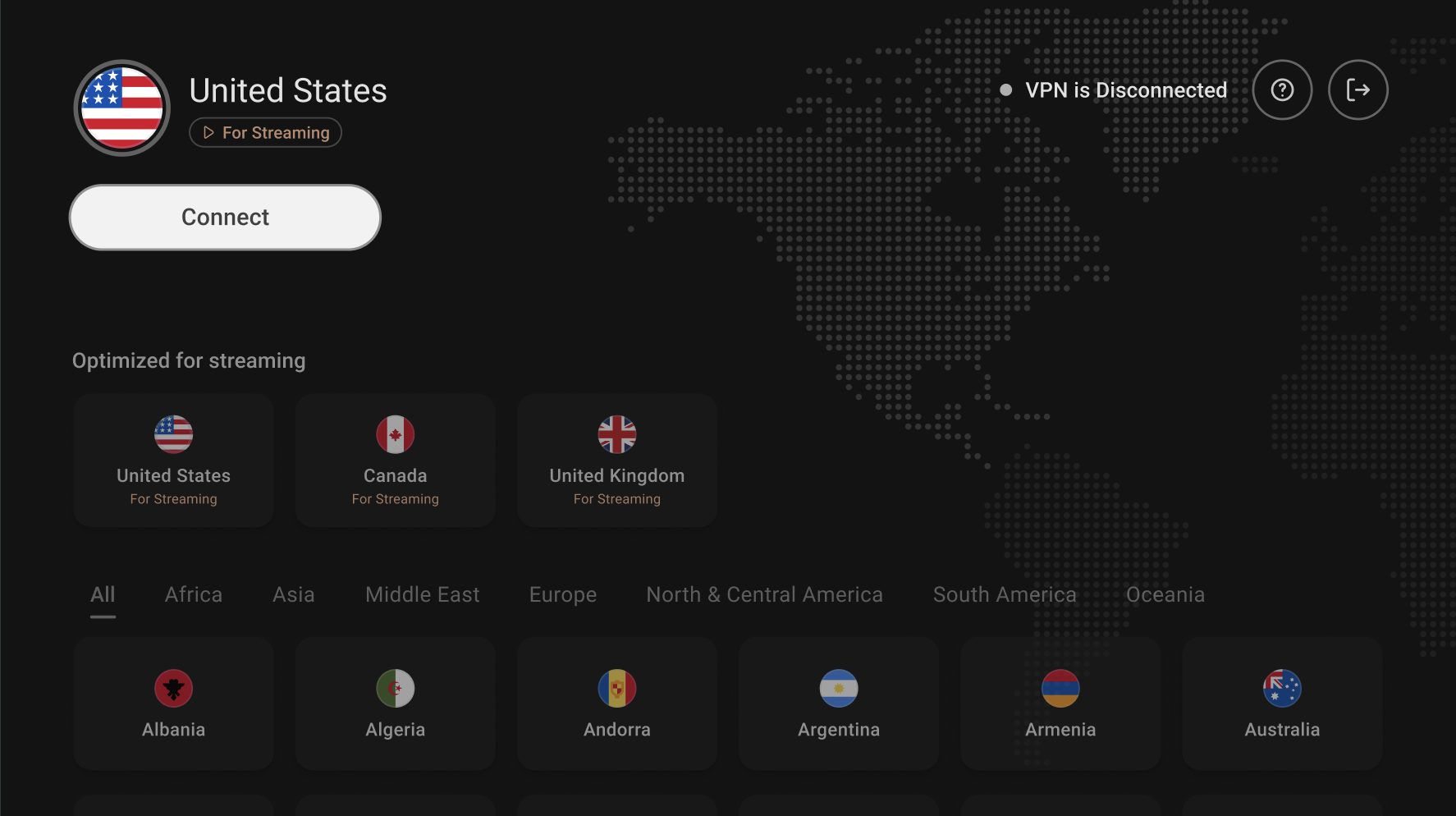
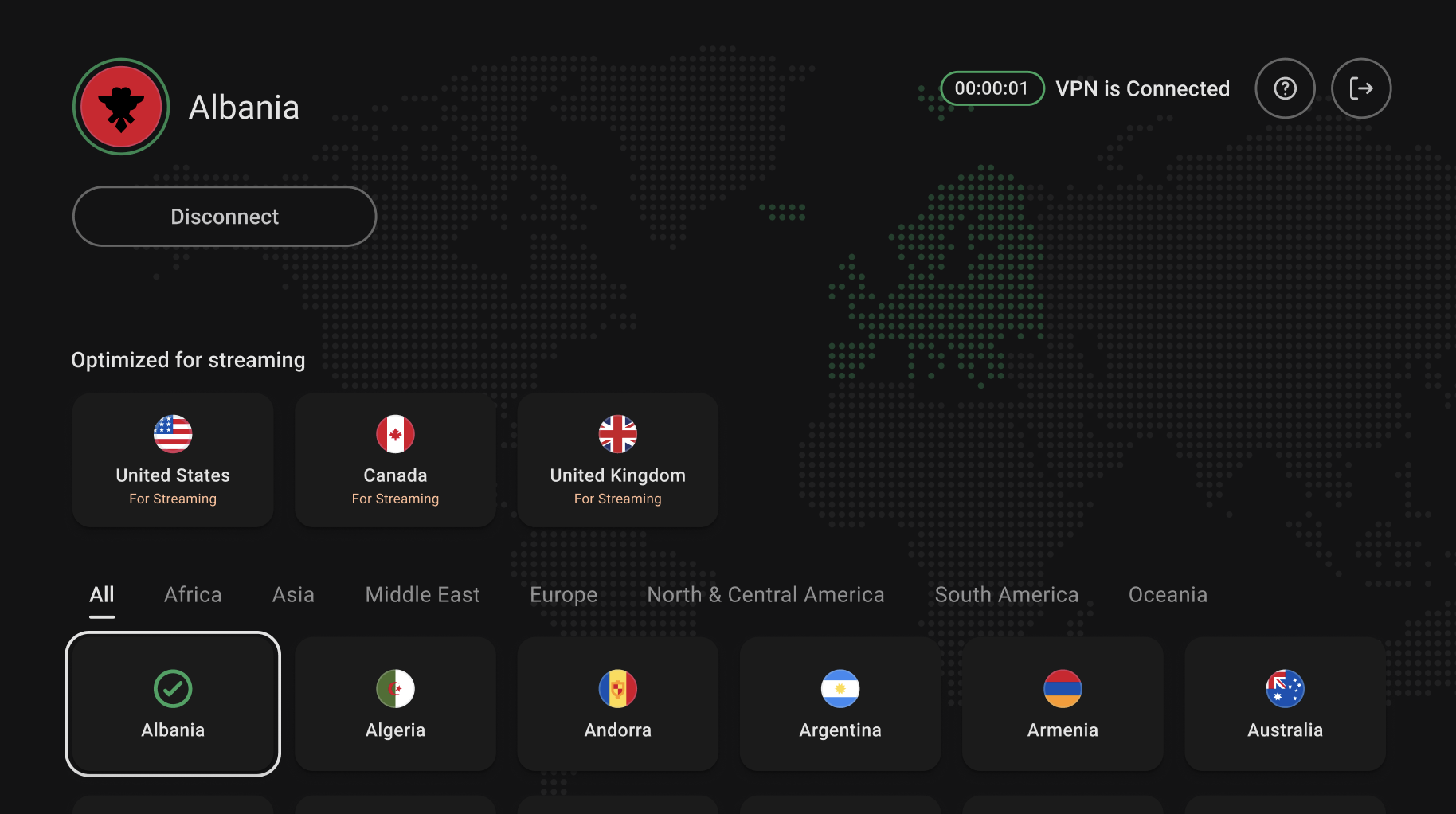
1. After the setup, you’ll arrive at the FastVPN Home Screen.
2. The main screen shows:
- Your current location (e.g., United States – For Streaming).
- A Connect button to initiate a VPN session.
- A list of available regions and streaming-optimized servers.
3. Select your preferred country and click Connect.
4. The VPN status will change to Connected once the connection is established.
Verify the connection
1. From the FastVPN Home Screen, confirm that the status indicator shows Connected.
2. Optionally, open a streaming app (e.g., Netflix, YouTube) to verify regional content.
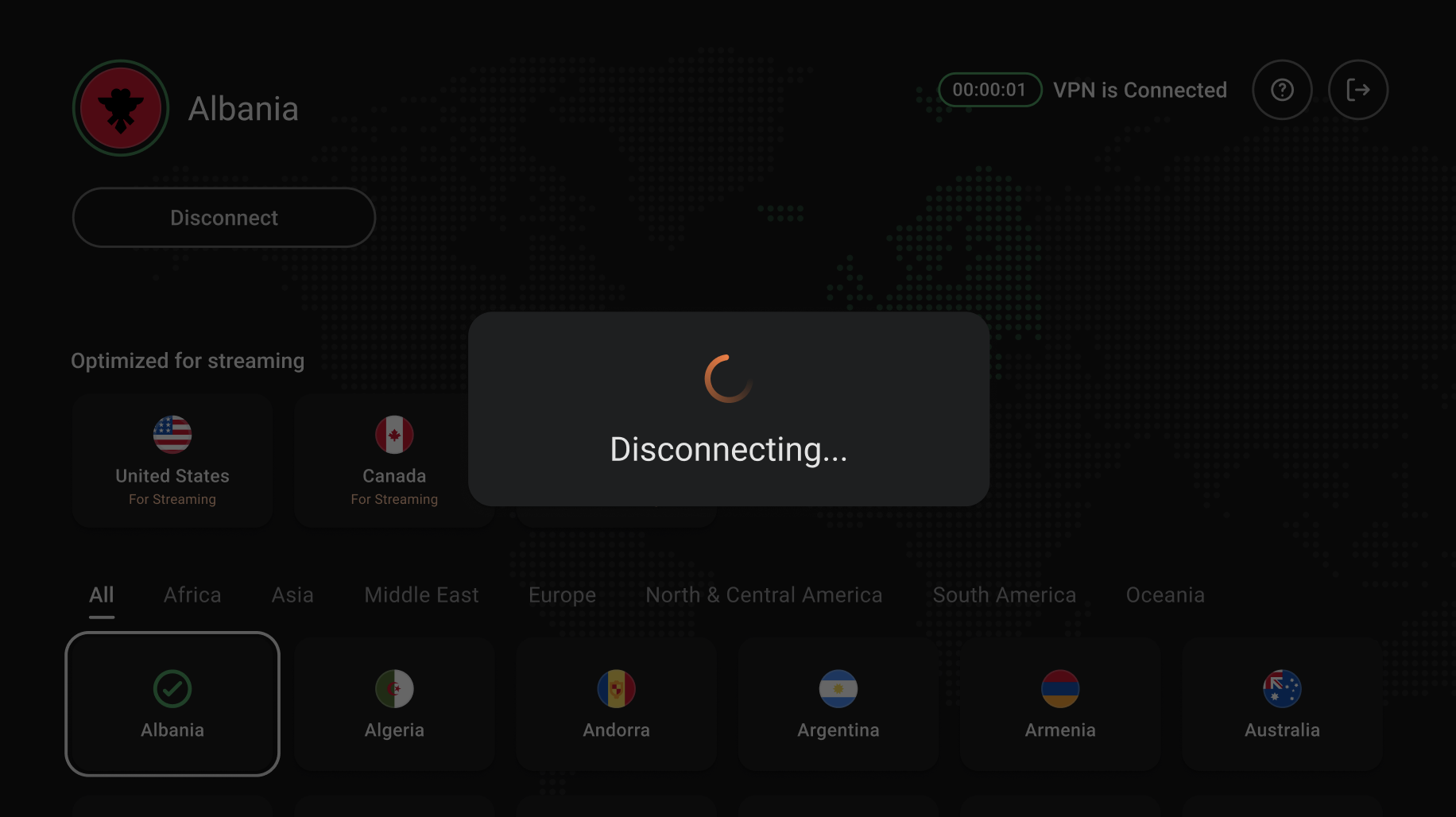
3. To disconnect, select Disconnect from the same screen.
Contact Support or Send Feedback
If you need help or want to share feedback:
1. From the FastVPN home screen, select the Help icon (?) in the upper-right corner.
2. A QR code will appear. Scan it with your mobile device to send Feedback or Report a problem.
And that's it! If you need any further assistance, please contact our Support Team