Overview
Site Maker is a website-building application that allows creating basic personal websites in a simple, guided step-by-step way without touching a line of code.
Site Maker has been designed especially for those with no experience of building a website. The unique build process and easy-to-use blocks ensure anyone can get a site up and running in no time.
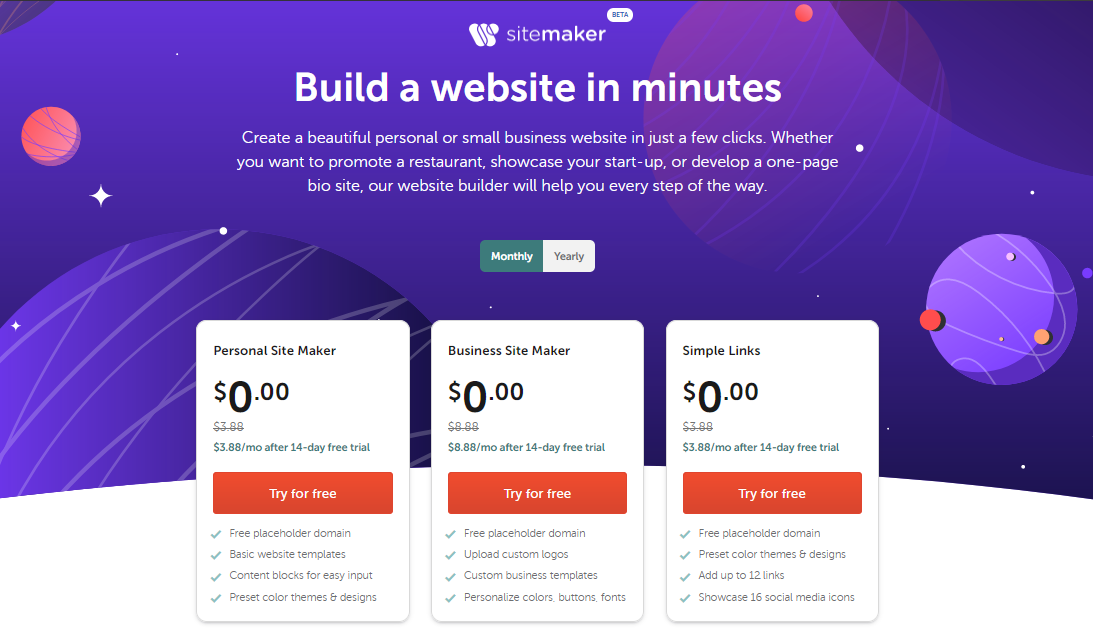
For Site Maker, we offer Personal, Business, and Simple Links subscriptions with monthly and annual billing cycles.
Currently, only Namecheap domains are supported with Site Maker. Host records are set up automatically for domain names pointed to BasicDNS and PremiumDNS. If a domain name purchased with Namecheap uses custom nameservers, host records should be created manually.
The domain name is configured automatically after being selected inside the application. In case anything goes wrong, the following records can be created manually:
Type: A Record | Host: @ | Value: 54.203.228.38
Type: CNAME Record | Host: www | Value: dns.visual.com
Getting started - Standard version
Standard (Personal) version allows creating a simple website by picking available templates and customizing them further. The final result looks like a one-page site of the roll type (the one you should scroll down for information).
1) First steps. Indicating basic info
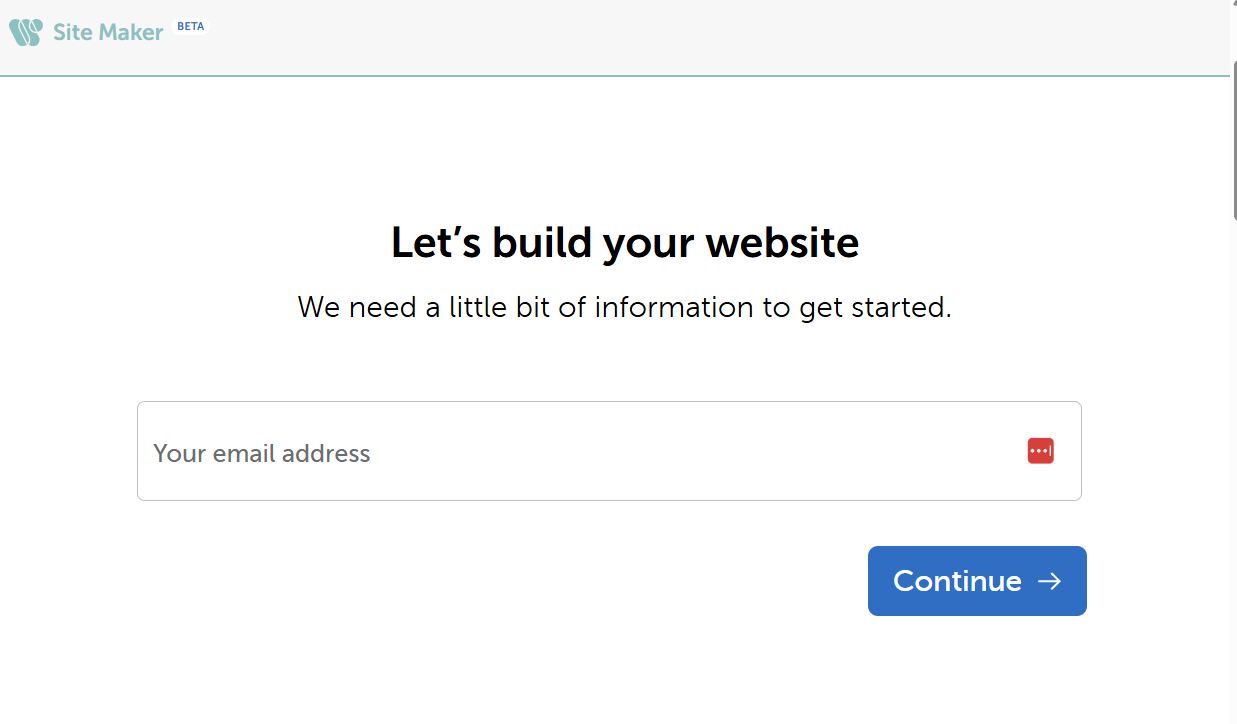
At the stage of purchasing a subscription, you will be asked to provide an email address:
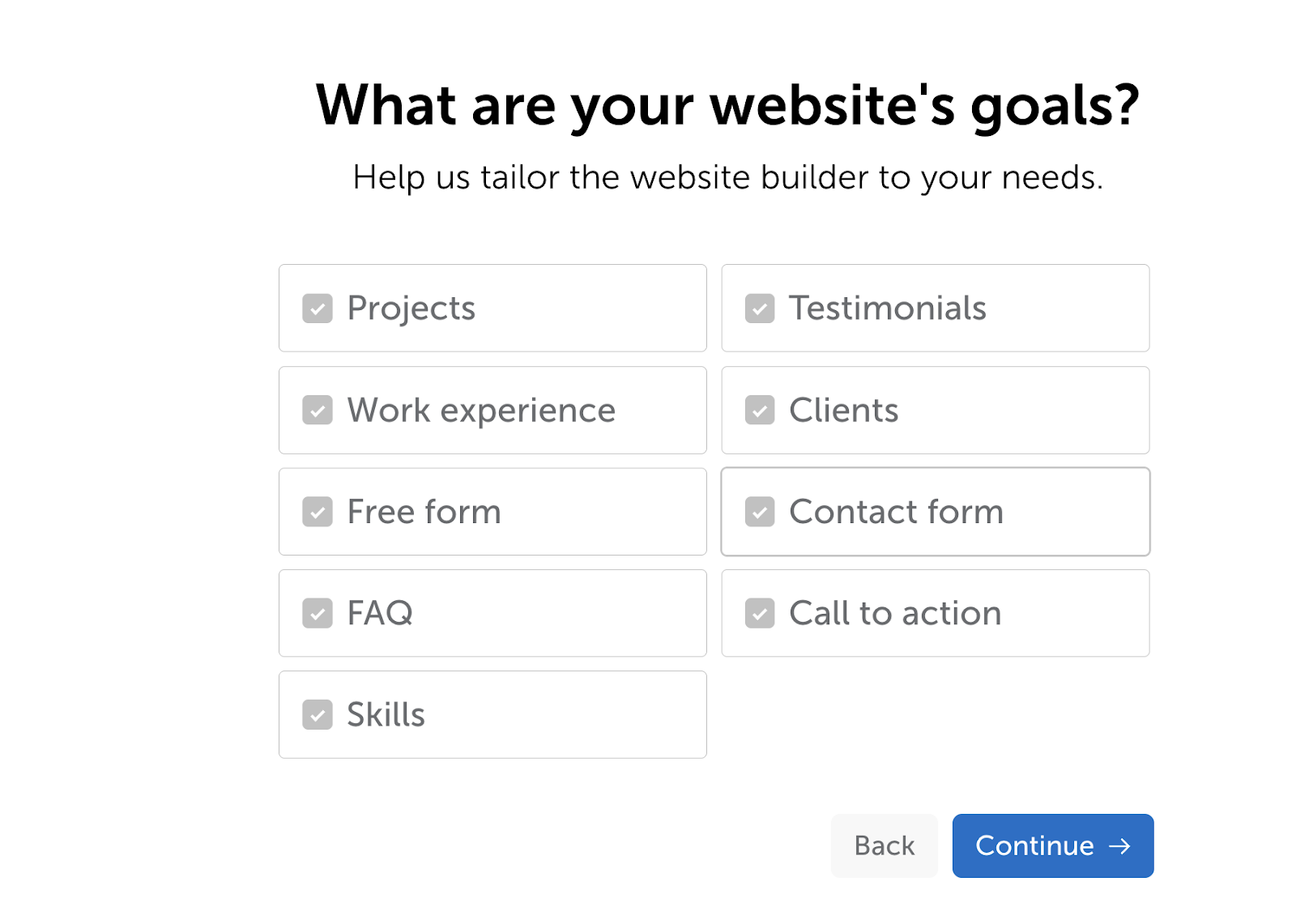
During the next step, you should select the main goals of the desired website. The goals represent content sections that would be added to the website template a bit later. It's possible to select them all:
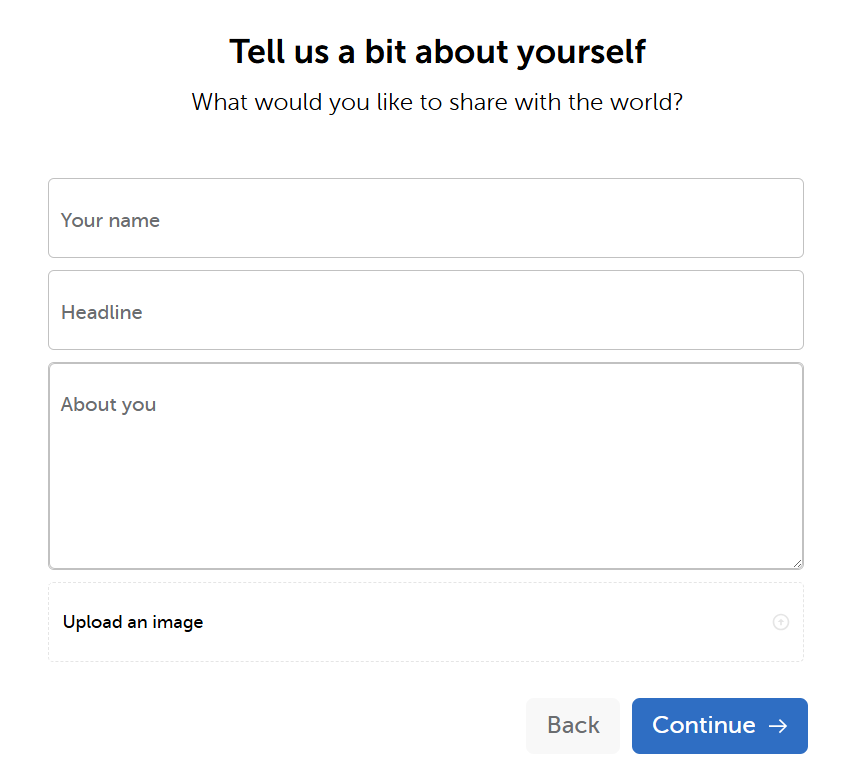
One more step for collecting your information. It's also possible to upload a logo or photo. Requirements to the image: less than 5 MB; .PNG, .GIF and .JPEG (.JPG) formats:
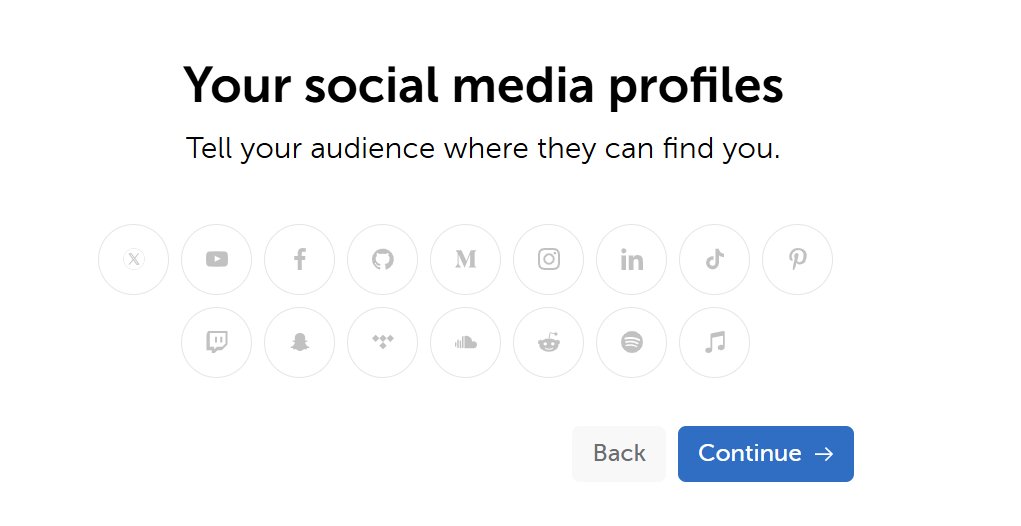
Here, it's possible to add links to social networks:
2) Building a website
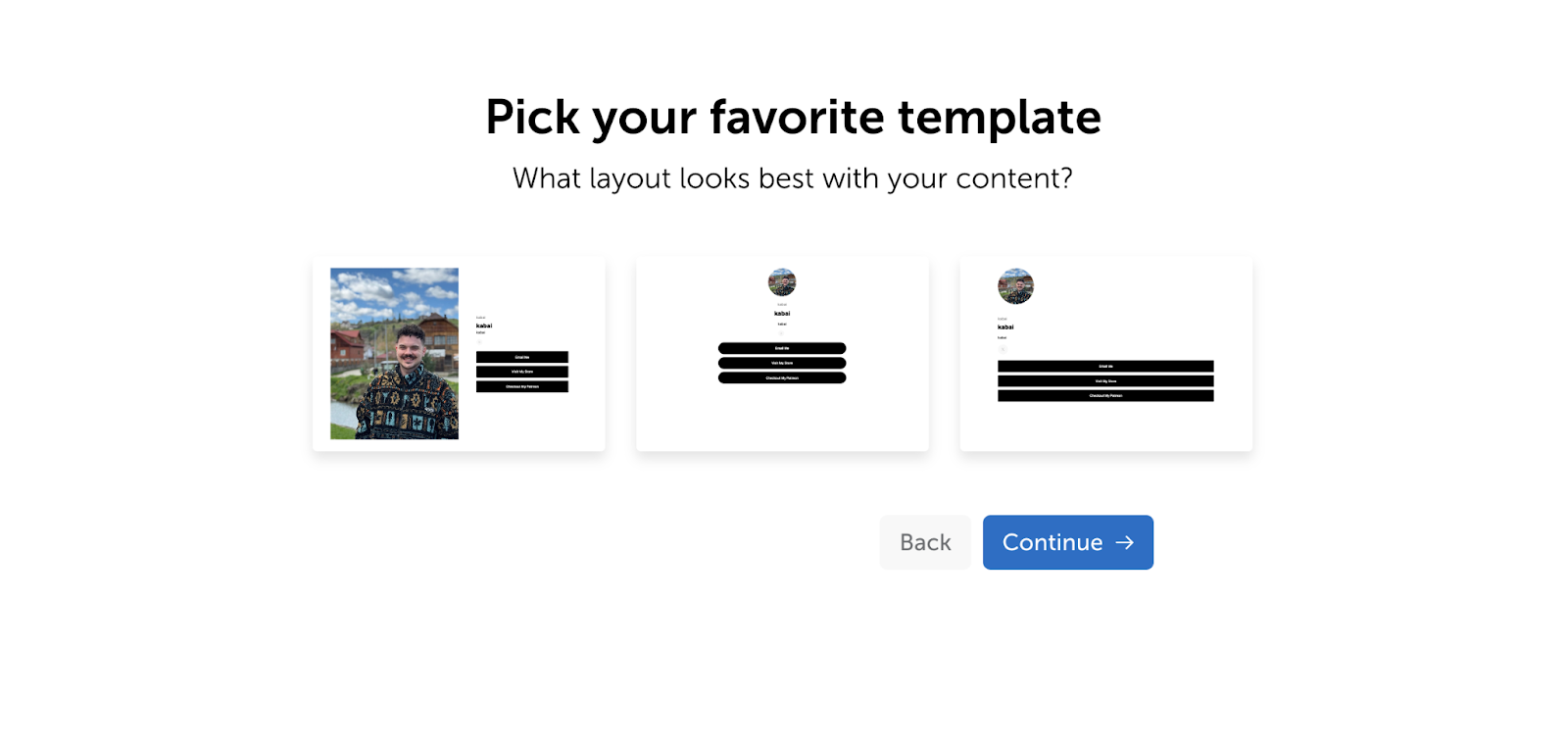
At this step, a set of templates is already generated and provided to you:
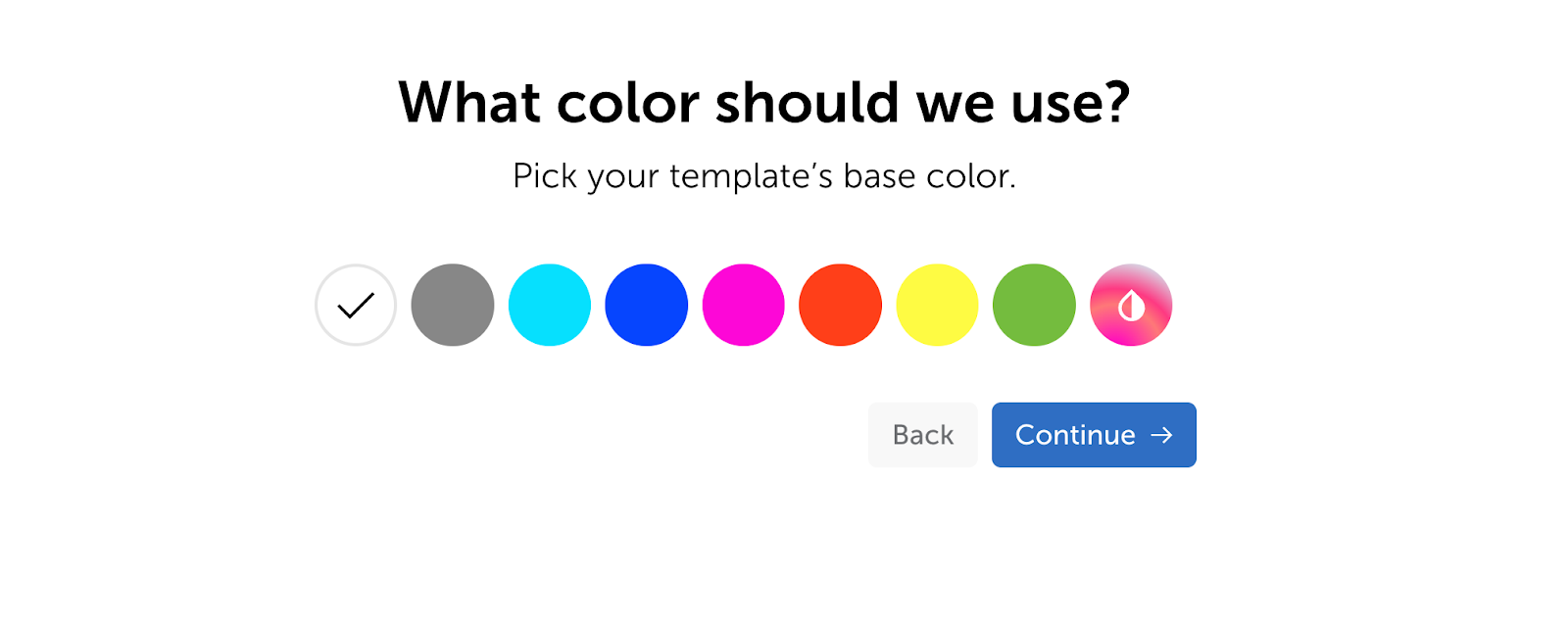
The next step defines the color of the website background. Only one color can be selected:
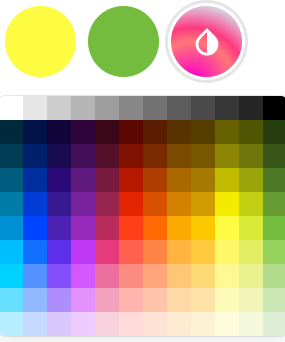
Clicking on the last circle with a drop icon opens a grid with more color options:
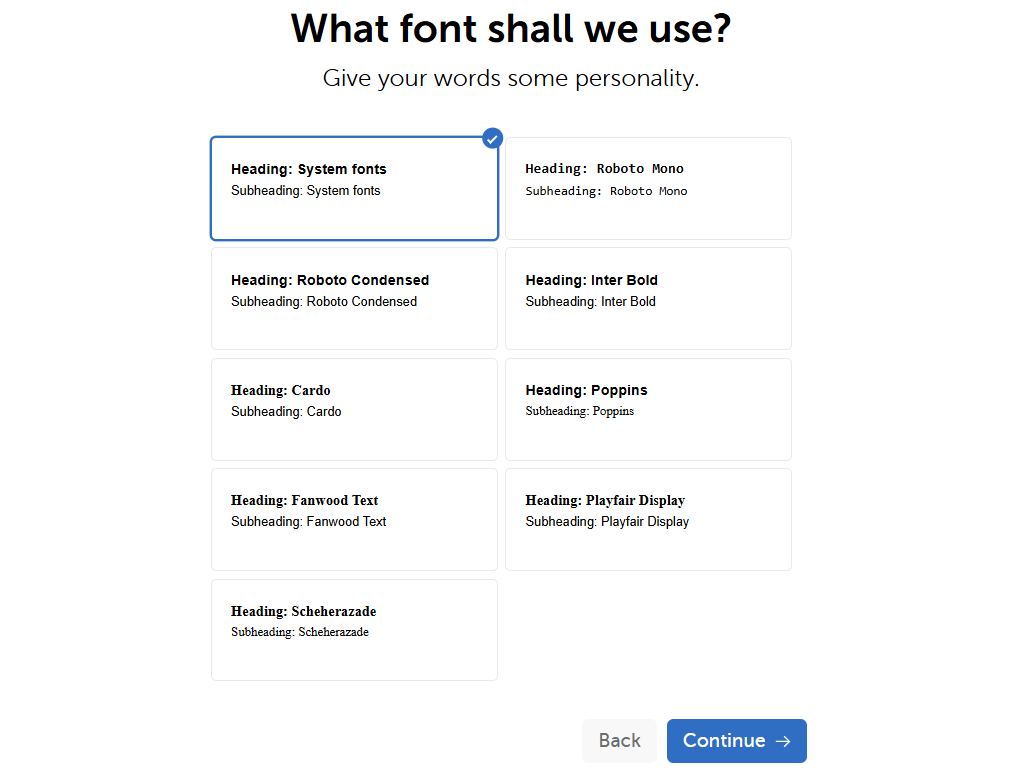
Then the base font can be selected in the same way:
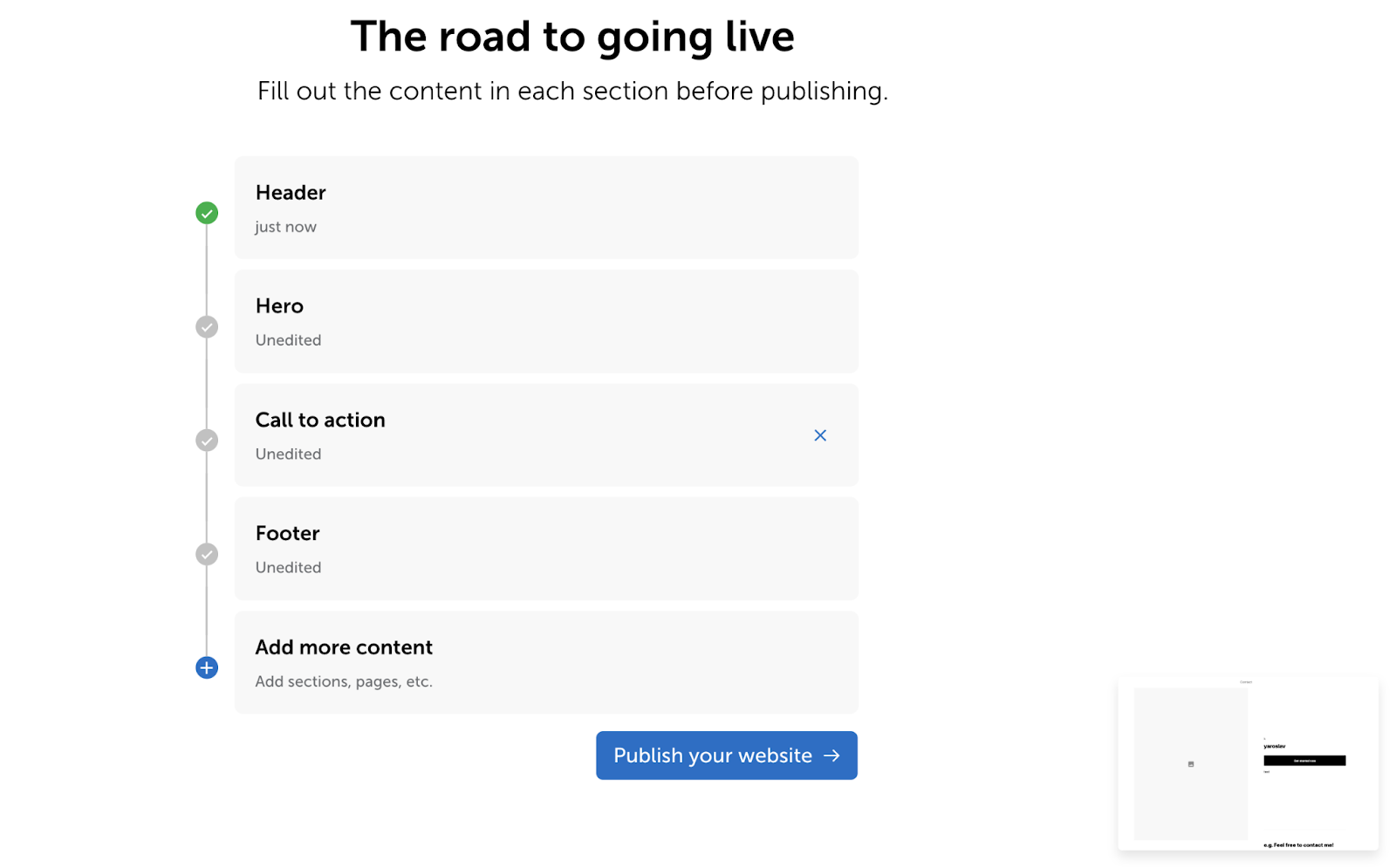
The next step allows you to fill in website sections with information:
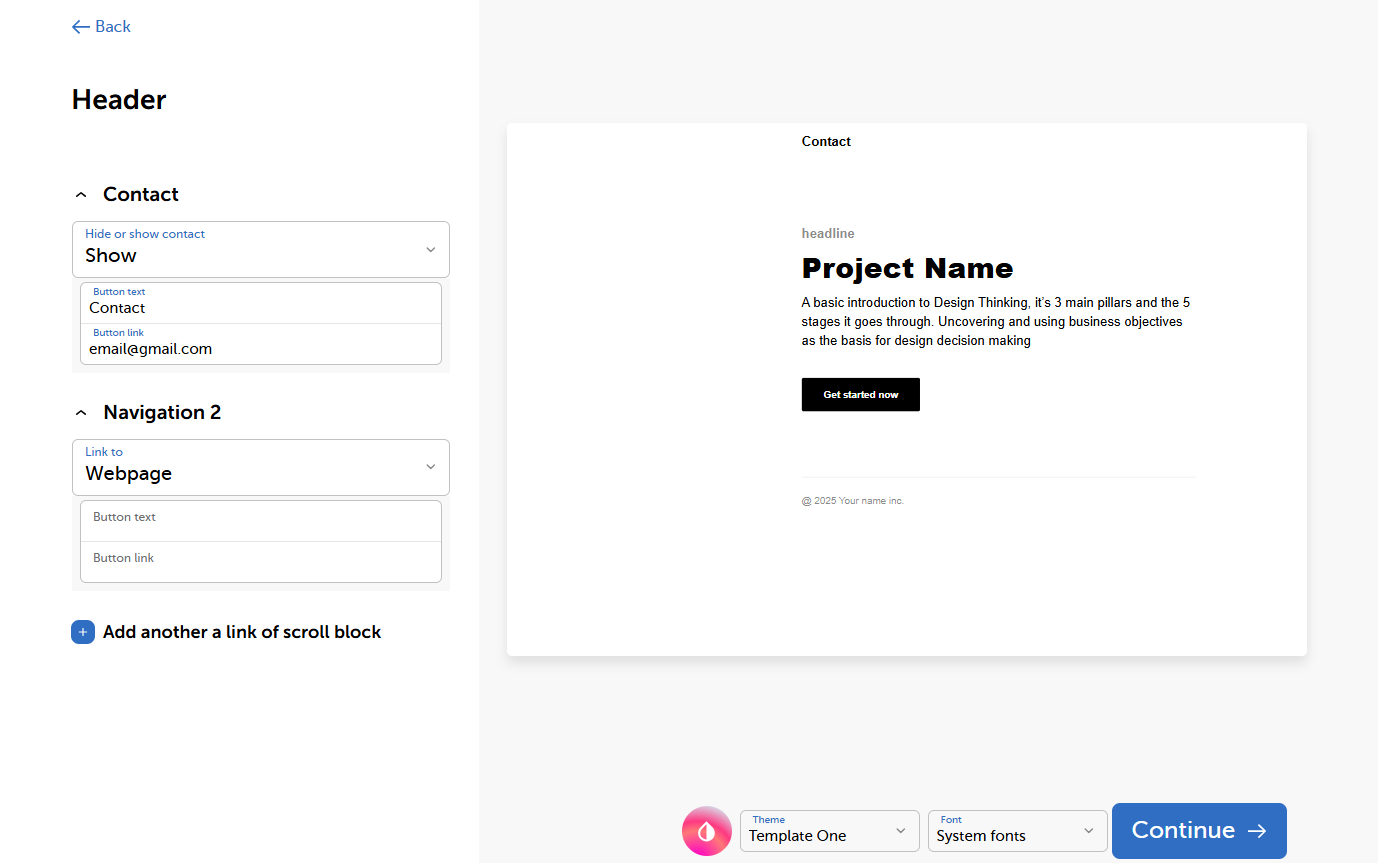
Clicking on each section opens a dedicated form and displays changes to the template in real time:
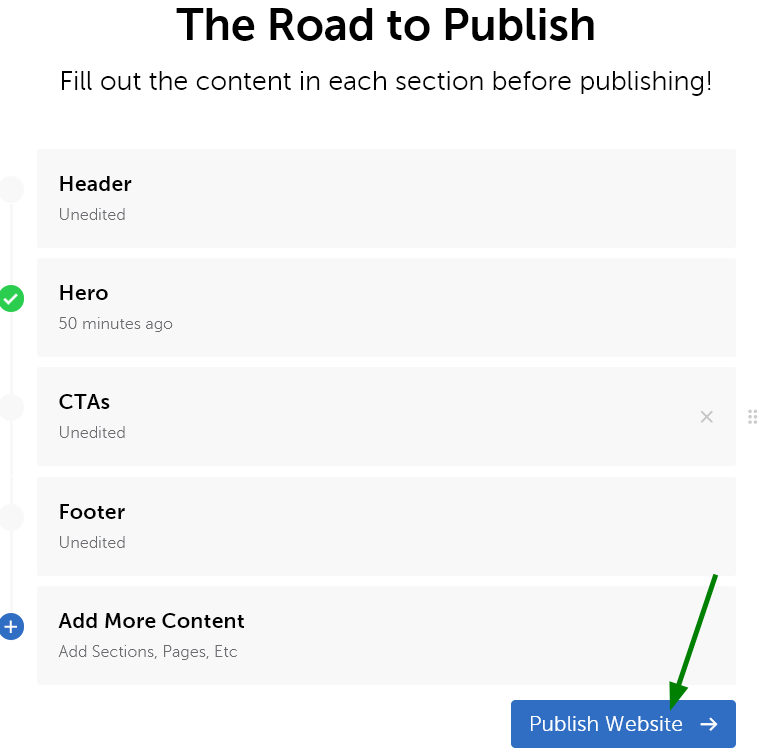
Clicking the "Continue" button gets you back to the "Road to Publish" section, where it's possible to pick another section to edit.
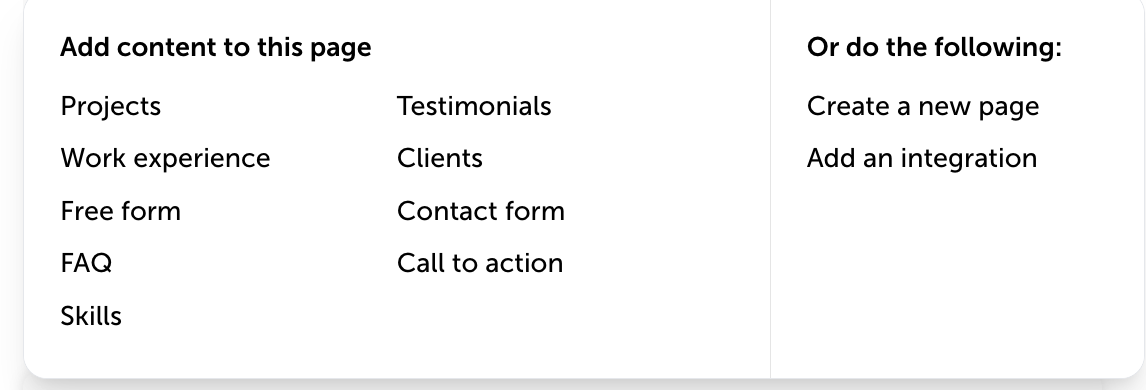
The "Add More Content" option allows you to add custom sections, more pages, or integrations:
NOTE: Images for Site Maker can be uploaded in . jpg, .png or .gif format with the file size up to 5 MB.
3) Selecting a domain name
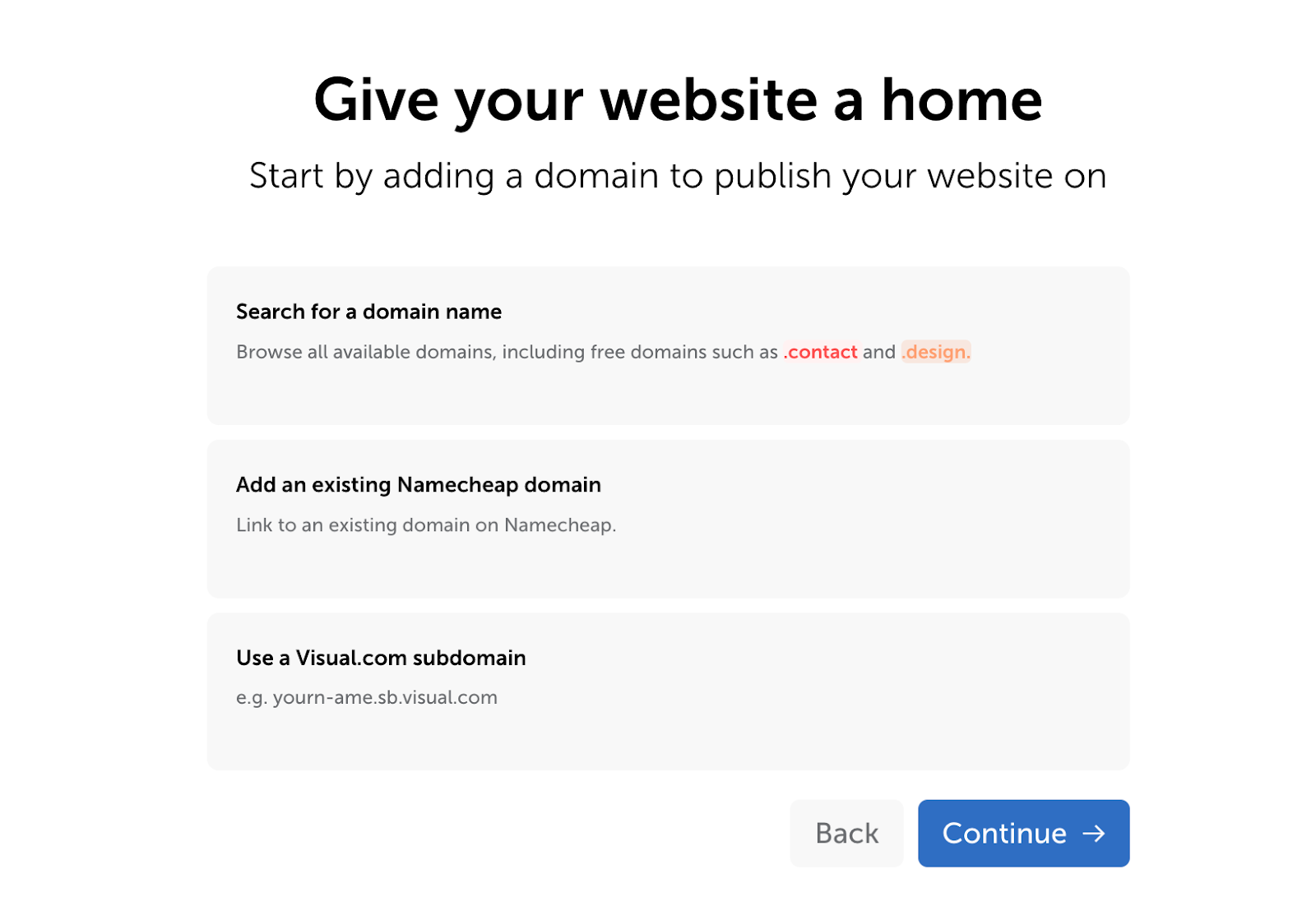
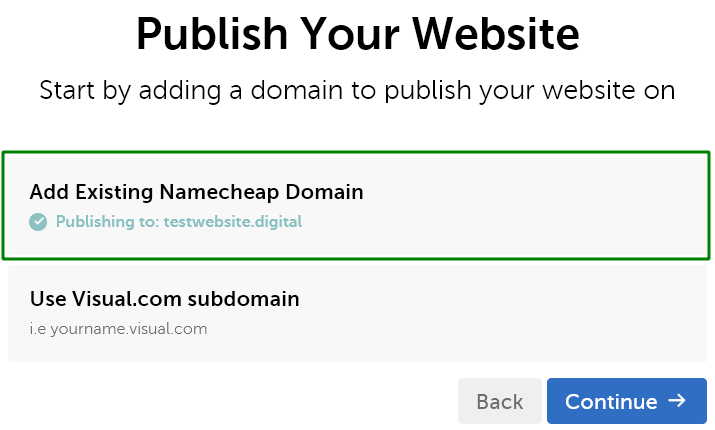
Once everything is ready, the "Publish Website" button will open the Domain Selection menu:
4) Making a purchase
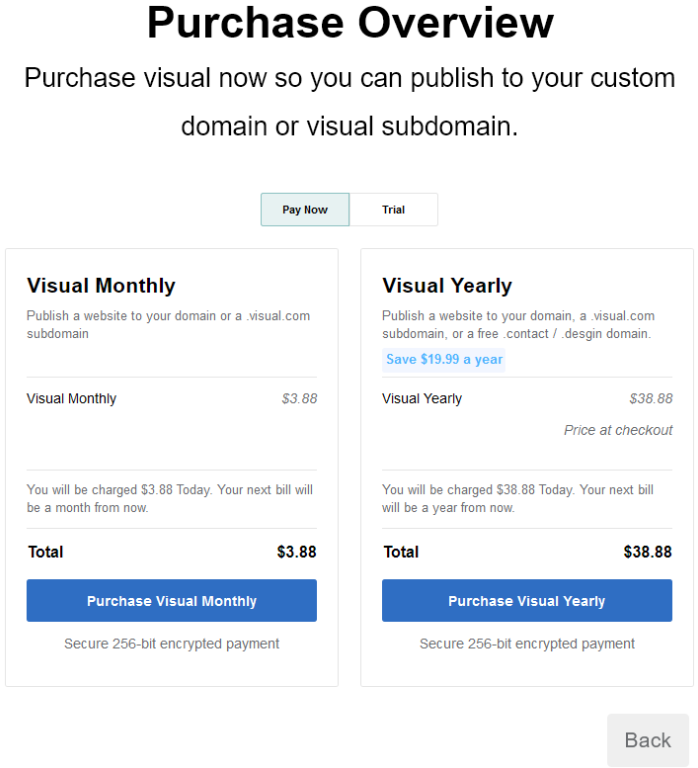
The "Purchase Overview" page has two tabs. The first one ("Pay Now") is displayed by default. It offers 2 types of paid plans:
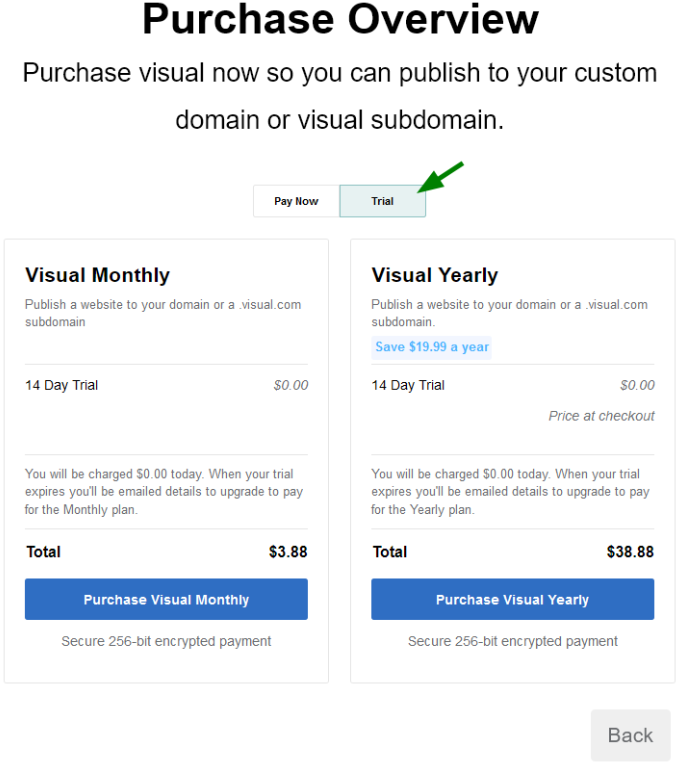
Here's what's displayed if the "Trial" tab is selected:
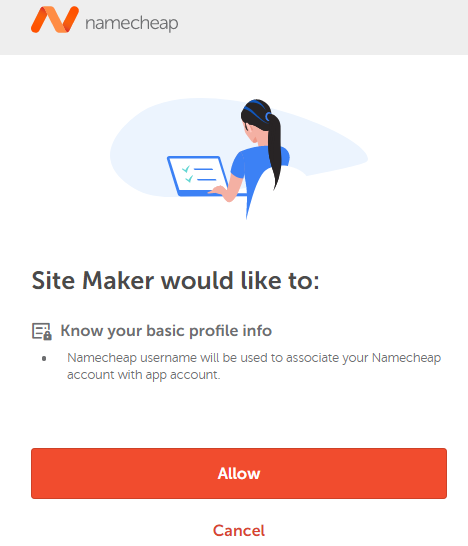
The following window may pop up during the first purchase. Feel free to proceed by clicking on the Allow button:
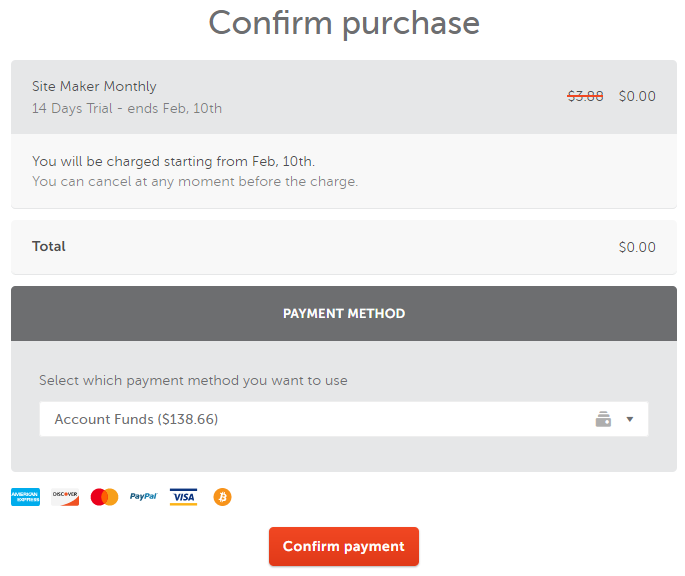
Here's a purchase confirmation window (trial version):
5) Website publishing
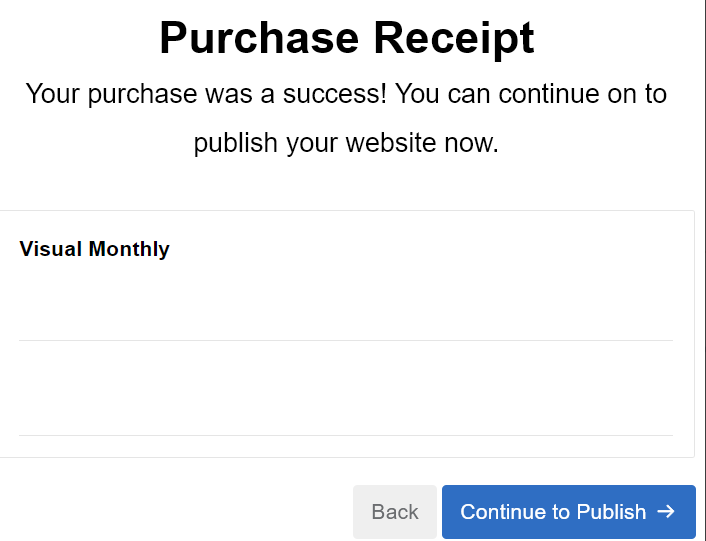
Once the payment is made, the application suggests resuming website publishing:
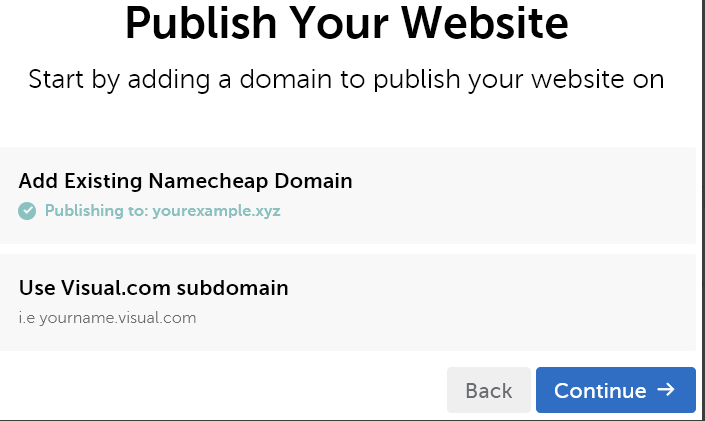
Then it's required to select a domain name once again. This time, to connect it with the hosting:
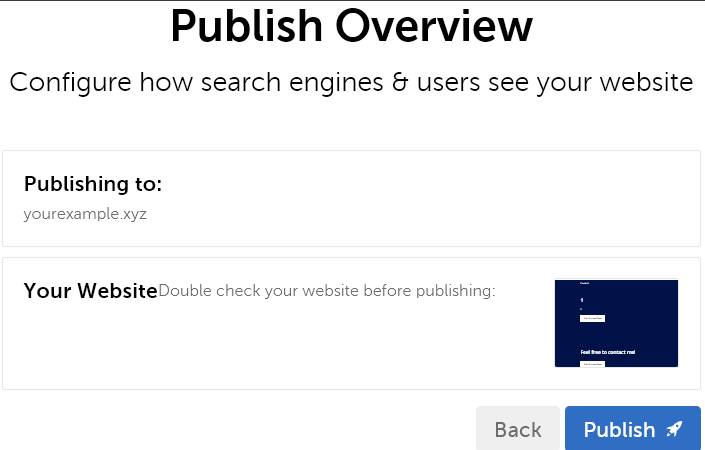
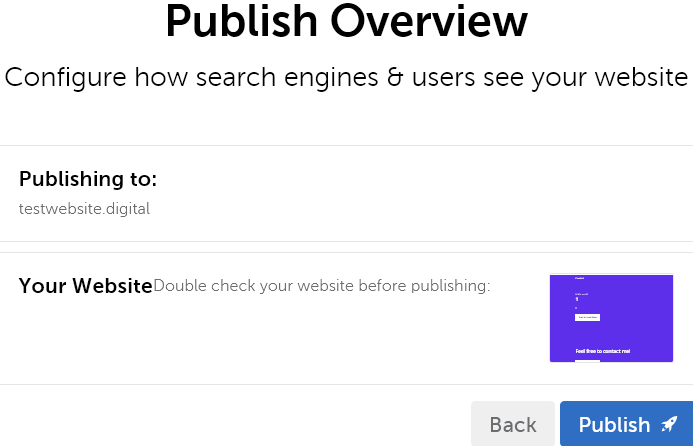
Finally, the confirmation window appears:
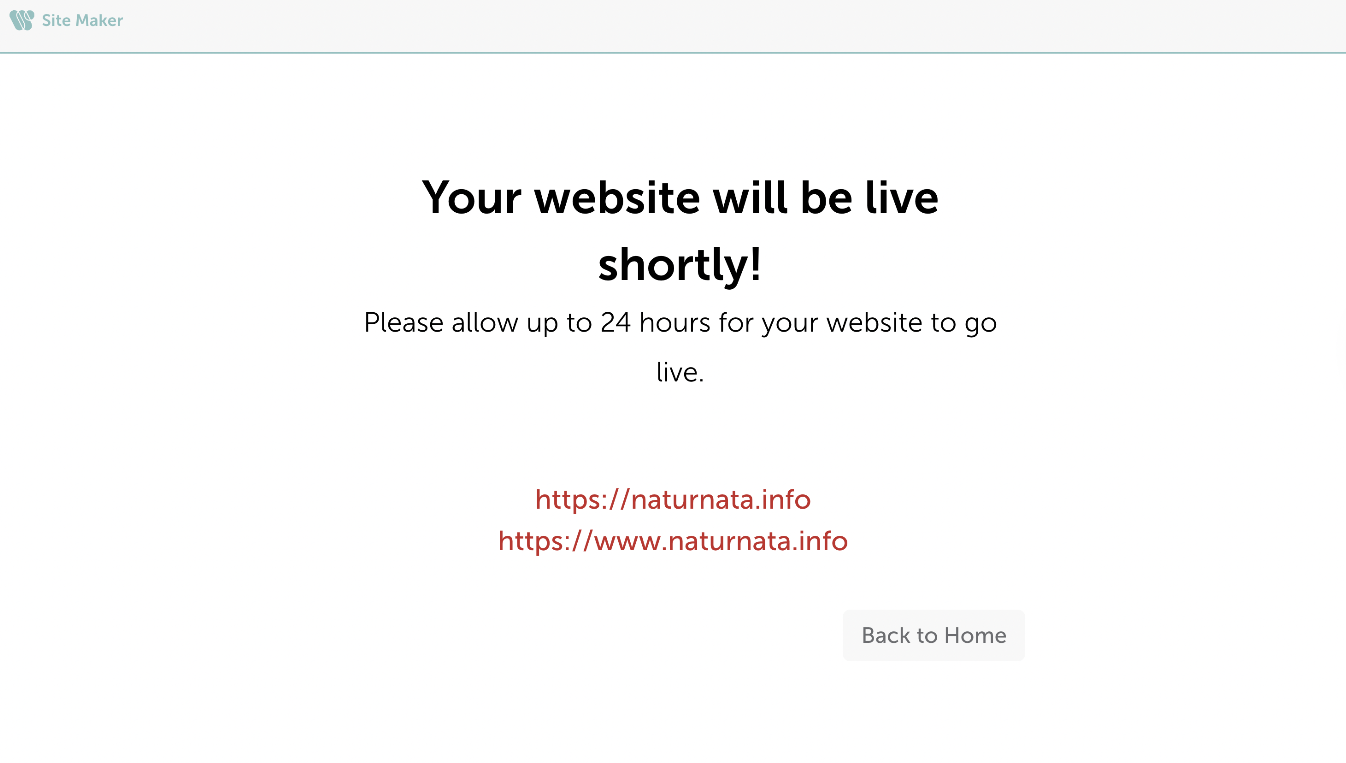
As soon as the website is published, the following information shows up:
6) Top menu tabs (Editor, Integrations)
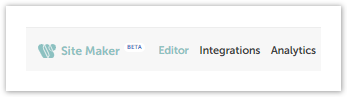
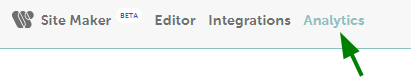
As the website is being created, it's also possible to navigate through 3 different tabs:
- Editor (website-building mode described above);
- Integrations.
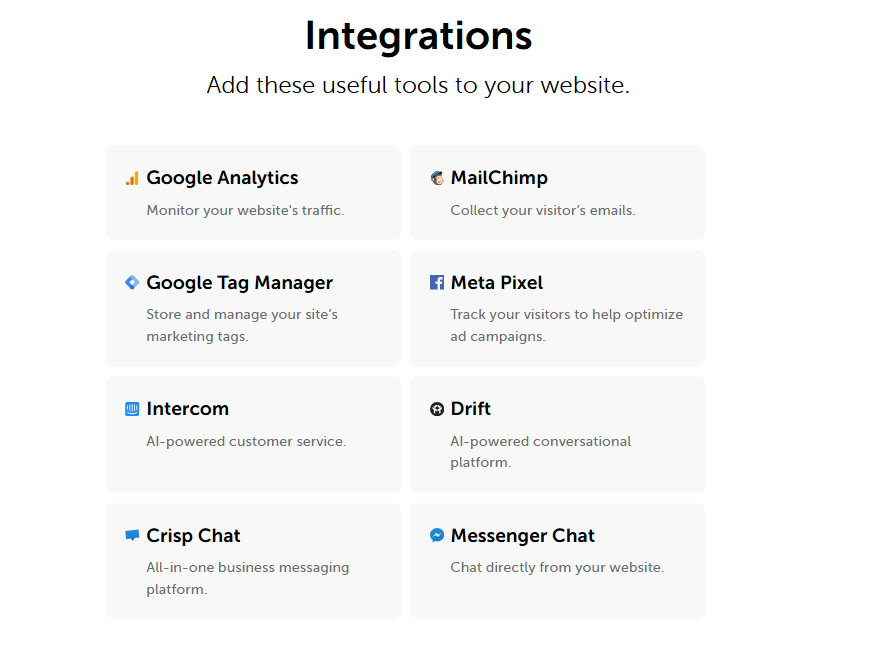
Integrations make it possible to add different kinds of widgets from other websites:
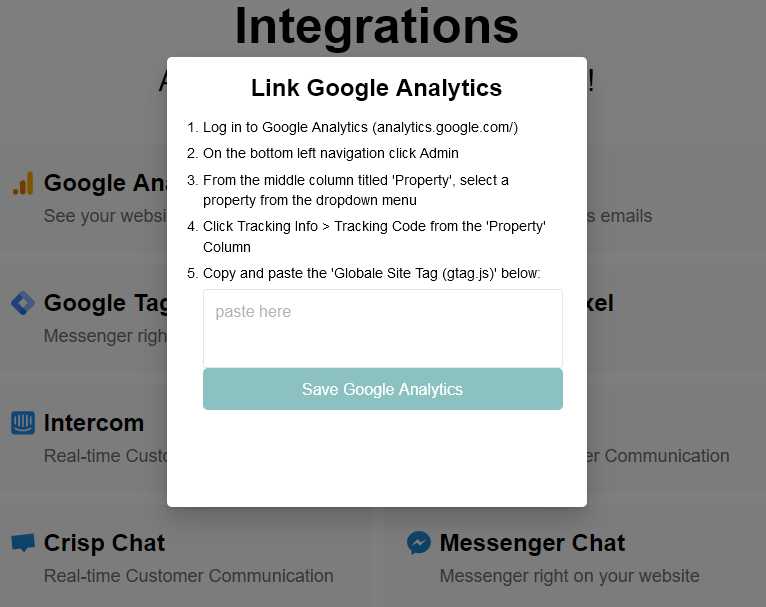
Each option opens a pop-up window with step-by-step instructions:
7) Updating a website
You can publish updates by logging into the application
and selecting the website created earlier:
Then the process repeats itself (see the "Building a website" section). An application allows you to modify all the contents and layout. Once done, click the "Publish website" button:
If the destination domain name is the same, it's only required to click "Continue" to proceed. In case the domain name should be replaced, it's possible to select another one from the list of domains already registered:
NOTE: If another domain is selected, the previous one will stay connected to its own version of the website until the host records are removed.
The final step is to approve the changes before publishing:
Business version
Business site editor looks similar to the Standard one. However, it offers a variety of templates specifically tailored to showcase business-related information. For example, it has templates for restaurant businesses and startups; it contains slideshow displays, photo/video showcases, working hours/pricing/FAQ presets, and much more.
The final result also looks like a one-page site of the roll type (the one you should scroll down for information). However, a customer can create more pages and link them together with the help of button&link elements available in the editor.
NOTE: Business Site Maker is not suitable for e-commerce. E-commerce websites are those where people can actually buy something, i.e., there is an integration with some payment system. Site Maker does not have such integration. But the Business version is a good choice to make a website about your business, show your work, show your portfolio, and vacancies.
Analytics
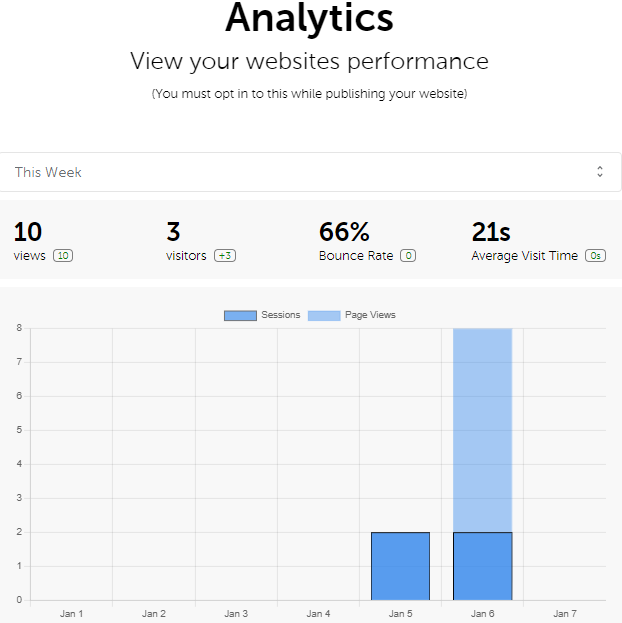
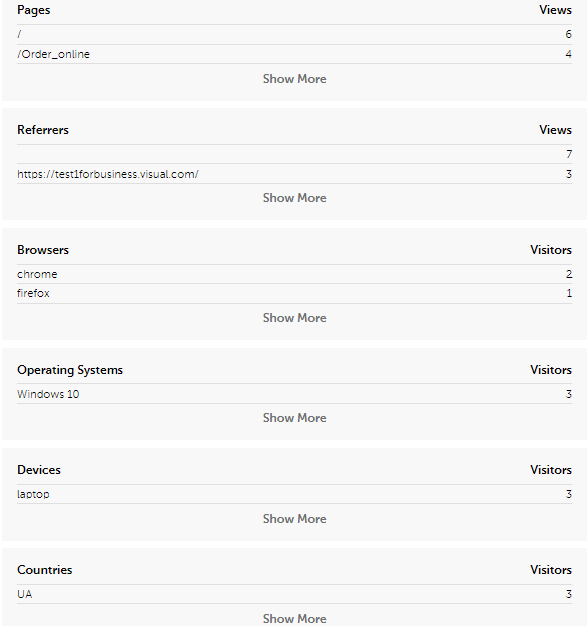
Analytics is a feature added along with the Business Edition. It allows tracking website performance (page views, sessions, browsers, operating systems, devices, countries, bounce rate, average visit time):
Details start to appear once the website is published and accessible online. Sometimes it's required to wait a bit for the statistics to show up.
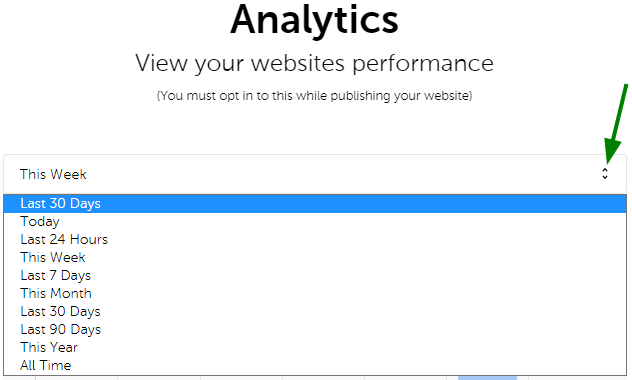
You can select time frames for the data to be displayed:
There's a visual representation via a chart:
More detailed statistical data is available below the chart:
Simple Links version
Simple Links version is designed for users who want to create a page that contains their contact information (social media links, email addresses, etc.). Such a page can be called a "virtual business card" that is available online for everyone. With Simple Links, it's possible to add up to 12 links and up to 16 social media icons on the page.
The editor has the same structure as Personal and Business versions. The website creation process follows the same logic, with the only difference in the final page template.
Namecheap subscription and Dashboard
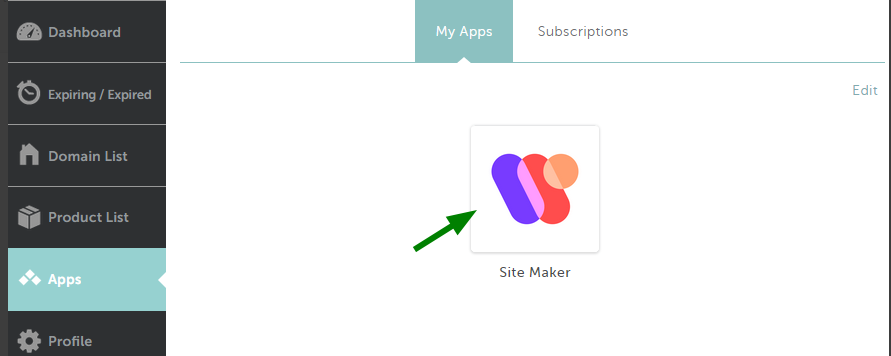
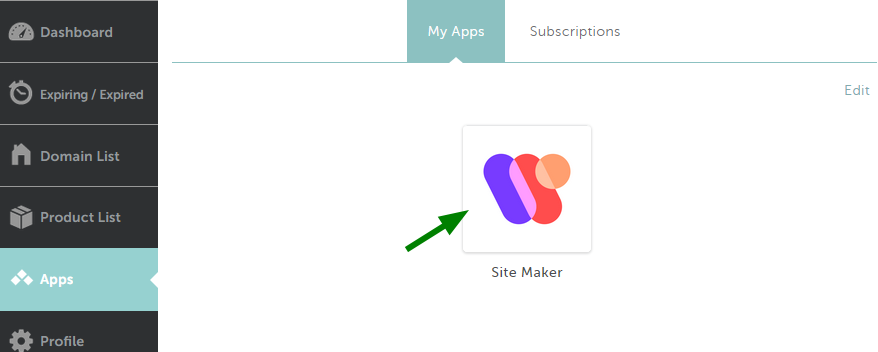
If you already own the application, you can access it from the Apps section of your Namecheap account ( Apps >> My Apps ):
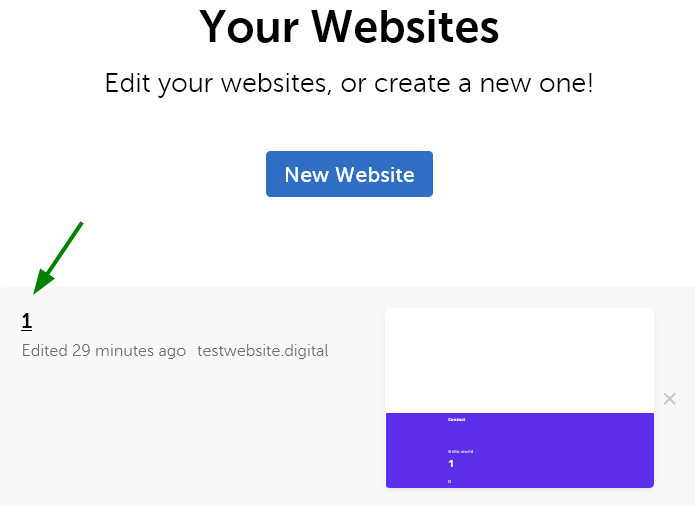
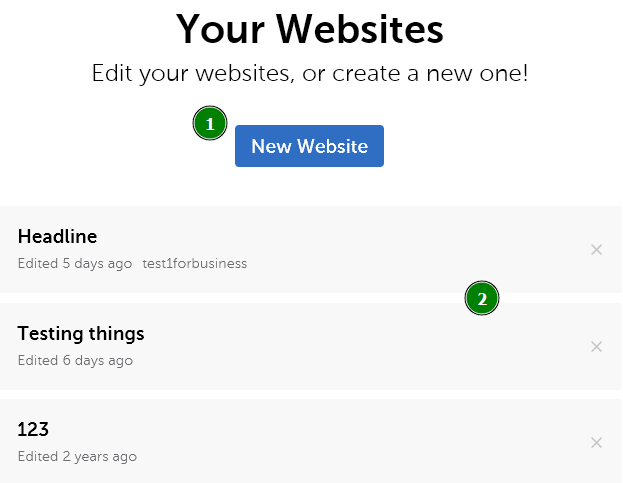
Clicking on the icon opens the Dashboard page, where it's possible to create a new website (1) or continue working with previously created ones (2):
The X sign on the right removes website versions that are no longer needed.
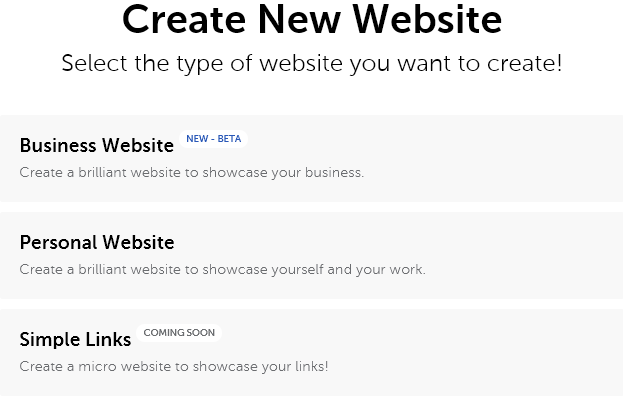
If the "New Website" option is selected, you can choose between the subscription options:
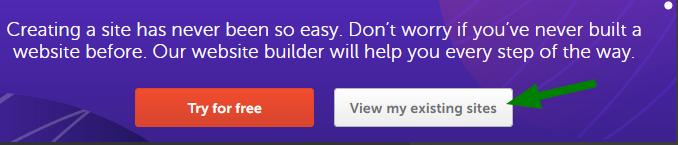
It's also possible to access created websites by clicking on the corresponding button on the landing page:
That's it!
Need any help? Contact our HelpDesk