How to change Namecheap Private Email password

This article is valid for both new plans (purchased on or after June 2, 2026) and legacy Private Email plans (purchased before June 2, 2026).

There are two ways to change the password to your Private Email mailbox: you can do it via the Namecheap Dashboard or within the webmail interface.

Before proceeding, make sure you have logged out of your mail account in Webmail and mail clients. While an active session is running, you will not be able to reset the password.

Password change tips:

  • Your password must be at least 8 characters and contain at least 1 uppercase character, 1 lowercase character, 1 number, and one special symbol.
  • Use a password with 8+ characters for strength.


Password change via webmail

Password change via webmail (legacy plans)


Password change via Namecheap account

To change the password for your Namecheap Private Email mailbox via Namecheap Dashboard, do the following:

1. Sign in to your Namecheap account.

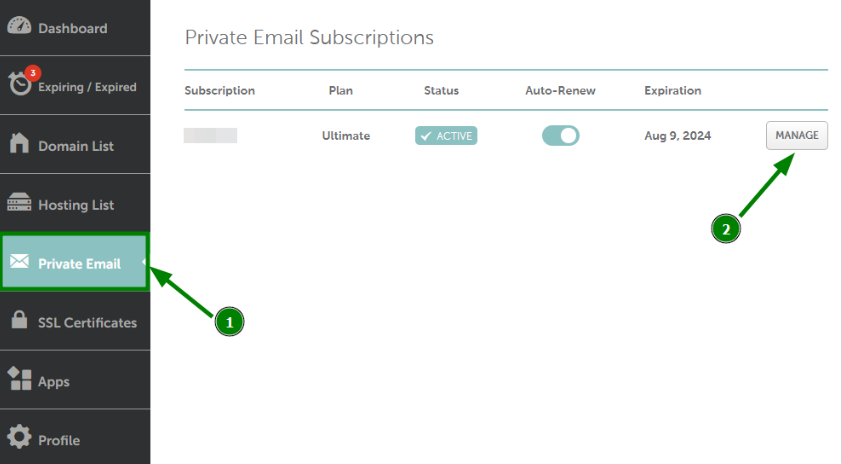
2. Go to the Private Email menu on your left, and then click Manage next to the needed subscription:


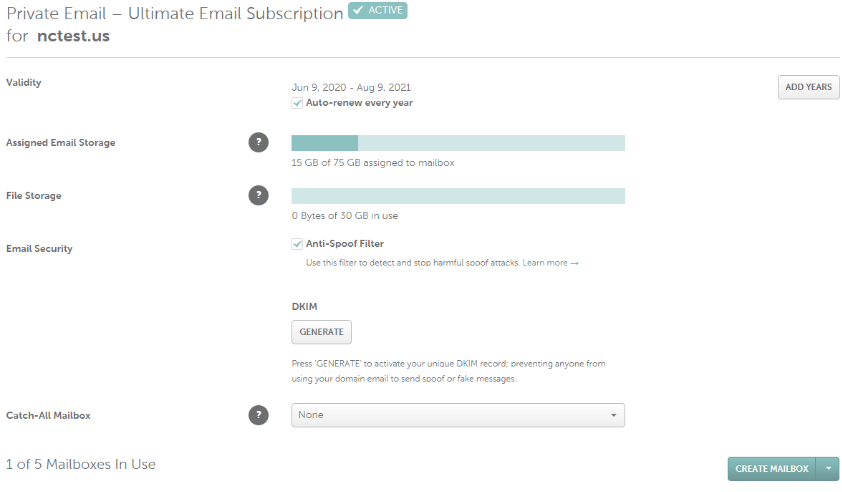
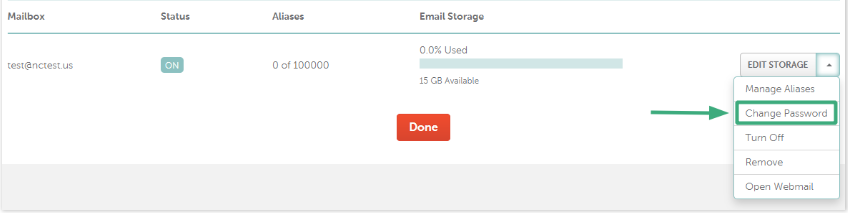
3. Scroll down to the section with your current mailboxes. Expand the Edit storage menu next to the email account you wish to reset the password for and select the Change Password option from the drop-down menu:


4. Submit the following fields:

  1. New password: the password you would like to set for your Private Email account.
  2. Confirm new password: re-type the password you would like to set for your Private Email account
  3. Namecheap password: Enter the password you use to log in to your Namecheap account to verify the changes.

NOTE: The passwords for the Private Email account and Namecheap account are different:
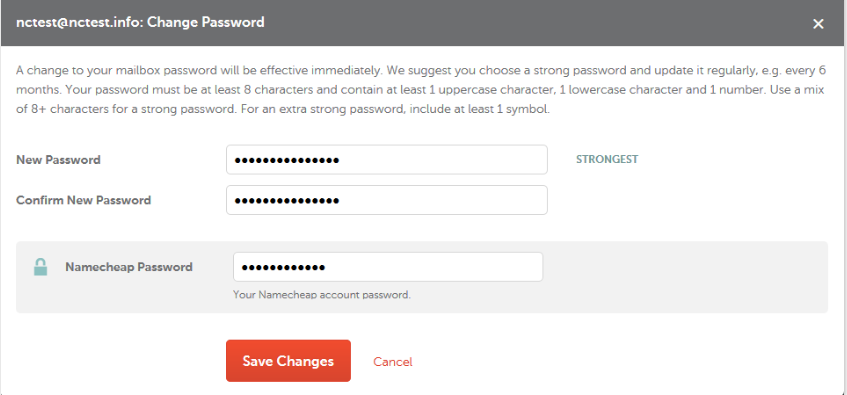


Once done, hit Save Changes. The change of your mailbox password will be effective immediately.


To change the password via webmail, you need to access your mailbox at privateemail.com and follow these instructions:

1. Navigate to the System menu and choose Settings.
2. Select the Basic settings menu in the bar on your left.
3. At the bottom of the page click on Change Password button:


4. A pop-up window will show up, fill out the fields and click Change password and sign out:


Password change via webmail

Also, you can change the password for your mailbox using Webmail. To do it, you need to access your mailbox at privateemail.com and follow these instructions:

1. Log in to Private Email webmail.

2. Navigate to the Settings:


Locate the Security Center and click on the "Launch Security Center" button:


Click on "Change password":


A pop-up window will show up; you need to put your current password first for confirmation by clicking "Confirm":


In the new window, please create the new password and click "Save":


Note: The password must include 8 characters, a mix of upper & lower case letters, numbers, and at least one special character (e.g., ! @ #).

Updated
Viewed
166604 times

Need help? We're always here for you.

notmyip