$ U.S. Dollar€ Euro£ British PoundC$ Canadian DollarsA$ Australian DollarsRs Indian Rupees¥ China Yuan RMBMore Info
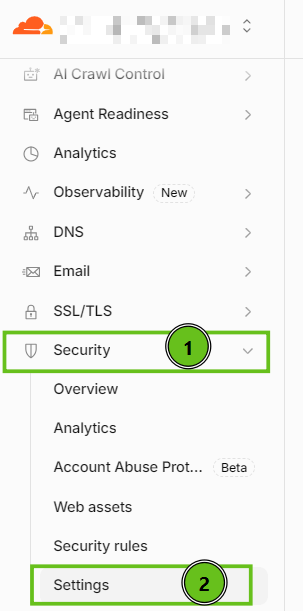
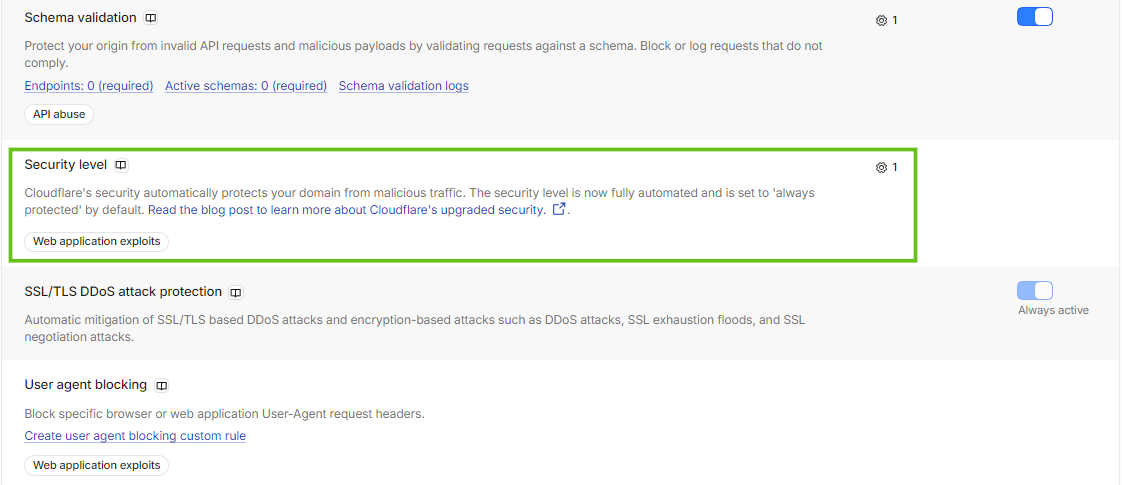
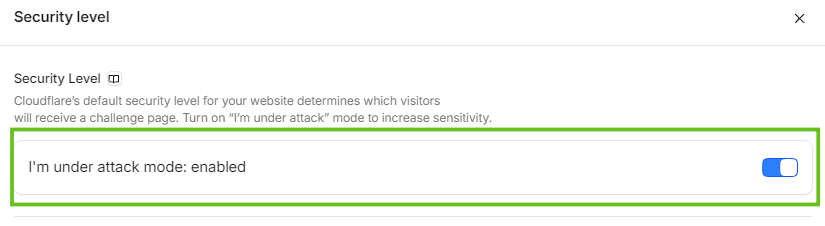
How to enable Under attack mode for the domain in Cloudflare account
Nowadays, a lot of businesses are suffering from such widespread malicious attempts as DDoS attacks.
A distributed denial-of-service (DDoS) attack is a cyber-attack which is intended to overload the server where the website is hosted with fake requests. As a consequence, the target becomes unable to resolve legitimate requests. This might cause a bad experience for visitors leading to reduced search engine rankings, and subsequent financial, and reputation loss.
The most obvious symptom of a DDoS attack is a website becoming slow or unreachable. If this outage happens, the visitors may face the following error:
504 Gateway Timeout server. The site can't be reached. domain.tld unexpectedly closed the connection. Error 503 Service Unavailable. 508 Resource Limit Is Reached. 408 Request Time-out. Your browser didn't send a complete request in time.
You can also check for possible reasons and solutions for the errors in
this article.
There are two cases when it is recommended to use DDoS protection implemented by Cloudflare which is called I'm Under Attack! mode:
You received an email with the following subject: “IMPORTANT: DDoS Attack targeted at Account/Website” from our Legal and Abuse team.
A DDoS attack was confirmed by our support representative in a chat/email with you.
Once your account or website is targeted, and you receive a confirmation, it is necessary to sign up for the Cloudflare plan at https://www.cloudflare.com/plans and log into your newly created account.