
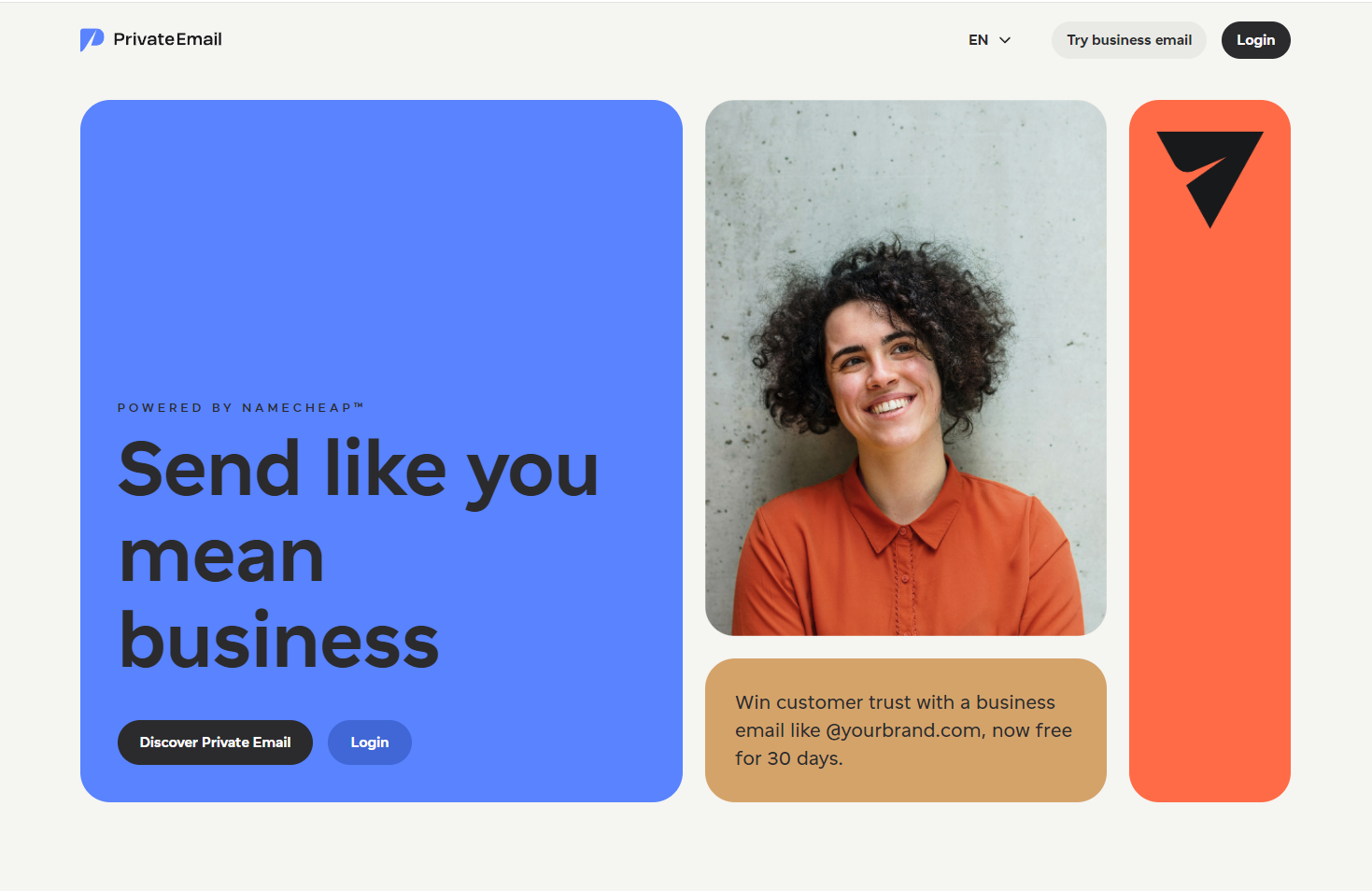
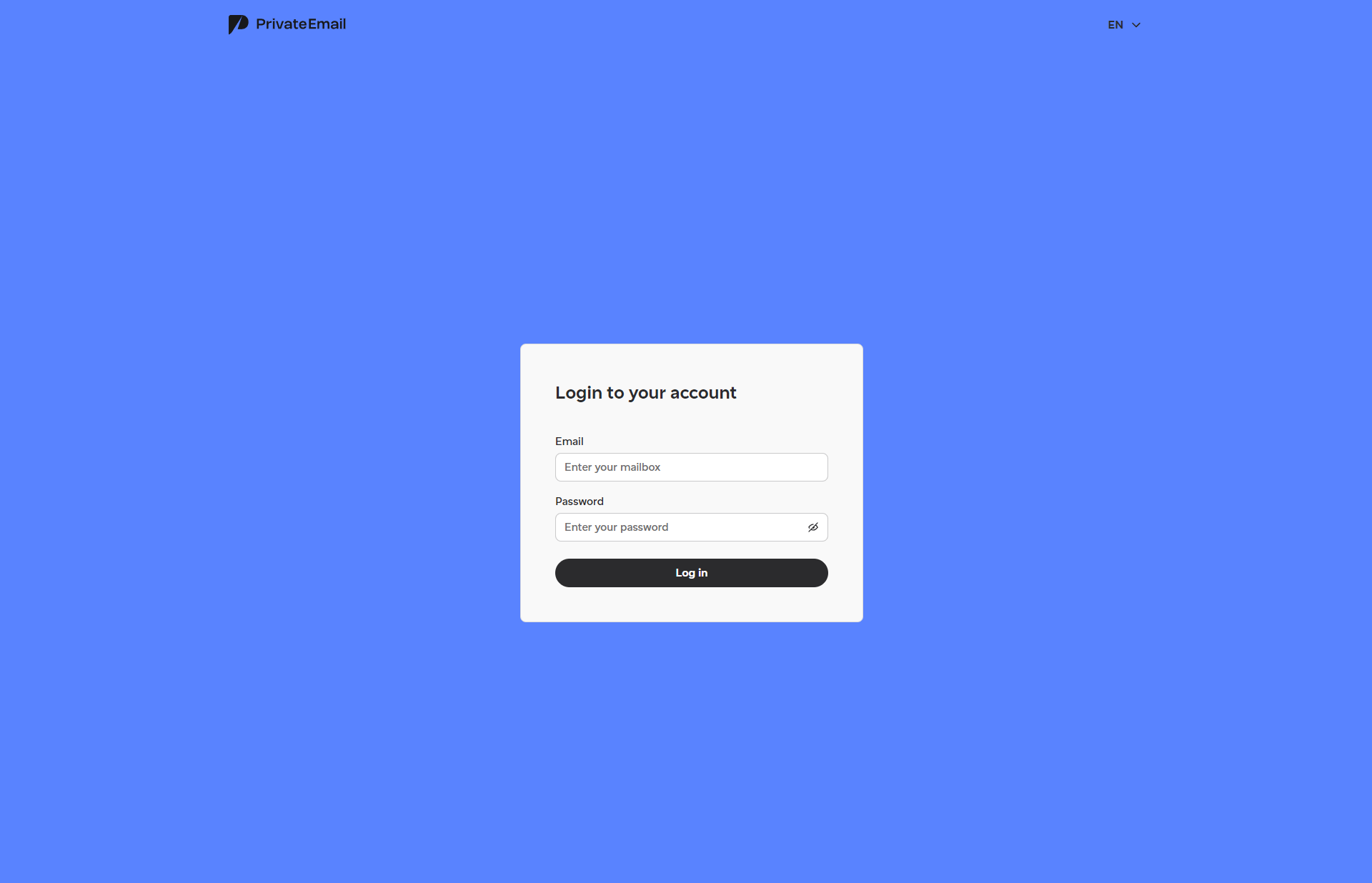
You can access Private Email webmail at https://privateemail.com or http://mail.yourdomain.tld, if the appropriate DNS records are set up. Use your full Private Email address as the username and the password to log in.
NOTE: it is possible to be logged into one Private Email account at the same time only from one browser.Alternatively, you can log into webmail from within your Namecheap account:
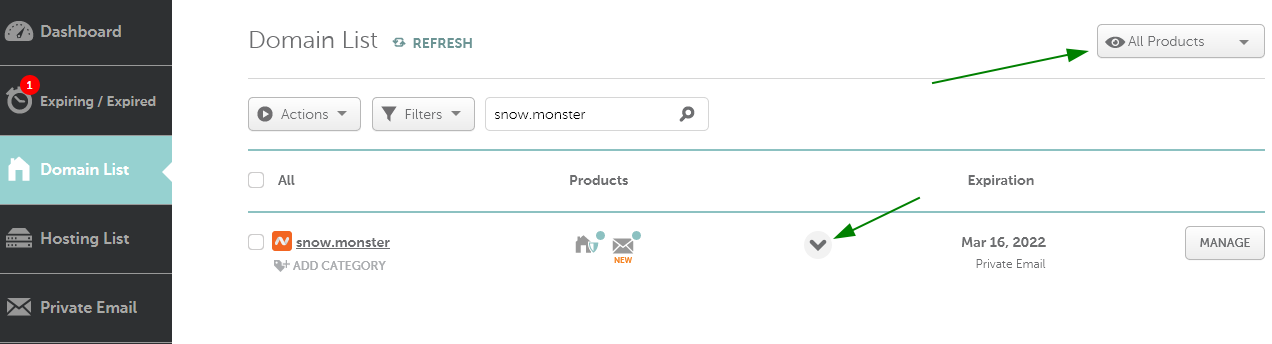
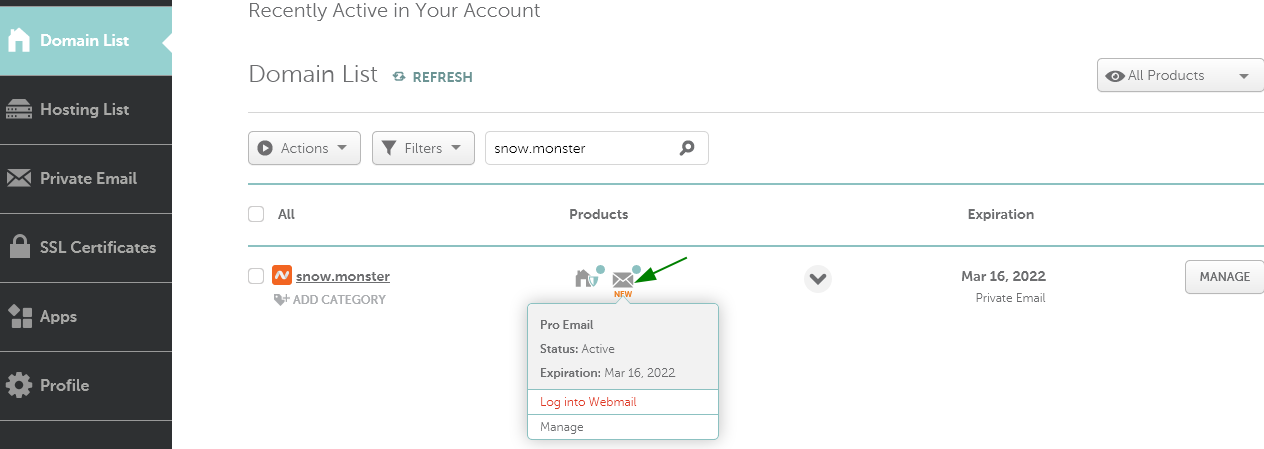
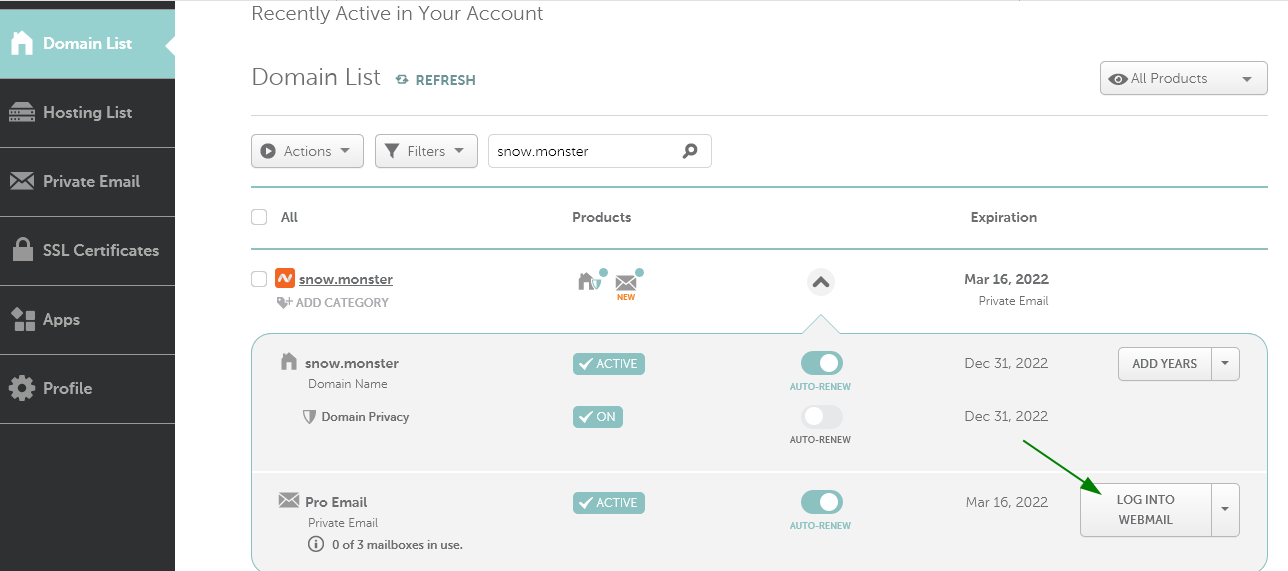
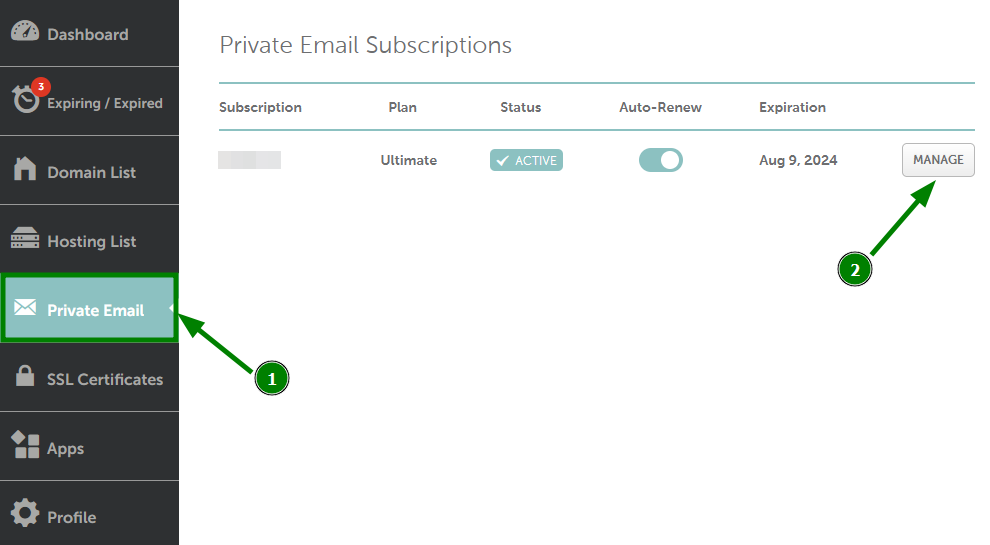
1. Go to Domain List menu on your left and look for the domain you have a Private Email subscription for.
2. Click on the caret to expand the list of the associated services (make sure All Products is selected in the top right corner) and click on Log into Webmail:
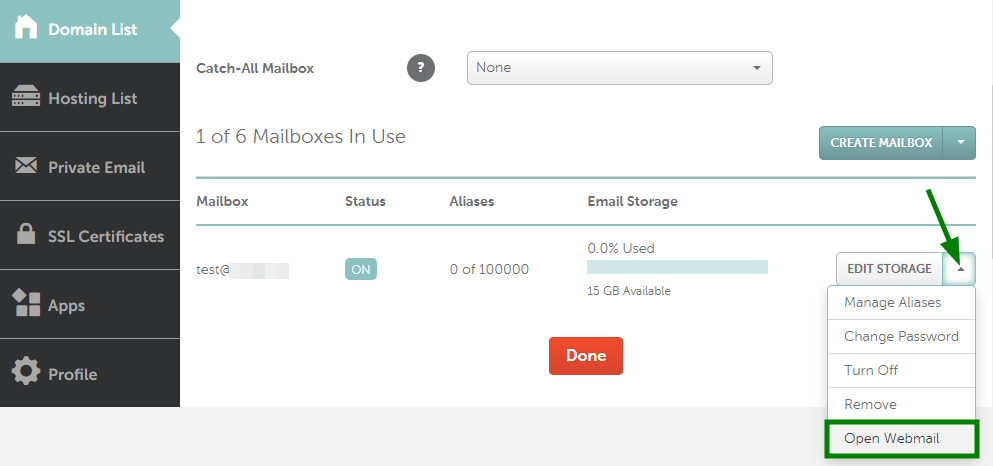
5. You will be taken to the Private Email login page. Here, you need to enter your full email address as your username and the password for your email account:
Login session duration for Private Email webmail is 2 days. This time is extended by an additional 7 days after performing any action inside (sliding refresh time).
For legacy subscriptions purchased before June 2, 2026, the login session duration is 7 days.
NOTE: If you do not remember the password for your email account, you can easily reset it following the steps in this guide.
That's it!
Need any help? Contact our HelpDesk
Need help? We're always here for you.