Your browser extension changed owners. Did it tell you?
The extension in your toolbar looks the way it did the day you installed it. Same name, same icon, same spot. That’s the problem. I’ve written before about extensions that steal your logins by disguising what they are. This is the quieter version: an extension that was exactly what it claimed to be, until the person controlling its updates changed.
In August, Socket’s threat research team documented 18 Chrome extensions and one Edge extension sharing the same malicious framework. Fourteen were built by the attacker and launched clean. Five were bought from legitimate developers and turned malicious in a later update. The biggest of the purchased ones had around 70,000 Chrome users when the malware arrived, plus about 10,000 on Edge. That’s a potential exposure of 80,000 people, not a count of victims, and it’s worth keeping the distinction. Nobody in that 80,000 did anything wrong. They installed a right-click unlocker.
What follows is an audit, not a panic list, and it takes less time than reading this.
The extension did not get hacked — it got a new owner
Picture the same tool with a different person behind it. Nothing on your screen changes. The extension keeps its name, its icon, its reviews, and its permissions, because all of those belong to the listing, and the listing is what was sold. Socket’s note on the Edge ecosystem puts it plainly: if the developer sells, users don’t get a notification that someone new now controls the updates.
Edge has a formal process for this. Microsoft’s own documentation calls it transferring ownership, and it says the new owner gains full control of the listing and updates. It also says the previous owner’s name stays visible to users until the new owner publishes an update. So the store page can carry the old name for a while after the old developer has gone.
Then the update arrives on its own. Chrome’s update lifecycle checks for new versions at startup and every few hours, and installs them once the extension is idle. Disabled extensions still get updated. Socket’s point is that a buyer inherits a delivery channel: an extension with 10,000 users, it notes, can change hands for under $2,000.
Legitimate sales happen all the time, and most new owners are just new owners. The gap is that you made your trust decision on install day, and the browser has been renewing it on your behalf every few hours since.
Start with the extensions you forgot you installed
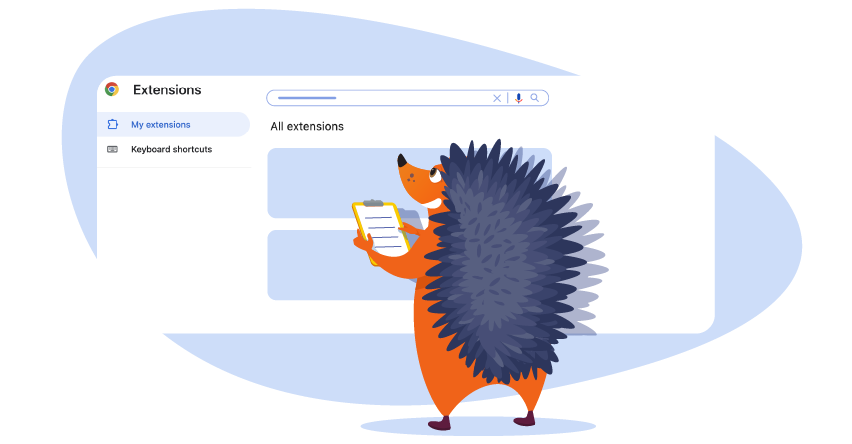
Open Chrome’sextension manager: More, then Extensions, then Manage extensions. Edge has the same page under its own menu. Each card has an on/off switch, a Details button, and a Remove button.
Remove first. Anything you haven’t used in a month is attack surface with no upside, and removing it is the cheapest security decision you’ll make this year. Don’t rank the survivors yet.
While you’re on that page, look for Chrome’s Safety Check panel. Since Chrome 117, it flags extensions that are no longer in the Web Store for one of three reasons: the developer unpublished them, they were taken down for a policy violation, or they were marked as malware. Malware gets disabled automatically. The other two are left to you, and “the store took this down, and I never noticed” is a good reason to remove one.
What remains is the list worth auditing.
Compare the permissions with the job
A permission warning describes what an extension can do, not what it intends. Google’s help page says it in one line: the warning doesn’t mean the extension is dangerous, just that it can be. So the test isn’t “is this scary?” It’s “does the job explain the access?”
Open Details on each extension and read the permissions in plain terms. Google’s permissions page sorts them by alert level. Reading and changing your data on all websites means every page you visit, including your bank and your business dashboards. Browsing history means it can read and erase where you’ve been. “Data you copy and paste” means access to your clipboard. Permission to manage your extensions can let it enable or disable other extensions, or request their removal, subject to Chrome’s safeguards.
A screenshot tool that wants your browsing history has some explaining to do. A tab manager that wants to read every page is asking for more than tabs.
The scarier the permission, the clearer the explanation should be, and reputable developers know it. Ad blockers are an obvious test case, because some need broad site access to block ads and hide unwanted page elements.AdBlock’s Chrome install page handles this the right way. It quotes the “read and change” warning, says why the extension needs each part of it, and states what it doesn’t do with the access, such as recording browsing history or capturing passwords. That’s the shape of a good answer. If an extension’s store page can’t give you one, the permission stands unexplained.
Where an extension only needs to work on a few sites, cut its reach. Under Details, Chrome lets you change site access from all sites to specific sites, or to only when you select the extension.
Treat new permissions as a new decision
Chrome does warn you about one kind of change. When an update adds a permission that triggers a warning, the extension is disabled until you accept the new permission. That prompt is the closest thing you get to an ownership alert, so treat it as a review, not a click-through.
Five checks, each tied to a decision:
- Name the change, in the plain terms above rather than the extension’s own summary of it.
- Name the feature that needs it. If you can’t, the extension hasn’t earned it.
- Look for the developer’s explanation: a changelog line or a store-page note counts, and silence doesn’t.
- Check whether anything else moved, such as the publisher name, the website, the privacy policy, or a run of reviews about odd behavior.
- Ask whether you’d install it today with this request. If not, leave it disabled and remove it.
Two cautions. Not every permission triggers a warning, so a quiet update isn’t proof of a quiet change, and accepting the warning grants ongoing access unless you revoke it or remove the extension.
Look for the clues around the code
You don’t need to read an extension’s source to notice it’s under new management. The listing leaks.
Check the publisher name against what you remember, and the website it links to. The privacy policy should exist and describe the extension you’re looking at. Look at the update date, then read the recent reviews for anyone saying the tool “started doing” something. Make sure you installed it from the official store and not from a download page. And see whether Safety Check or the store itself has flagged it.
Chrome Web Store policy requires developers to request the narrowest permissions their features need, to post a privacy policy if they handle user data, and to prominently disclose any change in data practices after installation. Policy is a floor, not a guarantee. Published extensions are reviewed, and the malicious ones in Socket’s list were eventually removed from the Chrome store. The Edge version of the biggest one was still live and serving malware when Socket published.
Some extensions deserve a shorter leash
Socket’s malicious modules went after wallets, seed phrases, exchange sessions, form fields, browser history, social accounts and, through fake “update your browser” prompts, whatever the user could be talked into running. Read that list against your extensions.
Anything that can read every page can read your admin dashboard, and anything that touches forms can see what you type into them. A tool that runs on crypto sites or your bank has a blast radius the average color picker doesn’t. One that can manage other extensions can switch off the one protecting you. None of those permissions is malicious. They raise the cost of being wrong about the person behind the update.
So triage. Tools that sit in that group get checked at every update prompt and every few months regardless. The rest can wait for the next cleanup.
If one went bad, removing it is only the first step
If an extension you had is on Socket’s list, or Safety check says it was pulled for malware, removing it closes the door on future harm. It does nothing about what already left. BleepingComputer’s coverage carries the advice that matters: assume credentials typed while it was installed are compromised and change them, and if you hold crypto, move it to a newly created wallet.
Do it in this order. Remove the extension. Update the browser. Change the passwords you used while it was active, starting with email, banking, your registrar and anything with your business’s money in it. Sign out of every session where the service lets you, so stolen cookies and tokens stop working. Review financial and wallet accounts for activity you didn’t make. And ignore any “your browser needs an update” prompt that appears in a page rather than in the browser’s own settings, because that lure was one of Socket’s modules.
For a tool that’s merely suspicious, scale it down: remove it, change the sensitive passwords if its permissions were broad, and watch your accounts for a few weeks.
Make every extension earn its next update
Extension review belongs with the other security basics people stop halfway through. The install-day check was never the whole job; the browser has been quietly updating every extension for you ever since.
Remove what you don’t use. Read the powerful ones against their jobs. Treat every new permission as a fresh install decision. For the high-trust categories, ad blockers and anything near your passwords, install from the official store only and keep an eye on the publisher name. Trust should expire unless the extension keeps earning it, and the next update is when it has to.