Keep your site secure with EasyWP’s WordPress Automatic Updates
Most successful WordPress attacks aren’t clever. They target outdated plugins, themes, and core files that site owners meant to update, then forgot about. A huge share of the sites you visit every day run on WordPress, and that popularity is exactly why attackers keep coming back to look for the same weak spots.
EasyWP Automatic Updates is a free feature that takes care of this for you. Paired with HackGuardian and MalwareGuardian, it gives your site a layered defense that closes security gaps and checks each update as it lands.
Let’s explore how Automatic Updates works, who it’s built for, and how to manage it.
What are EasyWP WordPress Automatic Updates?
Automatic Updates is a built-in EasyWP dashboard feature that detects and installs new WordPress core, plugin, theme, and translation updates on your behalf. Instead of relying on a separate plugin to manage updates, or setting yourself a reminder to log in and check what needs attention, Automatic Updates runs from inside the EasyWP dashboard you already use.
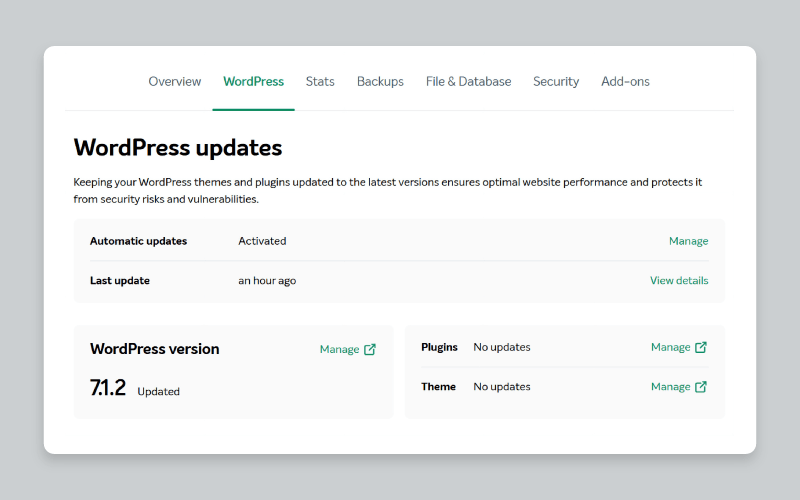
You can turn on every update type at once with a single toggle, or manage core updates, plugins, themes, and translations separately, depending on how much control you want over your site.
As of August 13, 2026, WordPress core security updates come turned on by default, covering minor releases only, so your site’s setup and appearance stay the same unless you choose to include major versions too.
Since WordPress introduced a rollback feature in version 6.6, sites running that version or later automatically revert to the previous working version if an update ever breaks something. Older WordPress versions don’t have this safety net, so updating to 6.6 or above gets you the full benefit of the feature.
Who WordPress Automatic Updates is for
WordPress Automatic Updates is built for anyone who wants a secure, current WordPress site without treating update management as a recurring chore.
- You run a small business site or online store and don’t have time to check for new plugin versions every week.
- You manage a blog, portfolio, or several freelance client sites and want one less routine task to repeat across each one.
- You know outdated plugins are a common security risk, but manually updating every one of them keeps slipping down your to-do list.
- You’ve dealt with a plugin conflict or a hack before and want the reassurance that HackGuardian and MalwareGuardian are watching each update as it happens.
If you find update reminders hard to keep track of, Automatic Updates takes that task off your plate.
When you should turn Automatic Updates off
Leaving Automatic Updates on is the safer default for most sites, since every day spent on an unpatched version is a day attackers can work with. However, there are still a few situations where pausing or deactivating updates makes sense:
Your setup depends on older plugins and custom code
- Long-neglected plugins and themes can fall over on even a minor upgrade. Keep in mind that a setup like this is not recommended in the first place, so bringing them up to date, or swapping them for maintained alternatives, protects you better than switching off your updates.
- You’ve got plugins that rely on undocumented WordPress behavior, or edit core files directly, instead of using the official hooks WordPress provides. Anything built that way can stop working when WordPress changes something under the hood, even in a small security release.
Version pinning for compatibility with plugins and themes
- You’d rather upgrade only once your entire stack explicitly supports the latest version.
- Minor upgrades are mostly security fixes, so the risk to your site is low.
Your site is heading into a busy period
- A sale, a launch, or a seasonal rush means more people on your site than usual, and you’d rather nothing changed until the peak has passed.
- Minor upgrades can briefly activate the maintenance page, and some of your visitors may catch it for a split second.
Compliance requirements
- You work in a regulated environment where every upgrade needs scheduling in advance.
- Deactivating Automatic Updates completely may be the only way to stay compliant.
If compliance rules aren’t the reason you’ve switched updates off, treat the pause as temporary. Your site stays exposed to vulnerabilities that already have a fix available. A middle ground worth considering is keeping minor security releases on while you manage plugins, themes, and major versions yourself.
How Automatic Updates keep your site secure
Keeping WordPress current does more than tidy up version numbers in your dashboard. Here are 4 common risks it helps protect you against.
- Outdated plugins and themes with known vulnerabilities
Plugin and theme vulnerabilities get discovered and published constantly, and attackers scan the web looking for sites still running the older version. Automatic Updates closes that window by installing patched versions as soon as they’re available, rather than leaving your site exposed until you remember to log in and check.
- Unpatched WordPress core files
The WordPress core itself receives regular security patches, and running an older version means missing fixes for issues that are often publicly documented soon after release. Recent months have brought a spike in critical core vulnerabilities, with two standing out:
- CVE-2026-87902, a path traversal flaw patched in WordPress 7.1.2 on September 22, 2026. Rated 9.2 on the CVSS scale, the flaw let unauthenticated attackers use double-encoded directory traversal to read local PHP files outside theme directories. Active exploitation was observed within hours of disclosure.
- The wp2shell chain was patched on July 17, 2026, in versions 6.8.6, 6.9.5, and 7.0.2. Combining CVE-2026-60137 and CVE-2026-63030, the chain let unauthenticated attackers create administrator accounts and run their own code on bare, default installations.
Neither attack needed a login, and wp2shell worked on default installations with nothing unusual about them. Both were fixed in minor releases too, which is exactly what core security updates cover. Automatic Updates applies these patches for you, so your site benefits from the latest fixes without needing to track release notes yourself.
- Sites that go quiet after launch
Plenty of hacked WordPress sites aren’t actively managed. The owner built the site, moved on to other priorities, and stopped checking for updates. Automatic Updates keeps working in the background even when you’re not logging in regularly, which matters most for the sites that would otherwise go unmaintained for months at a time.
- Failed updates that break your site
Updates rarely conflict with something already installed, be it a theme, a plugin, or a custom setting. On WordPress 6.6 and above, the built-in rollback feature automatically reverts a failed update to the previous working version, so a bad update doesn’t have to mean site downtime while you troubleshoot.
How Automatic Updates works with HackGuardian and MalwareGuardian
Automatic Updates covers one part of your site’s security, and works best with HackGuardian and MalwareGuardian switched on alongside it. Each handles a different job:
- Automatic Updates identifies and applies new versions of your WordPress core, plugins, and themes, closing known vulnerabilities as fixes are released.
- MalwareGuardian scans your updates for malware after installation, running on its own schedule rather than waiting on any particular update.
- HackGuardian protects your files against unauthorized changes, guarding the core, theme, and plugin directories that attackers target.
Running all three together is a deliberate design choice rather than a set of separate features that happen to sit in the same dashboard. Domonkos Cinke, Head of Cloud Infrastructure at Namecheap, explains that vulnerabilities are an unavoidable part of any software, which is why EasyWP surrounds your site with several layers of protection instead of relying on a single tool to catch everything.
“As humans, we make mistakes, and so do the people developing WordPress, themes, and plugins. At EasyWP, we understand that vulnerabilities are the nature of any software, so we built multi-layered security around your website. The layers protect your site in combination, so I always recommend using them all.”
—Domonkos Cinke, Head of Cloud Infrastructure at Namecheap
How to manage Automatic Updates in your EasyWP dashboard
Core security updates are already handled for you, but the same screen lets you extend automation to plugins, themes, and translations, or dial it back if you’d rather manage updates yourself.
Finding your update settings
- Log in to your EasyWP dashboard and select the subscription you want to manage.
- Go to the WordPress tab.
- Select Manage next to Automatic updates.
Choosing what updates automatically
Activating the toggle switches on all four components at once: WordPress core updates, plugins, themes, and translations. You can also activate them separately, known as partially activated automatic updates, so you keep manual control over whichever parts matter most to you. For example, as you can see below, as Themes and Translations are turned off, the status next to Automatic updates is ‘Partially activated’.
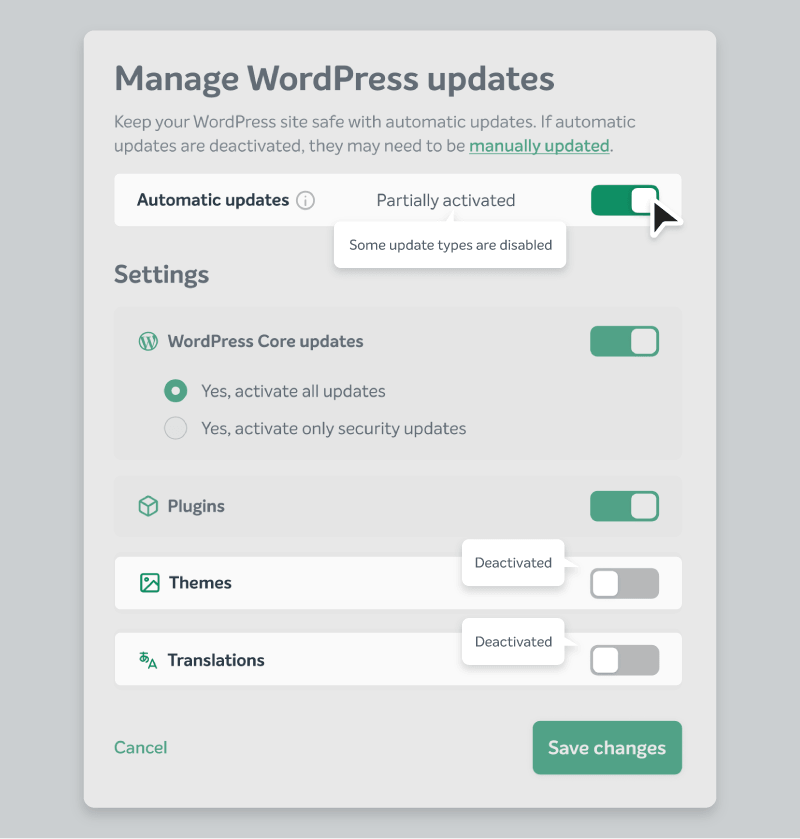
WordPress core updates come with two options of their own. Activating only security updates covers minor versions, such as 6.2.1 to 6.2.2. Activating all updates covers both minor and major versions, such as 6.2.1 to 6.3. Remember to select Save changes once you’ve made your selection.
Checking what’s been updated
The Updates page shows data from the last 30 days, including the WordPress version your site is currently running, so you can confirm what changed without digging through your site.
Best practices for getting the most from Automatic Updates
A couple of small steps make Automatic Updates even more effective.
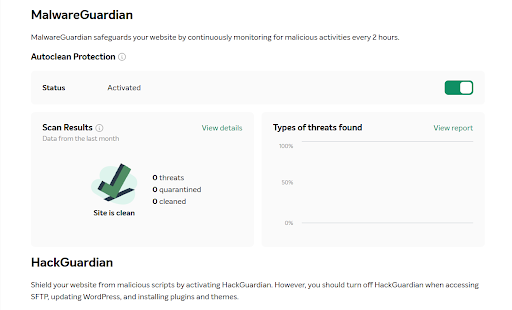
If you’re on a Turbo or Supersonic plan, turn on MalwareGuardian’s Autoclean protection. Any threat introduced during an update gets detected and neutralized automatically. Switch this on from the Security tab in your EasyWP dashboard.
Check for plugin conflicts before you turn Automatic Updates on. Third-party update managers, like WP Auto-Updater or Easy Updates Manager, can conflict with EasyWP’s own update process. Deactivating overlapping plugins avoids update issues before they start.
Why Automatic Updates make EasyWP security stand out
Keeping WordPress current often falls entirely to the site owner, or means installing and configuring yet another plugin to handle it. EasyWP builds Automatic Updates directly into the dashboard you already use, alongside HackGuardian and MalwareGuardian, so protecting your site doesn’t mean adding more moving parts to maintain.
Core security updates also arrive already switched on, rather than waiting for you to find the setting. The sites most exposed to known vulnerabilities tend to be the ones nobody remembers to check, so protection that starts working on its own is worth more than protection you have to go looking for.
FAQ: Automatic Updates on EasyWP
Is my site backed up before an automatic update runs?
Updates don’t create a backup of their own, but EasyWP’s AutoBackup feature covers you anyway. EasyWP automatically saves your WordPress files and database every 24 hours and keeps your last seven backups, none of which count toward your disk space. To restore or download one, open the Backups tab in your EasyWP dashboard, make sure AutoBackup is selected, then use the menu next to the version you need.
What happens if an automatic update breaks my site?
If your site runs WordPress 6.6 or later, the built-in rollback feature automatically reverts the update and restores the previous working version. On older WordPress versions, this safety net isn’t available, so upgrading to 6.6 or above is worth doing before you rely on Automatic Updates day to day. If you run into an issue after an update, contact EasyWP support for help.
Will Automatic Updates change how my site looks or move it to a new WordPress version?
Not by default. The WordPress core security updates turned on for every site only cover minor releases, not major version changes, so your site’s setup and appearance stay the same. If you turn on the rest of the feature yourself, you can choose whether major core versions are included as well.
Can I choose which parts of my site update automatically?
Yes. Instead of using the single toggle, you can manage WordPress core updates, plugins, themes, and translations separately. For core updates specifically, you can choose to apply only security-related minor updates, or apply both minor and major updates.