
Your website is accessible, but are your PDFs?
Somewhere on your site, there is a button that says “Download our guide.” The surrounding page is in good shape. You ran the contrast checks, fixed the heading order, labeled the forms, and can honestly say the site works with a screen reader. Then a visitor clicks the button, and all of that care hands off to a twelve-page PDF nobody has opened since the designer exported it.
The button, apparently, is where the accessibility project ends. Everything before it gets audited. Everything behind it gets uploaded.
That gap deserves attention. If you’ve already invested in accessible web design, the webpage layer is covered, and this audit doesn’t redo any of that work. It starts one click later, with the file itself. An image-only scan, a scrambled reading order, or an unlabeled form field can sit quietly behind a perfectly accessible page. For visitors who rely on assistive technology, the guide they came for is the part that doesn’t work.
A PDF is its own accessibility surface
A PDF is not a webpage in a different costume. It’s a separate document with its own internal structure, and none of your site’s semantics travel with it. The headings, landmarks, and alt text that make your pages navigable live in your HTML. The file behind the download button has to provide all of that again, on its own.
Inside a PDF, structure comes from tags, labels in the file that tell assistive technology what each piece of content is. A tagged heading reads as a heading. A tagged table keeps its header cells attached to its rows. Screen readers rely on that map to move through the document in an order that makes sense, so a PDF without tags, or with tags generated carelessly, can look completely normal on screen while exposing a jumble underneath. Two pieces of metadata also matter: the document title and its language, which assistive technology announces or uses for pronunciation.
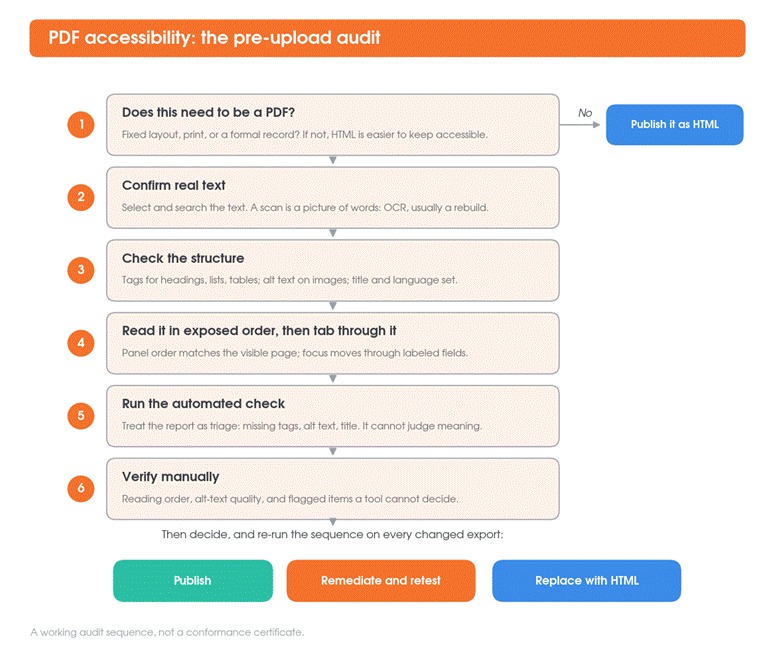
The first decision is whether the content should be a PDF at all. The guidance at Section508.gov leans clearly toward HTML, which tends to be easier to make accessible in the first place and much easier to keep that way through revisions. PDF still makes sense for printed forms, fixed layouts, and formal records. If the file is just an article that happens to end in .pdf, publish it as a page.
Start with the reading experience, not the checker
Before any tool renders a verdict, spend ten minutes reading the file the way assistive technology will. Open the PDF and try to select the text. If you can’t, or the selection grabs blocks in strange order, you’re probably holding a scanned image, and no amount of tagging fixes a picture of words. That file needs OCR at minimum, and usually a rebuild.
Then look at the structure. Acrobat and most serious PDF readers can show a tags or headings panel. Hold it up against the visible page. The panel’s headings should be the same ones your eyes find, in the same order a sighted reader would travel them: columns in sequence, captions with their images. Reading order is the classic failure: a two-column layout that reads straight across both columns is gibberish out loud.
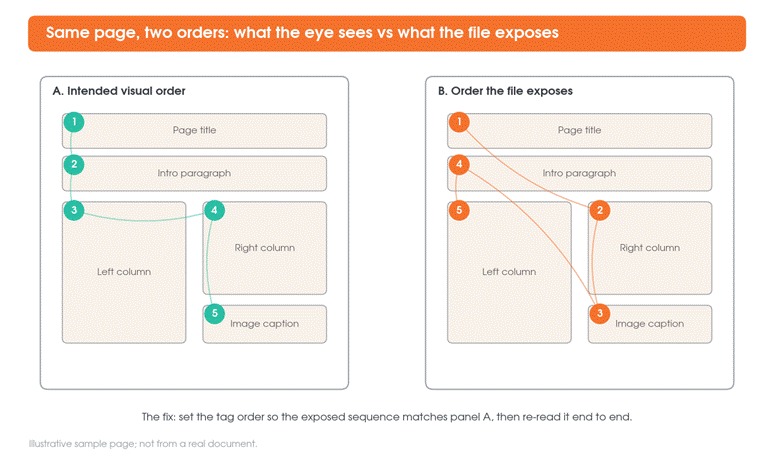
Here’s the question that decides most of this: does the document still make sense when you stop looking at the page? Read the content in the order the file exposes it. Check that every informational image has alternative text that says what it’s for, not just what it depicts. Check that lists are tagged as lists and tables as tables, with header cells marked, so the relationships survive without the visual grid.
Test the keyboard path and interactive parts
Interactive PDFs fail differently, so test them differently. Put the mouse away.
- Press Tab from the top of the document and watch where focus goes. It should move through links, buttons, and form fields in an order that matches the reading flow.
- Confirm you can see the focus at every stop. If it disappears into an invisible field, keyboard users get lost.
- Activate each control with Enter or the spacebar. Links should go where their text promises.
- In forms, check each field for a proper label, the expected format, and any instructions. A field whose only hint is placeholder text that vanishes on focus fails exactly when someone starts typing.
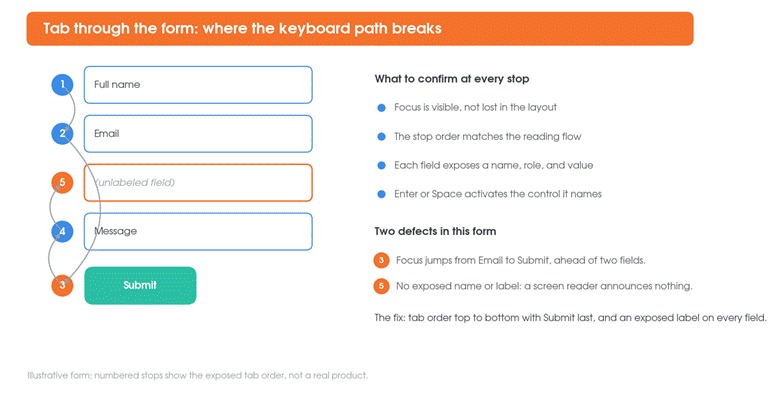
Reading order and tab order are related, but not the same thing, and fixing one does not fix the other. Form fields also need their name, role, and value exposed to assistive technology, which is what W3C’s technique for PDF forms covers. If an error message appears only as a red outline, the form works for exactly the people who didn’t need help.
Check what the automated report cannot decide
Save the automated checker for after the manual pass. Acrobat’s accessibility check will happily flag whatever the file lacks: tags, alt text, a title, annotation markup. Useful triage, all of it. What the report cannot tell you is whether the reading order makes sense, whether the alt text says anything worth hearing, or whether the tags describe the document’s actual logic.
Notice what the report format itself admits. Alongside passed and failed items sits a third category: needs manual check. Logical reading order usually lands there, because the tool cannot judge it. So does the question of whether a chart still communicates when its colors are the only thing distinguishing the lines. A document can also carry a full set of automatically generated tags that are structurally wrong, page after page of paragraphs where the headings should be. The checker counts tags. It doesn’t read them.
Fix the source file before patching the PDF
When the audit turns up real problems, resist the urge to repair the PDF directly. Most of what’s wrong was already wrong in the source document, which is where a fix actually lasts. Say the report in Word was written without real heading styles: you can tag the export by hand today, but every future revision restarts that job from zero, and sooner or later a hurried one ships untagged.
Fixing the Word or InDesign file once is the better trade. Give it real heading styles, build lists and tables with the actual list and table tools, write the alt text into the source, set the title and language, and export with tagging on. Every future version then inherits that structure for free. Direct PDF remediation still has a role in fixing issues that remain after a clean export, but it shouldn’t become a routine substitute for fixing the source. Once documents start going out at volume, dedicated document accessibility tooling can carry part of that load by generating tags and basic structure automatically, though alt text, reading order, and the final reading experience still need a human pass. And keep the editable file next to its PDF wherever that lives. A PDF that loses its source becomes a document you can only patch.
Make accessibility part of the upload workflow
None of this matters if it happens once. Documents get revised, replaced, and re-exported, and each new file arrives with none of the previous file’s fixes guaranteed.
So make the audit boring and repeatable. Give it an owner: whoever publishes the file confirms the checks ran, the same way someone already confirms the link works. The pre-upload sequence is short. Decide whether it should be HTML instead. Confirm real text. Check structure, reading order, and the keyboard path. Run the checker, then verify manually what it can’t judge. Re-run all of it on every changed export, because a revision is a new file, not an update to an approved one.
Your accessibility statement covers the site. Make sure the downloads folder isn’t the exception it forgot to mention.